
Hard Drive vs. SSD Failure: How Each Type Dies and What the Warning Signs Look Like

Key Takeaways
- HDDs fail mechanically, producing audible warning signs like clicking or grinding before complete failure.
- SSDs fail silently through cell wear, often giving little warning before data becomes inaccessible.
- Both drive types benefit from S.M.A.R.T. monitoring tools that can flag problems before a full crash.
- Regular backups remain the single most effective protection against data loss from either drive type.
- Heat accelerates failure in both HDDs and SSDs, making thermal management an important preventive step.
Our Verdict
HDDs and SSDs each have distinct failure modes that require different early-warning strategies. HDDs tend to announce their decline through physical symptoms, giving users a slightly longer window to act, while SSDs can go from functional to unreadable with little notice. Knowing which drive you have — and monitoring it accordingly — is the most practical defense against sudden data loss.
| Best for | Recommended |
|---|---|
| Users who want audible or visible warning before failure | HDD monitoring (listen for clicks, watch for slowdowns) |
| Users prioritizing silent, shock-resistant storage with proactive monitoring | SSD with S.M.A.R.T. health tracking |
| Anyone concerned about long-term data safety | Regular backups regardless of drive type |
Why Drive Type Determines How Failure Happens
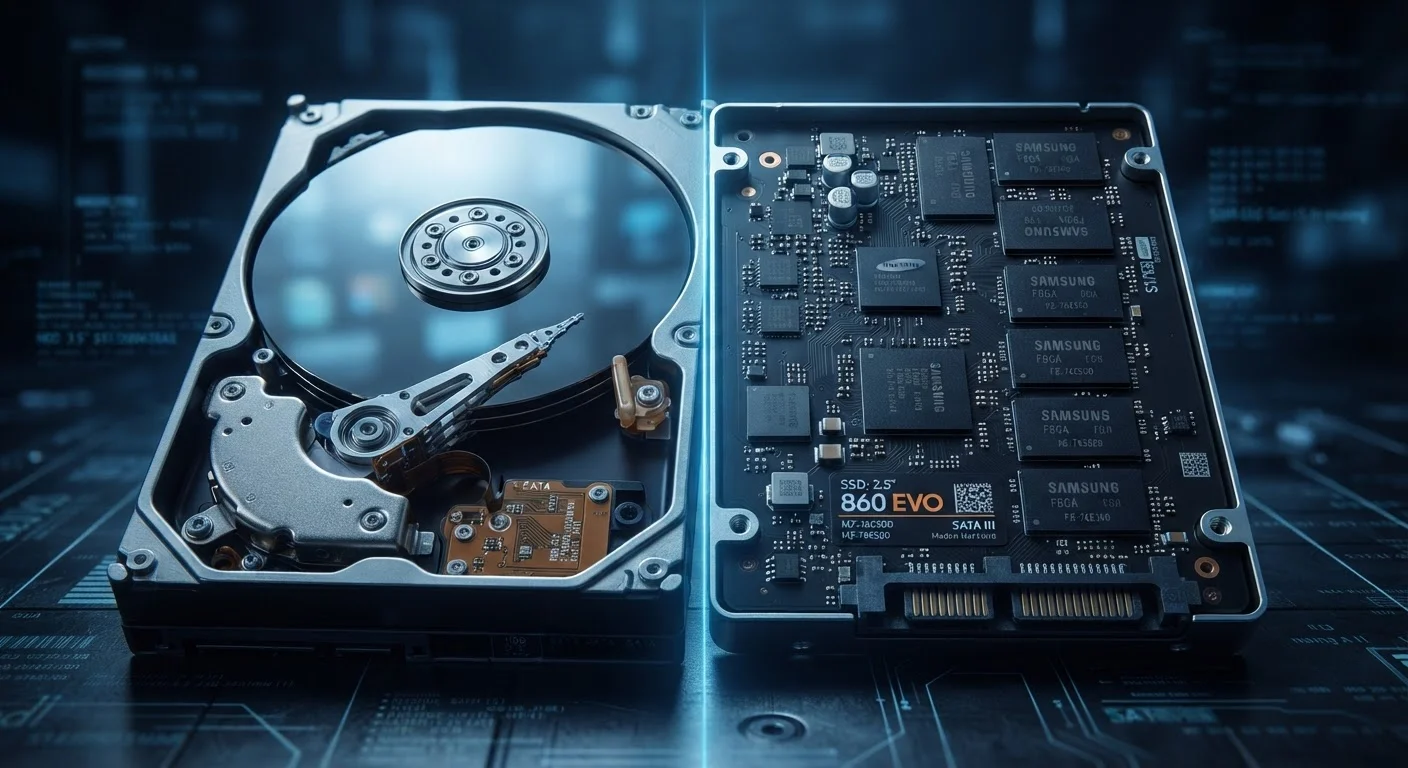
Hard disk drives (HDD) store data on spinning magnetic platters read by a mechanical arm. Solid-state drives (SSD) store data in flash memory chips with no moving parts. That fundamental difference shapes everything about how each drive deteriorates over time.
Because HDDs are mechanical, they wear out the way any physical machine does — bearings degrade, read heads drift, platters accumulate surface damage. SSDs, by contrast, degrade at the cellular level: each memory cell can only be written to a finite number of times before it can no longer hold a charge reliably. Understanding this distinction helps you know which symptoms to look for. See our overview of how each drive stores data for additional context on the underlying technology.
How HDDs Fail — and What You'll Notice
Mechanical failure in an HDD typically follows a gradual arc, often with noticeable symptoms along the way.
- Clicking or grinding sounds: A repetitive clicking noise — sometimes called the 'click of death' — usually means the read/write head is failing to find its home position. Grinding can indicate platter surface damage. Either sound warrants immediate action.
- Slow file access or long load times: When the drive struggles to read a sector (a small storage unit on the platter), it retries multiple times, causing delays. Frequent pauses during file transfers are a common early sign.
- Bad sectors: Portions of the platter that can no longer store data reliably. Disk-checking tools like Windows' built-in chkdsk command can detect these.
- Unexpected crashes or freezes: If your computer freezes specifically during disk-intensive tasks — opening large files, running backups — the drive may be struggling.
- Disappearing files or file system errors: Corrupted directory structures can cause files to vanish or become unreadable.
HDDs are also sensitive to physical shock. A dropped laptop with a spinning hard drive can suffer immediate head crashes, where the read arm physically contacts the platter surface. Excessive heat also accelerates bearing and motor wear.
Act at the First Sound of Clicking
If your HDD starts clicking or grinding, stop using it immediately and avoid running disk repair tools on it. Continued operation can worsen physical damage and reduce the chances of data recovery. Power it down, back up what you can if the drive is still partially accessible, and consult a professional recovery service if the data is critical.
How SSDs Fail — and Why It's Harder to Spot
SSD failure tends to be less dramatic but more sudden. Because there are no moving parts, there are no mechanical sounds to alert you. Instead, degradation happens quietly at the memory cell level.
- Write endurance exhaustion: Every cell has a limited number of program/erase cycles. When cells wear out, the drive may switch affected areas to read-only mode — your data becomes accessible but can't be updated — before eventually becoming unreadable.
- Read disturb errors: Reading data from one cell can occasionally corrupt adjacent cells. Well-designed SSDs manage this internally, but heavily used drives may develop uncorrectable errors over time.
- Sudden, complete failure: Unlike HDDs, SSDs can go from apparently healthy to entirely unresponsive without intermediate symptoms. This makes proactive monitoring especially important.
- Sluggish write speeds: A significant and unexplained drop in write performance can indicate the drive is running low on healthy cells or has entered a degraded operating mode.
- Frequent application crashes or file corruption: If software crashes repeatedly on a drive that otherwise seems fine, storage errors may be the culprit.
| HDD | SSD | |
|---|---|---|
| Primary failure cause | Mechanical wear (bearings, heads, platters) | Cell wear (write endurance exhaustion) |
| Audible warning signs | Yes — clicking, grinding, whirring | No — fails silently |
| Failure onset | Gradual, with early symptoms | Often sudden with little warning |
| Shock sensitivity | High — moving parts can be damaged by drops | Low — no moving parts |
| Heat sensitivity | High — accelerates motor and bearing wear | Moderate — affects cell longevity over time |
| S.M.A.R.T. monitoring usefulness | Useful — tracks sector errors and retries | Useful — tracks write endurance and error counts |
| Recovery likelihood after failure | Higher with professional recovery services | Lower — failed chips are harder to recover |
Monitoring Tools and When to Use Them
Both drive types support S.M.A.R.T. — a built-in diagnostic system that tracks health indicators over time. Free tools such as CrystalDiskInfo (Windows) or Disk Utility (macOS) can read S.M.A.R.T. data and flag drives approaching failure thresholds.
For HDDs, watch S.M.A.R.T. attributes related to reallocated sectors, spin retry counts, and seek error rates. For SSDs, pay attention to total bytes written (a measure of how close the drive is to its write endurance limit), wear leveling count, and uncorrectable error counts.
Neither tool is infallible — a drive can pass S.M.A.R.T. checks and still fail suddenly — but regular monitoring provides far more warning than waiting for symptoms. If you're weighing an upgrade to avoid these concerns, our guide on replacing a hard drive with an SSD walks through the process safely. For a broader comparison of everyday performance differences, see what the storage difference means for desktop users.
~3–5 years
Typical HDD operational lifespan
Backblaze's long-term drive reliability studies suggest most consumer HDDs begin showing elevated failure rates between years 3 and 5 of continuous use.
~5–7 years
Typical SSD operational lifespan
SSD manufacturers generally rate consumer drives for hundreds of terabytes of total writes, which for average users translates to roughly 5–7 years of normal use.