
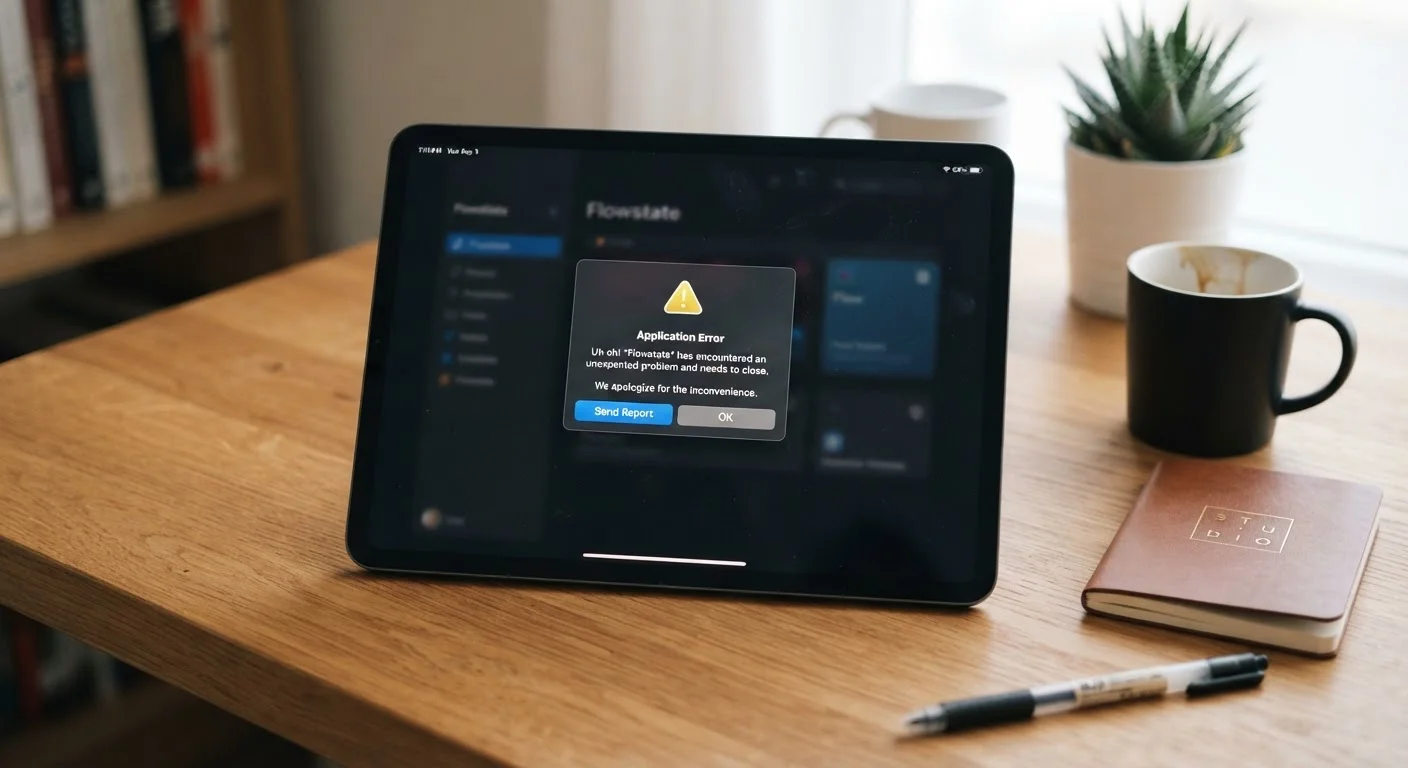
Apps Crashing Repeatedly on Your Tablet? Work Through These Fixes in Order

Key Takeaways
- Most app crashes trace back to corrupted cache, low storage, or outdated software — all fixable without professional help.
- Working through fixes in order prevents unnecessary steps like a factory reset.
- Clearing an app's cache removes temporary junk data without deleting your personal settings or account info.
- Persistent crashes after all steps may indicate a hardware issue or a bug in the app itself.
- Keeping your OS and apps updated is the single most effective way to prevent future crashes.
What you will need
Why Apps Crash on Tablets
App crashes happen when a program encounters a condition it can't handle — a corrupted temporary file, a memory conflict, an incompatible OS version, or simply not enough free storage to run properly. Tablets are more prone to these issues than desktops because they operate with tighter memory constraints and less aggressive background maintenance.
Before diving into fixes, it helps to note which apps are crashing. If only one app crashes, the problem almost certainly lives within that app or its data. If multiple apps crash, or the tablet itself freezes, the issue is more likely system-wide — low storage, a bad OS update, or a hardware fault. For a broader look at managing apps day-to-day, see our guide to managing apps on your smartphone, which applies equally to tablets.
Note Which Apps Are Crashing First
Before touching any settings, spend a minute logging which apps crash, how often, and whether it happens on launch or during specific actions. This pattern narrows down the cause quickly — a single app points to app-level data corruption, while several apps crashing suggests a system-level problem such as low storage or an OS conflict.
Step-by-Step Fixes
Follow these steps in order. Many crashes resolve at step two or three, so you may not need to go all the way to the end.
Restart the tablet
A full restart clears the device's active memory (RAM) and closes background processes that may be conflicting with the crashing app. Hold the power button and select Restart — not just sleep. If the tablet is completely unresponsive, hold the power button for 10–15 seconds to force a shutdown, then power back on.
Clear the app's cached data
Apps store temporary files called cache to speed up loading. Over time these files can become corrupted and trigger crashes. On Android: go to Settings > Apps, tap the problematic app, then tap Storage > Clear Cache. On iPadOS: you generally need to offload and reinstall the app, since iOS manages cache automatically without a dedicated clear button. Clearing cache does not delete your login credentials or app data.
Check and free up storage space
Tablets with less than 10% of their storage free often experience app instability because the OS needs working space to write temporary files. Check storage at Settings > Storage (Android) or Settings > General > [Device] Storage (iPadOS). Delete unused apps, old downloads, and large media files until you have at least 1–2 GB free.
Update the app
Open your device's app store, navigate to the app in question, and check whether an update is available. Developers routinely release patches that fix crash-causing bugs. Install any pending update, then relaunch the app and test whether the crash recurs.
Update the tablet's operating system
An outdated OS can conflict with apps built for newer system APIs. Go to Settings > Software Update (Android) or Settings > General > Software Update (iPadOS) and install any pending system update. Connect to Wi-Fi and plug in the charger before starting — OS updates can be large and battery-intensive.
Uninstall and reinstall the app
If cache-clearing and updates haven't resolved the issue, a full reinstall replaces any corrupted app files. Press and hold the app icon, select Uninstall (or Remove App on iPadOS), then download a fresh copy from the app store. Sign back into the app and test it.
Perform a factory reset (last resort)
If multiple apps crash and no earlier step has helped, a factory reset returns the tablet to its out-of-box state, eliminating any deep system corruption. On Android: Settings > General Management > Reset > Factory Data Reset. On iPadOS: Settings > General > Transfer or Reset iPad > Erase All Content and Settings. After the reset, restore from a backup or set up fresh.
If your tablet's screen is also freezing or failing to register taps during a crash, the problem may extend beyond software. Our guide to diagnosing an unresponsive touchscreen covers that scenario separately.
Don't Skip Steps Out of Order
It's tempting to jump straight to a factory reset when an app keeps crashing, but that erases all your data unnecessarily in most cases. The steps above are sequenced from least to most disruptive — following them in order saves time and avoids data loss for the majority of users.
When Nothing Works
If apps are still crashing after completing all steps, consider two remaining possibilities. First, the app itself may have a known bug — check the developer's support page or user reviews for reports of the same problem on your tablet model or OS version. Waiting for the developer to release a patch is sometimes the only option.
Second, persistent system-wide instability following an OS update can signal that the update itself was problematic. Our article on recovering from a bad software update walks through those specific symptoms and remedies.
To reduce the likelihood of crashes in the future, building a few consistent maintenance habits goes a long way. Our guide to keeping your phone in good shape outlines practical routines that apply directly to tablets as well.
Back Up Before a Factory Reset
A factory reset is irreversible. All apps, photos, contacts, and settings stored only on the device will be permanently deleted. Before proceeding, back up the tablet to a cloud account or a computer and verify the backup has completed successfully. Restoring from an incomplete backup may leave you with missing data.