

Key Takeaways
- HDDs use spinning magnetic platters to store data; SSDs use flash memory chips with no moving parts.
- SSDs are significantly faster at reading and writing data, which affects everyday responsiveness.
- HDDs typically offer more storage capacity for the same price, making them cost-effective for bulk files.
- SSDs are more resistant to physical shock and generally run cooler and quieter than HDDs.
- Many desktop setups pair both drives to balance speed and cost-effective high-capacity storage.
- Failure modes differ: HDDs often warn before failing, while SSDs can stop working with less notice.
Option A
HDD (Hard Disk Drive)
The long-established, high-capacity storage workhorse.
Best for: Desktop users who need large amounts of storage space at a lower cost per gigabyte.
Option B
SSD (Solid-State Drive)
The faster, more durable modern alternative.
Best for: Users who want noticeably quicker boot times, faster app launches, and quieter operation.
If you store large media libraries, backups, or archives
HDD (Hard Disk Drive)
HDDs provide substantially more storage per dollar, making them practical for holding thousands of photos, videos, or documents without large upfront cost.
If everyday speed and system responsiveness matter most to you
SSD (Solid-State Drive)
SSDs dramatically reduce boot times and application load times, making your desktop feel noticeably more responsive in daily use.
If your desktop is in a space where it might be bumped or moved occasionally
SSD (Solid-State Drive)
Because SSDs have no moving mechanical parts, they are far less susceptible to damage from vibration or minor physical impact.
If you want the most practical balance of speed and storage value
HDD (Hard Disk Drive)
Pairing a smaller SSD for your operating system with a larger HDD for file storage lets you get fast performance while keeping bulk storage affordable.
How Each Drive Actually Works
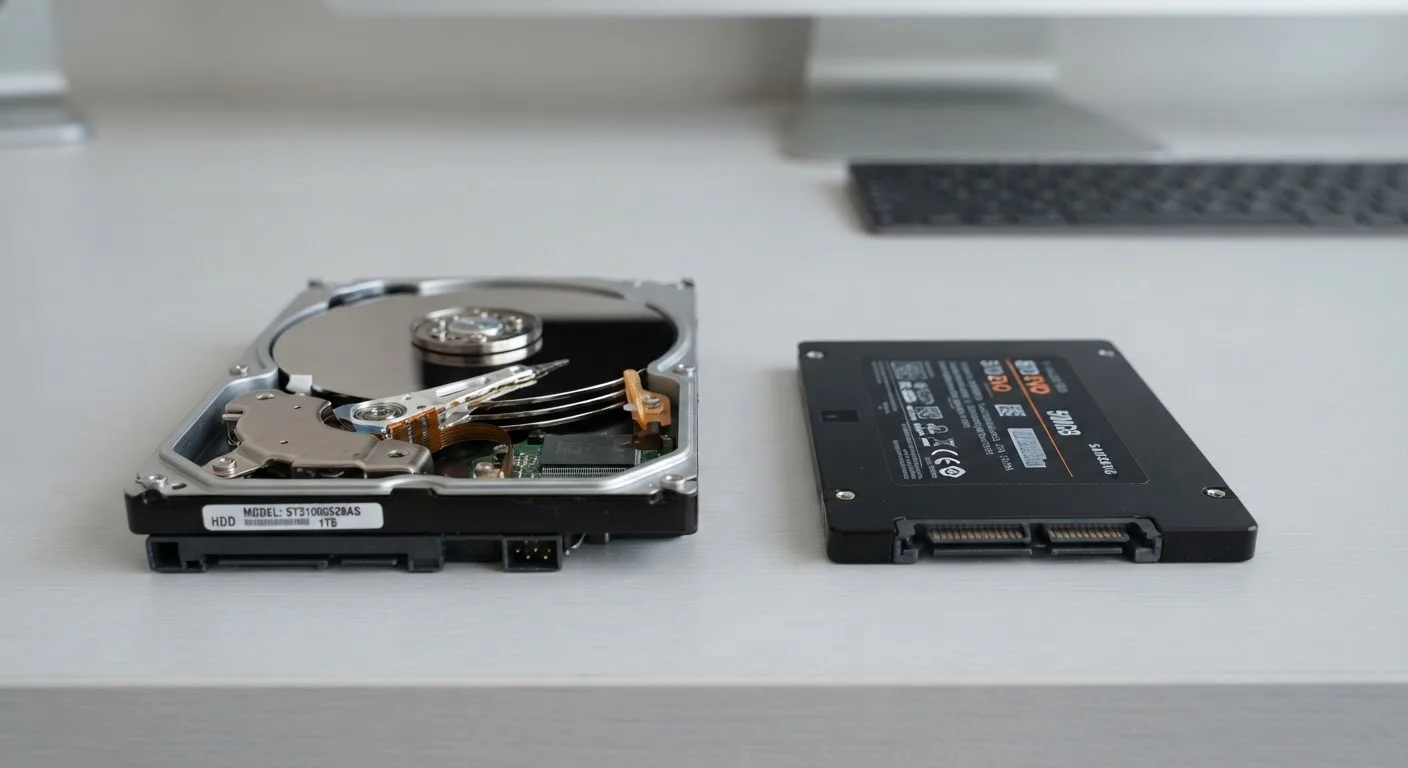
An HDD (Hard Disk Drive) stores data on spinning magnetic platters. A mechanical arm moves across the platters to read and write information - similar in principle to how a record player reads a vinyl record. Because physical movement is involved, the drive takes a small but measurable amount of time to locate and retrieve data.
An SSD (Solid-State Drive) stores data in flash memory chips - the same underlying technology used in USB drives and smartphones. There are no spinning parts and no moving arm. Data can be accessed almost instantly from any location on the chip.
This mechanical difference is the root cause of most of the practical distinctions between the two. It explains why SSDs feel faster, run quieter, and tend to handle physical stress better. For a deeper look at how these differences play out once you're using a drive day to day, see our guide to what changes when you switch storage types.
| Criterion | HDD | SSD |
|---|---|---|
| Technology | Spinning magnetic platters | Flash memory chips |
| Typical boot time | 45-90 seconds | Under 15 seconds |
| Cost per terabyte | Lower | Higher |
| Noise level | Audible hum or clicking | Silent |
| Shock resistance | Vulnerable when in use | Highly resistant |
| Power consumption | Higher | Lower |
| Common storage sizes | 1TB-8TB typical | 250GB-4TB typical |
| Failure warning signs | Often gradual (clicking, slowdowns) | Can be sudden, less predictable |
Speed, Capacity, and Cost in Practice
In desktop use, the speed gap between HDDs and SSDs is most obvious when starting up your computer or opening large applications. A desktop with an SSD as its primary drive will typically reach a usable state in under 15 seconds from a cold boot. An equivalent machine running on an HDD alone can take a minute or more.
Where HDDs hold a real advantage is in storage density per dollar. As of current market pricing, a 4TB HDD generally costs a fraction of what an equivalent-capacity SSD would. That makes HDDs a sensible choice for storing large video files, photo archives, or long-term backups - cases where the sheer volume of data matters more than raw access speed.
~5-10x
Speed advantage of SSDs over HDDs
Sequential read speeds for consumer SSDs commonly range from 500MB/s to over 3,000MB/s, compared to 80-160MB/s for typical HDDs.
3-5x
Typical HDD cost-per-TB advantage
In the current US consumer market, high-capacity HDDs generally offer significantly more storage per dollar than equivalent SSDs.
Many desktop users adopt a hybrid approach: an SSD holds the operating system and frequently used applications, while a secondary HDD stores documents, media, and archives. This setup keeps the system feeling fast without requiring a large SSD investment. If you're also considering how cloud solutions fit into your storage strategy, our breakdown of personal cloud storage versus external hard drives is a useful companion read.
Reliability, Noise, and Longevity
Because HDDs contain moving parts, they are inherently more vulnerable to mechanical wear over time. They also produce audible noise - a faint hum or clicking sound - and generate slightly more heat than SSDs. In a desktop that runs for long hours, this can add up. HDDs are also more likely to suffer damage if a desktop tower is knocked over or moved while the drive is spinning.
SSDs, with no mechanical components, tend to run silently and at lower temperatures. They are generally more tolerant of vibration and physical impact. However, SSDs are not without their own failure risks. Flash memory has a finite number of write cycles, and when an SSD approaches the end of its lifespan, it can sometimes fail more abruptly than an HDD, which often shows gradual warning signs first. Our article on how HDDs and SSDs fail differently covers the specific warning signs to watch for with each type.
SSD Failure Can Happen Without Warning
Unlike HDDs, which often degrade gradually with audible signs before failing completely, SSDs can stop functioning with little advance notice. This doesn't make SSDs unreliable overall, but it does reinforce why an independent backup routine matters regardless of drive type. Cloud storage or a separate external drive can protect your files even if your primary drive fails unexpectedly.
Regardless of which drive type you use, maintaining regular backups remains essential. Neither HDDs nor SSDs are immune to unexpected failure, and no storage technology should be treated as a permanent safety net on its own. To better understand how storage fits alongside other hardware considerations, see our explainer on the difference between RAM and storage.