

Key Takeaways
- Overheating often shows up as unexpected shutdowns, sluggish performance, or unusually loud fans before hardware damage occurs.
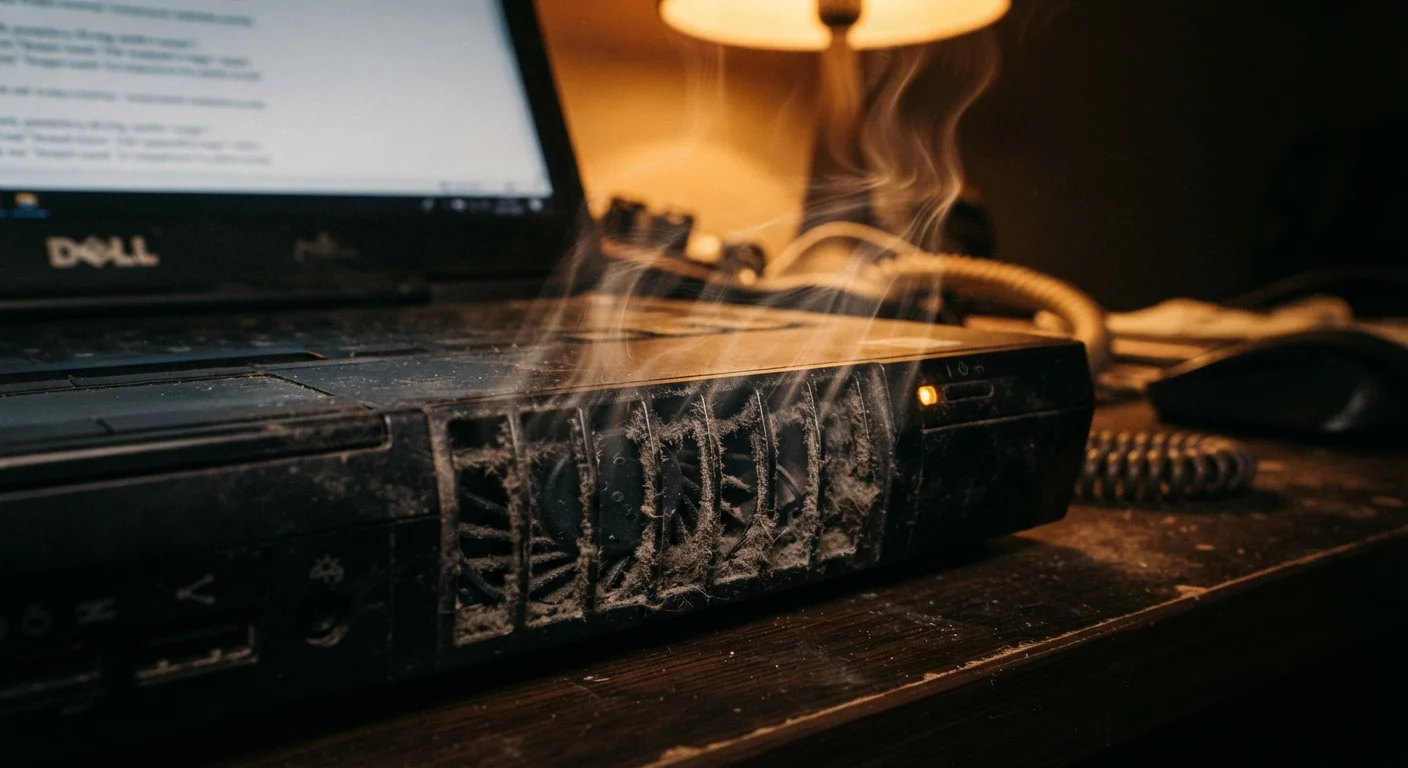
- Dust buildup blocking vents is one of the most common and preventable causes of computer overheating.
- Ignoring early heat warnings can permanently damage the CPU, GPU, or motherboard.
- Free temperature-monitoring software can help you detect dangerous heat levels before symptoms worsen.
- Simple habits — like improving airflow and cleaning vents regularly — can extend your computer's lifespan significantly.
Why Overheating Is a Bigger Risk Than Most Users Realize
Modern computers are engineered to handle heat, but only up to a point. When internal temperatures climb beyond safe thresholds — typically above 90°C (194°F) for most processors — the system begins protecting itself through thermal throttling (slowing down to generate less heat) and, eventually, forced shutdown. Repeated exposure to extreme heat degrades components over time, shortening their functional lifespan even if no single event causes obvious failure.
The frustrating part is that many users don't connect the symptoms to heat. A computer that randomly powers off, runs unusually hot to the touch, or stutters through everyday tasks might seem like it has a software glitch — when the real culprit is thermal stress. Understanding the warning signs early gives you the chance to intervene before repair costs rise or data is lost.
For consumers who've noticed their machine slowing down alongside heat issues, our article on why laptops slow down over time explains how heat is often part of a larger performance picture.
Ignoring fan noise as a performance symptom.
Why it happens: Fans speeding up feels like a normal part of heavy computer use, so most users tune out the sound without investigating further.
Using a laptop on soft surfaces like beds, couches, or pillows that block the vents.
Why it happens: Laptops are marketed as portable devices, and users naturally use them wherever it's comfortable without thinking about airflow requirements.
Assuming an unexpected shutdown is a software crash rather than a heat-triggered safety cutoff.
Why it happens: Both shutdowns look identical from the user's perspective — the screen goes dark without warning — making it easy to misattribute the cause.
Never cleaning dust from internal vents or filters.
Why it happens: Dust accumulation is gradual and invisible, so users don't notice the problem until the machine is already struggling to cool itself.
Running demanding applications in a hot room or direct sunlight without accounting for ambient temperature.
Why it happens: Users focus on what the computer is doing, not the environment it's doing it in. A room that feels warm to humans can push internal components close to their thermal limits.
Dismissing sluggish performance as a sign the computer is simply old, missing the heat-related cause.
Why it happens: Thermal throttling — where the processor slows itself down to reduce heat — mimics the symptoms of an underpowered or aging machine, so users often attribute the slowness to age rather than temperature.
How to Monitor Temperatures and Act on What You Find
Diagnosing overheating doesn't require specialized hardware. Free tools such as HWMonitor (Windows) and iStatMenus (macOS) display real-time temperature readings for your CPU, GPU, and storage drives. As a general guideline, CPU temperatures under 70°C during normal use are healthy; sustained readings above 90°C under load are a concern worth acting on immediately.
Don't Rely on Touch Alone to Assess Heat
A chassis that feels warm to the touch doesn't reliably tell you whether internal components are within safe temperature ranges. The outer casing can feel only mildly warm while the CPU inside runs dangerously hot — or vice versa. Always use a software monitoring tool for accurate readings rather than relying on how the device feels.
Once you've confirmed elevated temperatures, work through these physical checks before assuming you need professional repair:
- Clear the vents. Use a can of compressed air to blow dust from all intake and exhaust vents. For laptops, do this every six to twelve months.
- Check placement. Move the device to a hard, flat surface where airflow under and around it isn't restricted.
- Inspect the fan. If you hear grinding, rattling, or no fan noise at all during heavy tasks, the cooling fan may need cleaning or replacement.
- Consider thermal paste. On older machines (typically three-plus years), dried thermal paste — the compound between the processor and its cooler — can sharply reduce heat transfer. Our guide on thermal paste and cooling upgrades covers this often-skipped maintenance step in detail.
If you've resolved the heat issue but your machine still crashes or freezes, the problem may have a different root cause. See our breakdown of PC freezes vs. full crashes to narrow down what's really happening. For ongoing maintenance habits that keep heat under control long-term, the computer maintenance checklist is a practical place to start.
Repeated Shutdowns Can Signal Imminent Hardware Failure
If your computer is shutting down multiple times per day under normal use, treat this as an urgent warning. Continued operation at extreme temperatures can permanently damage the CPU, GPU, or motherboard — components that are costly or impossible to replace on many laptops. Back up your data immediately and resolve the thermal issue before continuing regular use.