

Key Takeaways
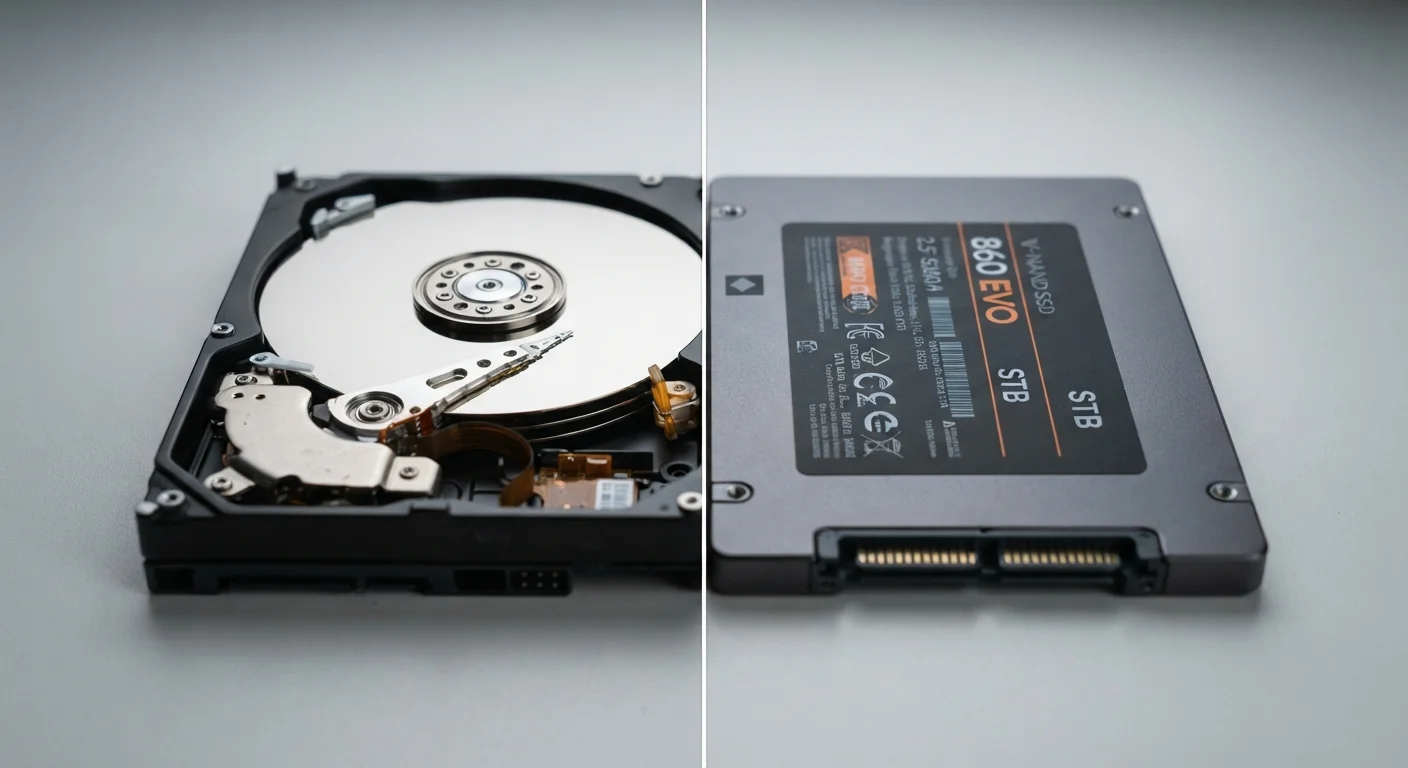
- HDDs use spinning magnetic platters to read and write data; SSDs use flash memory chips with no moving parts.
- SSDs are significantly faster than HDDs, which means quicker boot times and faster file access.
- HDDs typically offer more storage capacity per dollar, making them common in budget and high-capacity scenarios.
- SSDs are more resistant to physical shock and drops because they have no mechanical components.
- Battery life on laptops tends to be better with SSDs since they consume less power than spinning drives.
- Most new laptops ship with SSDs, but understanding the difference helps when buying refurbished or upgrading.
Option A
HDD (Hard Disk Drive)
The long-established, high-capacity mechanical option.
Best for: Users who need large amounts of storage at a lower cost and don't mind slower read/write speeds.
Option B
SSD (Solid-State Drive)
The faster, more durable, flash-memory-based alternative.
Best for: Anyone who wants a noticeably quicker, quieter laptop that handles everyday tasks with less friction.
If you want the fastest everyday laptop experience
SSD
SSDs dramatically reduce boot times and application load times. The difference is immediately noticeable in daily use.
If you need maximum storage capacity on a tight budget
HDD
Hard drives still offer more gigabytes per dollar, making them a practical choice when raw storage space is the priority.
If you carry your laptop frequently or travel with it
SSD
No moving parts means an SSD is far less vulnerable to damage from bumps, drops, or vibration during transit.
If you're upgrading an older laptop to extend its life
SSD
Swapping an HDD for an SSD is one of the most impactful single upgrades you can make to an aging machine.
How Each Drive Actually Works
An HDD (Hard Disk Drive) stores data on one or more circular magnetic platters that spin at high speed - typically 5,400 or 7,200 rotations per minute. A read/write head moves across the surface of those platters to find and record data, much like a record player needle tracking a groove. Because this is a mechanical process, it takes a measurable amount of time for the head to locate the right section of the disk.
An SSD (Solid-State Drive) works entirely differently. It stores data in flash memory chips - the same fundamental technology used in USB thumb drives - and has no moving parts at all. Data is accessed electronically rather than mechanically, which is why SSDs respond so much faster.
That underlying difference in architecture is responsible for almost every practical distinction between the two: speed, durability, noise, power use, and cost. For a broader look at how storage fits alongside other specs, see our guide to RAM vs. storage.
Speed, Durability, and Battery Life
Speed is where the gap is most obvious. A typical laptop HDD reads data at roughly 80-160 MB/s. A standard SATA SSD manages around 500 MB/s, and faster NVMe SSDs - which connect directly to the motherboard - can exceed 3,000 MB/s. In practice, this translates to a laptop booting in seconds rather than close to a minute, and applications opening almost instantly.
| Criterion | HDD | SSD |
|---|---|---|
| Technology | Spinning magnetic platters | Flash memory chips |
| Typical read speed | 80-160 MB/s | 500-7,000 MB/s |
| Moving parts | Yes - motor, platters, head | None |
| Shock resistance | Vulnerable to drops | Highly resistant |
| Power consumption | Higher | Lower |
| Noise | Audible spinning/clicking | Silent |
| Cost per GB | Lower | Higher (narrowing) |
| Common in new laptops | Rare | Standard |
Durability is another area where SSDs hold a clear advantage. Because there are no moving parts, a bump or drop that might cause an HDD's read head to scratch its platter - a potentially catastrophic event called a head crash - poses no equivalent risk to an SSD. If you carry your laptop in a bag or use it on the move, this is a meaningful practical benefit.
Power consumption also differs. HDDs require energy to spin their platters continuously. SSDs draw less power during both active use and idle states, which contributes to longer battery life - a real consideration for anyone working away from an outlet. To understand how each type eventually fails, our article on HDD vs. SSD failure signs covers the warning signals worth knowing.
~5×
Typical SSD speed advantage over HDD
A standard SATA SSD reads data at roughly five times the speed of a typical 5,400 RPM laptop hard drive.
~30%
Potential battery life improvement with SSD
Studies from drive manufacturers have shown SSDs can consume meaningfully less power than HDDs, contributing to extended battery runtime in comparable conditions.
Storage Capacity and Value
HDDs retain one genuine advantage: cost per gigabyte. A 2TB external or internal HDD is substantially less expensive than a 2TB SSD. For users who store large video libraries, photo archives, or game collections, this makes HDDs an economical option - particularly in external drives or desktop configurations.
That said, most laptops sold today ship with SSDs in the 256GB-1TB range, reflecting how significantly SSD prices have dropped over the past several years. For typical productivity use - documents, web browsing, streaming, and standard applications - 512GB is sufficient for most users.
If you're considering an older laptop with an HDD, replacing it with an SSD is one of the most impactful upgrades available. Our guide to replacing a hard drive with an SSD walks through the process without requiring technical expertise. Desktop users will find relevant context in our piece on what the HDD vs. SSD difference means for desktop setups.
NVMe vs. SATA: Two Kinds of SSD
Not all SSDs are equally fast. SATA SSDs use the same physical connector as older hard drives and are common in budget and older laptops. NVMe SSDs connect via the M.2 slot directly to the motherboard and are substantially faster. When evaluating a laptop's storage, checking which interface the SSD uses gives a more complete performance picture.