

Key Takeaways
- Cloud backup offers automatic, off-site protection accessible from anywhere with an internet connection.
- Local backup gives you full control over your data without relying on a third-party service or subscription.
- Privacy, cost, internet dependency, and recovery speed are the four factors that most often determine which approach fits best.
- Using both methods together—the 3-2-1 backup rule—provides the strongest overall protection.
- Neither approach is universally superior; the right choice depends on your usage patterns and risk tolerance.
Our Verdict
Cloud backup wins on convenience and off-site protection, making it the lower-effort choice for most users. Local backup excels for those who prioritize privacy, need fast large-scale recovery, or want to avoid recurring subscription costs. For critical data, combining both methods eliminates the blind spots each approach carries on its own.
| Best for | Recommended |
|---|---|
| Everyday users who want automatic, hands-off protection | Cloud Backup |
| Privacy-conscious users or those in areas with unreliable internet | Local Backup |
| Anyone with irreplaceable data who cannot afford loss | Both (3-2-1 strategy) |
| Users needing to restore large volumes of data quickly | Local Backup |
What Each Backup Method Actually Does
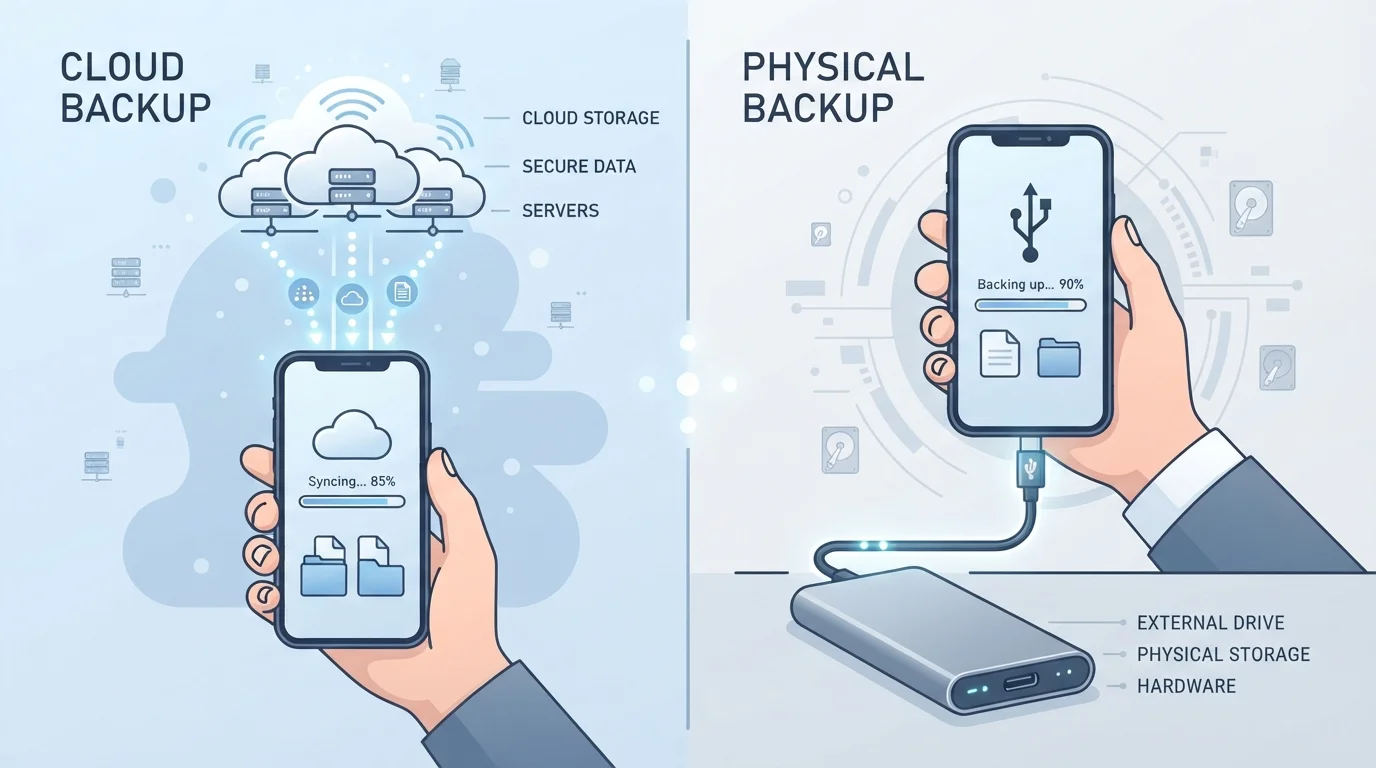
Cloud backup copies your phone's data—photos, contacts, app data, messages—to remote servers maintained by a third party, typically accessed through services tied to your device's operating system or a standalone app. The process usually runs automatically over Wi-Fi in the background.
Local backup stores that same data on a physical device you control: a computer, an external hard drive, or a USB storage device. On Android, this often happens through desktop software or direct file transfer. On iOS, iTunes (now Finder on macOS) handles encrypted local backups to a connected computer.
It's worth clarifying what backup is not. As explained in our guide to sync vs. backup, syncing keeps files current across devices but doesn't protect against deletion or corruption—if you delete a file, sync removes it everywhere. A true backup preserves a snapshot you can restore from.
| Cloud Backup | Local Backup | |
|---|---|---|
| Automation | Typically automatic over Wi-Fi | Usually requires manual initiation |
| Off-site protection | Yes — stored on remote servers | No — same location as device |
| Internet dependency | Required for backup and restore | Not required |
| Restore speed | Slow for large data sets | Fast, especially with USB connection |
| Ongoing cost | Subscription after free tier | One-time hardware cost |
| Privacy control | Data held by third party | Fully user-controlled |
| Device loss recovery | Restore to any new device remotely | Requires access to physical backup |
Cloud Backup: Where It Helps and Where It Falls Short
Cloud backup's strongest argument is automation. Once configured, it requires no active user involvement—your data is protected even if you forget about it. It also stores your backup off-site, meaning a stolen phone, house fire, or hardware failure won't take your backup down with your device.
Recovery is device-agnostic: you can restore to a new phone directly, with no cable or computer required. This convenience makes cloud backup particularly valuable when switching devices. Our first cloud backup walkthrough covers the setup process if you haven't configured one yet.
The limitations are real, however. Cloud backup depends on a reliable internet connection—both for creating backups and for restoring them. Restoring a large backup over a slow connection can take hours. Free storage tiers are typically limited to 5–15 GB, and expanding them requires a recurring subscription. There are also valid privacy considerations: your data resides on a third party's infrastructure, subject to their security practices and legal obligations. For more on that trade-off, see our breakdown of local vs. cloud storage trade-offs.
Enable Backup Over Wi-Fi Only
Most cloud backup services default to Wi-Fi-only transfers, but it's worth confirming this setting is active. Backing up over mobile data can quickly consume your data allowance, particularly if your photo library is large. Check your backup app's settings and restrict uploads to Wi-Fi to keep costs predictable.
Local Backup: Control, Speed, and the Catch
Local backup puts you in complete control. Your data never touches a third-party server, which removes a significant privacy surface. Restoration from a local backup is also substantially faster for large datasets—reading from a connected drive is orders of magnitude quicker than downloading gigabytes over a home broadband connection.
There's no subscription required beyond the one-time cost of storage hardware, which makes local backup economically attractive over time, particularly for users with large photo or video libraries. For a detailed cost and durability comparison of physical storage options, our comparison of personal cloud storage vs. external hard drives is a useful reference.
The critical weakness is physical vulnerability. A local backup stored in the same location as your phone can be lost to the same event—theft, flood, or fire. Local backups also require manual action or a scheduled process, and many users simply don't run them consistently. If your backup drive fails without warning, that copy is gone.
Don't Store Your Only Backup On-Site
A local backup kept in the same room as your phone provides no protection against theft, fire, or flood—all of which can destroy both at once. If you rely on local backup as your primary method, keep at least one copy at a separate physical location, such as a drive stored at a workplace or with a trusted contact.
Making the Decision: Key Questions to Ask
Your choice should be driven by four practical factors:
- Internet reliability: If your connection is slow, metered, or intermittent, local backup avoids the dependency entirely.
- Privacy sensitivity: Data like financial documents, medical records, or private communications may warrant the additional control local storage provides. See our overview of device protection methods for related security context.
- Data volume: Large photo and video libraries are expensive to store in the cloud and slow to restore. Local backup handles volume more practically.
- Hands-on effort: If you're unlikely to manually back up your phone on a regular schedule, cloud backup's automation is genuinely protective, not just convenient.
For most users, neither method alone is sufficient. The widely cited 3-2-1 backup strategy—three copies of your data, on two different media types, with one stored off-site—uses both cloud and local backup together to eliminate single points of failure. Understanding how your apps participate in this is covered in our guide to how apps store and sync data.
29%
Adults who have never backed up their phone
Surveys consistently show a significant portion of smartphone users have no backup strategy in place, leaving data vulnerable to loss.
3-2-1
Copies, media types, off-site locations
The 3-2-1 backup rule is a widely recommended data protection standard used by IT professionals for both personal and enterprise environments.