

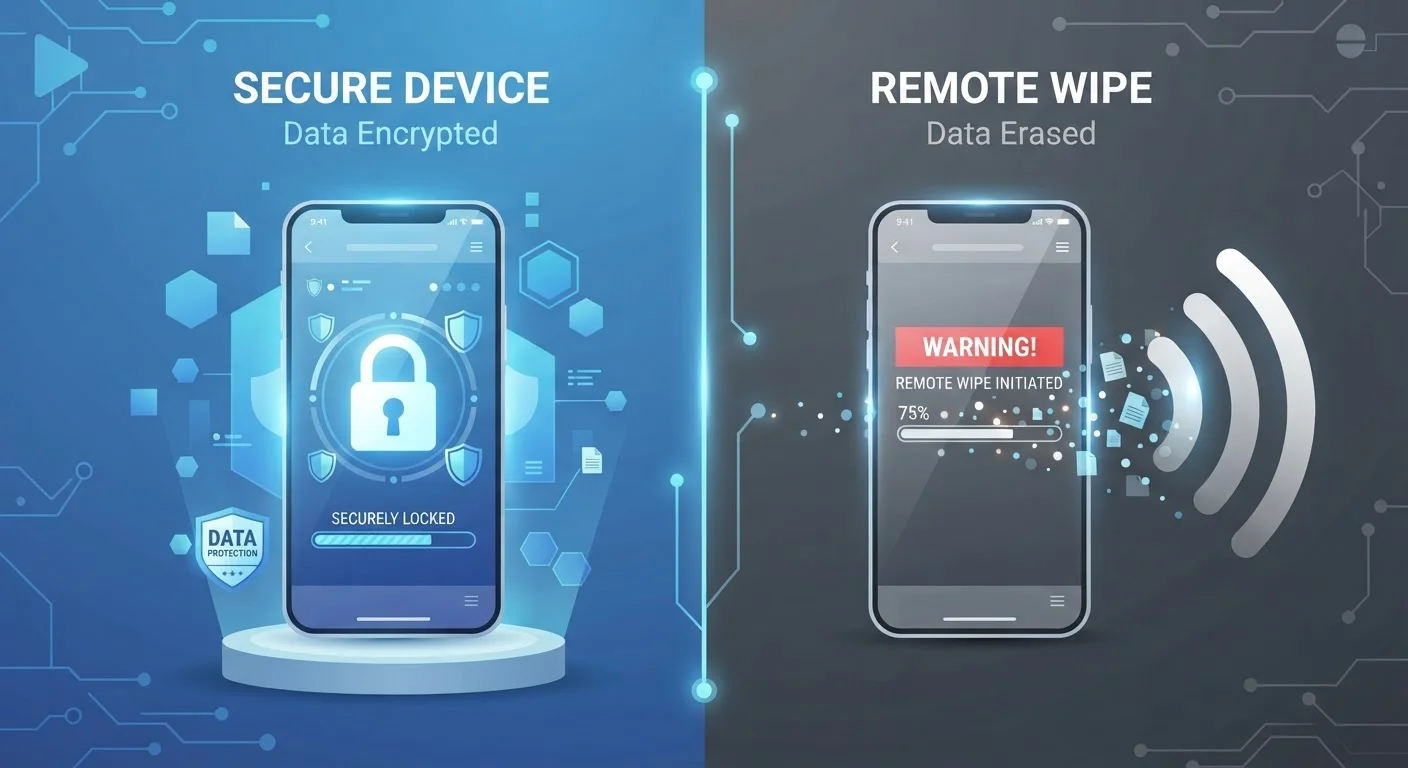
Key Takeaways
- Remote wipe deletes data after a device is lost; encryption protects data before anyone tries to access it.
- Encryption works even when the device is offline; remote wipe requires an internet connection to function.
- Most modern smartphones enable encryption by default — you may already be protected.
- Remote wipe is a reactive measure; encryption is a continuous, passive layer of defense.
- Using both together provides stronger protection than relying on either alone.
Option A
Remote Wipe
The emergency erasure tool for lost or stolen devices.
Best for: Preventing access to data on a device you no longer physically control.
Option B
Device Encryption
The always-on data scrambler built into your device.
Best for: Making stored data unreadable to anyone without the correct credentials, even before a device is reported lost.
If your phone is lost and you want to prevent strangers from reading your files
Device Encryption
Encryption acts immediately, regardless of internet access. Even if the device is never recovered, encrypted data is unreadable without your credentials.
If your device is stolen and you want to erase sensitive accounts and personal data remotely
Remote Wipe
Remote wipe lets you delete everything on the device once it connects to a network, minimizing exposure of accounts and stored information.
If you want the strongest possible baseline protection with minimal setup
Device Encryption
Encryption is passive and continuous — once enabled, it requires no action from you and protects data in every scenario, not just after a loss event.
If you handle sensitive work data and need to meet organizational security requirements
Remote Wipe
Many enterprise mobile device management platforms rely on remote wipe to meet data governance obligations when an employee's device goes missing.
What Each Protection Actually Does
When a phone goes missing, two security features tend to come up in the same breath: remote wipe and device encryption. They both relate to protecting your data, but they operate at completely different points in the timeline — and confusing them can leave real gaps in your security.
Remote wipe is an action you trigger after a device is lost or stolen. Using a service tied to your account — such as a built-in find-my-device feature — you send a command over the internet that erases all data on the phone. If the device never comes back online, that command never executes. Remote wipe is reactive: it only helps once you know something is wrong, and only if the device connects to a network.
Device encryption, by contrast, is always running in the background. It scrambles the data stored on your device using a mathematical key that's tied to your passcode or biometric. Without the correct unlock credentials, the raw data on the storage chip is unreadable — even to someone who physically removes the chip. Most current Android and iOS devices enable encryption by default. For more on the screen-lock methods that work alongside encryption, see how different lock types compare.
Think of it this way: encryption is a vault that's always locked; remote wipe is a self-destruct button you press when you realize the vault has left the building.
| Criterion | Remote Wipe | Device Encryption |
|---|---|---|
| When it activates | Only when you trigger it remotely | Continuously, whenever device is locked |
| Requires internet connection | Yes — device must come online | No — works fully offline |
| Setup required | Must enable find-my-device beforehand | On by default on most modern devices |
| Protects against | Data access after prolonged loss | Data read from storage chip or locked device |
| Reversible | No — data is permanently deleted | Yes — data is decrypted when you unlock |
| Works if device is offline | No | Yes |
| Effectiveness depends on | Device connecting to network in time | Strength of your passcode |
Key Differences and When Each One Fails
Understanding the failure conditions for each protection is just as important as understanding what they do.
Remote wipe fails when:
- The device is in airplane mode or the SIM card has been removed before the wipe command is sent.
- Someone quickly copies data to another drive before connecting to the internet.
- You don't have find-my-device features enabled before the loss event.
Encryption fails when:
- The device is unlocked at the time it's taken — encryption only protects data when the screen is locked.
- A weak or guessable passcode is used, making brute-force attacks feasible over time.
- The device runs outdated software with known vulnerabilities that allow the encryption to be bypassed.
This is why security professionals treat them as complementary layers, not interchangeable options. For a fuller picture of what's actually at risk when a device disappears, see what happens to your data when a device is lost or stolen.
Encryption Is Not the Same as a Screen Lock
A screen lock (PIN, password, or biometric) is the mechanism you use to unlock your device. Encryption is what happens to your data at rest once the device is locked. They work together — your credentials serve as the key that controls access to the encrypted data. Removing or weakening your screen lock effectively disables the practical value of encryption, which is why a strong passcode matters.
How to Confirm You Have Both Enabled
The good news: you likely don't need to install anything extra. Here's how to verify each protection on the two most common platforms.
Checking Encryption
On iPhone and iPad, encryption (called Data Protection) is automatically enabled whenever you set a passcode. Go to Settings > Face ID & Passcode (or Touch ID & Passcode) and scroll to the bottom — you should see the line "Data protection is enabled."
On Android, most devices running Android 6.0 or later are encrypted by default. You can verify by going to Settings > Security (or Settings > Biometrics and Security on Samsung devices) and looking for an encryption status entry.
Checking Remote Wipe Readiness
On iOS, enable Find My in Settings > > Find My. Make sure "Find My iPhone" and "Send Last Location" are both toggled on.
On Android, go to Settings > Security > Find My Device and confirm it's active. Your Google account must be signed in.
It's also worth considering where your data lives. If you back up to the cloud, a remote wipe won't erase that backup — which can be both a benefit (you recover your data) and a consideration (the cloud copy still exists). See cloud backup vs. local backup to think through what that means for you.
For a deeper layer of account protection on top of these device-level measures, two-factor authentication adds a second barrier that helps even if someone manages to extract login credentials from a compromised device.
~68%
Smartphones lost before remote wipe is triggered
Security researchers have noted that a significant share of lost-device incidents involve the device going offline before a wipe command reaches it, underscoring encryption's role as a first line of defense.
Android 6.0+
Android versions with encryption enabled by default
Google has required encryption by default on qualifying Android devices since Android 6.0 Marshmallow, released in 2015, meaning most devices in active use today are already encrypted.