

Key Takeaways
- Cloud storage offers anywhere access but requires an ongoing internet connection and often a subscription fee.
- External hard drives provide large, one-time-cost storage with no internet dependency, but can fail or be lost.
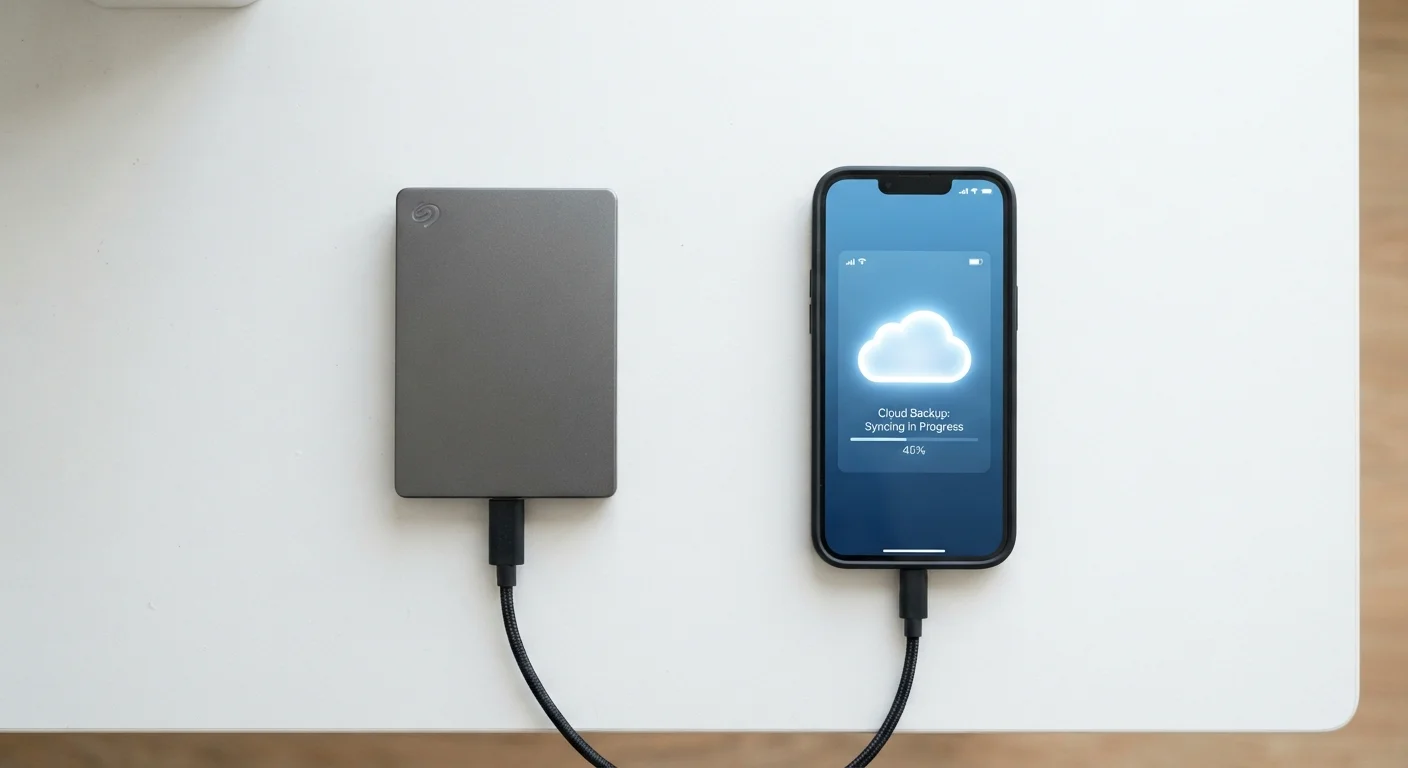
- For most people, a hybrid approach - using both methods - provides the strongest data protection.
- Privacy considerations differ significantly: cloud files pass through a provider's servers; drives stay under your physical control.
- Upfront cost favors drives; long-term convenience and collaboration favor cloud storage.
Our Verdict
Neither personal cloud storage nor external hard drives is universally superior - the right choice depends on how you use your data, where you need to access it, and how you weigh cost against convenience. Cloud storage excels for active, shared, or frequently accessed files; external drives excel for large archives, one-time backups, and privacy-sensitive data.
| Best for | Recommended |
|---|---|
| Frequent travelers or remote workers needing files on any device | Personal Cloud Storage |
| Those storing large media libraries or archives without monthly fees | External Hard Drive |
| Families sharing documents and photos across multiple accounts | Personal Cloud Storage |
| Anyone wanting the most resilient data protection strategy | Both (Hybrid Approach) |
What Each Option Actually Does
Personal cloud storage means your files are copied to remote servers managed by a third-party provider, accessible through the internet on any device you sign into. External hard drives are physical devices - typically connected via USB - that store data locally, entirely under your control.
Understanding what happens under the hood matters. When you upload a file to the cloud, it's transmitted over the internet and stored on data center hardware you never see. Our plain-language explainer on how cloud storage works walks through exactly what that process involves. With an external drive, data never leaves your possession - it sits on spinning magnetic platters (HDD) or flash memory chips (SSD) inside a portable enclosure.
Both approaches solve the same core problem - keeping copies of your data separate from your primary device - but the mechanics, risks, and costs differ substantially.
Cost, Capacity, and Convenience Compared
| Personal Cloud Storage | External Hard Drive | |
|---|---|---|
| Upfront cost | Low to none | Moderate one-time purchase |
| Ongoing cost | Monthly/annual subscription | None after purchase |
| Access anywhere | Yes, with internet connection | Only when physically present |
| Failure risk | Provider redundancy protects data | Single point of failure; can break or be lost |
| Privacy control | Files on provider's servers | Fully under your physical control |
| File sharing/collaboration | Built-in, easy to share links | Manual transfer required |
| Typical capacity | 15 GB free; more via subscription | 1 TB-4 TB common at low cost |
| Works without internet | No | Yes |
Cost is one of the sharpest dividing lines. A 2 TB external hard drive typically requires a single upfront purchase, after which there are no recurring charges. Cloud storage at comparable capacity almost always involves an ongoing monthly or annual subscription. Over a multi-year period, the hard drive generally costs less in absolute dollars - though that gap narrows if you factor in the possibility of drive failure and replacement.
Convenience cuts the other way. Cloud storage is available the moment you have an internet connection, on your phone, laptop, or a borrowed computer. An external drive must be physically present to be useful - easy to forget at home, and impossible to access remotely.
For those sharing files with family members, cloud storage simplifies the process considerably. Shared family cloud plans can make collaboration seamless, though they raise privacy questions worth thinking through.
Durability, Risk, and Data Safety
External hard drives fail - it's a matter of when, not if. Traditional HDDs contain moving parts susceptible to mechanical wear, drops, and magnetic fields. Solid-state external drives are more durable physically, but not immune to failure. The differences between HDD and SSD storage matter beyond just speed - reliability profiles differ, too. A drive that fails without warning can take irreplaceable data with it.
Cloud storage distributes your data across multiple redundant servers, meaning the failure of a single piece of hardware at the provider's data center doesn't result in data loss for you. That said, cloud accounts can be compromised through weak passwords or phishing attacks, and if a provider shuts down or changes terms, access may be disrupted.
Don't Mistake Sync for Backup
Many cloud storage services sync files - meaning if you delete or overwrite a file on one device, that change propagates everywhere. This is not the same as a true backup. Check whether your provider offers version history or deleted-file recovery, and for how long. External drives don't have this pitfall, but they also won't update automatically unless you remember to do it manually.
The security question also turns on privacy. Files stored in the cloud are encrypted in transit and at rest by reputable providers, but they do pass through external infrastructure. A physical drive kept secure at home exposes your data to no remote threat - though it creates single-point-of-failure risk from theft, fire, or flooding.
Which Approach - or Combination - Makes Sense for You
The strongest data protection strategy is almost always a hybrid one: store actively used or shared files in the cloud for accessibility, and keep a local backup on an external drive for resilience. This mirrors the well-established 3-2-1 backup principle - three copies of data, on two different media types, with one stored off-site.
Use Both for Maximum Protection
The 3-2-1 backup rule is a widely recommended starting point: keep three copies of important data, stored on two different types of media, with at least one copy off-site. Using cloud storage as your off-site copy and an external drive as your local backup achieves this without much complexity. Set up automatic cloud sync so your active files are always backed up, and periodically copy key archives to your external drive.
If you're deciding primarily around phone and tablet backups, the choice has additional nuances. Cloud backup versus local backup for your phone involves different considerations than desktop file storage. And if your interest extends to the broader question of on-device versus remote storage, local storage versus cloud storage trade-offs covers that comparison in depth.
Evaluate your actual habits: How often do you need files away from home? How much storage do you genuinely use? How comfortable are you managing a physical device long-term? Honest answers to those questions will point you toward the right balance - or confirm that both methods working together is the safest path forward.