

Key Takeaways
- Apps store data either locally on your device, in the cloud, or in a combination of both.
- Account-based sync means signing in with the same credentials restores your data on a new device.
- Local-only apps cannot restore data if your device is lost or reset without a separate backup.
- Sync and backup are related but serve different purposes — syncing keeps data current, backup protects against loss.
- Understanding where your data lives helps you make smarter choices when switching phones.
App Data Sync
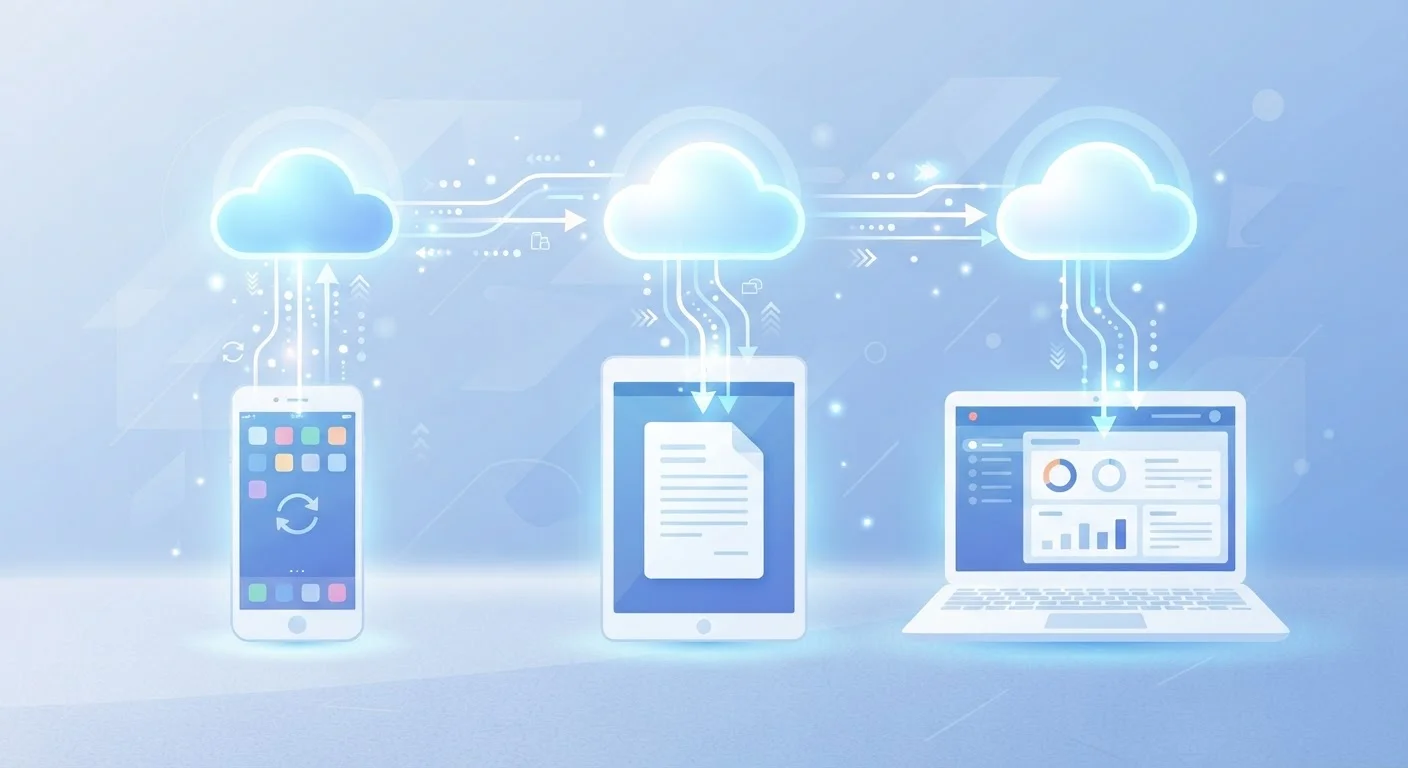
App data sync is the process by which an application automatically copies and updates your information — such as settings, documents, or progress — across multiple devices. When you log into an app on a new phone and your data appears, that's sync at work. It relies on a remote server (usually cloud-based) to act as a central hub between your devices.
Most sync systems use an API to push incremental changes to a server, rather than transferring entire files each time, which reduces bandwidth usage and speeds up updates.
The Three Ways Apps Hold Your Data
Every app that saves anything — a note, a setting, a game save — has to put that data somewhere. There are three common approaches, and understanding them explains a lot about what happens when you upgrade your phone.
- Local storage: Data lives only on your device's internal memory. It's fast to access but disappears if the device is lost, reset, or replaced without a manual backup.
- Cloud storage: Data is uploaded to remote servers operated by the app's company or a third-party provider. It's accessible from any device you sign into.
- Hybrid storage: A combination of both — a local copy for speed, synced to the cloud for persistence. Many productivity apps and photo services work this way.
For a deeper look at how these two storage models compare on privacy, reliability, and access, see local storage vs. cloud storage trade-offs.
~90%
Smartphone users who rely on at least one cloud-synced app
Widely cited industry estimates suggest the vast majority of smartphone users regularly interact with cloud-connected applications such as email, maps, or streaming services.
3+
Average devices owned per US internet user
According to Pew Research Center data, many US adults regularly use more than one connected device, making cross-device sync increasingly relevant to everyday life.
How Account-Based Sync Actually Works
When you sign into an app with a username and password, you're connecting your device to a server-side profile. As you use the app, changes are periodically uploaded to that profile. When you sign into the same account on a different device, the app downloads the current state of your data from the server — and your information appears as though you never left.
This is why the first step most people take after getting a new phone is signing back into their accounts. The sync happens automatically in the background, usually within minutes.
Not all syncing is equal, though. Some apps sync everything continuously; others only sync when you open the app or connect to Wi-Fi. If you're unfamiliar with the specific terms services use to describe these behaviors, a plain-English cloud storage glossary can clarify the vocabulary quickly.
Check Sync Settings Before You Need Them
Don't wait until you're switching phones to find out how an app handles your data. Open each important app's settings now and look for terms like 'sync', 'backup', or 'account'. If you see an option to sync, make sure it's enabled and your account is signed in. A few minutes of setup today can save significant frustration later.
What This Means When You Switch Phones
Switching devices is where storage methods become very visible, very fast. Apps tied to a cloud account restore seamlessly. Apps that store data locally may leave you starting from scratch — unless you've created a manual backup or your phone's system-level backup captured that app's data.
If you're managing several apps across multiple devices, things can get complicated quickly. Our guide to managing cloud storage across multiple devices offers a practical framework for keeping it organized. And if a device is ever lost rather than replaced, what happens to your data when a device is lost or stolen walks through what's actually at risk.
Taking Control of Where Your Data Lives
You don't have to accept the defaults. Most apps surface storage and sync controls in their settings — allowing you to choose sync frequency, disable cloud storage entirely, or export your data at any time.
A few practical habits make a real difference:
- Audit which apps use an account sign-in — those are the ones that will carry data to your next device automatically.
- Export data from apps that matter to you, especially those without account sync, before a planned device change.
- Understand your phone's system-level backup — both Android and iOS offer device-wide backups that capture some local app data alongside photos and settings. See cloud backup vs. local backup for phones for guidance on choosing an approach.
Sync Doesn't Replace a Backup
Syncing ensures your data is current across devices, but it doesn't protect you from accidental deletion — a deleted file syncs that deletion everywhere. For genuine protection against data loss, a dedicated backup (separate from sync) is necessary. These two mechanisms complement each other rather than substitute for one another.
The more clearly you understand how each app stores your data, the less likely you are to be surprised — or to lose something you care about — when technology changes around you.