

Key Takeaways
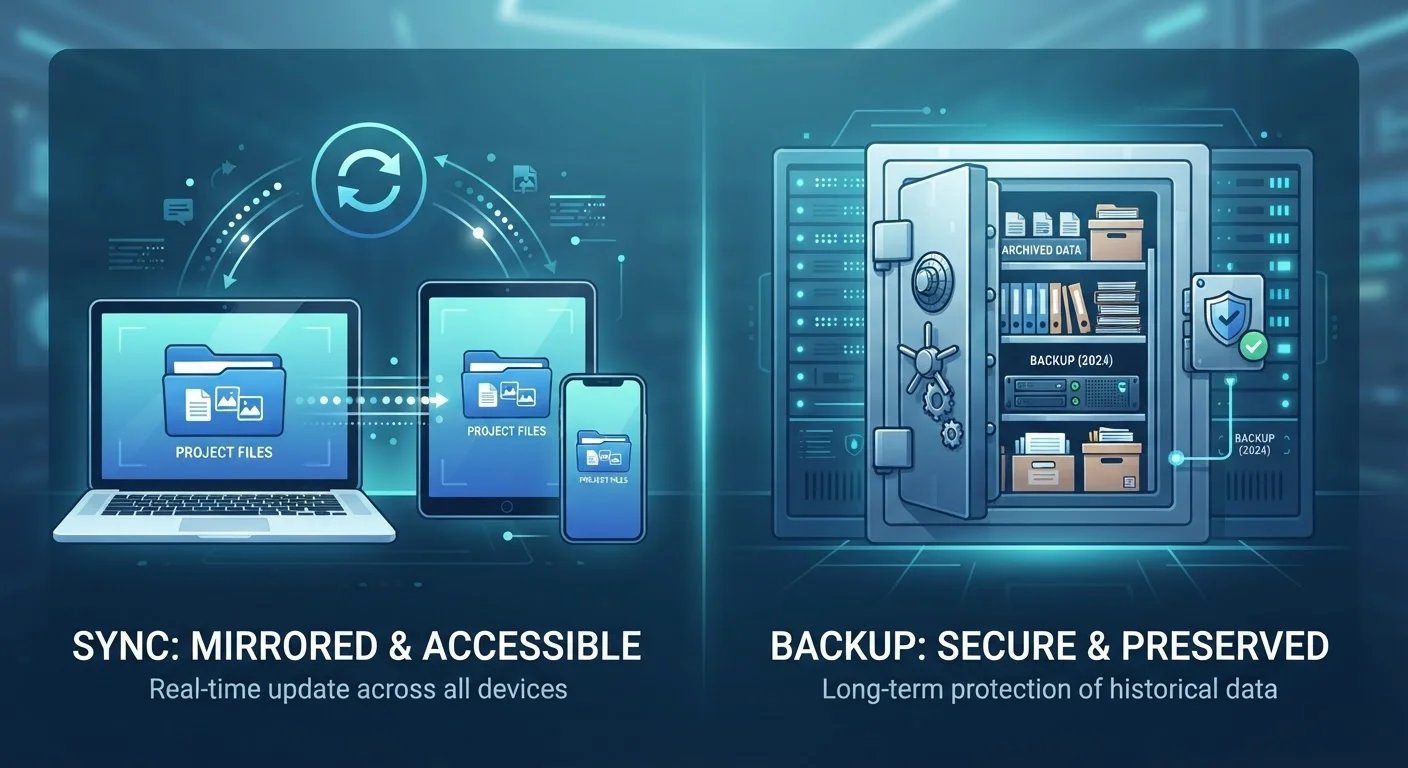
- Sync mirrors your current files across devices; it does not preserve older versions or deleted files.
- Backup creates a separate, protected copy of your data at a specific point in time.
- Deleting a synced file usually removes it from all connected devices simultaneously.
- A robust data strategy uses both sync and backup — they complement, not replace, each other.
- Most cloud services emphasize sync; dedicated backup requires deliberate setup.
Option A
File Sync
The real-time mirror that keeps your devices in step.
Best for: Anyone who needs instant access to the same files across a phone, tablet, and computer.
Option B
Data Backup
The safety net that preserves your data at a point in time.
Best for: Anyone who wants to recover files after accidental deletion, device failure, or ransomware.
If you work across multiple devices and need the same file everywhere
File Sync
Sync automatically propagates every change to all connected devices, eliminating the need to manually transfer files.
If you want protection against accidental deletion or device failure
Data Backup
Backup retains point-in-time copies so you can recover a file even after it has been deleted or corrupted everywhere it was synced.
If you want complete, long-term data safety
File Sync
Use sync for daily convenience and backup for disaster recovery — both together offer the strongest protection for your data.
What Sync Actually Does
Synchronization keeps a consistent, up-to-date version of your files across every connected device. When you edit a document on your laptop, a sync service pushes that change to your phone and tablet within seconds. The goal is consistency: every device sees the same current state.
This is what services like Google Drive, iCloud, Dropbox, and OneDrive primarily do when they run in the background. They watch for changes and replicate them. That's enormously useful for active work — but it creates a subtle risk that many people overlook.
If you delete a file, or if a file becomes corrupted, that change is also synced. The deletion propagates to every device almost immediately. By design, the service is doing exactly what it promised: keeping everything consistent. But consistent now includes consistently gone. Some sync services do offer short-term version history or a recovery window (often 30 days), but that's a secondary feature, not the core purpose.
Learn more about how apps store and sync your data across devices to understand exactly what happens to your files when you switch phones or sign into a new account.
| Criterion | File Sync | Data Backup |
|---|---|---|
| Primary purpose | Keep files consistent across devices | Preserve data at a point in time |
| What happens when you delete a file | Deletion spreads to all devices | Earlier copy remains recoverable |
| Protection against ransomware | Low — corruption can sync instantly | High if backup is isolated or offline |
| Version history | Limited, often 30 days or less | Configurable; can extend indefinitely |
| Setup effort | Minimal — usually on by default | Requires deliberate configuration |
| Best for | Active, frequently accessed files | Archives and critical irreplaceable data |
What Backup Actually Does
A backup is a point-in-time copy of your data, stored separately from your primary working files. Its purpose is recovery — giving you something to return to if the original is lost, damaged, or compromised.
Unlike sync, a backup is not meant to be live or constantly changing. A snapshot taken last Tuesday still exists even if you deleted that file on Wednesday. That time separation is exactly the point. Ransomware — malicious software that encrypts your files and demands payment — can propagate across synced folders in minutes; a backup stored offline or in an isolated cloud location remains untouched.
Good backup practice often follows the 3-2-1 rule: keep three copies of your data, on two different types of storage media, with one copy stored offsite (such as in a separate cloud account or an external drive kept at a different location). This isn't paranoia — it's the same principle hospitals and financial institutions use to protect critical records.
3-2-1
The widely recommended backup rule
The 3-2-1 rule — three copies, two media types, one offsite — is endorsed by data protection organizations including the Cybersecurity and Infrastructure Security Agency (CISA).
30 days
Typical sync version history window
Many consumer cloud sync services offer approximately 30 days of file version history before older versions are permanently removed.
For a plain-English explanation of terms like redundancy, versioning, and encryption at rest, see The Language of Cloud Storage glossary.
Building a Strategy That Uses Both
The most common mistake consumers make is assuming that because their phone is backed up to iCloud or Google One, their data is truly protected. Those services are primarily sync systems with some backup features layered on. That's not nothing — but it may not be enough, depending on how irreplaceable your files are.
A practical approach combines the two:
- Use sync for active files — documents, photos you're working with, notes. This gives you real-time access across devices.
- Use dedicated backup for anything you can't afford to lose — final photo archives, financial records, project deliverables. Schedule it to run automatically, and verify occasionally that it actually works by restoring a test file.
Separate your backup destination from your sync destination. If both point to the same folder in the same cloud account, a sync-propagated deletion will overwrite your backup too.
If juggling multiple services across a phone, tablet, and laptop sounds overwhelming, Managing Cloud Storage Across Multiple Devices offers a practical system for keeping it organized. For a broader look at the trade-offs between storing data locally versus in the cloud, see Local Storage vs. Cloud Storage.
Check Your Cloud Service's Actual Capabilities
Not all cloud services work identically. Some offer extended version history or true backup snapshots as premium features. Before assuming your service protects against deletion or corruption, review its documentation to understand whether it syncs, backs up, or does a limited combination of both. Testing a file restore — not just trusting the setup — is the only way to confirm a backup is actually working.