

Key Takeaways
- Local storage keeps files on your device or drive - no internet required, but physical loss is a real risk.
- Cloud storage makes files accessible from anywhere but depends on an internet connection and a third-party provider.
- Privacy implications differ significantly: local files stay under your control; cloud files are handled per your provider's policies.
- Neither approach is fail-safe - most data professionals recommend using both for true redundancy.
- Cost structures differ: local storage is typically a one-time purchase; cloud storage usually involves recurring fees.
Option A
Local Storage
The offline, you-own-it approach to keeping files.
Best for: Users who prioritize privacy, offline access, and one-time cost with no ongoing subscription.
Option B
Cloud Storage
The anywhere-access, provider-managed approach to file storage.
Best for: Users who need files across multiple devices, automatic backups, or easy sharing with others.
If you handle sensitive documents and want full control over who can access them
Local Storage
Local storage means your files never pass through a third-party server. You set the rules on access, encryption, and sharing.
If you work across multiple devices or need to share files with others regularly
Cloud Storage
Cloud storage makes the same file instantly available on your phone, laptop, and tablet, and sharing a link is far simpler than transferring a drive.
If you want to protect against device theft, loss, or hardware failure
Cloud Storage
Because cloud files are stored off-device, losing your laptop or phone doesn't mean losing your data. Automatic backup removes the human step.
If reliable internet access is inconsistent in your location or lifestyle
Local Storage
Local files are always available, regardless of Wi-Fi or cellular signal. There's no connectivity dependency to worry about.
If you want the most resilient long-term data protection strategy
Local Storage
Pair local storage with a cloud backup for a layered approach - this is broadly considered the most durable way to protect important data.
What Each Approach Actually Means
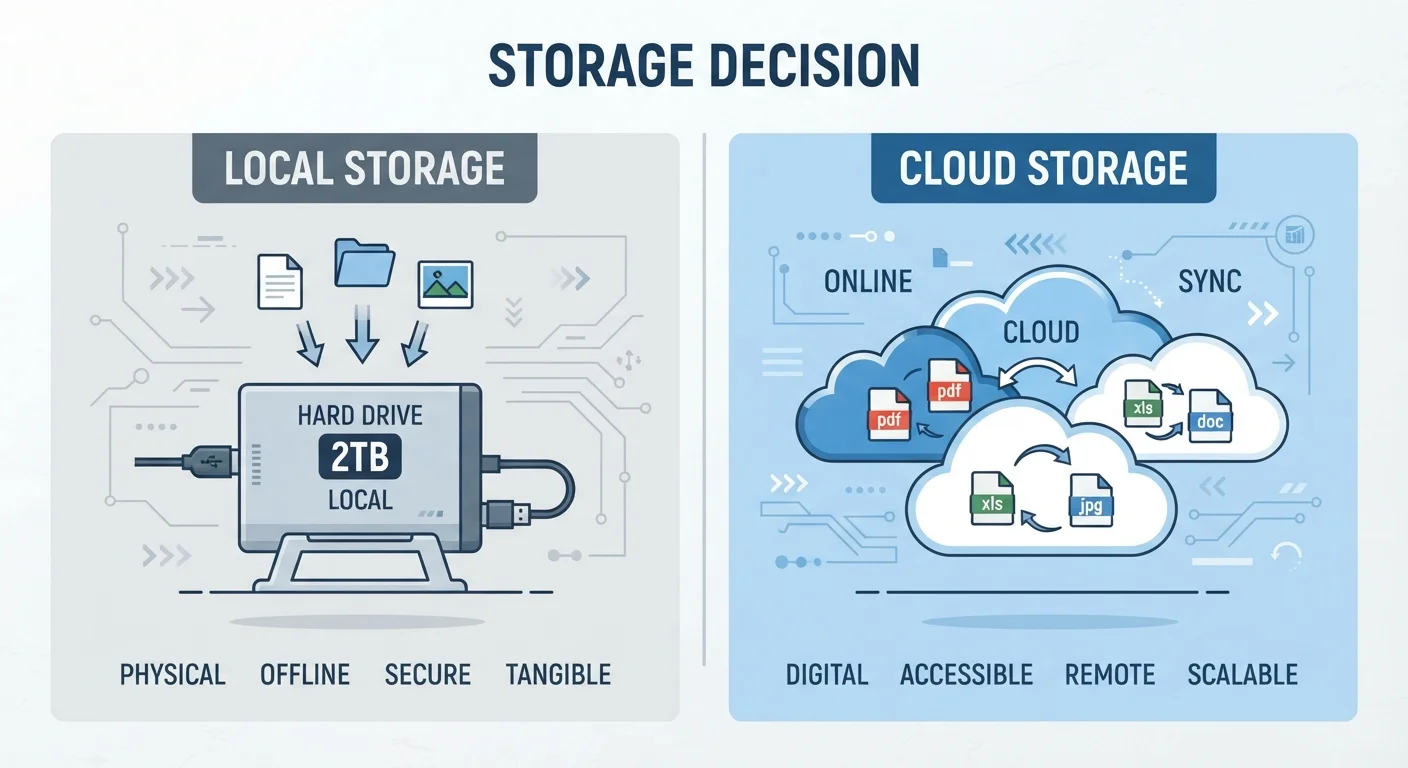
Local storage means files live on hardware you physically possess - an internal drive, external hard drive, or USB stick. When you save a document to your laptop's desktop or copy photos to an external drive, that's local storage. The files are there whether or not you have an internet connection, and no outside party has access to them unless you grant it.
Cloud storage means your files are uploaded to servers maintained by a provider and accessed via the internet. When your phone automatically backs up photos, or you drag a file into a synced folder that appears on every device you own, that's cloud storage in action. To understand what actually happens to your data during that upload process, see our explainer on cloud storage mechanics.
It's worth noting that syncing and backing up are related but distinct cloud behaviors - a distinction that matters when deciding how to protect your files. Our guide on sync vs. backup covers that gap clearly.
Head-to-Head: Key Differences at a Glance
The table below captures the most meaningful contrasts across the criteria that matter most to everyday users.
| Criterion | Local Storage | Cloud Storage |
|---|---|---|
| Internet required | No | Yes (to access/sync) |
| Access across devices | Manual transfer needed | Automatic, seamless |
| Privacy control | Fully user-controlled | Subject to provider policy |
| Risk of physical loss | High (device-dependent) | None (off-site redundancy) |
| Cost structure | One-time hardware purchase | Ongoing subscription |
| Sharing files with others | Requires manual transfer | Simple link-based sharing |
| Automatic backup | Requires manual setup | Often built-in |
One important nuance: cloud storage providers typically encrypt your files during transfer and at rest, but the provider holds the encryption keys - meaning they can technically access file contents if legally compelled or if their systems are compromised. Local storage can be encrypted with tools you control, so the key never leaves your hands.
Privacy and Control: A Closer Look
Privacy is often the deciding factor for users handling sensitive files - medical records, financial documents, personal photos. With local storage, you determine who has access. With cloud storage, access depends on your provider's security practices, legal jurisdiction, and terms of service.
This doesn't mean cloud storage is inherently unsafe. Reputable providers invest heavily in security infrastructure that most individuals couldn't replicate locally. But "secure" and "private" aren't the same thing. A provider may have strong security yet still share data with law enforcement under a valid subpoena, or use anonymized usage data to improve their service.
What 'Encrypted at Rest' Actually Means
When a cloud provider says your files are 'encrypted at rest,' it means the data is scrambled while stored on their servers. However, in most consumer cloud services, the provider manages the encryption keys - so they can decrypt files if needed. End-to-end encryption, where only you hold the key, is a stronger privacy guarantee. Not all providers offer it by default, so it's worth checking your service's specific security documentation.
If you're part of a household sharing a cloud plan, the privacy question becomes more nuanced. Our article on cloud storage for families explains how shared access actually works - and where personal boundaries can blur.
Reliability, Cost, and the Case for Both
Local storage can fail. Hard drives have mechanical components that degrade; SSDs (solid-state drives) have finite write cycles; and any physical device can be lost, stolen, or damaged in a flood or fire. Cloud storage eliminates those physical risks but introduces others: provider outages, subscription lapses, or account lockouts can temporarily or permanently cut off access.
140+ zettabytes
Global data stored in cloud infrastructure
Analysts at IDC have projected global data stored across cloud infrastructure will exceed 100 zettabytes, reflecting the scale of the shift away from purely local storage.
~20%
Annual hard drive failure rate after 3 years
Backblaze, a cloud backup company that publishes drive reliability data, has reported average annual failure rates that rise meaningfully for drives in use beyond three years.
Cost is another practical divide. A 2TB external hard drive is a one-time purchase. A 2TB cloud plan typically runs on a monthly or annual subscription. Over several years, cloud costs accumulate - though you also get automatic redundancy and multi-device access built in. For a practical side-by-side breakdown of cost and durability, the comparison of personal cloud storage vs. external hard drives offers detailed perspective.
The most resilient strategy isn't choosing one - it's using both. Store working files locally for speed and offline access; back them up to the cloud for protection against physical loss. For guidance on applying this logic specifically to your phone, see our breakdown of cloud backup vs. local backup for phones. And if you're wondering about free cloud tiers as a cost-saving measure, it's worth reading about the hidden costs of free cloud storage before committing.