

Key Takeaways
- Family plans pool storage under one bill but typically keep each member's personal files private.
- Shared folders are distinct from personal spaces - only files you deliberately move there are visible to others.
- The plan owner (billing administrator) manages membership but doesn't automatically see other members' files.
- Parental monitoring tools exist separately from storage access and require explicit setup.
- Cancelling a family plan can affect all members' access to their stored files simultaneously.
Family Cloud Storage Plan
A family cloud storage plan is a subscription that pools storage capacity across multiple people - typically up to five or six accounts - under one billing arrangement. Each member usually gets their own personal storage space, plus access to a shared folder for collaborative files. The billing owner manages the plan but does not automatically gain access to other members' private files.
Most platforms implement separate namespaces per user, meaning private files in each personal space are not accessible to other family members even under the same plan - unless explicitly shared.
How Family Cloud Plans Actually Work
When a cloud provider offers a family plan, it typically does two things: it creates a shared pool of total storage capacity, and it gives each member their own private space within that pool. Think of it like a shared data plan on a phone bill - everyone draws from the same bucket, but each person's calls and messages are their own.
The person who sets up and pays for the plan is the billing administrator. They can invite members, remove them, and see how much storage each account is using in aggregate. What they generally cannot do is open, view, or download files stored in another member's personal space. That distinction matters and is worth confirming for any specific platform you use.
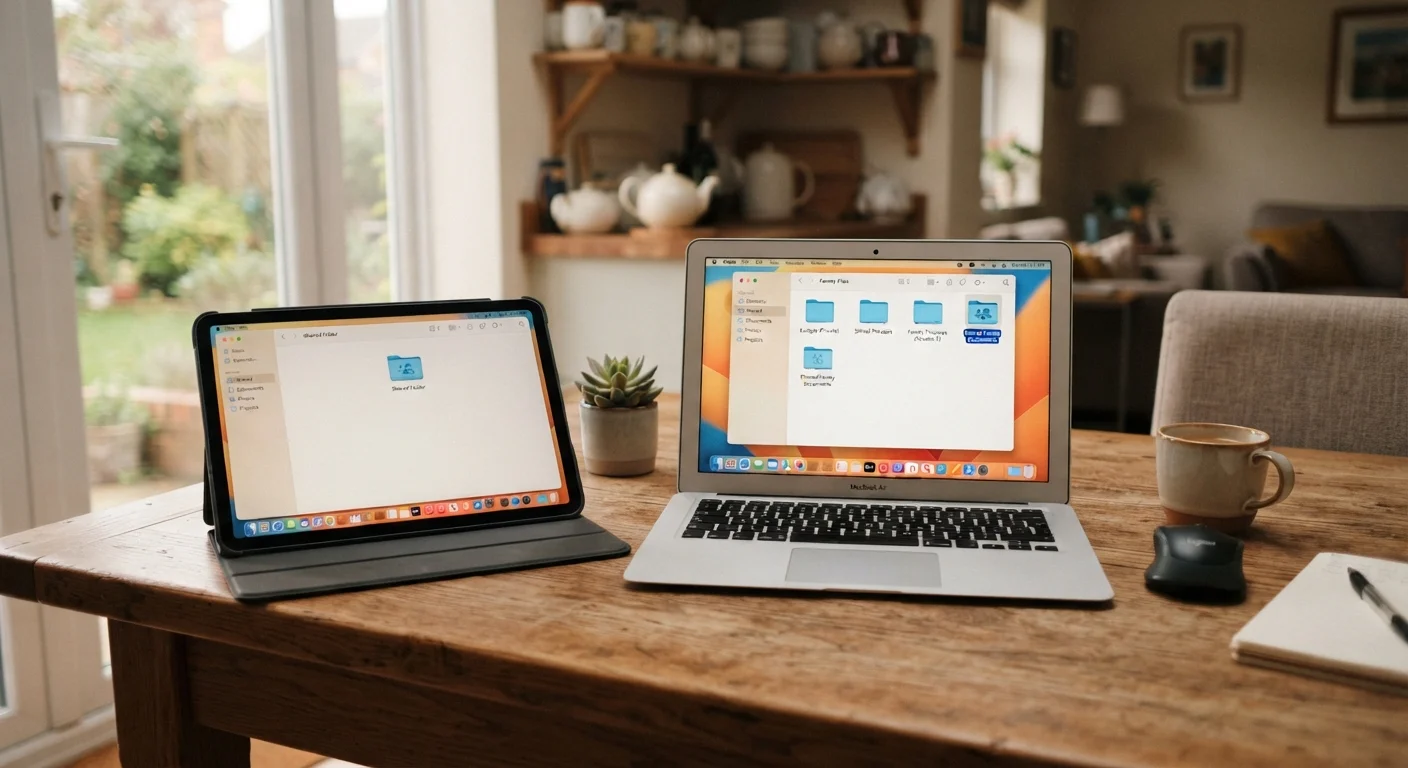
A shared folder - sometimes called a shared album or shared drive - is a separate, opt-in space. Files only appear there when someone deliberately places them there. Your camera roll, personal documents, and app backups stay in your private space unless you move them yourself.
To understand what happens to your files at the infrastructure level, see our explainer on how cloud storage works.
Parental Controls Are a Separate Feature
Adding a child to a family cloud storage plan does not automatically enable parental controls over their device usage, content, or screen time. Those features exist in dedicated family safety tools offered separately by device manufacturers and operating system providers. Check your device's parental controls settings independently of the cloud storage plan setup.
Where Privacy Boundaries Get Blurry
Even though personal spaces are private by default, there are situations where the lines blur - often unintentionally.
- Shared devices: If two family members log into the same tablet and both use the same cloud app, whichever account is active at the time determines what's visible. The privacy separation is account-level, not device-level.
- Shared folder creep: Files accidentally dropped into a shared folder are immediately visible to all members. Some platforms don't warn you before this happens.
- Storage usage visibility: The billing owner can usually see how much space each member uses - not the content, but the volume. For some families, this is a minor consideration; for others, it matters.
- Account recovery situations: If a member loses access to their account, the process for recovery may involve the plan administrator depending on the platform's policies.
For a broader look at the trade-offs between keeping files local versus in the cloud, the local vs. cloud storage breakdown covers the key considerations around privacy, access, and reliability.
Set Up Individual Accounts, Not Shared Logins
Each family member should have their own separate account added to the plan - never share a single set of login credentials among multiple people. Distinct accounts are how most platforms enforce the private-space separation that makes family plans safe to use. Shared logins eliminate that boundary entirely.
Managing Shared Access Thoughtfully
A few deliberate habits go a long way toward keeping a family plan both useful and private.
Be explicit about what goes in the shared folder. Agree as a household on what types of files belong in shared spaces - vacation photos, shared documents, household budgets - and make that understanding explicit. Ambiguity leads to accidental oversharing.
Use separate accounts, not separate folders on one account. Each family member should have their own account on the plan rather than sharing login credentials. This is the foundation of real privacy separation.
Understand what happens if the plan changes. If the billing owner downgrades or cancels, every member's files could be affected. Our article on why files disappear after cancelling a cloud subscription explains how deletion policies typically work.
Don't rely on a shared plan as a sole backup. A shared family plan is a convenient sync and access tool, but it isn't a backup strategy on its own. For a fuller picture of storage approaches, see personal cloud storage vs. external hard drives.
~6
Typical max members on a family cloud plan
Most major cloud storage providers cap family plans at five to six member accounts under a single subscription.
2 TB+
Common total storage on family plans
Many providers offer around 2 terabytes of pooled or per-member storage at the family plan tier, compared to 15-200 GB on free individual tiers.