

Key Takeaways
- SSDs are significantly faster than HDDs, cutting boot times and file load times dramatically.
- HDDs typically offer more storage per dollar, making them practical for archiving large files.
- SSDs have no moving parts, making them more resistant to drops and physical shock.
- Switching from an HDD to an SSD is one of the most impactful upgrades for an aging computer.
- Both drive types eventually fail, but they fail in different ways and with different warning signs.
Option A
Hard Disk Drive (HDD)
The high-capacity, time-tested storage standard.
Best for: Users who need large amounts of storage at a lower cost and don't require fast boot times or transfer speeds.
Option B
Solid-State Drive (SSD)
The faster, more durable modern alternative.
Best for: Users who want a noticeably snappier, more responsive computer and are willing to pay more per gigabyte.
If your computer feels sluggish and takes minutes to start up
Solid-State Drive (SSD)
An SSD dramatically reduces boot times and speeds up everyday tasks like opening apps and loading files. It's the single most effective upgrade for restoring responsiveness to an older machine.
If you need to store large media libraries or archives on a budget
Hard Disk Drive (HDD)
HDDs offer substantially more storage capacity per dollar, making them well-suited for backing up photos, videos, or other large file collections where raw speed is less critical.
If you carry your laptop frequently or work in varied environments
Solid-State Drive (SSD)
SSDs contain no moving parts, so they're far less vulnerable to damage from vibration, bumps, or accidental drops - a real advantage for portable use.
If you want to extend the useful life of a desktop PC on a tight budget
Hard Disk Drive (HDD)
If cost is the primary constraint and speed is acceptable, a high-capacity HDD remains a practical and widely available option for desktop storage expansion.
How Each Drive Actually Works
Understanding the difference between an HDD and an SSD starts with how each one physically stores data.
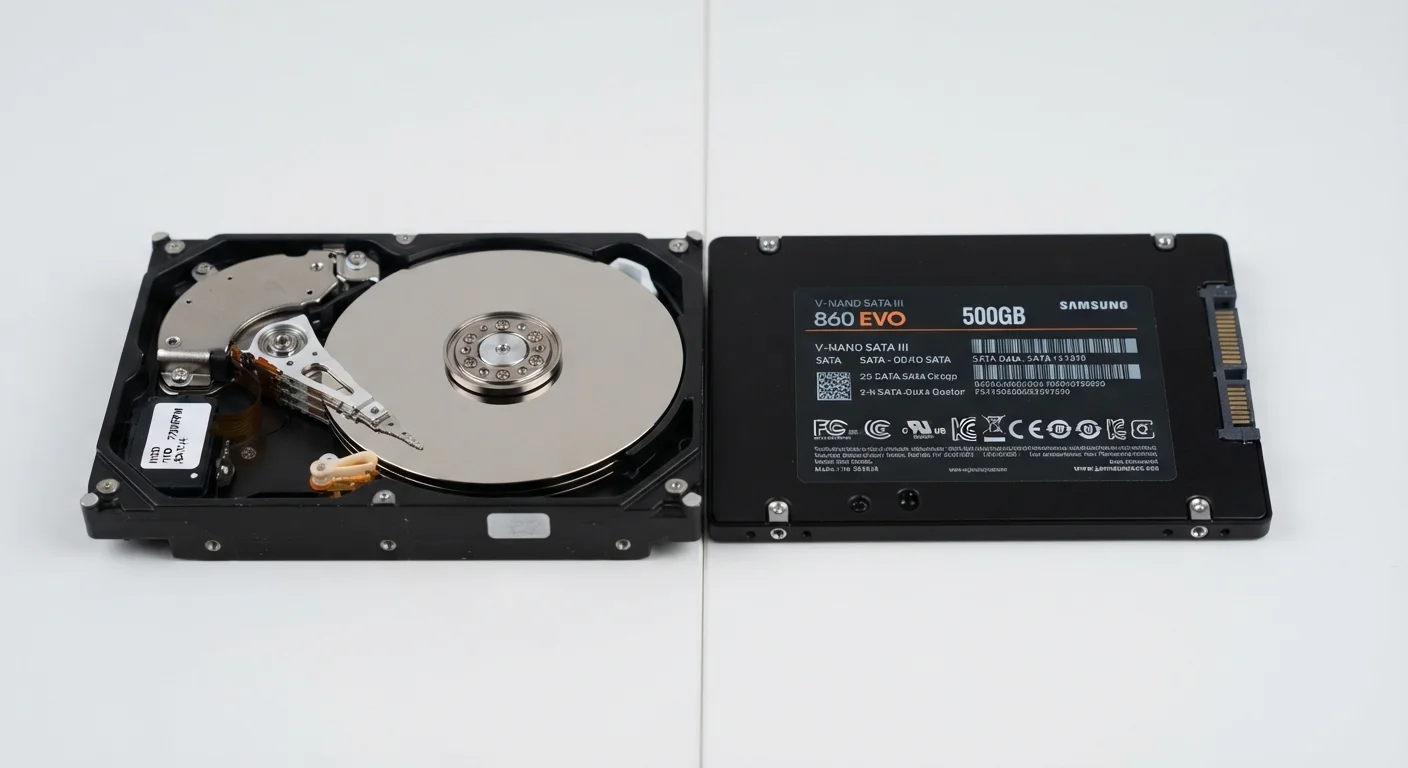
A hard disk drive (HDD) stores data on spinning magnetic platters. A read/write head moves across those platters - much like a record needle - to find and retrieve information. Because this process involves mechanical movement, it takes time. The faster the platters spin (measured in RPM, or revolutions per minute), the faster the drive can access data, but there's a ceiling to what moving parts can achieve.
A solid-state drive (SSD), by contrast, stores data on flash memory chips with no moving parts at all. Accessing data is nearly instantaneous because the drive doesn't need to physically seek anything - it reads electronically. This fundamental difference in architecture is what drives every other comparison between the two.
For a deeper look at how each technology handles your laptop's data, see our guide to how laptops store data.
| Criterion | HDD | SSD |
|---|---|---|
| Technology | Spinning magnetic platters | Flash memory chips |
| Typical read speed | 80-160 MB/s | 400-3,500+ MB/s |
| Boot time (approximate) | 45-90 seconds | 10-20 seconds |
| Moving parts | Yes | No |
| Shock resistance | Lower | Higher |
| Noise | Audible hum and clicking | Silent |
| Cost per gigabyte | Lower | Higher |
| Common consumer capacities | 1 TB - 8 TB | 256 GB - 4 TB |
Speed, Durability, and Day-to-Day Impact
The practical differences between HDDs and SSDs are most visible in three areas: speed, physical resilience, and noise.
Speed
SSDs are dramatically faster. A typical HDD reads data at roughly 80-160 MB/s. A mainstream SATA SSD reads at 400-550 MB/s, and newer NVMe SSDs - which connect via a different interface inside your computer - can exceed 3,000 MB/s. In everyday terms, this means a computer with an SSD might boot Windows in under 15 seconds, while the same machine with an HDD could take a minute or more.
Durability
Because HDDs rely on moving parts, they're more vulnerable to physical shock. Dropping a laptop while an HDD is actively reading data can cause the read head to scratch the platter - a condition called a head crash - which can make data unrecoverable. SSDs carry no such risk; their flash chips can withstand ordinary bumps and drops. That said, SSDs do have a finite number of write cycles before individual memory cells wear out, though for typical consumer use this limitation rarely becomes a problem within a normal product lifespan.
Noise and Heat
HDDs produce an audible hum and occasional clicking sounds from their spinning platters and moving heads. SSDs operate silently. HDDs also tend to generate more heat under sustained load.
3-5×
Typical SSD speed advantage over HDD
SATA SSDs commonly read data three to five times faster than consumer HDDs under comparable conditions.
~20×
NVMe SSD speed vs. average HDD
High-performance NVMe SSDs can achieve sequential read speeds more than 20 times faster than a typical 5,400 RPM hard drive.
To understand how each type eventually fails - and what early warning signs to watch for - see our breakdown of HDD vs. SSD failure.
Storage Capacity and Cost
HDDs continue to hold a clear advantage on storage-per-dollar. Consumer HDDs commonly range from 1 TB to 8 TB at accessible price points, which makes them a practical choice for storing large media libraries, backups, or archives. SSDs in comparable capacities exist but cost noticeably more per gigabyte.
For users who need substantial long-term storage but don't need speed from that storage, a common approach is to use an SSD as the primary drive (where the operating system and active applications live) and an HDD or external drive as secondary storage for files that don't need to load quickly.
If you're weighing external storage options alongside internal drives, our comparison of cloud storage and external hard drives offers a practical side-by-side look.
Not All SSDs Use the Same Interface
SSDs come in several form factors and interfaces, including SATA, M.2, and NVMe. Not every computer supports every type - the right SSD for your machine depends on what slots and connectors are available on your motherboard or laptop chassis. Before purchasing a replacement drive, check your computer's specifications or manufacturer documentation to confirm compatibility.
When an Upgrade Makes Sense
For most people with a computer that's three to seven years old, replacing an HDD with an SSD is the single most impactful hardware upgrade available. It doesn't require buying a new machine - it breathes new life into an existing one by eliminating the mechanical bottleneck that slows everything from startup to opening a browser tab.
The upgrade process involves cloning your existing data to the new drive so nothing is lost, then swapping the drives. It's a manageable task for many users, though it does require some preparation. Our step-by-step guide to replacing a hard drive with an SSD walks through the full process.
If you use a desktop rather than a laptop, the considerations are somewhat different - including physical space and whether your machine supports multiple drives simultaneously. See what the HDD vs. SSD difference means for desktop users for context specific to that setup.