
What the Different Wi-Fi and Mobile Data Icons on Your Phone Actually Mean

| Wi-Fi icon filled arcs | Signal strength (more = stronger) |
| Exclamation mark on Wi-Fi icon | No internet access or captive portal detected (Android status bar behavior) |
| 5G UW / 5G UC / 5G+ | Ultra-wideband or mid-band 5G (carrier-specific label) (US carrier branding) |
| LTE badge | 4G LTE — reliable for streaming and everyday use |
| E or G badge | 2G Edge or GPRS — very slow legacy data |
| Roaming indicator (R) | Connected to a non-home carrier network |
| VPN key/shield icon | Active VPN is encrypting your traffic |
| Airplane mode icon | All radios disabled; Wi-Fi/Bluetooth can be re-enabled manually |
Wi-Fi Icons: What the Bars and Symbols Tell You
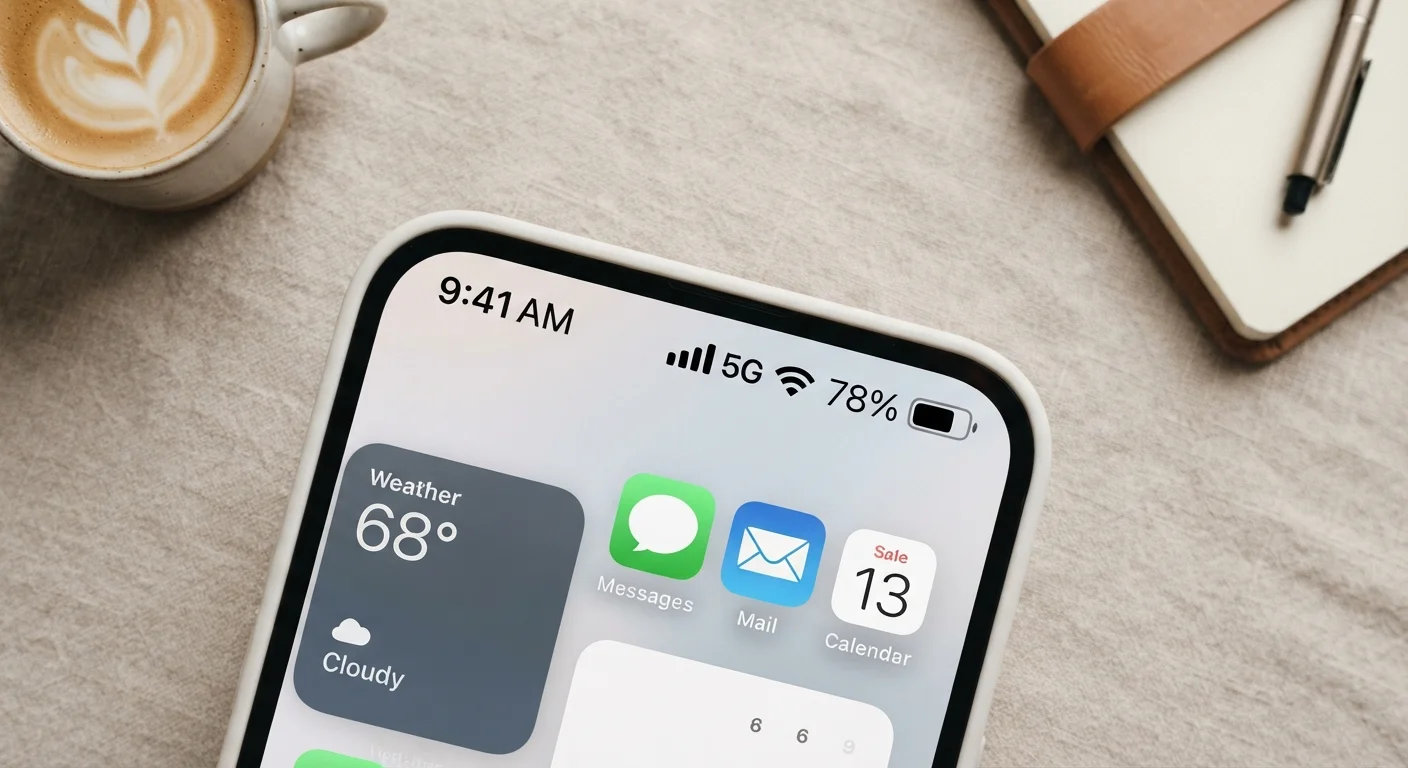
The Wi-Fi icon at the top of your screen looks simple, but it carries more information than most people realize. On both Android and iOS, the familiar arc-style icon shows your connection strength through the number of filled segments — typically three or four arcs, where more filled arcs mean stronger signal.
| Wi-Fi icon filled arcs | Signal strength (more = stronger) |
| Exclamation mark on Wi-Fi icon | No internet access or captive portal detected (Android status bar behavior) |
| 5G UW / 5G UC / 5G+ | Ultra-wideband or mid-band 5G (carrier-specific label) (US carrier branding) |
| LTE badge | 4G LTE — reliable for streaming and everyday use |
| E or G badge | 2G Edge or GPRS — very slow legacy data |
| Roaming indicator (R) | Connected to a non-home carrier network |
| VPN key/shield icon | Active VPN is encrypting your traffic |
| Airplane mode icon | All radios disabled; Wi-Fi/Bluetooth can be re-enabled manually |
What changes less obviously is what appears alongside that icon:
- Solid white or dark arcs: Connected to a Wi-Fi network with normal internet access.
- Greyed-out or hollow arcs: Associated with a network but no internet connection confirmed. Your phone joined the network but couldn't verify it reaches the internet.
- Exclamation mark (!) or question mark (?): On Android, a ! next to the Wi-Fi icon typically signals the network has no internet access or a captive portal (like a hotel login page) is blocking traffic. iOS shows a similar warning in Settings rather than the status bar.
- Lock icon overlaid: The network is secured with a password (WPA2/WPA3 encryption). Absent on open networks.
For a deeper look at what Wi-Fi generations like Wi-Fi 6 actually deliver, see our plain-language Wi-Fi standards reference.
Mobile Data Icons: 5G, LTE, 4G, and Older Badges
The letters or numbers next to your signal bars indicate which mobile data technology your phone is currently using. These appear in your status bar whenever you're on cellular data rather than Wi-Fi.
LTE (Long-Term Evolution)
The 4G mobile data standard used by most smartphones today. LTE delivers consistent speeds suitable for video streaming, navigation, and app use.
5G
The fifth generation of cellular networks, offering faster speeds and lower latency than LTE. Performance varies widely depending on the carrier band (low, mid, or high/mmWave).
Captive Portal
A web page that intercepts your connection before granting full internet access — common on hotel, airport, or café Wi-Fi networks. Your phone detects this and may flag the Wi-Fi icon accordingly.
Wi-Fi Calling
A feature that routes voice calls over a Wi-Fi network instead of cellular. Useful in areas with weak cellular signal but strong Wi-Fi.
VPN (Virtual Private Network)
A service that encrypts your internet traffic and routes it through a remote server, masking your IP address. Indicated by a key or shield icon in your status bar.
Roaming
When your phone connects to a carrier other than your home provider — typically when traveling outside your carrier's coverage area. Roaming charges may apply.
- 5G: Fifth-generation cellular. The fastest available standard, though actual speeds vary significantly by carrier band and location.
- 5G UW / 5G UC / 5G+: Carrier-specific labels for ultra-wideband or mid-band 5G — generally faster than standard 5G but with shorter range. Each major US carrier uses a different suffix.
- LTE or 4G LTE: The most widely deployed fast data standard. Reliable for video streaming and most everyday use.
- 4G: On some devices, indicates an older HSPA+ connection branded as 4G by carriers — usually slower than true LTE.
- 3G / H / H+: Older standards. 3G networks are largely being retired in the US. H and H+ (HSPA/HSPA+) are intermediate speeds between 3G and LTE.
- E (Edge) or G (GPRS): Very slow 2G data — enough for basic text but not for modern apps.
Our article on how 5G, LTE, and Wi-Fi calling actually work explains the practical speed and reliability differences between these technologies.
Signal Strength Bars and Other Status Indicators
The vertical bars alongside a carrier name show cellular signal strength — more filled bars mean stronger reception. An important nuance: signal strength reflects how well your phone hears the tower, not how fast your connection is. A full-bar LTE connection in a congested area may feel slower than three bars in a quieter location.
Full Bars Doesn't Always Mean Fast Data
Signal strength bars measure how clearly your phone receives a tower's radio signal — not the speed or quality of your internet connection. Network congestion, tower capacity, and the data technology in use (5G vs. LTE vs. 3G) all affect real-world speeds independently of bar count. If data feels slow despite strong signal, the issue is likely network load rather than reception.
Other common status bar icons related to connectivity include:
- Airplane mode icon (plane silhouette): All radios — cellular, Wi-Fi, Bluetooth — are disabled. Wi-Fi and Bluetooth can be manually re-enabled while in this mode on both iOS and Android.
- Wi-Fi Calling icon: Appears on supported carriers when calls are routing over Wi-Fi instead of cellular. Looks like a phone handset with Wi-Fi arcs, or the text "Wi-Fi" near the carrier name.
- VPN icon (key or shield): An active VPN (Virtual Private Network) is encrypting your internet traffic. Some devices display a small key; others show a VPN label or shield badge.
- No-signal or crossed-out icon: No cellular service available. "No Service" or "SOS Only" text may replace the carrier name on iOS; Android shows an X through the signal bars.
- Roaming icon (R): Your phone is connected to a network outside your home carrier's coverage — charges may apply depending on your plan. For managing roaming and data settings, see our guide to mobile data settings worth knowing.
Platform Differences: Android vs. iOS
While the underlying concepts are the same, Android and iOS present connectivity icons differently. iOS keeps the status bar minimal — most detail is tucked inside Settings under Cellular or Wi-Fi. Android devices often display more text labels (such as the exact network type) and may vary by manufacturer skin (Samsung One UI, Google Pixel UI, etc.).
A few platform-specific points worth knowing:
- On iPhones with a Dynamic Island or notch, signal and Wi-Fi icons appear in the top-left corner. On older models with a status bar, they sit on the left and right edges respectively.
- Android may show a "x" or "!" directly on the Wi-Fi or data icon when internet is unavailable — iOS surfaces this as a warning in the Wi-Fi settings panel instead.
- Some Android skins display upload and download arrows beneath the data icon to indicate active data transfer — this is cosmetic and does not indicate a problem.
If you're also curious about what connectivity indicators mean at the network hardware level, our router light reference covers what your router's LEDs are communicating. For broader connectivity standards context, see our plain-language reference to 5G, Wi-Fi 6, and Bluetooth 5.