

| Most common fix | Power cycling the router and modem |
| Solid green internet light means | Active, healthy internet connection |
| Amber/red internet light means | Router is up, but no internet signal from ISP |
| Blinking Wi-Fi light means | Normal — data is actively being transmitted |
| All lights blinking together | Firmware update or factory reset in progress |
| Typical boot time after power cycle | 1–2 minutes before lights stabilize |
Why Router Lights Matter
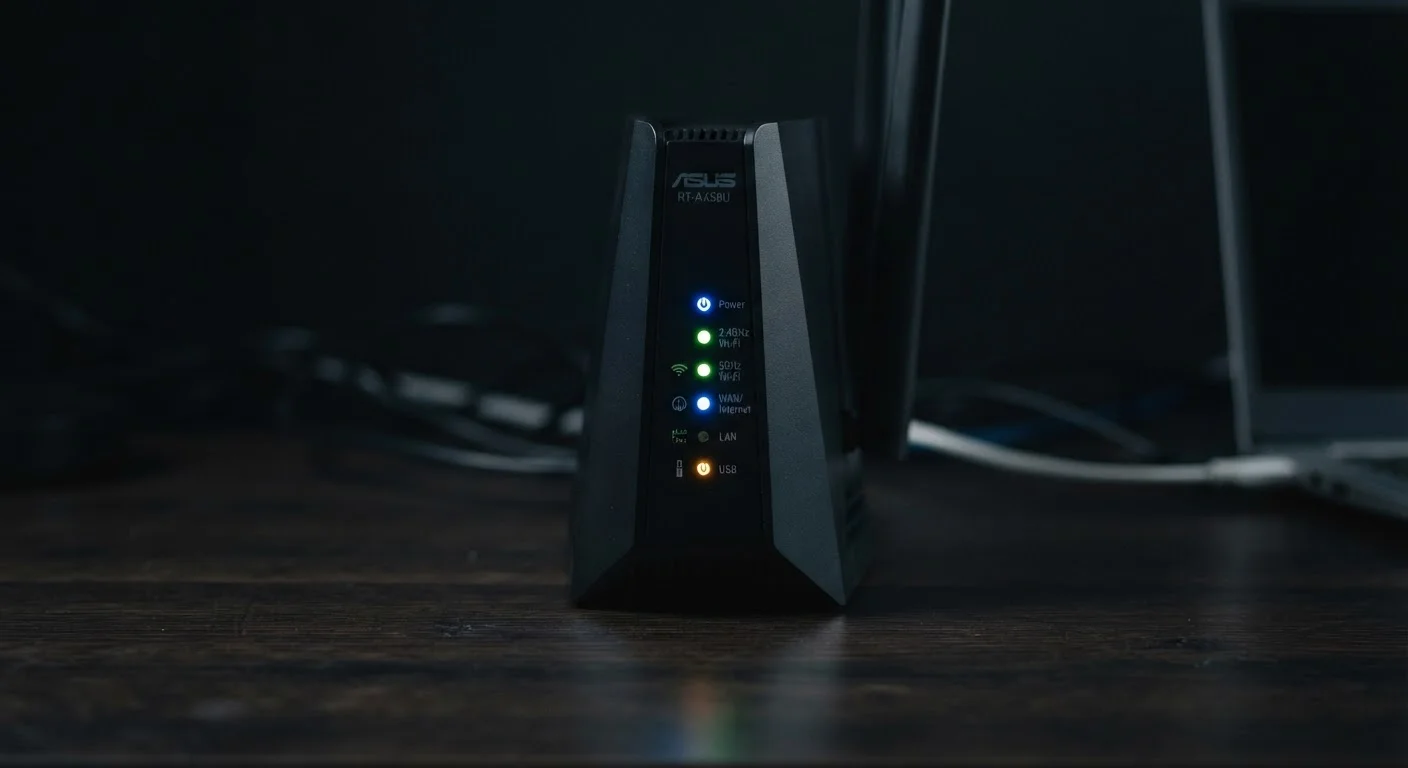
Your router is constantly broadcasting its status through a row of small LED indicators — but without a decoder, they look like random blinking lights. Understanding what each pattern means lets you diagnose most connectivity problems in seconds, without logging into any admin console or calling your internet provider. This reference covers the most common LED colors and behaviors found across consumer routers.
Keep in mind that manufacturers use different color schemes and icon labels. Always check your router's printed label or quick-start card first. This guide covers general conventions that apply broadly across most home networking equipment. For a deeper look at how your home network fits together, see the starter's orientation to home networking.
| Most common fix | Power cycling the router and modem |
| Solid green internet light means | Active, healthy internet connection |
| Amber/red internet light means | Router is up, but no internet signal from ISP |
| Blinking Wi-Fi light means | Normal — data is actively being transmitted |
| All lights blinking together | Firmware update or factory reset in progress |
| Typical boot time after power cycle | 1–2 minutes before lights stabilize |
Common LED Indicators and What They Signal
Most routers organize their LEDs into a few functional groups. Here is what each typically represents:
Power Light
- Solid green or white: Router is on and functioning normally.
- Blinking: The router is booting up or applying a firmware update — do not unplug it.
- No light: No power. Check the adapter and power outlet.
Internet / WAN Light
This light reflects the connection between your router and your modem (or your ISP's equipment if they are combined).
- Solid green: Active internet connection.
- Blinking green: Data is flowing — this is normal during activity.
- Solid amber or red: The router can reach your modem but cannot establish an internet connection. This often points to a problem on your ISP's side or a misconfigured WAN setting.
- No light: No physical link to the modem. Check the ethernet cable connecting the two devices.
Wi-Fi (2.4 GHz / 5 GHz) Lights
- Solid: The wireless band is active and broadcasting.
- Blinking: Devices are actively transmitting data on that band — normal behavior.
- Off: That Wi-Fi band has been disabled, either manually or by a scheduled setting.
LAN Port Lights
- Solid: A device is connected via ethernet cable.
- Blinking: Data is being transferred over that wired connection.
- Off: Nothing is plugged into that port, or the cable or connected device has a fault.
WAN (Wide Area Network)
The connection between your router and your internet service provider. On a router, the WAN port is where the cable from your modem plugs in.
LAN (Local Area Network)
The private network inside your home. LAN ports on a router accept ethernet cables from computers, smart TVs, and other wired devices.
WPS (Wi-Fi Protected Setup)
A feature that lets compatible devices join your Wi-Fi network by pressing a physical button rather than entering a password. Its indicator light activates briefly during the pairing process.
Firmware
The software permanently installed on a router that controls all its functions. Routers occasionally download and apply firmware updates automatically, which can trigger unusual LED behavior during the process.
Power Cycle
Turning a device off, waiting about 30 seconds, and turning it back on. This clears temporary errors in memory and is the most common first step in router troubleshooting.
Patterns That Indicate a Problem
Certain light behaviors are reliable flags that something needs attention:
- All lights blinking in unison: The router is performing a factory reset or experiencing a firmware failure. If this was not triggered intentionally, try power-cycling the unit.
- Internet light red or amber with everything else normal: Your router is healthy, but there is no usable internet signal coming in. Restart your modem first; if the light stays amber after two minutes, contact your ISP.
- No lights at all: A total loss of power. Verify the power cable, adapter, and wall outlet before assuming hardware failure.
- WPS light blinking rapidly: A Wi-Fi Protected Setup pairing session is in progress. It should stop within two minutes. If it stays on, the pairing may have failed — check your device's connection manually.
Understanding these signals pairs well with knowing how your phone interprets connectivity — compare with Wi-Fi and mobile data icons on your phone for the full picture. For context on what happens at the wireless level when you connect, see Wi-Fi Explained.
LED Colors Vary by Manufacturer
There is no universal standard for router LED colors. One brand may use amber to signal a degraded connection while another uses the same color to indicate standby mode. Always cross-reference with the label printed on your router's underside or your device's quick-start guide. Your manufacturer's support page is the definitive source for your specific model.