

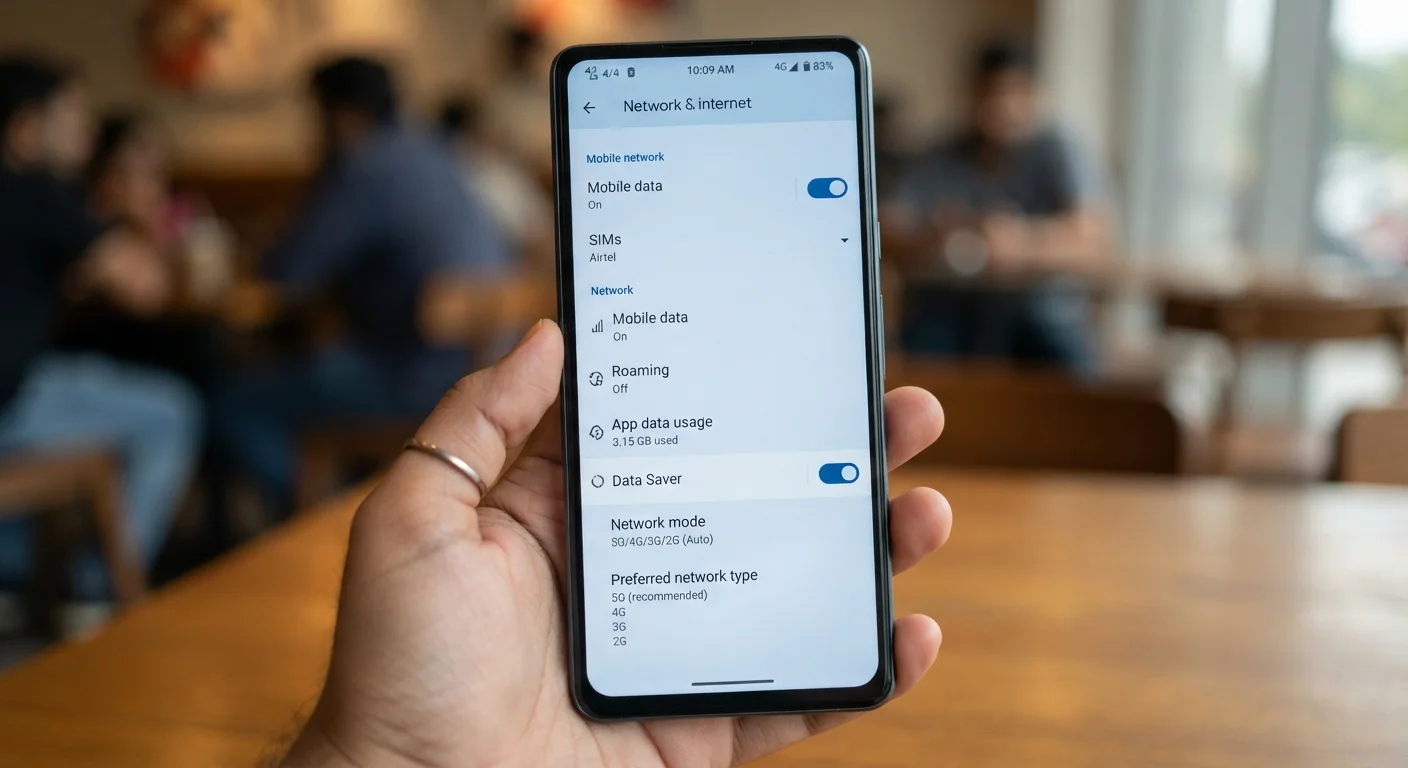
| Network modes available | 2G, 3G, 4G LTE, 5G (Sub-6 and mmWave on supported devices) |
| Where to find network mode (Android) | Settings → Network & Internet → Mobile Network → Preferred network type |
| Where to find network mode (iPhone) | Settings → Cellular → Voice & Data |
| Data Saver / Low Data Mode | Restricts background data usage; does not limit active foreground speeds |
| Data Roaming default recommendation | Off — enable only after confirming your carrier's roaming terms |
| Per-app data control (Android) | Settings → Network & Internet → Data Usage → app list |
| Per-app data control (iOS) | Settings → Cellular → scroll to app list |
Why These Settings Exist — and Why Most People Skip Them
Mobile data settings exist because carriers, hardware manufacturers, and software developers can't perfectly anticipate how each person will use their phone on any given plan. The defaults are designed to work acceptably for most users most of the time — which means they're not optimized for anyone in particular. Understanding what each toggle actually controls lets you make deliberate choices rather than inheriting someone else's assumptions.
This guide covers the settings that have real, measurable effects: on speed, battery life, data consumption, and your monthly bill. For a handy reference on what the signal icons in your status bar are actually telling you, see our icon reference guide.
| Network modes available | 2G, 3G, 4G LTE, 5G (Sub-6 and mmWave on supported devices) |
| Where to find network mode (Android) | Settings → Network & Internet → Mobile Network → Preferred network type |
| Where to find network mode (iPhone) | Settings → Cellular → Voice & Data |
| Data Saver / Low Data Mode | Restricts background data usage; does not limit active foreground speeds |
| Data Roaming default recommendation | Off — enable only after confirming your carrier's roaming terms |
| Per-app data control (Android) | Settings → Network & Internet → Data Usage → app list |
| Per-app data control (iOS) | Settings → Cellular → scroll to app list |
Network Mode: The Setting With the Most Impact
Found under Settings → Cellular/Mobile Network → Preferred Network Type on most Android devices, and Settings → Cellular → Voice & Data on iPhone, the network mode toggle determines which generation of cellular technology your phone prioritizes.
What the options mean in practice
- 5G Auto / 5G On: Your phone connects to 5G when available and falls back to 4G LTE otherwise. On most current devices, this is the default and the right choice if you're in an area with solid 5G coverage.
- LTE Only: Forces the phone to stay on 4G LTE regardless of 5G availability. Useful if 5G coverage in your area is sparse and your phone is burning battery constantly searching for a stronger signal.
- 3G / 2G: Legacy options that only make sense in highly rural areas. They significantly limit data speeds but can extend battery life when signal is genuinely poor.
Switching to LTE-only when traveling in areas with weak 5G infrastructure can noticeably reduce battery drain — the radio doesn't spend energy hunting for a signal it rarely finds. For a deeper look at how 5G network availability varies internationally, see how roaming works on 5G networks.
~20%
Potential battery saving from LTE-only mode in weak 5G areas
Industry testing has shown radio power consumption increases substantially when a device repeatedly searches for a 5G signal that isn't consistently available.
3
Key data-related settings most users never adjust
Network mode, Data Saver, and Data Roaming are the three toggles with the most direct impact on performance, battery, and billing — yet most users leave all three at factory defaults.
Data Saver, Roaming, and Per-App Controls
Data Saver (Android) / Low Data Mode (iOS) restricts background data usage across apps — preventing syncing, auto-updates, and streaming preloads when you're not actively using an app. It doesn't throttle speed while the app is open; it simply prevents apps from consuming data when your screen is off or the app is in the background.
Data Roaming is a switch that controls whether your phone uses cellular data when connected to a foreign carrier's network. Leaving it enabled abroad without a roaming add-on from your carrier is one of the more reliable ways to generate a large unexpected bill. The safest default is to leave roaming off until you've confirmed your plan's roaming terms. The article Mobile Data Abroad covers this in detail.
Per-app data restrictions let you block specific apps from using cellular data entirely — forcing them to wait for Wi-Fi. This is useful for apps that consume large amounts of data passively (cloud backup services, video streaming apps set to auto-download). On Android, these controls live under Settings → Network & Internet → Data Usage. On iOS, go to Settings → Cellular and scroll to the app list.
For habits and settings that stretch your data allowance further, see our guide to using mobile data efficiently.
Network Mode
A setting that determines which cellular generation (2G, 3G, 4G LTE, 5G) your phone prioritizes when connecting to the carrier network. Changing it can affect both signal reliability and battery life.
Data Roaming
A feature that allows your phone to use a foreign carrier's network for mobile data when traveling outside your home carrier's coverage area. Roaming data charges can be significant without a plan add-on.
Data Saver / Low Data Mode
A system-level setting that limits how much data apps consume in the background. On Android it's called Data Saver; on iOS it's Low Data Mode. Neither reduces speeds while an app is actively in use.
APN (Access Point Name)
A configuration setting that tells your phone how to connect to your carrier's data network. Usually set automatically, but occasionally needs manual input when switching carriers or using international SIM cards.
Sub-6 GHz 5G
A 5G frequency band below 6 GHz that offers broader geographic coverage than mmWave but at lower peak speeds. Most 5G users in the US connect via Sub-6 GHz.
mmWave 5G
A very high-frequency 5G band capable of extremely fast speeds but with very short range and limited building penetration. Coverage is generally limited to dense urban areas and specific venues.
Hotspot Settings and a Note on Security
Your phone's mobile hotspot feature — which shares your cellular connection with other devices — has its own settings worth reviewing. Encryption type, network name (SSID), and password all live here. If the SSID reveals your name or device model, or the password is still set to a carrier-assigned default, consider changing both.
For everything about how hotspots work and what affects their performance, see our mobile hotspot explainer. And if you want a broader review of settings that affect your phone's overall security posture, overlooked settings that quietly weaken your phone's security is a practical companion.
Hotspot Data Counts Against Your Plan
On most carrier plans in the US, data used through your mobile hotspot is drawn from the same monthly allowance as your regular mobile data. Some plans treat hotspot data separately with its own cap or throttle point — check your plan's terms before relying heavily on hotspot use. Also note that hotspot connections are often subject to lower deprioritization thresholds than direct device data during network congestion.