
Notification Problems on Android and iOS: A Side-by-Side Troubleshooting Comparison

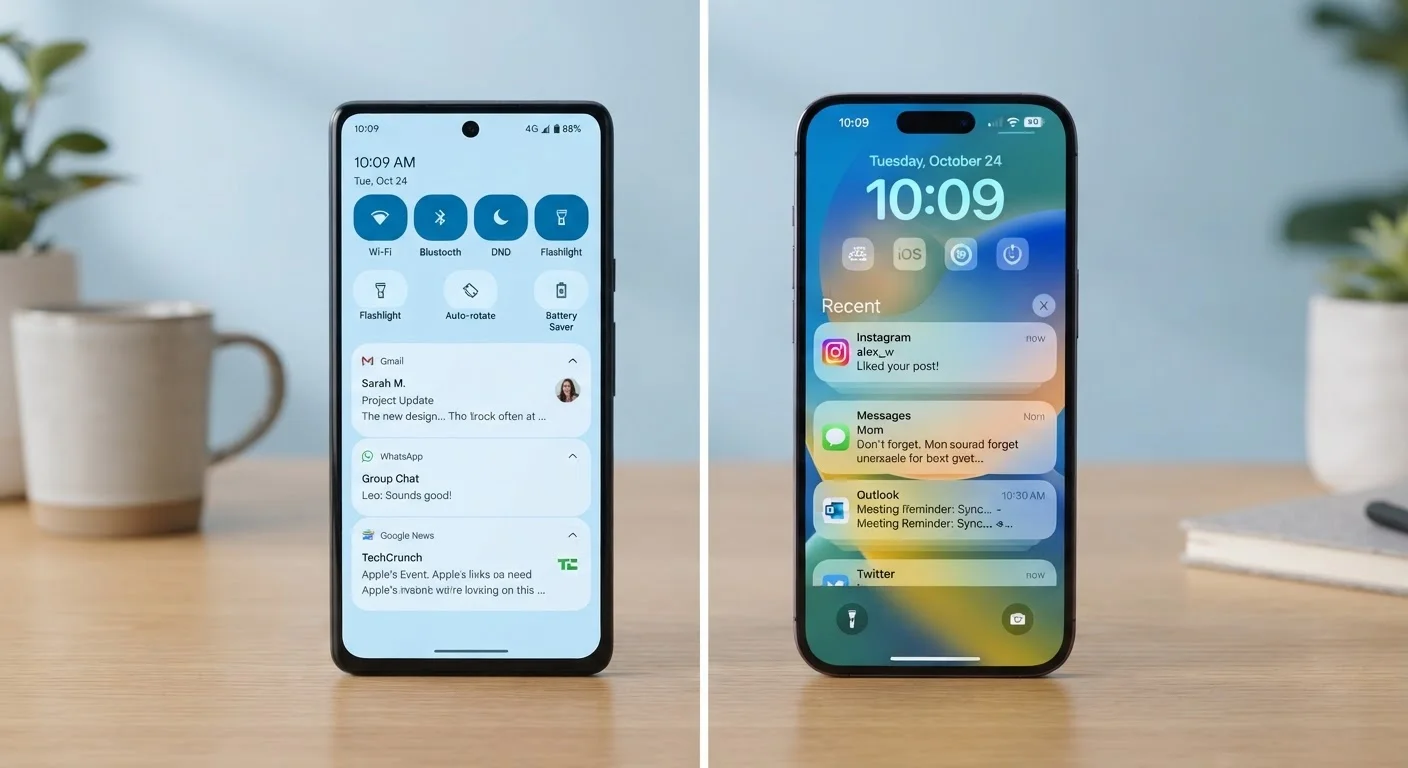
Key Takeaways
- Android and iOS both allow per-app notification controls, but the navigation paths differ significantly.
- Do Not Disturb and Focus modes are common culprits silently blocking alerts on both platforms.
- Battery optimization settings on Android can prevent apps from delivering notifications in the background.
- iOS requires explicit permission for each app to send notifications — check this first when alerts go missing.
- Restarting the device and checking network connectivity resolves many notification delivery failures on either platform.
Our Verdict
Both Android and iOS give users robust notification controls, but the settings are organized differently and fail for different reasons. Android's background battery restrictions are a frequent culprit; iOS permission prompts that were declined are the most common cause on Apple devices. Knowing which system you're on points you directly to the right fix.
| Best for | Recommended |
|---|---|
| Android users missing alerts from specific apps | Check Battery Optimization and per-app notification settings |
| iOS users receiving no notifications from an app | Review notification permissions in iOS Settings > Notifications |
| Users overwhelmed by too many alerts on either platform | Use per-app channel controls (Android) or notification grouping and summaries (iOS) |
Why Notification Problems Differ Between Android and iOS
Notifications seem simple — an app sends an alert, your phone shows it. In practice, both Android and iOS route alerts through several layers of permissions, power management, and system-level controls. A problem at any layer can silently swallow an alert before it ever reaches your screen.
The two platforms take meaningfully different approaches to this pipeline, which is why the same symptom — say, a missing text alert — often has a different root cause depending on which device you're using. For a broader look at how the two systems differ philosophically, see how Android and iOS differ in design and philosophy.
Understanding which platform you're on — and where its notification architecture is most likely to break down — saves you from running through the wrong checklist.
Diagnosing Missing Notifications
When expected alerts stop arriving, start with these platform-specific checks before assuming the app itself is broken.
| Android | iOS | |
|---|---|---|
| Permission model | On by default for most apps; user can revoke | Explicit opt-in required per app on first launch |
| Per-app control location | Settings > Notifications > App Notifications | Settings > Notifications > [App Name] |
| Sub-category control | Notification Channels (granular, per category) | Alert style only; no sub-channels |
| Common silent-blocking culprit | Battery optimization / background restrictions | Focus mode or declined permission prompt |
| Do Not Disturb / Focus | Do Not Disturb in Quick Settings or Settings > Sound | Focus modes in Settings > Focus |
| Bulk management tool | Notification history log; per-channel toggles | Scheduled Summary for low-priority app batching |
Android: Background Restrictions Are the Main Suspect
Android's battery optimization system can put apps to sleep when not actively in use, which prevents them from receiving data and delivering notifications. Navigate to Settings > Apps > > Battery and set it to Unrestricted for apps that must deliver timely alerts. Some Android manufacturers — particularly those running heavily customized Android skins — add additional power-saving layers accessible under settings labeled Auto-launch or Background activity.
Also confirm that per-app notifications are enabled: Settings > Notifications > App Notifications, then locate the app. Android organizes alerts into channels (sub-categories within an app), so one channel may be disabled even if the app-level toggle is on.
Use Android's Notification History Log
If you suspect notifications are arriving but disappearing too quickly, Android keeps a log. Go to Settings > Notifications > Notification History and enable it. This records recent alerts so you can confirm whether the phone received them at all — useful for pinpointing whether the problem is delivery or display.
iOS: Permission Prompts and Focus Modes
iOS requires apps to explicitly request notification permission the first time they launch. If you tapped Don't Allow at that prompt — or never saw it — the app has no ability to alert you. Go to Settings > Notifications, scroll to the app, and verify that Allow Notifications is toggled on. You can also set the alert style (Lock Screen, Notification Center, or Banners) here.
Focus modes (including Do Not Disturb) filter which apps and contacts can reach you. Check Settings > Focus to confirm no active Focus is blocking the app. An active Focus shows in the status bar.
Fixing Notification Overload
Too many alerts is just as disruptive as too few. Tuning notification settings so only what matters gets through is a skill worth developing on either platform.
On Android, use notification channels to surgical precision: within an app's notification settings, you can silence promotional alerts while keeping transactional ones (like order confirmations) active. Long-pressing a notification in the shade also offers a shortcut to that channel's settings.
On iOS, the Scheduled Summary feature (Settings > Notifications > Scheduled Summary) bundles low-priority app alerts into a digest delivered at times you choose — helpful for news or social apps. You can also set individual apps to deliver notifications silently (to Notification Center only, with no banner or sound).
Avoid Disabling Notifications System-Wide
Turning off notifications entirely for an app means you'll also miss security alerts, password reset codes, and account activity warnings. Before silencing an app completely, explore whether disabling only specific channels (Android) or switching to silent delivery (iOS) achieves the quiet you need without losing important alerts.
Universal Fixes That Work on Both Platforms
Several troubleshooting steps apply regardless of which operating system you're using:
- Restart the device. A fresh boot clears temporary system states that can interrupt notification delivery.
- Check connectivity. Most app notifications are pushed over the internet. A poor Wi-Fi or mobile data connection can delay or drop alerts entirely. For help reading signal indicators, see what the different Wi-Fi and mobile data icons on your phone actually mean.
- Update the app. Notification bugs are frequently patched in app updates. Check your app store for pending updates.
- Re-install the app. A fresh install re-triggers the permission prompt on iOS and resets notification channel settings on Android.
- Check the app's own in-app notification settings. Many apps — messaging platforms in particular — maintain their own notification preferences independent of the OS settings.
If problems persist on a single app after all of the above, the issue may lie with the app's own push notification server rather than your device. Checking community forums or the developer's support page can confirm whether others are affected.