

Key Takeaways
- Most phones let you control notifications at the app level, category level, and system level.
- Silencing non-essential alerts can measurably reduce interruptions without missing urgent information.
- Both Android and iOS offer granular controls that most users never explore.
- Auditing your notification settings every few months keeps alert fatigue from creeping back.
- Do Not Disturb and Focus modes work alongside — not instead of — per-app notification settings.
What you will need
Why Notifications Spiral Out of Control
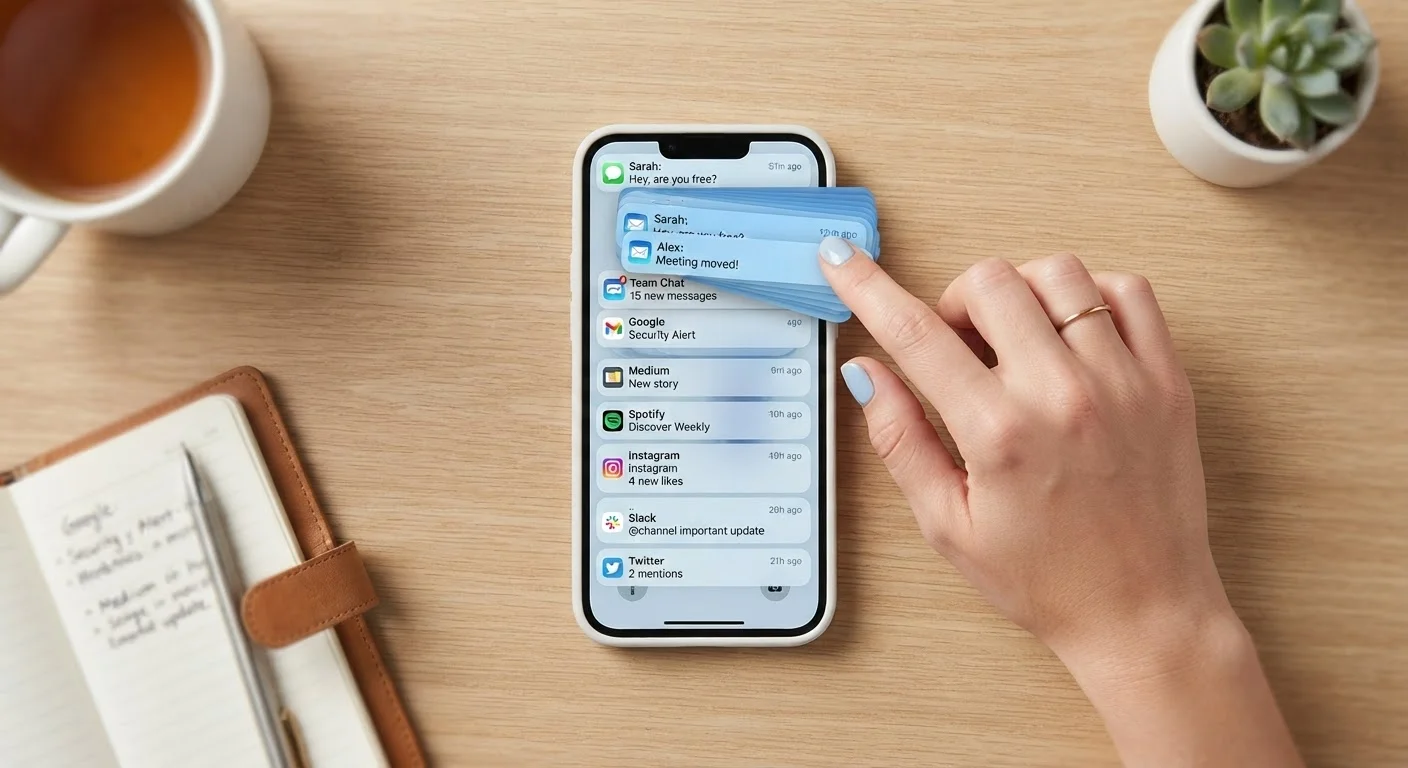
Every app you install arrives with notifications turned on by default. That's by design: developers want engagement, and alerts drive it. The result, for most smartphone users, is a steady stream of badges, banners, and sounds that interrupt work, conversation, and rest without delivering proportional value.
The fix isn't to silence everything — some notifications genuinely matter, from a text from a family member to a two-factor authentication code. The goal is intentional filtering: letting through what serves you and blocking what doesn't. Both Android and iOS give you the tools to do this precisely; most people simply haven't had a reason to dig in.
If your home screen itself feels cluttered, that's a related problem worth addressing separately. See our guide to keeping your phone organised for a parallel audit process.
What you will need
How to Audit and Adjust Your Notification Settings
The steps below work for both major mobile platforms. Where the path differs significantly between Android and iOS, both versions are noted. Completing this process once typically takes 15–30 minutes depending on how many apps are installed.
Open your system notification settings
On Android: Go to Settings → Apps → select any app → Notifications. Alternatively, go to Settings → Notifications to see a list of all apps sorted by how recently they sent an alert.
On iOS: Go to Settings → Notifications. You'll see every installed app listed with its current notification style.
Categorise each app as Essential, Occasional, or Silent
Before changing settings, quickly sort your apps mentally into three groups:
- Essential: Calls, messaging apps, banking alerts, health reminders — notifications you genuinely need in real time.
- Occasional: Email, calendar, news — useful on your schedule, not the app's.
- Silent: Games, shopping apps, social media feeds — engagement-driven alerts that rarely require immediate action.
This mental map guides every setting change that follows.
Disable or restrict notifications for Silent-category apps
For each app you categorised as Silent, turn off notifications entirely. On Android, toggle Allow notifications to off. On iOS, set Allow Notifications to off, or choose Deliver Quietly to send alerts to Notification Center without any sound or banner.
This single step typically eliminates the majority of unwanted interruptions.
Tune notification style for Occasional-category apps
For apps like email or news, keep notifications enabled but reduce their intrusiveness:
- Disable sound and vibration so alerts don't interrupt focus.
- Turn off lock screen notifications for apps that display sensitive previews (email subject lines, message content).
- On Android: Use notification channels — many apps let you enable alerts for some categories (e.g., direct messages) while silencing others (e.g., promotional emails).
- On iOS: Choose Banners instead of Alerts so notifications disappear automatically rather than requiring a tap to dismiss.
Confirm Essential apps have reliable delivery
Check that high-priority apps — phone calls, SMS, banking, health — are set to deliver with sound and appear on the lock screen. On Android, verify these apps aren't affected by any active battery optimisation settings, which can delay or block background notifications. Go to Settings → Battery → Battery Optimisation and exclude critical apps.
On iOS, ensure Allow Notifications is on and the notification style is set to Alerts (persistent) rather than Banners (auto-dismiss) for anything time-sensitive.
Schedule a Notification Summary or use Focus mode
Both platforms offer ways to batch lower-priority notifications so they arrive at a time you choose rather than continuously throughout the day.
- iOS Scheduled Summary: Go to Settings → Notifications → Scheduled Summary. Choose which apps to include and set one or two daily delivery times.
- Android notification batching varies by manufacturer, but Focus Mode (available in Digital Wellbeing settings on many Android devices) lets you pause specific apps on a schedule.
This is especially effective for news, social media, and newsletter apps whose alerts add no real-time value.
Review New App Installs Immediately
When you install a new app, navigate to its notification settings before you use it for the first time. It takes under a minute and prevents the app from establishing an alert habit you'll need to undo later. This single practice is more effective than any periodic audit.
For a deeper look at what each platform can actually do, including notification channels, scheduled summaries, and per-contact overrides, see what's actually possible in notification settings. And if you're running into specific problems — missing alerts or notifications that won't silence — this side-by-side troubleshooting comparison covers Android and iOS differences in detail.
Keeping Notifications Under Control Long-Term
A single audit won't hold forever. Every new app install resets the defaults, and apps often re-enable notifications after major updates. Building a short maintenance habit — reviewing your notification list every two or three months — prevents the creep from starting again.
Pairing this with Do Not Disturb or Focus modes adds a second layer of protection during focused work or sleep. Those tools let you set time-based rules and allow exceptions for specific contacts or apps, so critical alerts still get through. Do Not Disturb is far more flexible than most users realise — scheduled sessions and app-specific overrides make it a powerful complement to per-app settings.
Finally, it's worth connecting notification habits to broader phone hygiene. Apps that you've silenced notifications for are often apps you no longer actively use — a good signal to consider uninstalling them. The same goes for app permissions: an app that sends excessive alerts may also be requesting more access than it needs.
Don't Silence Notifications You Haven't Reviewed
Using a blanket 'silence all' approach can cause you to miss genuinely important alerts — two-factor authentication codes, pharmacy reminders, or emergency contact messages. Always go app by app so your essential alerts remain intact.