

Key Takeaways
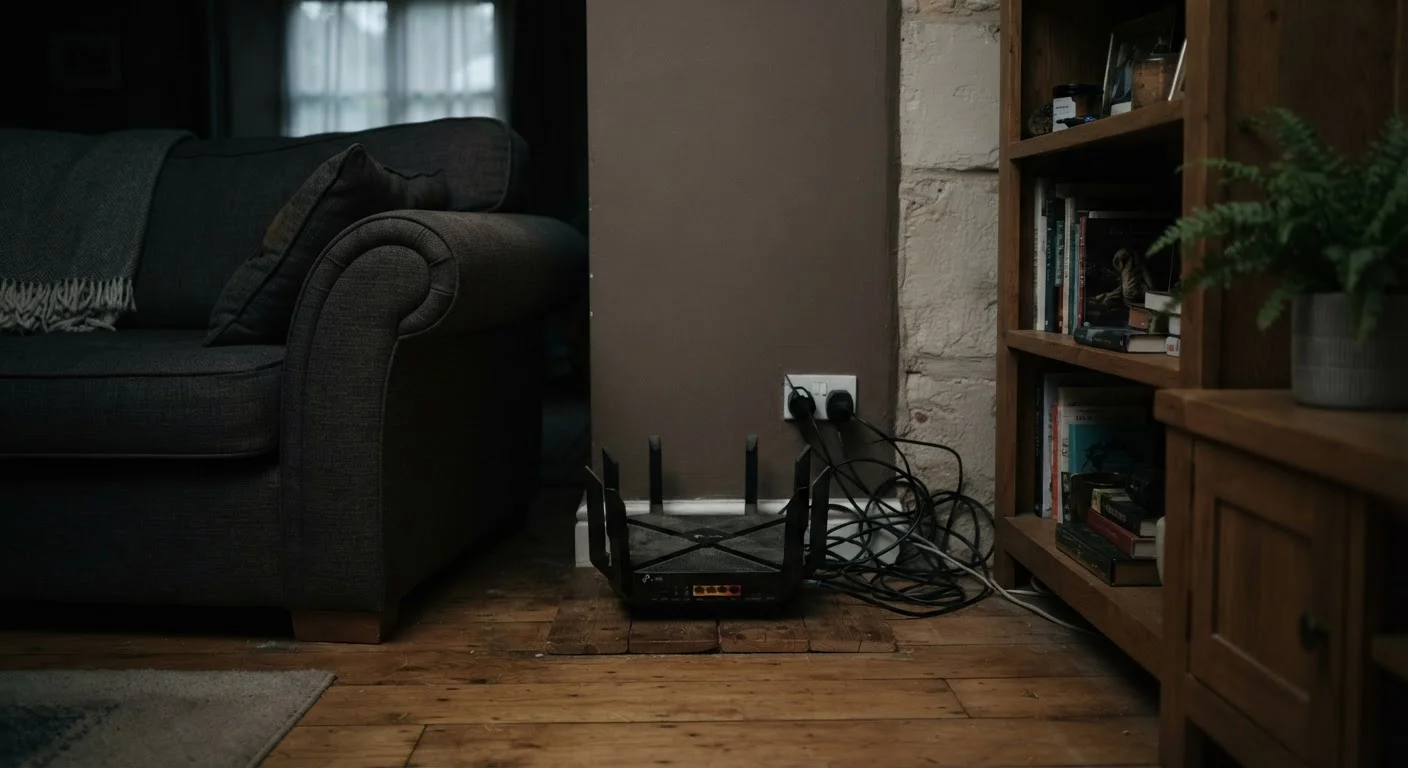
- Placing a router in a corner or against an exterior wall wastes a large portion of its signal range.
- Physical obstructions like thick walls, appliances, and metal objects significantly degrade Wi-Fi signal strength.
- Height matters — a router positioned too low loses signal to floor absorption and furniture blocking.
- Interference from other electronics on the same frequency band quietly degrades performance.
- Centralizing your router and keeping it in the open are two of the highest-impact, zero-cost fixes available.
Why Placement Has Such a Large Impact on Performance
Most Wi-Fi troubleshooting focuses on hardware — upgrading routers, adding extenders, or calling the internet provider. But before any of that, the single most effective variable is often the one that costs nothing to change: where the router sits. Radio signals radiate outward in roughly all directions, so where the device is positioned in a room determines which walls, floors, and objects that signal must pass through to reach every corner of your home.
The mistakes below are common precisely because they feel intuitive — hiding the router out of sight, placing it near the modem jack regardless of where that jack is, or setting it on the floor to avoid cluttering a shelf. Each of these decisions has measurable consequences. See our complete home Wi-Fi setup guide for broader context on how placement fits into an optimized network configuration.
Common Router Placement Mistakes and How to Correct Them
Placing the router in a corner of the home.
Why it happens: Most homes have coaxial or ethernet jacks near exterior walls or in corner rooms, so the router ends up where the cable runs rather than where coverage is needed.
Setting the router directly on the floor.
Why it happens: Floor placement feels unobtrusive and keeps cables tidy, so it's a common default when no shelf is nearby.
Hiding the router inside a cabinet, closet, or entertainment center.
Why it happens: Routers are not decorative, and many households prioritize tidiness by concealing networking equipment.
Positioning the router near a microwave oven or cordless phone base station.
Why it happens: The router is often placed in a kitchen or living area near the cable outlet, which may coincidentally be near these appliances.
Placing the router behind or directly beside a large television.
Why it happens: Both the TV and the router often connect to the same entertainment center, so they end up sharing the same physical space by convenience.
Orienting the router's antennas all in the same direction.
Why it happens: Antennas pointing straight up look tidy and seem logically correct, but this creates uneven coverage patterns.
If you've corrected your placement but are still experiencing issues, run through the Wi-Fi performance audit checklist to rule out other common causes before assuming your hardware needs replacing.
The Interference Problem Most Homeowners Overlook
2.4 GHz
Most congested Wi-Fi frequency band
The 2.4 GHz band is shared by Wi-Fi, Bluetooth, baby monitors, cordless phones, and microwave ovens, making interference a common issue in dense home environments.
~50%
Signal loss through a single concrete wall
Studies on building material attenuation suggest a single concrete or brick wall can reduce Wi-Fi signal strength by roughly half, compounding quickly across multiple walls.
3x
Coverage improvement: central vs. corner placement
Networking professionals commonly observe that moving a router from a corner to a central location can effectively triple the usable area covered at a given signal threshold.
Even a perfectly centered router can underperform if it's surrounded by devices that emit competing radio signals. Cordless phones operating on the 2.4 GHz band, baby monitors, and even some microwave ovens generate interference on frequencies that overlap with standard Wi-Fi channels. This type of degradation is particularly frustrating because the router appears to be working fine — speeds just feel inconsistently slow.
The fix is twofold: first, move the router away from these appliances; second, consider switching compatible devices to the 5 GHz band in your router's settings, which is far less congested in most homes. For a deeper dive into what's physically happening when signal disappears in certain rooms, the guide to Wi-Fi dead zones explains the underlying causes and practical remedies.
Don't Overlook Your Router's Band Settings
Many modern routers broadcast both 2.4 GHz and 5 GHz signals simultaneously. The 5 GHz band offers faster speeds and far less interference but has a shorter range and struggles more with walls. If devices in a nearby room are connecting to 5 GHz and experiencing drops, they may be better served on 2.4 GHz. Check your router's admin interface to see whether band steering is enabled and adjust per-device connections if needed.
Making the Most of Your Current Hardware
You don't need to replace your router to improve coverage substantially. Repositioning alone — moving from a corner to a central hallway shelf, elevating it to waist height or above, and clearing nearby metal objects — can meaningfully extend usable range. If your home's layout makes a truly central placement difficult, consider whether a wired access point or a mesh node would serve a problematic wing better than pushing one router to its limits.
For guidance on the physics-backed principles that should govern where any router sits, the router placement principles article and the signal-crippling placement mistakes overview are useful next reads. Small positional changes, made with intention, routinely outperform expensive hardware upgrades.
Restart After Every Repositioning Change
After physically moving your router, always power-cycle it — unplug for 30 seconds, then plug back in. Some routers cache signal path information and won't fully recalibrate until restarted. Give connected devices a minute to reconnect, then test speeds from multiple locations before concluding whether the new placement is an improvement.