

Key Takeaways
- Central placement broadcasts signal evenly to all areas of your home.
- Physical obstructions like walls, appliances, and furniture significantly weaken Wi-Fi signals.
- Elevating your router improves signal propagation throughout the space.
- Interference from neighboring electronics can degrade performance even with ideal positioning.
- Testing signal strength in key rooms after repositioning confirms whether the change helped.
What you will need
Why Placement Matters More Than You Think
Your router's hardware specifications only tell half the story. A high-end router stuffed inside a cabinet or shoved into a corner can deliver worse real-world performance than a modest unit positioned thoughtfully in the open. Radio waves spread outward from the antenna in all directions, losing strength every time they pass through a wall, floor, or large metal object.
Most homes have dead zones not because the router is underpowered, but because it was placed wherever the cable outlet happened to be - often a corner of the living room or a back bedroom. Moving it even a few feet can noticeably change coverage. For a full picture of what else might be limiting your network, see our Wi-Fi performance audit checklist before assuming placement is the only factor.
Ethernet cable (Cat 5e or better)
Connects your router to the modem from a new central location without relying on Wi-Fi.
Wi-Fi analyzer app
Measures signal strength (RSSI) in different rooms so you can verify placement improvements objectively.
Power strip or extension cord
Allows you to power the router in a location that may not have a nearby outlet.
Step-by-Step: Finding and Using the Optimal Spot
Follow these steps methodically. Small adjustments often yield meaningful improvements, so resist the urge to skip ahead.
What you will need
Map the center of your home
Sketch a rough floor plan and identify the geometric center of your living space. This is your target zone. A router placed here has the shortest average distance to every room, which means more of your home benefits from a stronger signal rather than a few rooms getting excellent coverage while others get almost none.
Elevate the router off the floor
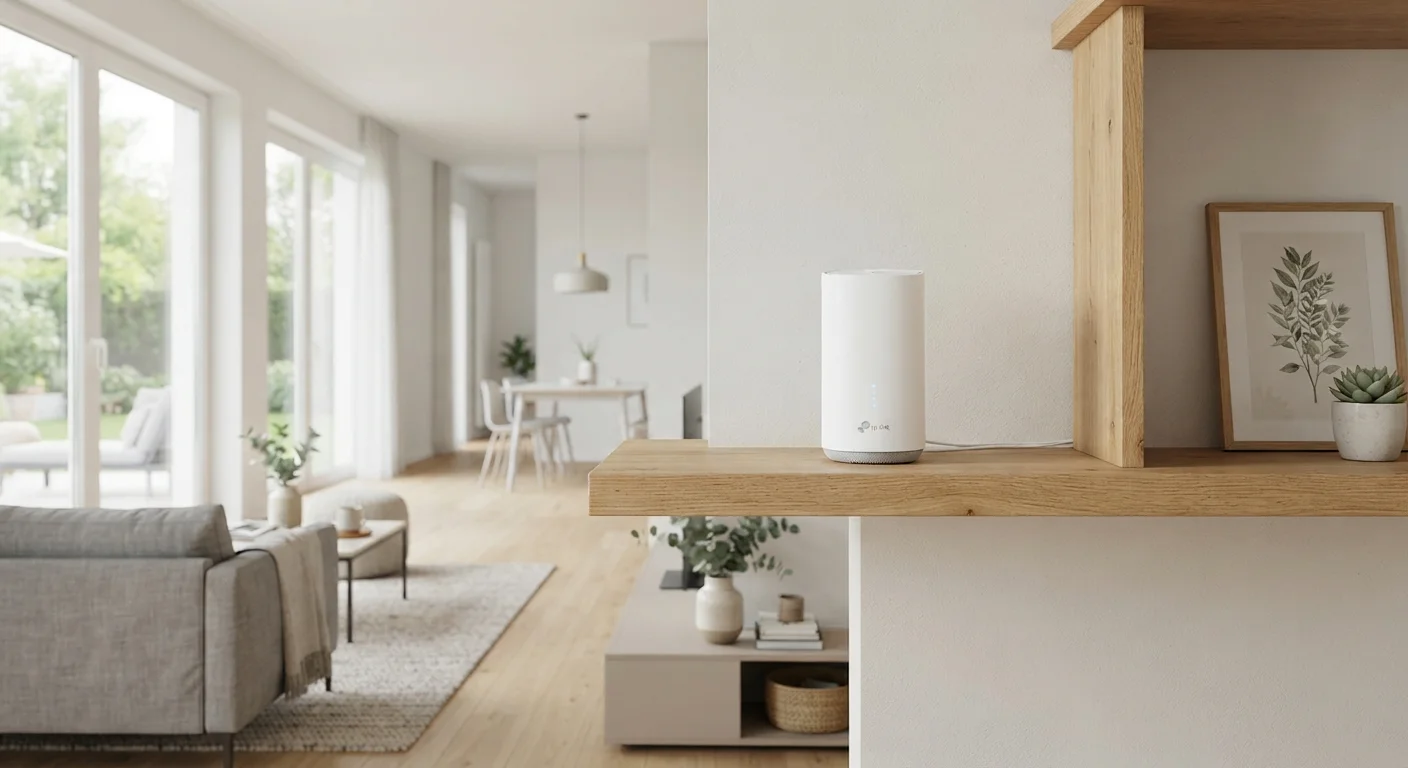
Place the router on a shelf, desk, or mounted bracket at roughly waist-to-chest height. Floors absorb and reflect signal poorly. An elevated position allows the radio waves to radiate more evenly across the room and reduces the number of obstructions the signal must penetrate before reaching devices.
Move it away from walls and metal surfaces
Position the router at least a foot away from exterior walls. Thick masonry, brick, or concrete walls are particularly effective at blocking signal. Metal objects - filing cabinets, refrigerators, radiators - reflect and scatter Wi-Fi waves unpredictably. Keep the router in open air, not inside a cabinet or entertainment unit.
Keep it away from competing electronics
Maintain at least three feet of separation between your router and other wireless devices, particularly cordless phone bases, microwave ovens, and baby monitors. These devices can cause interference that reduces effective throughput even when signal strength looks acceptable on paper.
Test signal strength in key locations
After repositioning, walk through your home with a smartphone and check the signal bars in each room you use regularly. For a more objective measurement, use a free Wi-Fi analyzer app to read the RSSI value in dBm. Aim for readings above −70 dBm in areas where you need reliable connectivity. If a room still falls short, common placement mistakes may explain why, or a mesh system or range extender may be worth considering.
Don't Skip the Verification Step
It's tempting to assume a more central location is automatically better, but building materials and room layouts vary widely. Always confirm with a signal test after moving the router. A few minutes of measurement saves hours of troubleshooting later.
Sources of Interference to Keep in Mind
Even with ideal placement, nearby electronics can compete with your router's signal. Microwave ovens, cordless phones, baby monitors, and Bluetooth speakers all operate in radio frequency ranges that overlap with common Wi-Fi bands - particularly 2.4 GHz. Keeping your router away from the kitchen and entertainment center helps reduce this crosstalk.
Neighboring Wi-Fi networks are another source of channel congestion, especially in apartments and densely populated neighborhoods. Your router's channel selection settings can help, though that topic goes beyond placement alone. Understanding how your router's two frequency bands behave differently in various rooms is also worth exploring - our guide on choosing the right Wi-Fi band for each room covers that in detail.
Enclosed Spaces Trap Heat and Block Signal
Routers placed inside closed cabinets or media consoles suffer from two problems simultaneously: reduced signal propagation through the enclosure walls and heat buildup that can throttle performance. Always ensure the router has open airflow on all sides and is not enclosed behind doors or panels.
For a broader look at everything involved in building a reliable home network - from initial setup to security - see our complete home Wi-Fi setup guide.