

Key Takeaways
- Router placement is the single biggest factor behind Wi-Fi dead zones in most homes.
- Building materials like concrete, brick, and metal deflect or absorb wireless signals significantly.
- Channel congestion from neighboring networks can mimic a dead zone without one actually existing.
- A single router is often insufficient for homes larger than approximately 1,500 square feet.
- Most dead zones can be resolved without purchasing new hardware by repositioning existing equipment.
What Actually Creates a Wi-Fi Dead Zone
A Wi-Fi dead zone is any area inside your home where a wireless signal either cannot reach or degrades below the threshold needed for a stable connection. Dead zones are not random - they form at predictable intersections of physics, architecture, and hardware limitations.
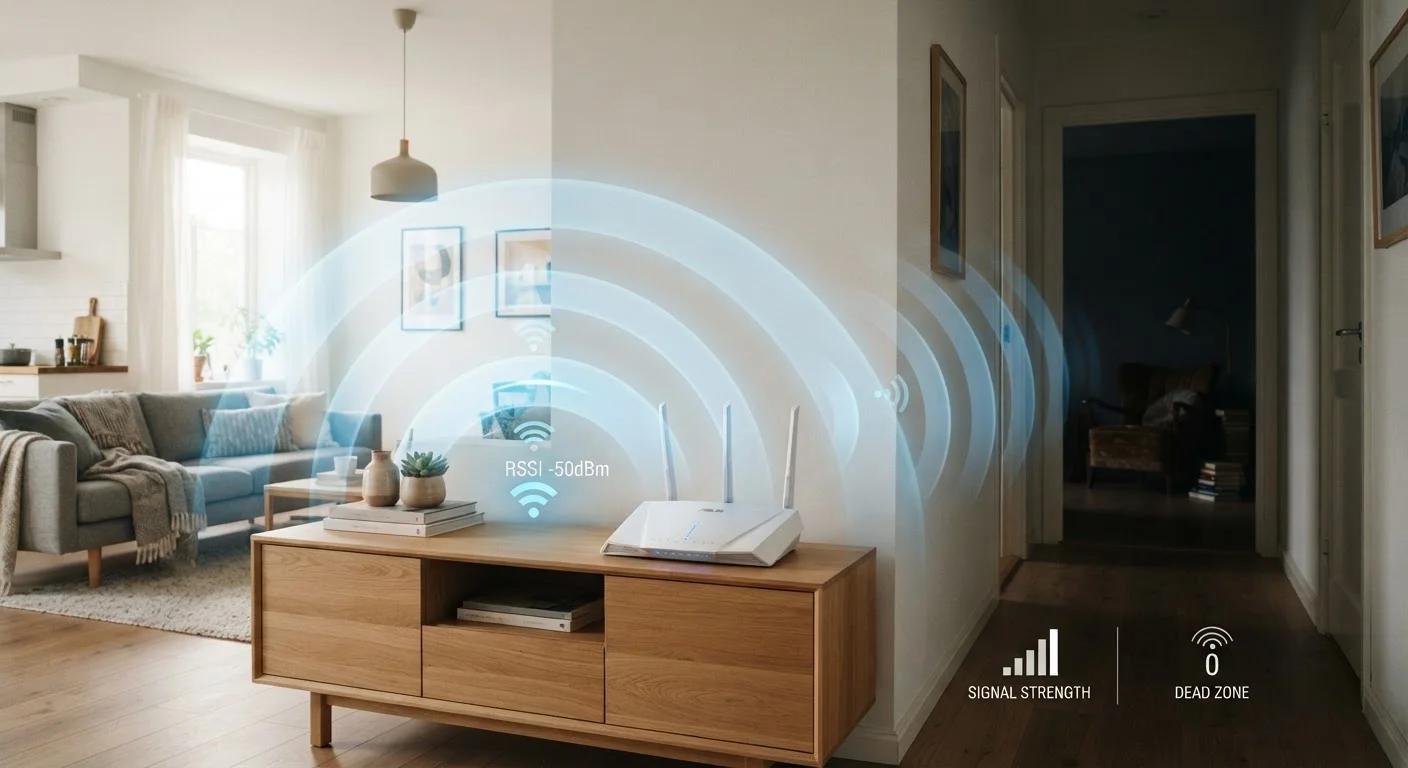
Radio waves travel outward from your router in all directions, but they weaken with distance and are further attenuated (weakened) or reflected by the materials they pass through. The 2.4 GHz band penetrates walls more easily but carries less data; the 5 GHz band offers higher throughput but loses strength more quickly over distance and through obstacles. Understanding this trade-off is the starting point for diagnosing any dead zone. For a broader grounding in how home Wi-Fi works, see the Wi-Fi Basics hub.
Dead Zones Are a Coverage Problem, Not Always a Speed Problem
Many consumers assume slow speeds and dead zones are the same issue - they are not. A dead zone means your device cannot maintain a stable connection at all, while slow speeds can persist even with a strong signal. Diagnosing the correct problem before making changes saves time and money. Use a free Wi-Fi analyzer app to map actual signal strength room by room before drawing conclusions.
Common Mistakes That Create or Worsen Dead Zones
The majority of dead zones in residential settings are not caused by router hardware being inadequate - they are caused by avoidable setup and configuration errors. Identifying which mistake applies to your home is the fastest path to a fix.
Placing the router in a corner, closet, or against an exterior wall.
Why it happens: ISP technicians often install routers wherever the cable entry point is - typically a utility closet or exterior wall - and most households never move the device afterward.
Underestimating how much dense building materials block wireless signals.
Why it happens: Walls look similar from the inside regardless of material, so homeowners rarely account for the difference between a drywall partition and a poured-concrete or brick wall.
Relying on a single router to cover a large or multi-story home.
Why it happens: A single router worked fine in an apartment and the expectation carries over into a larger home without adjustment.
Ignoring Wi-Fi channel congestion caused by neighboring networks.
Why it happens: Most routers ship set to auto-select channels, and in dense buildings many devices land on the same narrow channels, creating interference that looks identical to a physical dead zone.
Leaving router firmware outdated, causing degraded radio performance.
Why it happens: Router firmware rarely prompts users to update the way smartphones do, so it is easy to run versions that are months or years behind current releases.
~30%
Signal loss through a single interior drywall
Wi-Fi signal attenuation through common building materials is a well-documented property of radio frequency physics, with drywall typically causing roughly 3 dB of loss per wall.
70-80%
Of dead zones linked to router placement
Industry networking experts and home network installers commonly attribute the large majority of coverage complaints to suboptimal router positioning rather than hardware failure.
If you have already addressed placement and interference but problems persist, the Wi-Fi troubleshooting guide walks through a structured diagnostic process to isolate remaining issues.
When Hardware Is the Real Limitation
Once placement and configuration errors have been ruled out, a dead zone may genuinely reflect the coverage limits of the hardware itself. Older routers using the 802.11n standard (also called Wi-Fi 4) have meaningfully shorter effective range than current 802.11ac (Wi-Fi 5) or 802.11ax (Wi-Fi 6) devices under equivalent conditions.
For larger or architecturally complex homes, a mesh networking system - where multiple nodes communicate with each other to form a unified network - often provides the most seamless coverage. Unlike traditional range extenders, which create a separate network and can introduce latency hand-off issues, mesh systems manage device roaming automatically. Before purchasing any extension hardware, revisit router placement. Repositioning is free and frequently solves what appeared to be a hardware limitation. The article on router placement mistakes covers this in practical detail.
Range Extenders Can Introduce New Problems
Plug-in range extenders are widely marketed as a simple dead zone fix, but they create a separate network SSID that devices do not always roam to intelligently, and they can cut effective bandwidth in half when operating on a single radio band. Before adding an extender, confirm that repositioning the existing router or upgrading to a mesh system would not serve you better. If you do use an extender, place it within solid signal range of the main router - not in the dead zone itself.
It is also worth separating confirmed dead zones from popular misconceptions about Wi-Fi signal - common Wi-Fi myths often lead consumers to make unnecessary purchases or changes.