

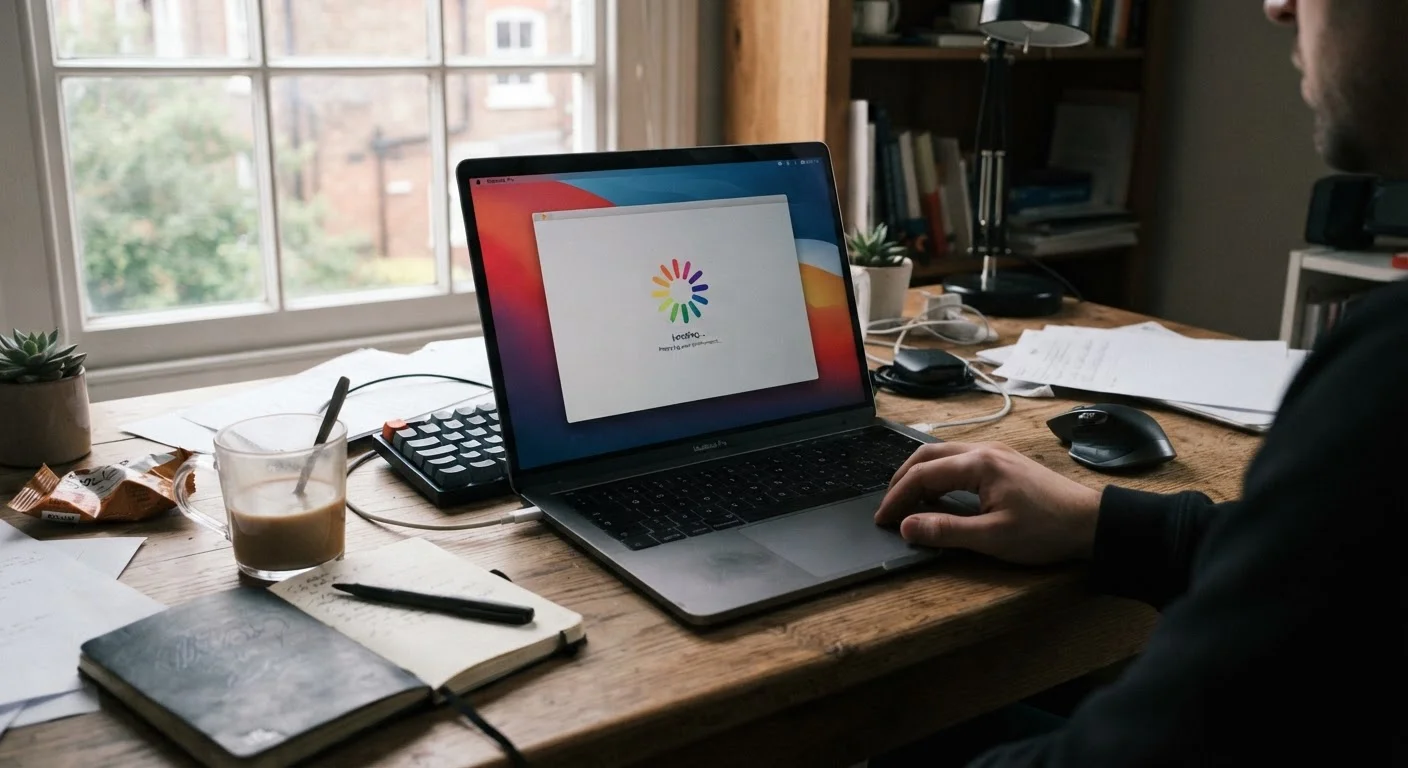
Key Takeaways
- Most laptop slowdowns trace back to a handful of preventable habits, not hardware failure.
- Startup programs, storage clutter, and heat buildup are the most common culprits.
- Regular maintenance - not a new laptop - is usually the right first response.
- Browser extensions and background apps quietly consume RAM and processing power.
- Keeping storage at least 15% free helps your operating system manage itself efficiently.
Why Laptops Seem to Get Slower Over Time
A laptop that felt fast when you first turned it on can feel sluggish months or years later - even if nothing dramatic has changed. The machine itself usually hasn't degraded in any dramatic way. What's more likely: the software environment around it has grown noisier, hotter, and more crowded.
Understanding why this happens is the first step to reversing it. Most slowdowns come from the same recurring set of user habits and overlooked maintenance tasks. The good news is that most of them are fixable without spending anything. For a broader look at what's happening at the system level, see why computers slow down over time.
Letting too many programs launch automatically at startup.
Why it happens: Software installers often default to adding themselves to the startup queue, and most users don't revisit those settings after the initial setup.
Keeping the storage drive nearly full.
Why it happens: Files accumulate gradually - downloads, old installers, duplicate photos - without anyone noticing until the drive is nearly full.
Ignoring heat buildup by blocking the laptop's vents.
Why it happens: Laptops are commonly used on soft surfaces - beds, couches, laps - which can block the bottom vents entirely. This looks harmless but forces the processor to throttle its own speed to avoid overheating.
Accumulating browser extensions without reviewing them.
Why it happens: Extensions are easy to install and easy to forget. Each one adds a small overhead, and the total load from a dozen rarely-used extensions can noticeably slow down browsing - and sometimes the whole machine.
Skipping operating system updates for long periods.
Why it happens: Updates interrupt work and can feel risky - people worry they'll break something. So they get postponed indefinitely.
Never restarting the laptop - only using sleep mode.
Why it happens: Sleep and hibernate modes are convenient, and a full restart takes time. Many users go weeks or longer without one.
How to Make Real Progress on a Sluggish Laptop
Avoiding the mistakes above gets you most of the way there. A few additional habits reinforce the gains.
15%
Minimum free storage recommended for stable OS performance
Operating system engineers generally recommend keeping at least 15% of drive capacity free to allow adequate space for virtual memory and temporary system files.
~70°C+
Temperature at which most laptop CPUs begin throttling
Most modern laptop processors are designed to reduce their operating speed when sustained temperatures exceed roughly 70-90°C, a self-protection mechanism that directly reduces performance.
Start with your startup: open your task manager (Windows) or System Settings (macOS) and disable any programs you don't need running at login. Next, audit your browser - extensions that seemed useful when you installed them may now be running in the background constantly. Our guide on speeding up a slow browser without reinstalling everything covers targeted steps that often restore significant speed.
If you've done all of the above and the laptop still struggles, the bottleneck may be hardware - most commonly RAM or storage. Identifying which upgrade actually helps depends on diagnosing the right bottleneck first. And for ongoing prevention, keeping a laptop running well for longer covers charging habits, heat management, and storage hygiene in depth.
Don't Mistake Normal Wear for a Hardware Failure
Slow performance alone is rarely a sign that your laptop is broken or needs replacing. Before concluding you need new hardware, work through the software and maintenance steps first - the vast majority of slowdowns respond to them. If sluggishness persists after addressing startup programs, storage, heat, and updates, then it's worth exploring whether a hardware upgrade makes sense. See computer upgrade options for practical guidance on what's worth doing.