
PC Freezes vs. Full Crashes: Understanding the Difference and What Each Signals

Key Takeaways
- A freeze means the OS is still running but can't process input; a crash means execution has been halted or restarted.
- Freezes most often point to software, driver, or RAM issues; crashes more often involve hardware or critical system faults.
- A Blue Screen of Death (BSOD) is a specific crash type that provides error codes to help trace the root cause.
- Heat is a common trigger for sudden, unannounced shutdowns — a form of crash distinct from software freezes.
- Keeping Windows Event Viewer logs helps distinguish one-off incidents from recurring patterns.
- Most freezes can be resolved without data loss; crashes — especially repeated ones — warrant deeper hardware investigation.
Option A
PC Freeze
The system stops responding but the power stays on.
Best for: Identifying software locks, memory pressure, or driver conflicts that stall the OS without shutting it down.
Option B
Full System Crash
The computer abruptly shuts down, restarts, or shows a fatal error screen.
Best for: Diagnosing hardware failures, unstable drivers, overheating, or power delivery problems that force the system to stop entirely.
If your screen is locked and the mouse cursor is stuck
PC Freeze diagnosis
This pattern points to a freeze. Start by checking RAM usage, recently installed drivers, and running a memory diagnostic before assuming hardware failure.
If your computer shuts off suddenly and restarts on its own
Full System Crash diagnosis
Abrupt restarts often indicate a BSOD, overheating, or a power supply fault. Check Event Viewer for crash logs and monitor internal temperatures.
If you see a blue or green error screen with a code
Full System Crash diagnosis
Error screens are crash events. The stop code displayed tells you exactly where to investigate — driver, hardware, or OS component.
If the freeze only happens during one specific application
PC Freeze diagnosis
App-specific freezes usually reflect a software conflict or corrupted program file rather than a hardware problem. Reinstalling or updating the app is a logical first step.
What Actually Happens During Each Event
The two symptoms feel alarming in the same way — your work stops — but they represent fundamentally different failure states inside the machine.
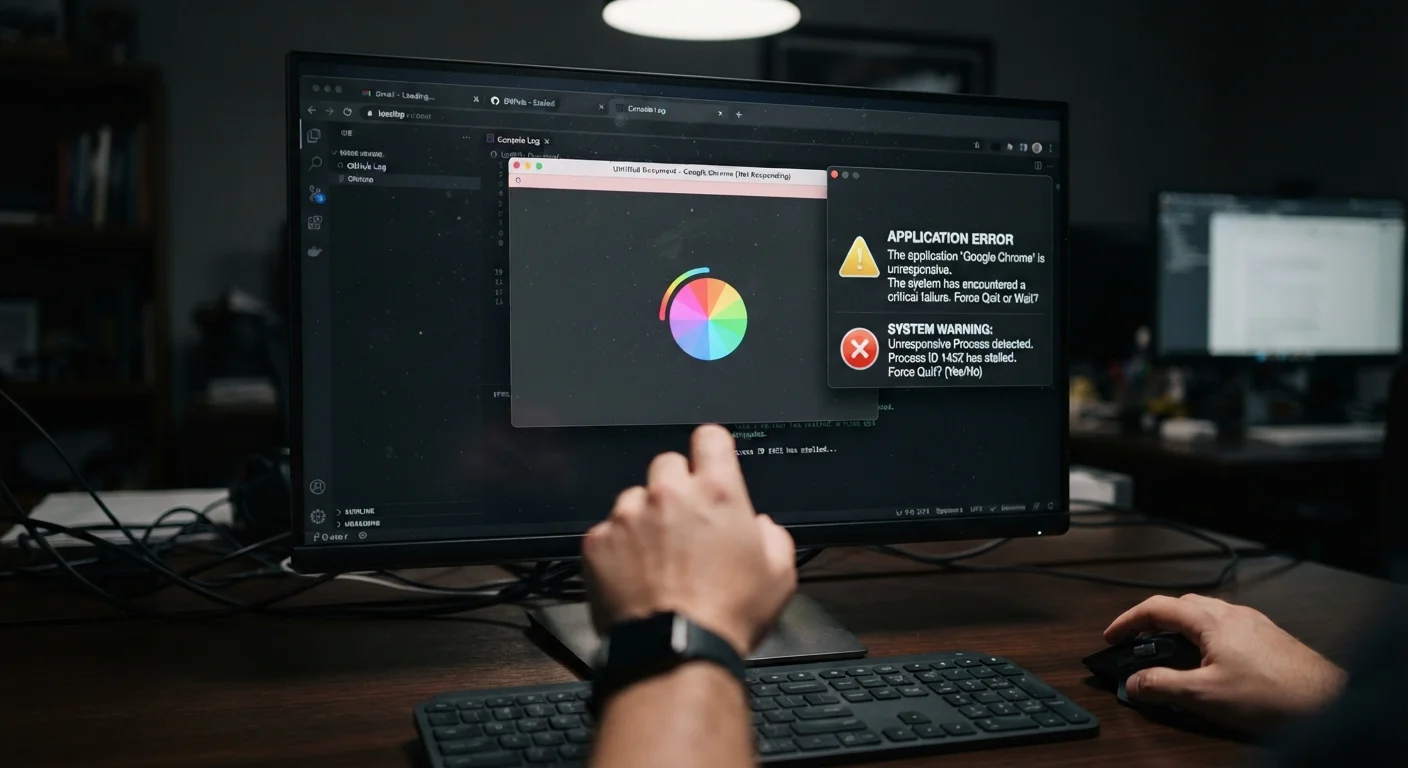
A freeze (also called a hang or lockup) occurs when the operating system is still powered and technically running, but can no longer process input or update the display. The processor may be stuck in a loop, waiting on a resource that never responds, or starved of memory. The screen looks frozen because it is — but the computer hasn't actually stopped running.
A full crash means execution has been forcibly halted. This includes three distinct subtypes:
- Blue Screen of Death (BSOD) / Green Screen: Windows detects a fatal error it cannot recover from and stops to prevent further damage. An error code is displayed. See our guide to reading BSOD error codes to decode what the screen is telling you.
- Hard shutdown: The system cuts power entirely — no warning, no error screen. This is often thermal (the CPU or GPU hit a critical temperature threshold) or a power supply failure.
- Spontaneous reboot: The machine restarts without user input, often masking an underlying BSOD that's configured to auto-restart.
Knowing which type you experienced shapes every diagnostic step that follows.
| Criterion | PC Freeze | Full System Crash |
|---|---|---|
| Power state | On — OS still running | Off, rebooted, or halted |
| Error message shown | Rarely | Often (BSOD stop code) |
| Primary suspects | Drivers, RAM, runaway process | Heat, hardware failure, PSU |
| Recovery method | Force-quit app or hard reboot | Automatic or manual restart |
| Log evidence left | Minimal — may show disk/memory warnings | Clear — crash dump and stop code |
| Urgency level | Moderate — investigate if recurring | High — often signals hardware risk |
Common Causes and What They Point To
Freezes and crashes each have a distinct roster of likely causes, though there is some overlap.
Typical freeze triggers
- Driver conflicts: A newly updated or poorly written driver — especially for graphics, audio, or USB controllers — can lock a thread the OS can't escape.
- RAM problems: Faulty or insufficient memory causes the system to stall when applications request more than is reliably available.
- Runaway process: A single application consuming 95–100% of CPU or disk I/O (input/output) can make the whole system appear frozen even though it's still technically running.
- Storage issues: A failing hard drive or a nearly full system drive can cause severe slowdowns that look like freezes.
Typical crash triggers
- Overheating: Modern processors shut down automatically when temperatures exceed safe limits. If your PC powers off during demanding tasks, heat is a prime suspect. Our article on recognising overheating signs before damage occurs covers early indicators.
- Faulty hardware: Failing RAM, a degrading GPU, or a struggling power supply unit (PSU) can all produce stop errors or hard shutdowns.
- Corrupted system files: Critical Windows files that have been altered or damaged trigger protective crash events.
- Unstable overclocking: Pushing a CPU or GPU beyond factory specifications without adequate cooling or voltage headroom causes instability that manifests as crashes.
~70%
Crashes linked to driver or hardware faults
Microsoft's Windows Hardware Error Architecture documentation notes that the majority of Windows stop errors are attributed to third-party drivers or hardware component failures.
95°C+
CPU temperature threshold triggering emergency shutdown
Most modern Intel and AMD processors are designed to perform an emergency shutdown when junction temperatures exceed approximately 95–105°C to prevent permanent damage.
If you're dealing with crashes limited to specific applications rather than the whole system, the step-by-step app crash guide walks through targeted software fixes.
How to Diagnose Which Problem You Have
Start with Windows Event Viewer (search for it in the Start menu). Under Windows Logs > System, look for red Critical or Error entries timestamped around when the incident occurred. Crash events — especially BSODs — leave a clear record. Freezes leave less obvious traces but may show disk errors or memory warnings.
For crashes that produce a BSOD, note the stop code displayed (e.g., MEMORY_MANAGEMENT, DRIVER_IRQL_NOT_LESS_OR_EQUAL). Each code points to a specific subsystem.
For freezes with no error message, run the following in order:
- Open Task Manager (Ctrl + Shift + Esc) immediately after a freeze recovers and check for processes near 100% CPU or disk usage.
- Run Windows Memory Diagnostic (
mdsched.exe) to test RAM integrity overnight. - Use
chkdsk /fin an elevated Command Prompt to scan the system drive for file system errors. - Roll back any drivers installed in the days before freezes began, particularly graphics drivers.
If freezes and crashes are both occurring, prioritize the crash investigation first — crashes indicate the more urgent system fault. For issues where a reset might be warranted, understand the difference between options with our guide to soft resets vs. factory resets before wiping anything.
Auto-Restart Can Hide a BSOD
By default, Windows is configured to automatically restart after a stop error, which means you may never see the blue screen or its error code. To disable this and capture the code, go to System Properties > Advanced > Startup and Recovery > Settings, then uncheck 'Automatically restart.' The next crash will display the stop code instead of rebooting immediately.