

Key Takeaways
- Two-factor authentication (2FA) requires a second proof of identity beyond your password.
- Even if a password is stolen, 2FA blocks most unauthorized account access.
- Authenticator apps provide stronger protection than SMS-based verification codes.
- Most major platforms — including Google, Apple, and Microsoft — support 2FA in account settings.
- Enabling 2FA takes under 20 minutes and significantly raises your account security baseline.
What you will need
Why a Password Alone Isn't Enough
A password is a single point of failure. If someone obtains it — through phishing, a data breach, or a brute-force attack — they have everything they need to access your account. Two-factor authentication (2FA) addresses this by requiring a second form of verification that only you can provide in the moment.
The core idea is straightforward: instead of one lock on the door, there are two. Knowing the combination to the first doesn't open the second. Even if your password is exposed in a breach, an attacker still can't log in without also having physical access to your phone or authenticator device.
To understand the full risk landscape, see our article on how attackers actually steal passwords. It's also worth understanding how 2FA and passwords work together as a coordinated defense rather than independent options.
Enable 2FA on your most critical accounts first
Start with email, banking, and any account tied to financial information or sensitive personal data. Your email account is especially important — it's often used to reset passwords on other services. Once those are secured, work outward to social media and other accounts.
What You'll Need Before You Start
Setting up 2FA is a short, one-time process. Having the right things ready before you begin keeps it smooth.
What you will need
Authenticator App
Generates time-based one-time codes on your phone, providing a more secure 2FA method than SMS.
Mobile Phone (SMS-capable)
Receives verification codes via text message if you choose SMS-based 2FA.
Backup Codes
One-time recovery codes provided during 2FA setup, used if you lose access to your second factor.
If you're starting from scratch with account security more broadly, our first-time smartphone owner's security guide covers the foundational steps, including app permissions and password basics.
How to Enable Two-Factor Authentication
Follow these steps to turn on 2FA for any major account. While exact menu names vary by platform, the underlying process is consistent across Google, Apple ID, Microsoft, and most banking and social media services.
Open your account's security settings
Sign in to the account you want to protect. Navigate to Settings, then look for a section labeled Security, Privacy, or Account. Most major platforms place 2FA options here, sometimes called "Two-Step Verification" or "Login Verification."
Choose your second-factor method
You will typically see several options: an authenticator app, SMS text message, or a hardware security key. An authenticator app generates codes directly on your device without needing a network connection, making it harder to intercept than an SMS code.
Select the method that fits your setup. Authenticator apps are the recommended starting point for most users.
Link your authenticator app or phone number
If using an authenticator app: the platform will display a QR code. Open your authenticator app, tap the option to add a new account, and scan the QR code. The app will immediately begin generating 6-digit codes that refresh every 30 seconds.
If using SMS: enter your mobile phone number when prompted and wait for a verification text to arrive.
Confirm the setup with a test code
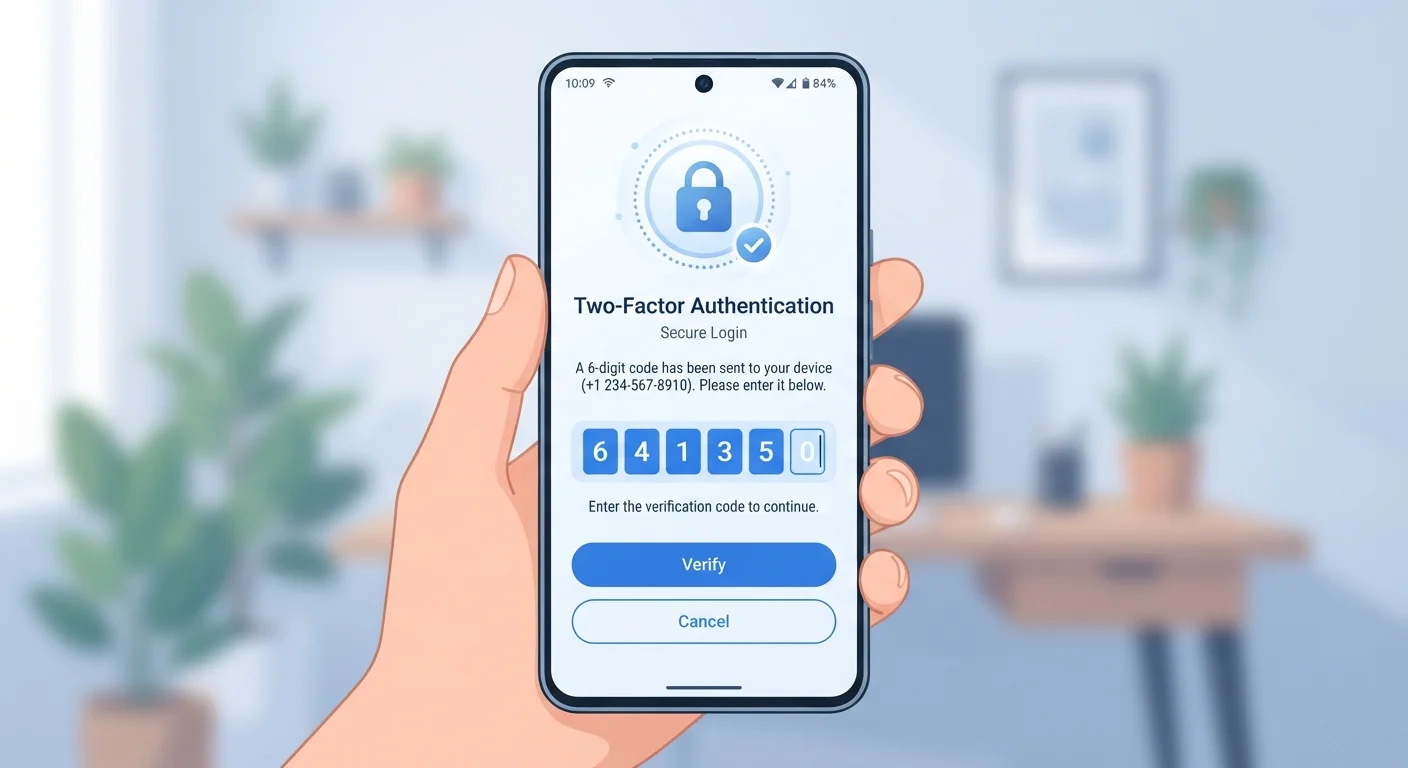
The platform will ask you to enter the current code from your authenticator app or the code sent by SMS. Type it in exactly as shown within the time window. A successful match confirms your 2FA is now active.
Save your backup codes securely
After enabling 2FA, most platforms generate a set of one-time backup codes. These are essential if you lose access to your phone or authenticator app. Download or print them, then store them somewhere safe — a locked drawer, a secure notes app, or a password manager that you trust.
Lost Phone Means Lost Second Factor
If your phone is your second factor and you lose it without backup codes, you may be locked out of your accounts. Before enabling 2FA, always complete the backup code step and store those codes somewhere accessible but secure. Some platforms also allow you to register a second trusted device as a fallback.
Never share a 2FA code with anyone
Legitimate companies will never call, text, or email you asking for a verification code. If someone requests your 2FA code — even claiming to be from a trusted organization — it is almost certainly a social engineering attempt. Sharing the code hands attackers direct access to your account.
Keeping Your Security Layers Working Together
2FA is most effective when paired with strong, unique passwords for each account. A weak or reused password lowers the overall security of the system even when 2FA is active. Our guide to common password myths clears up several widespread misconceptions that undermine account security.
Managing unique passwords across many accounts can feel difficult, but a password manager handles that automatically — generating and storing strong credentials so you only need to remember one master password. Together, a password manager and 2FA form a practical, durable security foundation for most everyday users. For broader context on building strong password habits, explore the Password Safety hub.