

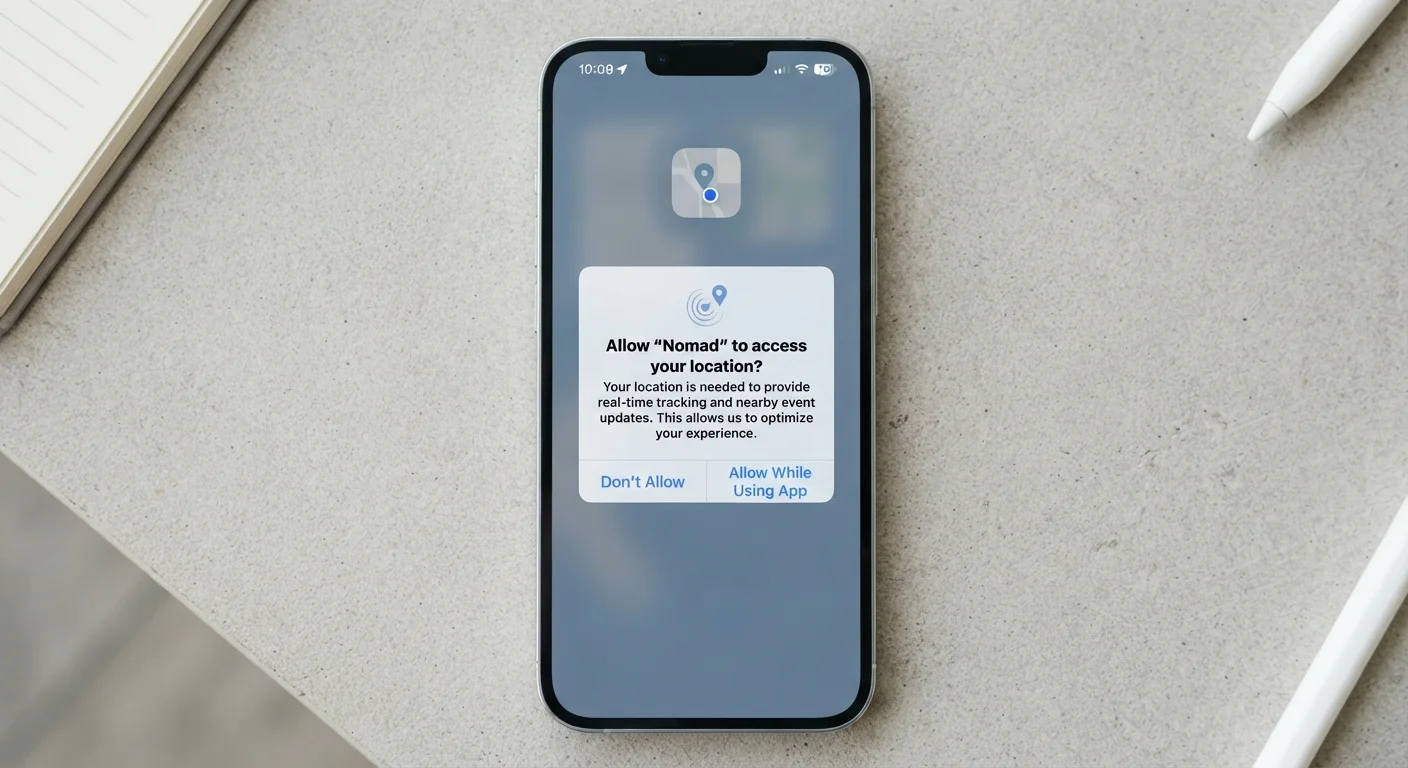
Key Takeaways
- Tapping 'Allow' grants an app ongoing access — not just one-time use — until you revoke it.
- Many permissions are legitimate, but some requests are disproportionate to what an app actually does.
- You can review and revoke permissions at any time through your phone's Settings menu.
- A flashlight app asking for contact access is a red flag worth acting on.
- Both Android and iOS let you grant permissions on a per-use basis, not just all-or-nothing.
App Permissions
App permissions are explicit requests an application makes to access specific features or data on your device — such as your camera, contacts, location, or microphone. When you tap 'Allow,' you are granting that app ongoing access to that resource until you manually revoke it. Most operating systems present these requests one at a time so you can make individual choices.
On both Android and iOS, permissions are governed by a sandboxing model: apps can only access resources the user has explicitly authorized, reducing the risk of one app silently reading another app's data.
Why Permission Requests Deserve a Pause
Most people tap through app permission dialogs the same way they scroll past terms and conditions — quickly, and without much thought. That habit is understandable: the prompts appear mid-task, and saying 'Allow' is always the faster choice. But each tap is a decision with real consequences for your privacy and security.
App permissions aren't bureaucratic checkboxes. They are the mechanism by which an app gains access to personal data stored on your device — your precise whereabouts, every contact in your address book, or your camera feed. Understanding what you're agreeing to before you agree to it is one of the most practical security habits you can build. For a deeper look at what each category of permission actually does, see how to read permission requests critically.
45%
Apps requesting more permissions than needed
Research published in peer-reviewed mobile security literature consistently finds that a significant share of popular apps request permissions beyond what their stated functionality requires.
3 in 4
Users who rarely review app permissions
Surveys on mobile privacy habits suggest most users never revisit permissions after the initial install, leaving months or years of access unchecked.
The Most Common Permissions — and What They Actually Touch
Permissions fall into a handful of categories, each opening a door to a different part of your device:
- Location: Can range from a rough city-level estimate to GPS-precise coordinates updated in real time. Background location access means the app can track you even when you're not using it.
- Camera & Microphone: Grants the ability to capture photos, video, or audio. A fitness tracking app asking for microphone access is unusual; a video calling app is not.
- Contacts: Exposes names, phone numbers, email addresses, and sometimes relationship labels for everyone in your address book — including people who never agreed to share their data with that app.
- Storage: Allows reading and, in some cases, writing files on your device — including photos, documents, and downloads.
- Notifications: Not a privacy permission in the traditional sense, but worth evaluating carefully. See our guide on managing app notifications for practical advice.
The key question to ask with any request: Does this permission make sense for what this app does? A weather app that needs location access is logical. The same app asking for your contacts is not.
Use 'Allow Once' When in Doubt
Both iOS and Android offer a one-time permission option for location, camera, and microphone. Choosing this means the app must ask again the next time it needs access — giving you a built-in checkpoint to decide whether the request still makes sense. It's a low-effort way to limit ongoing access without fully disabling a feature.
How to Review and Manage Permissions You've Already Granted
You don't have to live with decisions you made months ago. Both major mobile platforms make it straightforward to audit and adjust permissions:
- On iPhone (iOS): Go to Settings → Privacy & Security. Each category (Location Services, Camera, Microphone, etc.) shows a list of apps with current access. Tap any app to change its setting.
- On Android: Go to Settings → Apps, select an app, then tap Permissions. Alternatively, navigate to Settings → Privacy → Permission Manager to view all apps with access to a specific resource type.
A useful starting point: look at which apps have background location access or microphone access. These are among the most sensitive permissions, and many apps that requested them years ago no longer need them — or may not have needed them in the first place.
Before installing anything new, it's also worth doing some upfront research. Our pre-install checklist walks through the questions worth asking before any app gets space on your phone.