

| Typical RAM for everyday desktops | 8-16 GB |
| Common SSD capacity for a primary drive | 500 GB - 1 TB |
| Mainstream desktop CPU core range | 6-12 cores |
| NVMe vs. SATA SSD speed advantage | Up to 5-7x faster reads (Approximate; varies by drive model and interface generation) |
| RAM clears when powered off | Yes - volatile memory |
| DDR5 vs. DDR4 bandwidth improvement | Roughly 50% higher peak bandwidth (Approximate; varies by specific modules and platform) |
Why Desktop Specs Feel Confusing
Desktop listings are packed with abbreviations, numbers, and units that seem designed for engineers rather than everyday buyers. Terms like DDR5, NVMe, and GHz appear on every product page without explanation - making it easy to feel lost before you've even started comparing options.
This glossary breaks down the specs you'll encounter most often into plain, usable definitions. You don't need a hardware background to use it - just find the term you're unsure about and read the explanation. For a broader look at how these same concepts apply to portable computers, see Laptop Specs Decoded, which covers similar ground for laptops.
| Typical RAM for everyday desktops | 8-16 GB |
| Common SSD capacity for a primary drive | 500 GB - 1 TB |
| Mainstream desktop CPU core range | 6-12 cores |
| NVMe vs. SATA SSD speed advantage | Up to 5-7x faster reads (Approximate; varies by drive model and interface generation) |
| RAM clears when powered off | Yes - volatile memory |
| DDR5 vs. DDR4 bandwidth improvement | Roughly 50% higher peak bandwidth (Approximate; varies by specific modules and platform) |
Core Terms Defined
The following definitions cover the most common specs across RAM, storage, and processing - the three categories that most directly affect how a desktop feels to use day to day.
RAM (Random Access Memory)
Short-term memory your computer uses to hold data for programs currently running. More RAM lets you keep more applications open simultaneously without slowdowns. It does not store your files permanently - everything in RAM clears when the computer powers off.
DDR Generation (DDR4, DDR5)
DDR stands for Double Data Rate and refers to the generation of RAM technology. Higher numbers indicate newer, faster, and more energy-efficient memory. DDR5 is the current standard in modern desktops, though DDR4 remains common in older or budget systems.
Storage (HDD / SSD)
Long-term space where your operating system, applications, and files live permanently. HDDs (hard disk drives) use spinning platters and are slower; SSDs (solid-state drives) use flash memory and are significantly faster. Storage capacity is measured in gigabytes (GB) or terabytes (TB).
NVMe
A high-speed interface protocol used by modern SSDs that connects directly through the PCIe slot on a motherboard. NVMe drives are substantially faster than older SATA-based SSDs for tasks like booting the operating system and loading large files.
CPU (Central Processing Unit)
The main processor that carries out instructions from software. It handles calculations, runs programs, and coordinates other components. CPU performance is influenced by the number of cores, clock speed, and the efficiency of its underlying architecture.
Clock Speed (GHz)
Measured in gigahertz, clock speed indicates how many processing cycles a CPU completes per second. A higher GHz can mean faster single-task performance, but core count and architecture also heavily influence real-world speed.
CPU Cores
Individual processing units within a single CPU chip. More cores allow a processor to handle multiple tasks or threads at the same time. For everyday computing, 6-8 cores is generally sufficient; content creation and heavier workloads benefit from more.
Cache
Ultra-fast memory built directly into the CPU used to store frequently accessed data. Cache is much smaller than RAM but much faster, acting as a short-term buffer that reduces the time a processor spends waiting for information.
Bandwidth (Memory Bandwidth)
The rate at which data can be read from or written to RAM. Higher bandwidth allows more data to move between the processor and memory in a given time, which matters for tasks involving large datasets, video editing, and some gaming workloads.
Form Factor (e.g., ATX, mATX)
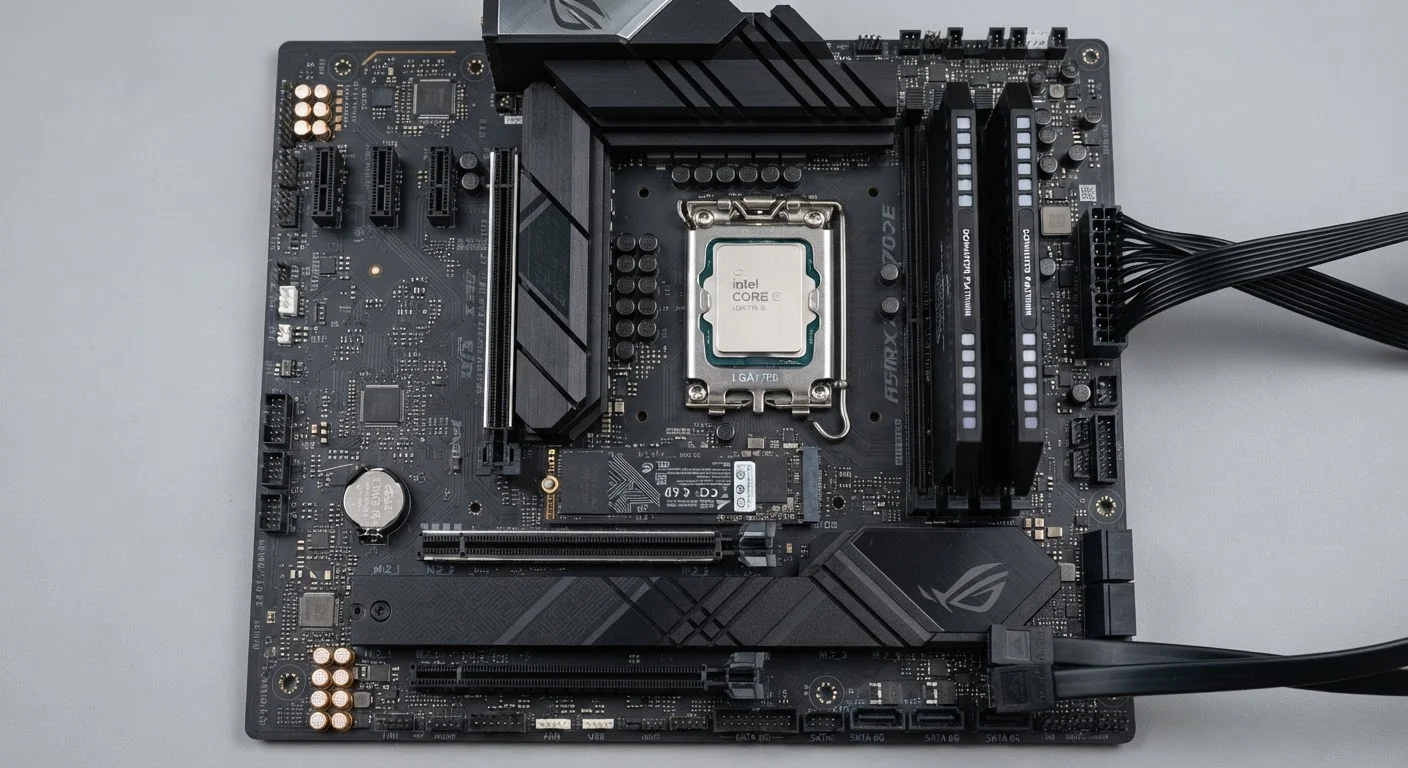
The physical size and layout standard of a motherboard or computer case. Form factor determines which components are compatible and how much space is available for expansion. ATX is full-sized; mATX and Mini-ITX are progressively more compact.
If you want to go deeper on how RAM and storage interact during typical tasks, Understanding CPU, RAM, and Storage walks through each component's role in plain language. And if you're thinking about upgrading, Key Specs to Check Before Buying Any Upgrade Component covers compatibility requirements like socket types and form factors you'll need to match.
How These Specs Work Together
No single spec tells the whole story. A processor with a high clock speed but minimal RAM will still feel sluggish when too many applications are open. Likewise, a fast NVMe drive improves startup and file transfer speeds but won't help when the CPU is the limiting factor for a demanding task.
Think of it this way: the CPU is the decision-maker, RAM is the desk it works on, and storage is the filing cabinet across the room. A bigger desk helps you multitask; a faster filing cabinet reduces wait time when retrieving files; but neither substitutes for a capable decision-maker at the center.
Specs Don't Exist in Isolation
Manufacturers sometimes highlight a single impressive spec - like a high clock speed or large storage capacity - while pairing it with weaker components elsewhere. When reading any desktop listing, consider RAM, storage type, and CPU together rather than evaluating each number in isolation. A balanced configuration typically delivers better everyday performance than one area maxed out while others lag behind.
If you're also evaluating a phone or tablet alongside a desktop, the Storage, RAM, and Cache guide explains how these three concepts differ across device types - a useful companion if the terminology carries over from one context to another.