

| Most common RAM generation (consumer desktops) | DDR4 and DDR5 |
| Most common M.2 SSD length | 2280 (80 mm) |
| AMD consumer desktop socket (current gen) | AM5 |
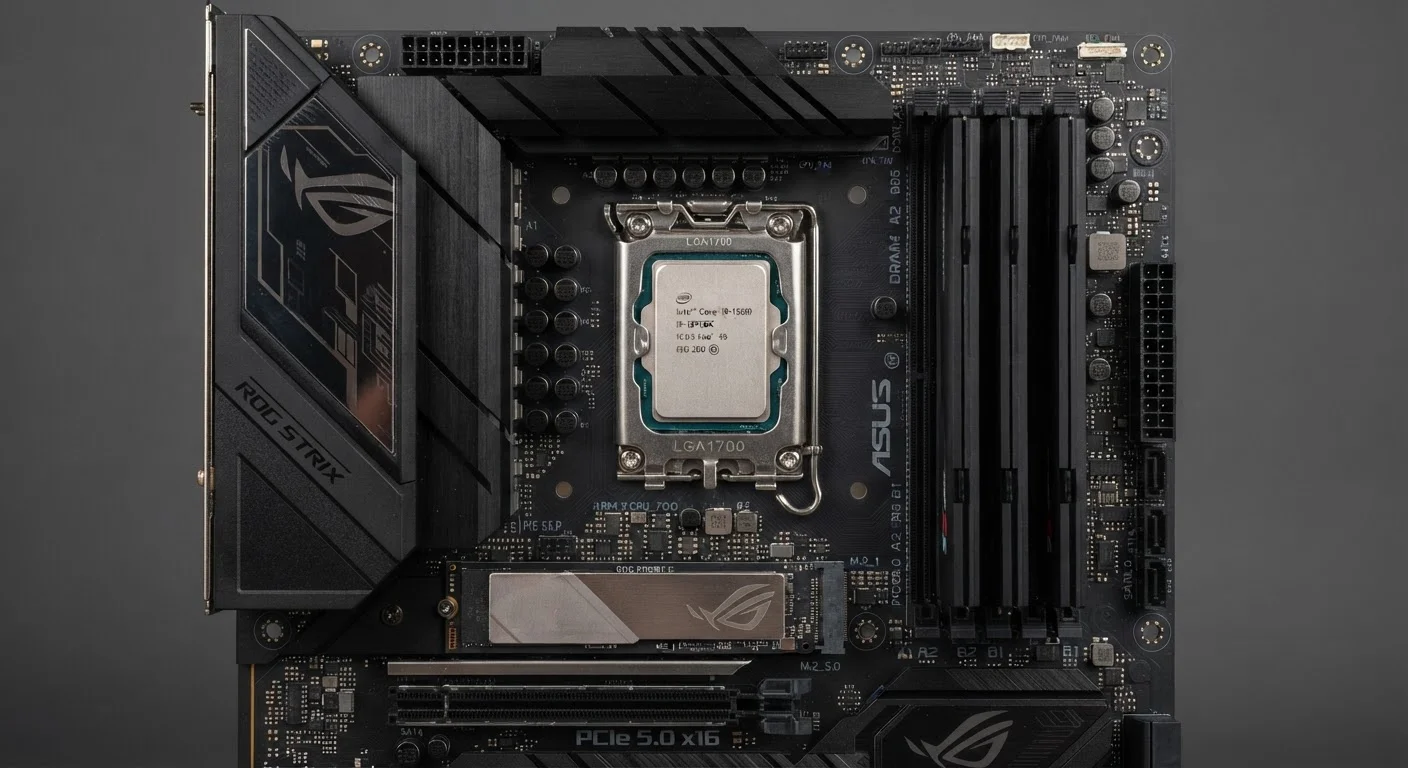
| Intel consumer desktop socket (12th-14th gen) | LGA1700 |
| Laptop RAM form factor | SO-DIMM |
| Tool to find motherboard model on Windows | msinfo32 (Run dialog) |
Why Specs Matter Before You Buy
Upgrading a computer component sounds simple until you open the box and discover the part doesn't fit, isn't recognized, or runs slower than expected. Most upgrade mistakes come down to one thing: buying without verifying compatibility first. This reference covers the essential specifications to confirm before purchasing RAM, an SSD, or a CPU upgrade - saving you return shipping hassle and lost time.
Before checking any individual spec, identify your motherboard model. That single piece of information unlocks everything else. On Windows, run msinfo32 from the Start menu and look for the baseboard manufacturer and model. On a Mac, click the Apple menu and choose About This Mac. From there, you can look up the manufacturer's spec sheet for your exact board. See our plain-language primer on core components if you need help understanding what each component does before diving into specs.
| Most common RAM generation (consumer desktops) | DDR4 and DDR5 |
| Most common M.2 SSD length | 2280 (80 mm) |
| AMD consumer desktop socket (current gen) | AM5 |
| Intel consumer desktop socket (12th-14th gen) | LGA1700 |
| Laptop RAM form factor | SO-DIMM |
| Tool to find motherboard model on Windows | msinfo32 (Run dialog) |
RAM Compatibility Specs
Random Access Memory (RAM) has more compatibility variables than most consumers expect. Confirming all of the following before purchasing is essential.
- Generation (DDR4 vs. DDR5): Your motherboard supports one generation only. DDR4 and DDR5 modules use different physical notch positions and are not interchangeable, even if the slot count looks identical.
- Speed (MHz rating): RAM has a rated speed, such as 3200 MHz or 4800 MHz. Motherboards have a maximum supported speed. Installing faster RAM than the board supports typically causes it to run at the lower supported speed - which is fine, but means you may be paying for speed you won't use.
- Capacity per slot and total maximum: A board may have four slots but support a maximum of 64 GB total. Installing two 64 GB sticks will not work even if the slots are physically available.
- Form factor (DIMM vs. SO-DIMM): Desktops use full-size DIMM modules. Laptops use the smaller SO-DIMM format. These are not interchangeable.
- ECC support: Error-correcting code (ECC) RAM requires motherboard and CPU support. Standard consumer boards do not accept ECC modules.
Our desktop specs glossary breaks down these RAM terms in plain English if any of the above is unfamiliar.
DDR (Double Data Rate)
A family of RAM standards where each generation (DDR4, DDR5) offers higher speeds and uses a different physical connector. Generations are not backward-compatible with each other.
Socket
The physical interface on a motherboard that holds the CPU. Socket type must match exactly between the CPU and board - there is no adapter or workaround.
NVMe
Non-Volatile Memory Express - a high-speed interface protocol used by modern M.2 SSDs. NVMe drives are significantly faster than SATA-based storage but require a compatible slot.
TDP (Thermal Design Power)
A rating, expressed in watts, indicating how much heat a CPU produces at typical workloads. It also signals roughly how much cooling capacity and motherboard power delivery is required.
Chipset
A set of chips on the motherboard that manages communication between the CPU, RAM, storage, and other components. The chipset determines which CPU models the board officially supports.
VRM (Voltage Regulator Module)
Circuitry on the motherboard that converts and stabilizes power delivered to the CPU. Higher-end boards have more robust VRMs capable of handling processors with higher TDP ratings.
Form Factor
The physical size and shape standard of a component. RAM, SSDs, and motherboards each have form factor standards that determine physical compatibility with a given chassis or slot.
BIOS / UEFI
Low-level firmware on the motherboard that initializes hardware before the operating system loads. BIOS updates sometimes add support for newer CPU models on existing motherboards.
SSD and Storage Compatibility Specs
Solid-state drives come in several physical formats and interface types that must match what your system supports.
- Form factor (2.5-inch SATA vs. M.2): A 2.5-inch SATA drive connects via a data cable and power cable. An M.2 drive slots directly into a dedicated slot on the motherboard. Confirm which type - or both - your system has available.
- Interface (SATA vs. NVMe): M.2 slots can support either SATA-based or NVMe-based drives, but not always both. An NVMe drive in a SATA-only M.2 slot will not function. Check your motherboard spec sheet for the slot's supported protocols.
- M.2 key type (B-key vs. M-key): These refer to the physical notch on the connector. Most consumer NVMe drives use an M-key. Confirm your slot matches the drive's key before purchasing.
- M.2 length (2242, 2260, 2280): The number describes the drive's dimensions in millimeters. A 2280 drive (22 mm wide, 80 mm long) is most common, but compact laptops sometimes only fit shorter sizes. Check that your chassis has the right standoff screw position.
- PCIe generation (Gen 3 vs. Gen 4 vs. Gen 5): A Gen 4 NVMe drive in a Gen 3 slot will work but at Gen 3 speeds. This is usually acceptable, but it's worth knowing if maximum throughput is a goal.
~80%
Consumer M.2 SSDs using 2280 form factor
The 2280 length is by far the most common in retail drives, though compact systems may require shorter variants like 2242.
Up to 5x
Speed difference: NVMe Gen 4 vs. SATA SSD
Sequential read speeds for NVMe Gen 4 drives can reach around 7,000 MB/s, compared to approximately 550 MB/s for SATA SSDs.
CPU Upgrade Compatibility Specs
CPU upgrades are the most restrictive of the three. A small mismatch in any of the following areas means the processor physically will not function in your system.
- Socket type: Every CPU sits in a physical socket. Intel and AMD use entirely different sockets, and even within each brand, sockets change across generations. Common examples include Intel's LGA1700 and AMD's AM5. A CPU built for one socket will not fit another - and forcing it risks permanent damage.
- Chipset compatibility: Even with the correct socket, the motherboard's chipset determines which specific CPU models are supported. A newer CPU in an older chipset may not be recognized even if it physically fits. Cross-reference the CPU model against your motherboard's official support list.
- BIOS version: Many boards require a BIOS update before they can recognize newer CPU generations. Some boards need a currently installed CPU to perform that update - a process worth researching for your specific board before purchasing.
- TDP and power delivery: The thermal design power (TDP) rating of a CPU indicates how much heat it generates and, roughly, how much power it draws. Your motherboard's VRM (voltage regulator module) must be capable of supplying adequate, stable power. Pairing a high-TDP CPU with an entry-level board designed for lower-power processors can cause instability.
- Cooler mounting: CPU coolers use socket-specific mounting hardware. Confirm your cooler supports the target socket, or budget for a compatible replacement.
For a broader look at what can go wrong during upgrades, seven things worth knowing before upgrading a desktop component covers real-world pitfalls in detail. And if you want to separate upgrade facts from common misconceptions, see upgrade myths that cost people money and time.
Always Check the Manufacturer's CPU Support List
Motherboard makers publish official CPU compatibility lists on their support pages, updated as new BIOS versions are released. These lists are the authoritative source - not retailer product descriptions, which may lag behind. Search for your board model on the manufacturer's website and look for the CPU Support or QVL (Qualified Vendor List) section before finalizing any CPU purchase.