

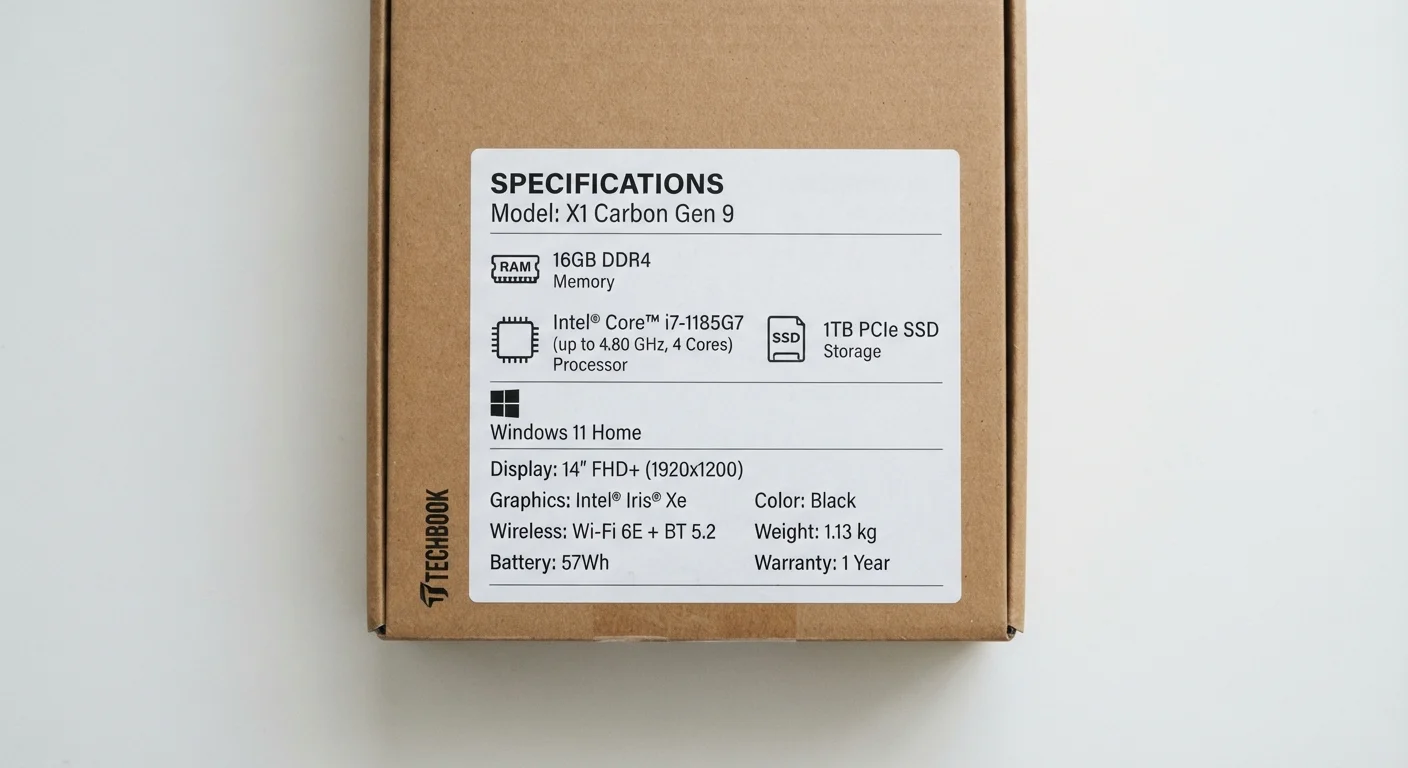
Key Takeaways
- RAM determines how many tasks a laptop can juggle at once without slowing down.
- Processor GHz and core count together reflect how fast a laptop handles demanding work.
- SSD storage is faster than older HDD storage and noticeably affects everyday responsiveness.
- Display resolution and panel type affect how comfortable the screen is for long use.
- Higher numbers don't always mean better value - match specs to your actual use case.
Laptop Specifications
Laptop specifications are the technical measurements that describe a computer's internal hardware - how fast it can think, how much it can remember at once, and how much data it can store. Retailers and manufacturers list these numbers to help shoppers compare machines. Understanding even a few key specs helps you avoid paying for power you don't need - or buying something that can't handle your daily tasks.
Specs describe theoretical maximums under ideal conditions; real-world performance also depends on thermal design, software optimization, and how components work together.
RAM: Your Laptop's Short-Term Memory
RAM (Random Access Memory) is the workspace your laptop uses while it's running. Think of it as desk space - the bigger the desk, the more projects you can spread out at once without things falling on the floor. When you open a browser, a spreadsheet, and a video call simultaneously, all three compete for RAM.
When RAM runs out, the laptop starts borrowing space from the much slower storage drive, which causes the sluggishness many people blame on a "slow computer." For most everyday users - email, web browsing, streaming, light productivity - 8GB is a reasonable floor. Jumping to 16GB makes multitasking noticeably smoother and extends how long the machine feels fast as software demands grow over time.
Check Whether RAM Is Upgradeable
Many modern thin laptops solder RAM directly to the motherboard, making it impossible to add more later. Before purchasing, check whether memory is upgradeable. If it isn't, it's worth buying more RAM upfront - even if your current needs are modest, software tends to grow more demanding over time.
RAM specs are sometimes listed with a type designation, such as DDR4 or DDR5. These refer to the generation of memory - newer generations are generally faster and more efficient, though the difference is rarely dramatic in everyday use.
Processor: Cores, GHz, and What They Mean Together
The processor (also called the CPU, or Central Processing Unit) is the brain of your laptop. Two numbers appear most often: GHz and core count.
- GHz measures clock speed - how many processing cycles happen per second. Higher GHz generally means faster performance on a single task.
- Cores are independent processing units within the chip. More cores let the laptop divide demanding work into parallel streams, which helps with video editing, large data files, or running several programs at once.
A chip listed as 2.4GHz, 8-core can handle complex tasks well even though its clock speed sounds modest. Conversely, a 4.5GHz dual-core chip may feel fast for one task at a time but struggle when you multitask heavily. Neither number alone tells the full story - they work together. The chip's generation and architecture also matter significantly, which is why two processors with similar GHz ratings from different generations can perform quite differently.
8-16GB
RAM range suitable for most everyday users
Industry guidance from hardware manufacturers consistently places general consumer needs in this range for comfortable multitasking.
3-5×
Speed advantage of SSD over HDD for boot times
Independent benchmarks routinely show SSDs loading operating systems several times faster than comparable HDDs under real-world conditions.
1080p
Most common laptop display resolution shipped globally
Full HD (1920×1080) remains the standard resolution across the majority of consumer laptops in the US market.
Storage: SSD vs. HDD and How Much You Need
Storage is where your files, apps, and operating system live permanently - even when the laptop is off. Two main types appear on spec sheets:
- SSD (Solid-State Drive)
- Uses flash memory with no moving parts. Boots faster, opens apps quickly, and is more resistant to physical shock. The standard choice in most modern laptops.
- HDD (Hard Disk Drive)
- Uses spinning magnetic platters. Slower and more fragile, but historically offered more storage per dollar. Less common in new laptops today.
Capacity is measured in gigabytes (GB) or terabytes (TB) - 1TB equals 1,000GB. If you rely on cloud services and streaming, 256GB-512GB is usually sufficient. Heavy local storage needs (large photo libraries, downloaded video, professional software) call for 512GB-1TB or more. For a broader comparison of how storage specs translate to desktop performance, the same principles generally apply.
Display: Resolution, Panel Type, and Why They Matter
The display spec you'll see most often is resolution - the total number of pixels across the screen. Common labels include:
- 1080p / Full HD (1920×1080): The standard for most 13-15 inch laptops. Sharp and comfortable for everyday use.
- 1440p / QHD (2560×1440): Noticeably crisper, useful on larger screens or for detail work.
- 4K / UHD (3840×2160): Very sharp, but typically reduces battery life and is overkill on screens smaller than 15 inches.
Beyond resolution, panel type shapes your experience. IPS panels offer accurate colors and wide viewing angles - good for general use and content creation. OLED panels deliver deep blacks and vivid color but can be more expensive. TN panels are fast and affordable but have narrower viewing angles and less accurate color. For most people, an IPS display at 1080p or 1440p hits the practical sweet spot.
If you want to understand how similar display terms apply to other devices, see our smartphone specs explainer - many concepts carry over directly.
Refresh Rate Is a Display Spec Worth Knowing
Some laptops advertise a refresh rate measured in Hz - typically 60Hz, 120Hz, or 144Hz. This describes how many times per second the screen updates. For document work and video streaming, 60Hz is perfectly adequate. Higher refresh rates benefit fast-paced gaming or those who find smoother scrolling more comfortable. It's worth knowing, but most general users won't notice a difference in daily tasks.
Putting It Together: Matching Specs to Real Use
The most common spec-shopping mistake is chasing the biggest numbers rather than the right numbers. A machine loaded with a high-core processor and maximum RAM won't feel faster for checking email - but it will cost more and may run hotter and louder under the fan cooling required to support it.
A practical approach: identify your two or three most demanding regular tasks and look for specs that comfortably handle those. Light users (browsing, documents, video calls) can do well with modest specs. Someone who edits video or runs engineering software needs to prioritize CPU performance and RAM. A student who works mostly in a browser and cloud apps benefits more from good battery life and a comfortable keyboard than from raw processing power.
Form factor also plays a role - a convertible 2-in-1 and a traditional clamshell may list identical specs but feel different in use. See our guide to laptop form factors to pair your spec knowledge with the right physical design. And once you've narrowed your options, understanding which ports you need is the next practical step.