

Key Takeaways
- The CPU handles all computation; more cores and higher clock speeds generally mean faster performance.
- RAM is temporary working memory - it affects how many tasks you can run at once without slowdowns.
- Storage holds your files permanently; SSDs are significantly faster than traditional hard drives.
- The motherboard connects every component and determines which upgrades are compatible.
- A dedicated GPU matters most for gaming, video editing, and other graphics-intensive tasks.
- Desktop components are largely modular, making upgrades more straightforward than with most laptops.
Desktop PC Components
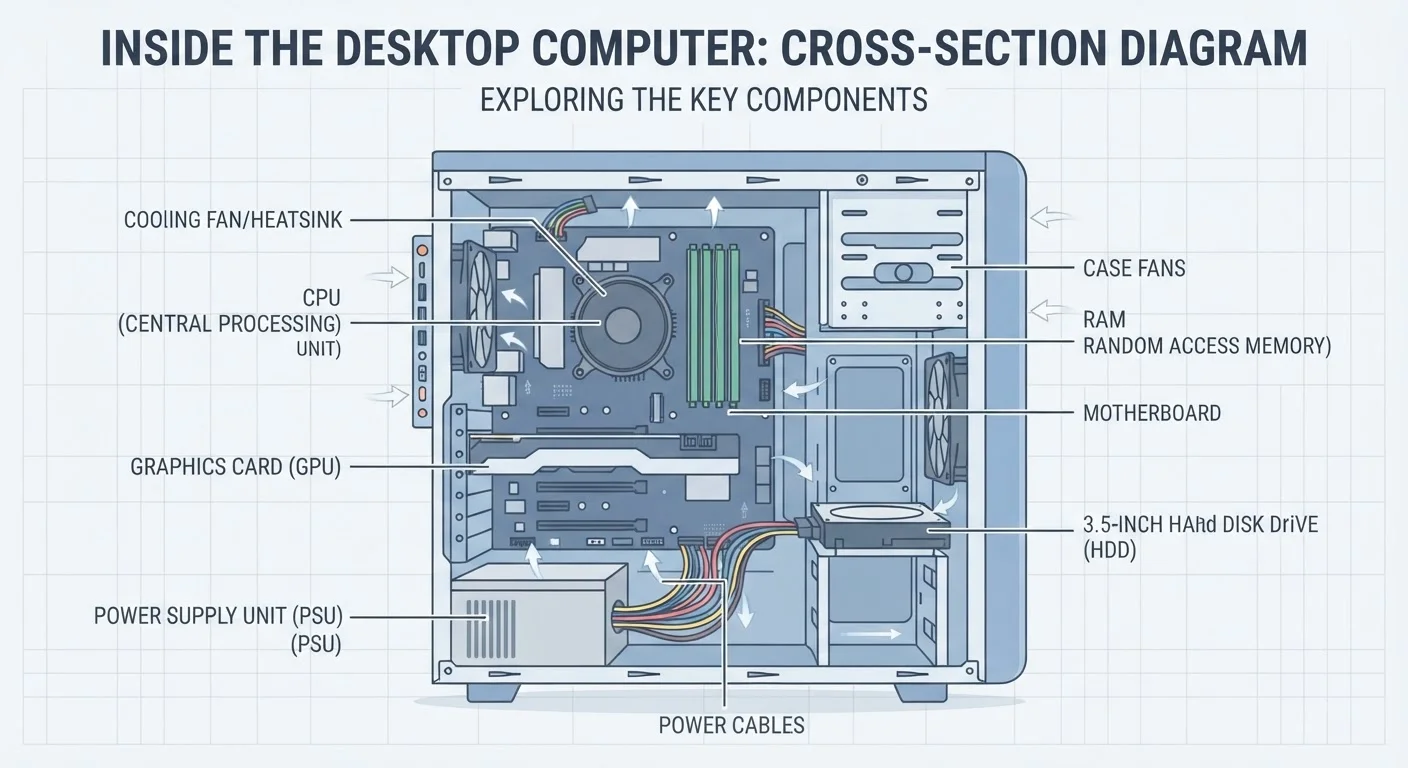
A desktop computer is made up of several separate hardware parts that work together to run your programs, store your files, and display output on a screen. Unlike a laptop, most of these parts can be accessed, upgraded, or replaced individually. Understanding what each component does helps you make smarter decisions when buying or upgrading a machine.
Desktop components communicate via the motherboard's bus architecture; bottlenecks occur when one component (such as RAM speed) cannot keep pace with another (such as the CPU).
The CPU: Your Computer's Decision-Maker
The CPU (central processing unit) is the chip responsible for executing instructions - every calculation, every app launch, every keystroke response runs through it. When people talk about processor speed in gigahertz (GHz) or core counts, they're describing how quickly and how many tasks the CPU can handle simultaneously.
For everyday computing - browsing the web, writing documents, video calls - a mid-range CPU with four to six cores is more than adequate. Heavier workloads like video rendering or running multiple virtual machines benefit from higher core counts. If you want to dig deeper into how these numbers translate to real performance, our guide to what processors actually do covers the core concepts clearly.
Match Your CPU to Your Actual Workload
It's easy to overspend on a high-core-count processor when your daily tasks don't require it. Web browsing, email, and streaming video demand very little from a modern CPU. Save your budget for components that match how you actually use the machine - often RAM and storage have more impact on everyday feel.
RAM and Storage: Two Very Different Kinds of Memory
These two components are often confused, but they serve completely different purposes.
RAM (random access memory) is your computer's short-term workspace. When you open a browser with 20 tabs, a spreadsheet, and a music player, all of that lives temporarily in RAM. More RAM means you can juggle more at once without the system slowing to a crawl. Most general users are well-served by 8-16 GB; power users and content creators often benefit from 32 GB or more.
Storage - either a traditional HDD or a faster SSD - holds everything permanently: your operating system, installed programs, photos, and documents. SSDs have no moving parts, which makes them dramatically faster at loading programs and booting the system. HDDs still offer more storage per dollar for large file archives. Many desktops use both: an SSD for the OS and frequently used apps, and an HDD for bulk storage.
For a full breakdown of these specs in context, see our Desktop Specs Glossary.
~5×
Speed difference: SSD vs. traditional HDD
Sequential read speeds for mainstream SSDs typically range from 500 MB/s to over 3,500 MB/s, compared to 80-160 MB/s for mechanical hard drives.
16 GB
RAM recommended for comfortable multitasking
Technology analysts and system builders commonly cite 16 GB as the practical sweet spot for general consumers running modern operating systems and productivity software simultaneously.
The Motherboard, GPU, and Power Supply
The motherboard is the large circuit board that everything else plugs into. It's the communication backbone of the system, and its design determines which CPUs, RAM types, and expansion cards are compatible. When planning any upgrade, the motherboard's specifications set the boundaries of what's possible.
The GPU (graphics processing unit) handles visual output. Many CPUs include a built-in "integrated" GPU that handles everyday display tasks perfectly well. A dedicated GPU is a separate card with its own memory, designed for workloads that push graphics hard - gaming, video editing, 3D modeling, and increasingly, AI-assisted software. Desktop towers typically have more physical space for larger, more powerful GPUs than laptops.
The power supply unit (PSU) converts wall power into the voltages each component needs. It's easy to overlook, but an undersized PSU can cause system instability or prevent a new GPU from running correctly. Wattage requirements scale with the components installed.
Understanding how these parts fit together also informs decisions about form factor. A compact mini PC and a full tower both contain these same core components, but in very different configurations - see our article on desktop form factors for how size affects upgradeability.
Integrated vs. Dedicated Graphics: A Key Distinction
Most modern CPUs include integrated graphics capable of handling displays, streaming, and light photo editing without any additional hardware. A dedicated GPU adds cost, power draw, and heat - it's genuinely worthwhile for gaming and video production, but unnecessary for the majority of everyday desktop users.
Why This Knowledge Actually Matters
You don't need to be an engineer to benefit from knowing what's inside a desktop. When a computer starts running slowly, understanding that RAM handles active tasks - while storage affects load times - helps you diagnose whether the problem is multitasking overload or a sluggish drive. If you ever want to extend the life of an existing machine, our Computer Upgrades hub walks through practical options.
For those starting from scratch, our complete starting point for new desktop buyers connects these component concepts to real purchasing decisions. And if you're weighing a desktop against a laptop, our laptop specs decoder applies the same plain-language approach to portable machines.
The core insight is this: desktop PCs are modular by design. That modularity is a long-term advantage - components can be swapped as needs change, rather than replacing the entire machine.