
Tower, All-in-One, or Mini PC: Understanding the Desktop Form Factor Divide

Key Takeaways
- Tower PCs offer the most upgrade flexibility and raw performance but require the most desk space.
- All-in-ones combine monitor and computer in one unit, trading upgradability for a clean setup.
- Mini PCs are the most space-efficient option but often limit cooling and expandability.
- Your choice should be driven by how you use the machine, not just how it looks.
Our Verdict
No single desktop form factor wins across every scenario. Towers suit users who want long-term flexibility and maximum performance. All-in-ones work well for tidy, low-maintenance workspaces. Mini PCs shine where space is tight and demands are modest. Matching the form factor to your actual habits matters more than chasing the most powerful or smallest machine.
| Best for | Recommended |
|---|---|
| Power users, gamers, and those who want to upgrade components over time | Tower PC |
| Home offices or living spaces where a clean, minimal setup is a priority | All-in-One |
| Small desks, light workloads, or use as a secondary computer | Mini PC |
Why Form Factor Matters More Than You Might Expect
When most people think about buying a desktop, they focus on specs - processor speed, RAM, storage. But the physical shape of the machine, what the industry calls the form factor, determines a lot more than just how it looks on your desk. It affects how easy the machine is to upgrade, how well it handles heat (which directly impacts long-term performance), and how much flexibility you have down the road.
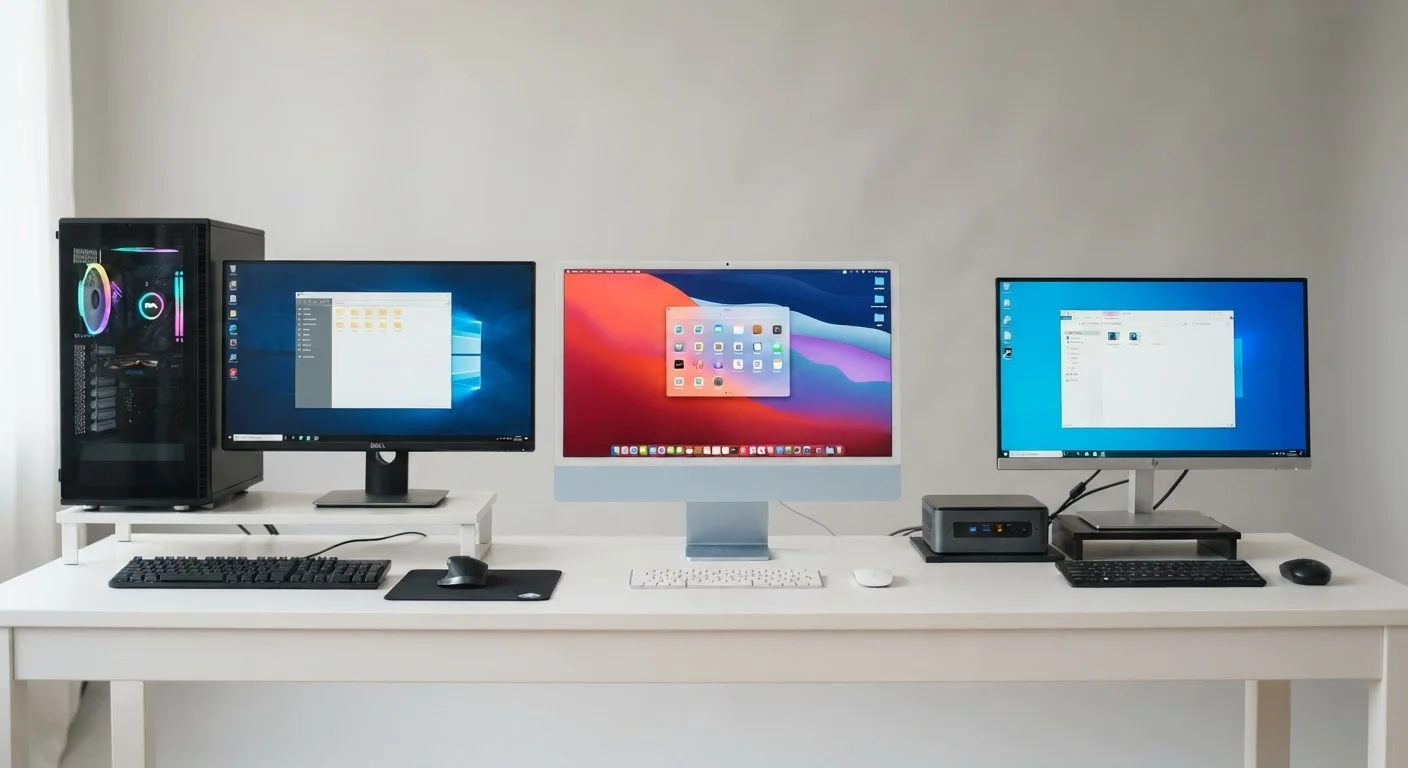
There are three main desktop form factors available to general consumers today: the tower, the all-in-one (AIO), and the mini PC. Each makes different trade-offs. Understanding those trade-offs - rather than just picking the one that looks coolest in a store - is how you avoid buyer's remorse. For a broader look at what's physically inside any of these machines, see our plain-language guide to desktop components.
Tower PCs: Room to Grow
A tower is the classic desktop design - a vertical or horizontal box that sits beside or underneath your monitor. Inside, there's genuine room: room for a full-size graphics card, multiple storage drives, powerful cooling fans, and future components you haven't bought yet.
That space is the tower's core advantage. If you buy a tower today and want to add more memory or swap in a faster graphics card two years from now, you almost certainly can. The computer upgrades hub covers how to think through those decisions when the time comes.
The trade-off is size. Towers need a dedicated spot - on or under a desk - plus separate monitor, keyboard, and mouse. For someone building a high-performance workstation or a gaming setup, this is perfectly reasonable. For someone with a small apartment and a single shelf, it may not be.
Think About Your Three-Year Self
When evaluating a tower, consider what you might want the machine to do in a few years, not just today. Adding RAM or swapping a storage drive is straightforward in most towers and costs far less than buying a new computer. If future-proofing matters to you, towers give you the most options with the least commitment upfront.
All-in-Ones: Simplicity With a Cost
An all-in-one (AIO) builds the computer directly into the monitor. You get one device instead of two, with far fewer cables. For shared family computers, reception desks, or anyone who values a tidy workspace, the appeal is obvious.
The engineering required to fit everything behind a screen, however, means that many AIOs use laptop-grade components rather than the more powerful desktop parts found in towers. They also generate more heat in a tighter space, which manufacturers manage by limiting performance headroom. Upgrading an AIO is typically restricted to RAM and storage - the processor and graphics are usually fixed in place.
If the screen is ever damaged, repair costs can be steep because the display and the computer are one unit. That's a meaningful long-term consideration.
| Tower PC | All-in-One | Mini PC | |
|---|---|---|---|
| Footprint | Large - needs desk or floor space | Medium - monitor-sized footprint | Very small - fits almost anywhere |
| Performance ceiling | High - full desktop components | Moderate - often laptop-grade parts | Low to moderate - thermally limited |
| Upgradeability | High - RAM, GPU, storage, CPU | Limited - usually RAM and storage only | Minimal - RAM and storage only |
| Setup complexity | Requires separate monitor and peripherals | Plug-in-and-go, minimal cables | Requires monitor; very few cables |
| Long-term repairability | Easier - widely available parts | Harder - integrated display complicates repairs | Moderate - compact but standard parts |
| Typical use case | Gaming, creative work, power users | Home office, reception, family use | Light tasks, secondary PC, media centers |
Mini PCs: Small Box, Real Trade-Offs
A mini PC (sometimes called a small form factor PC) is roughly the size of a thick paperback book. It connects to any monitor or TV via HDMI or DisplayPort and can disappear behind a screen with the right mount. For basic tasks - web browsing, email, video streaming, light document work - a modern mini PC handles the job without difficulty.
The constraints kick in when demands rise. Compact chassis mean compact cooling, and sustained heavy workloads can cause thermal throttling - where the processor deliberately slows itself down to avoid overheating. Most mini PCs also accept only one or two RAM sticks and have limited storage expansion. Discrete graphics cards are generally not an option at all.
Mini PCs tend to suit secondary workstations, media center setups, or users downsizing from a larger machine. If you're still weighing whether a desktop makes sense at all, our article on desktop vs. laptop trade-offs walks through that decision clearly.
Don't Underestimate Heat in Small Packages
Mini PCs and all-in-ones both manage heat in tight spaces, which can limit sustained performance under heavy workloads. If you plan to run demanding software regularly - video encoding, large spreadsheets, or extended gaming sessions - verify that the specific model you're considering has been reviewed for thermal performance, not just peak benchmark scores.
Choosing the Right Form Factor for Your Situation
There's no universally correct answer here - the right form factor depends on your specific circumstances. Ask yourself three practical questions:
- How much physical space do you have? If space is genuinely limited, a mini PC or AIO removes the bulk problem entirely.
- What do you actually use a computer for? Video editing, gaming, or running multiple applications simultaneously favors a tower's thermal and hardware headroom. Everyday tasks don't require it.
- How long do you plan to keep this machine? If you want the computer to remain useful for five or more years, a tower's upgradeability is a meaningful advantage. If you expect to replace the whole unit in three to four years anyway, the AIO or mini PC trade-offs matter less.
For first-time desktop buyers building their knowledge from the ground up, our complete starting point for new desktop buyers covers every key concept in one place.