

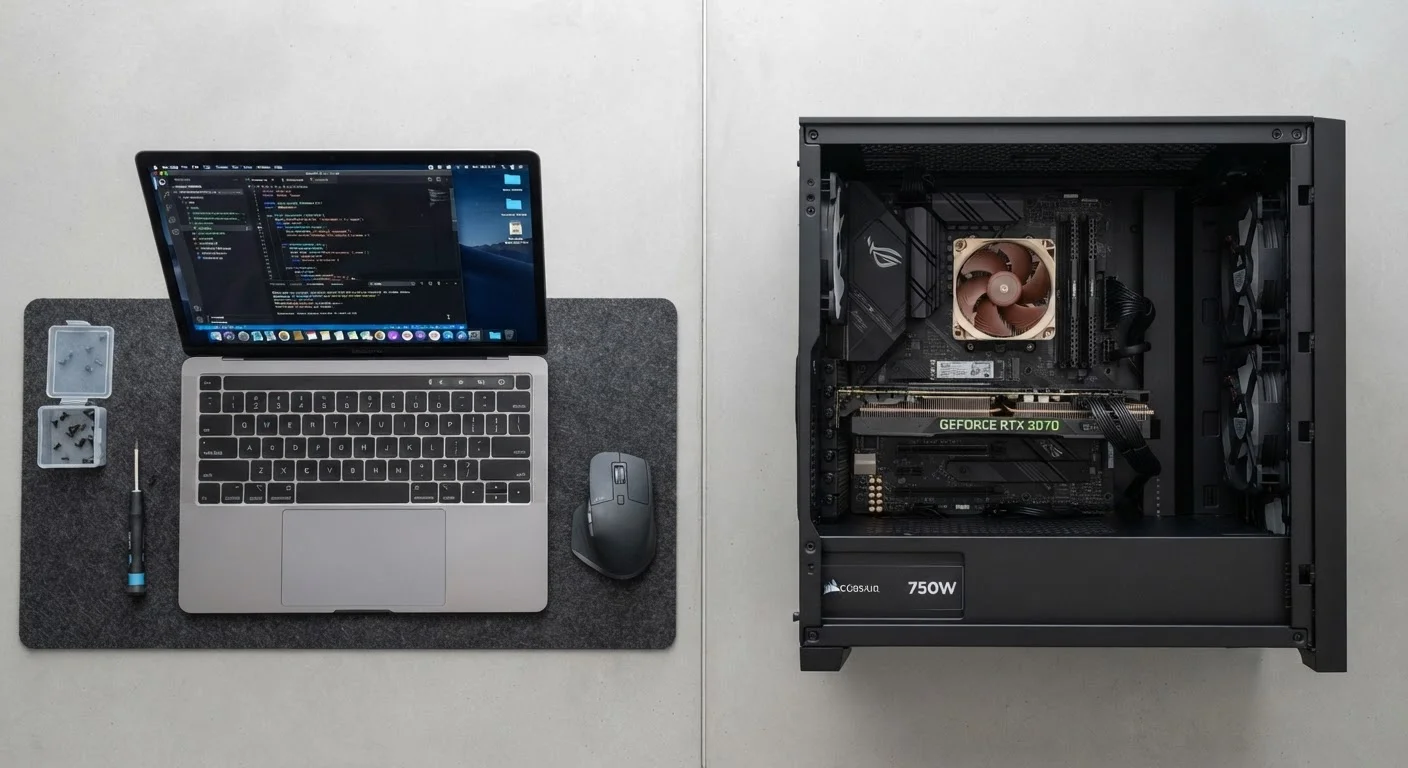
Key Takeaways
- Most laptops only allow RAM and storage upgrades; CPUs and GPUs are almost always soldered in place.
- Desktops offer far more upgrade options, including CPU, GPU, RAM, storage, and cooling.
- Before upgrading anything, confirm your specific model's upgrade compatibility - assumptions can be expensive.
- Upgrading the wrong component rarely fixes the real performance problem.
- Some modern laptops have fully soldered RAM and storage, leaving no upgrade path at all.
Option A
Laptop Upgrades
Limited but targeted improvements are still possible.
Best for: Users who need portability but want to squeeze more life out of an existing machine.
Option B
Desktop Upgrades
The most flexible and accessible upgrade path available.
Best for: Users who prioritize performance, longevity, and the ability to swap components freely.
If you need maximum upgrade flexibility over many years
Desktop Upgrades
Desktops let you replace nearly every component independently, making them far more adaptable as your needs change.
If you own a laptop and want to extend its useful life
Laptop Upgrades
Adding RAM or swapping to a faster SSD can meaningfully improve day-to-day performance without replacing the whole machine.
If gaming or graphics performance is the goal
Desktop Upgrades
Only desktops allow discrete GPU replacement, which is the single biggest lever for graphics-intensive workloads.
If your laptop feels slow but you must keep it portable
Laptop Upgrades
A storage upgrade from a hard drive to an SSD often delivers the most noticeable speed improvement possible within laptop constraints.
Why Upgrade Path Matters Before You Buy - or Open the Case
When a computer starts feeling slow, the instinct is often to upgrade it. That's a reasonable instinct - but the right move depends almost entirely on what kind of machine you have. Laptops and desktops are designed with different priorities, and those priorities determine what's physically possible to change after the fact.
Understanding upgrade potential upfront can save you real money. It can also prevent frustration when you discover - after the fact - that the component you wanted to replace is soldered directly to the motherboard. See The Complete Guide to Computer Upgrades for a broader overview of the upgrade process from diagnosis to installation.
| Criterion | Laptop | Desktop |
|---|---|---|
| RAM upgradeable | Sometimes (often soldered) | Almost always |
| Storage upgradeable | Usually (M.2 or 2.5" SSD) | Yes, multiple slots typical |
| GPU upgradeable | No - soldered in nearly all models | Yes, via PCIe slot |
| CPU upgradeable | No - soldered in consumer models | Yes, within socket compatibility |
| Battery replaceable | Sometimes, model-dependent | Not applicable |
| Upgrade difficulty | Moderate to difficult | Beginner to moderate |
| Overall upgrade ceiling | Low | High |
What You Can (and Can't) Upgrade in a Laptop
Laptops are engineered for thinness, battery efficiency, and portability. That engineering comes at a direct cost to repairability and upgradability. Here's what's realistic:
- RAM: Upgradeable on many older and mid-range laptops via SO-DIMM slots. However, a growing number of thin-and-light models - including many released in the past few years - use LPDDR memory soldered directly to the motherboard. If it's soldered, it cannot be upgraded at all.
- Storage: Many laptops use M.2 NVMe SSDs, which are often replaceable. Swapping a slow hard drive or a small SSD for a faster, larger one is typically the highest-impact upgrade available on a laptop.
- CPU and GPU: In the vast majority of consumer laptops, both are soldered permanently to the motherboard. There is no upgrade path.
- Battery: Replaceable on some models, though increasingly difficult on ultra-slim designs. A worn battery is worth addressing if it extends the machine's useful life.
Before assuming an upgrade is possible, look up your specific laptop model on the manufacturer's support page or a community repair resource. Laptop Basics covers key concepts worth understanding before making any purchase or modification decisions.
~60%
Laptops with soldered RAM
Industry teardown analyses suggest the majority of thin-and-light laptops released in recent years use soldered LPDDR memory, making RAM upgrades impossible.
2-4×
Speed gain: HDD to SSD
Replacing a mechanical hard drive with a solid-state drive is consistently cited as the single most impactful laptop upgrade in terms of perceived responsiveness.
What You Can Upgrade in a Desktop
Desktops are built around a modular philosophy. Components connect via standardized slots and connectors, and most can be swapped without specialized tools. The practical upgrade options are much broader:
- RAM: Almost always upgradeable. Standard DIMM slots mean you can add or replace memory sticks easily, up to the limits your motherboard supports.
- Storage: You can typically add multiple drives - SSDs, NVMe drives, or traditional hard drives - depending on available bays and connectors.
- GPU (Graphics Card): Desktops with a dedicated PCIe slot allow full graphics card replacement. This is the most impactful upgrade for gaming or creative workloads.
- CPU: Replaceable on most desktop motherboards, though compatibility between generations varies. A new CPU may also require a new motherboard.
- Cooling and power supply: Both are replaceable, which matters if you're pushing the system harder with upgraded components.
That flexibility doesn't mean upgrades are always straightforward. Seven Things Worth Knowing Before Upgrading a Desktop Component outlines the compatibility checks and practical realities that catch many people off guard. Also worth reading: Upgrade Myths That Cost People Money and Time, which separates performance fact from common fiction.
Diagnosing the Real Bottleneck Before Spending Anything
The most expensive upgrade mistake is fixing the wrong thing. More RAM won't help if the bottleneck is a failing hard drive. A new GPU won't fix slow application load times caused by an aging processor struggling with background tasks.
On both laptops and desktops, start with your operating system's built-in performance monitoring tools. On Windows, Task Manager's Performance tab shows real-time CPU, RAM, disk, and GPU utilization. On macOS, Activity Monitor provides equivalent data. Look for what's consistently maxed out during the tasks that feel slow - that's your actual bottleneck.
Owning a Desktop: The Honest Trade-Offs is a useful read if you're deciding whether upgrading your current machine is worth it or whether a different form factor makes more sense going forward.
Check Compatibility Before Purchasing Any Part
Component compatibility is not universal. A RAM module that fits physically may not be supported at the speed your system can use. An NVMe SSD may not be recognized by an older laptop's firmware. Always cross-reference your exact model number against the manufacturer's supported upgrade specifications - or a verified third-party compatibility tool - before buying any part.