

Key Takeaways
- Compatibility between components matters more than raw specs - check before you buy.
- Your power supply must handle any new component's wattage demands or the upgrade will fail.
- Diagnosing the actual bottleneck first prevents costly upgrades that change nothing.
- Motherboard generation and socket type determine which CPUs and RAM modules will physically work.
- Software steps after installation are just as critical as the hardware swap itself.
Why preparation matters more than the upgrade itself
Opening a desktop case and swapping in new hardware feels straightforward - until a component doesn't fit, a system won't boot, or performance stays exactly the same. Most upgrade frustrations trace back not to the installation but to decisions made before it: buying without checking compatibility, misjudging what the actual problem is, or underestimating what else needs to change. If you're new to the topic, a plain-language primer on CPU, RAM, and storage is worth reading before going further. The seven points below address the realities that catch upgraders off-guard most often.
Run Diagnostics Before You Shop
Use Windows Task Manager or a free tool like HWiNFO to monitor CPU, RAM, and disk usage during your typical workload for at least 15 minutes. Screenshot the results. This gives you concrete evidence of where your system is constrained - and keeps you from spending money on the wrong upgrade.
For a broader look at the computer upgrades landscape, including which improvements tend to have the most practical impact, that hub covers the full range of considerations.
Know what's actually slowing your computer down
Before spending anything, identify which component is the real bottleneck. A machine that stutters during web browsing usually has a memory or storage problem, not a CPU problem. Installing a faster processor into a system with a nearly full hard drive won't change the experience noticeably. Free diagnostic tools built into Windows - like Task Manager's Performance tab - show you in real time which resource is maxed out. Spend ten minutes watching those graphs during normal use and you'll know far more than any spec sheet can tell you.
Installing a faster CPU into a storage-choked system changes almost nothing about daily performance.
Motherboard generation dictates what fits
Your motherboard is the hub everything else connects to, and it only accepts components designed for its specific generation. RAM comes in generations - DDR4 and DDR5 are not interchangeable, even if the module looks similar. CPUs require a matching socket type; a chip designed for one socket physically cannot seat in another. Before researching any upgrade, identify your motherboard's exact model number - usually printed directly on the board - and look up its supported component list from the manufacturer's website. This step alone prevents the most common and most expensive upgrade mistake.
Your motherboard's generation and socket type are the hard limits everything else must fit within.
Your power supply has a ceiling
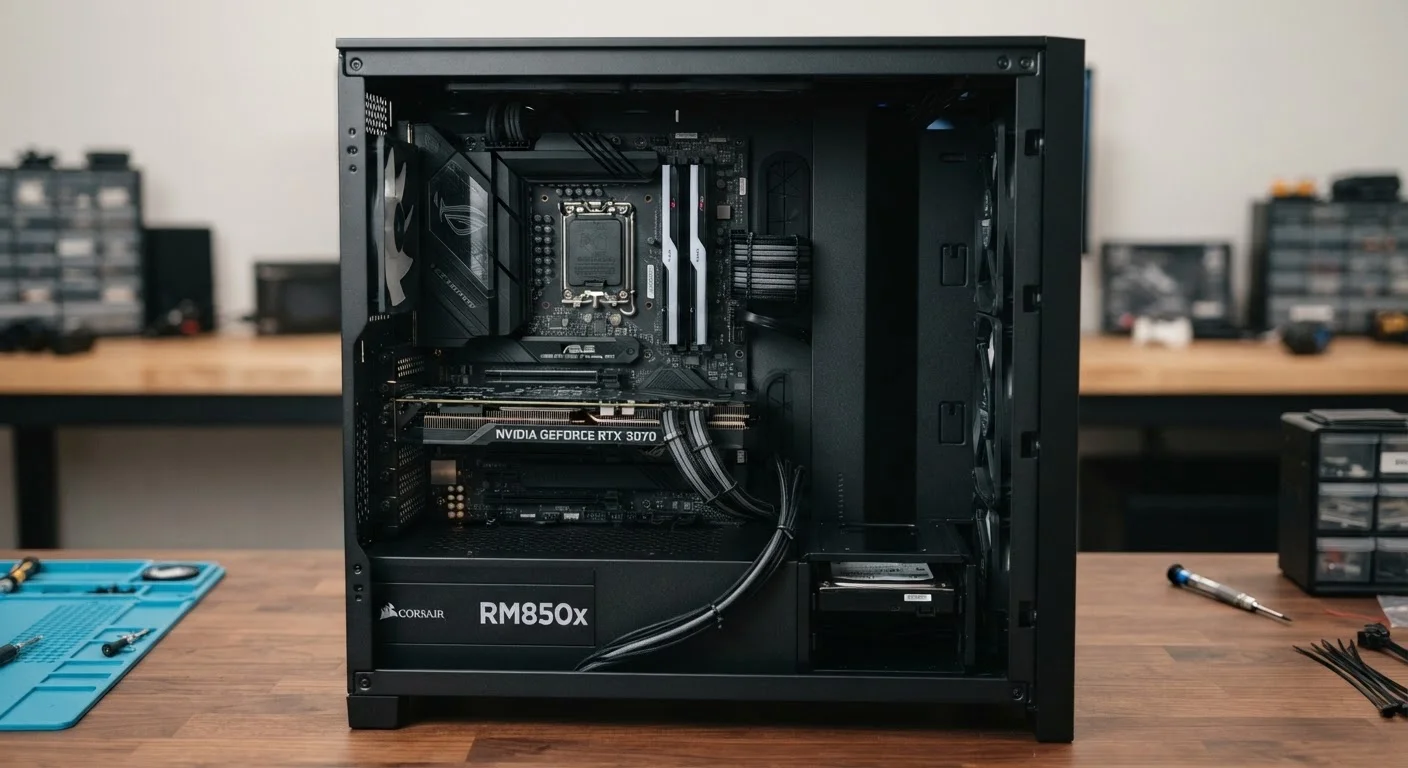
Every component inside a desktop draws power, and all of it flows through the power supply unit (PSU). Adding a dedicated graphics card - or upgrading to a more powerful one - significantly increases wattage demand. If your existing PSU can't meet that demand, the system will crash, refuse to boot, or behave erratically. Check your current PSU's wattage rating (printed on a label on the unit itself) and compare it against the recommended system wattage for any component you're considering. Accounting for headroom - typically 20 percent above calculated load - is standard practice.
A PSU that can't meet new wattage demands will cause crashes or prevent the system from booting at all.
Physical space inside the case matters
Graphics cards have grown considerably in physical size. A high-performance GPU that technically matches your motherboard's slot may be too long, too tall, or too thick to fit inside a compact or mid-tower case. Storage drives have their own form factors - a 2.5-inch SSD requires different mounting than an M.2 drive, which plugs directly into the motherboard. Before ordering anything, measure the available space in your case and check whether the required connectors or drive bays are present. Manufacturer spec pages list exact dimensions for cards and drives.
A component that passes every compatibility check can still fail to fit inside a compact case.
Static electricity can kill components silently
Electrostatic discharge (ESD) - the same invisible charge that gives you a small shock from a doorknob - can permanently damage sensitive hardware without any visible sign. The damage often doesn't manifest immediately, making it difficult to trace. Working on a hard floor with socks, or handling a RAM module straight out of the bag, are common sources of risk. Ground yourself by touching the metal frame of the unplugged case before handling any component, and consider an inexpensive anti-static wrist strap if you plan to do upgrades more than once.
ESD damage is silent, invisible, and often shows up days after the upgrade rather than immediately.
Software and drivers need attention after installation
Inserting new hardware is only half the job. A new graphics card, for instance, typically requires downloading the correct driver from the manufacturer before it performs properly - Windows may assign a generic driver that limits functionality. After any storage upgrade involving a new primary drive, the operating system needs to be installed or migrated. Even a RAM upgrade can benefit from a BIOS settings check to ensure the system is running the memory at its rated speed. Post-upgrade software steps deserve the same planning as the hardware selection itself.
New hardware without the right drivers and settings often performs no better than what it replaced.
Some upgrades aren't cost-effective on older systems
Adding modern, fast RAM to a system with a CPU from two hardware generations ago can produce diminishing returns - the older processor simply can't take advantage of the additional bandwidth. Similarly, dropping a high-end graphics card into a system with a weak CPU creates a different kind of bottleneck. At a certain age, individual component upgrades start to cost more collectively than a thoughtful system replacement would. Evaluate the age and overall generation of your system honestly before committing to any single upgrade. Common upgrade myths often obscure this calculus.
Upgrading individual parts in an aging system can cost more than the performance gain justifies.
Making a smarter decision before you spend
Every item above points toward the same underlying principle: information gathered before the purchase saves far more than it costs in time. Skipping the compatibility check, ignoring power requirements, or assuming a component swap will automatically solve a performance problem are all patterns that lead to returns, repeated work, or wasted money. Upgrade decisions people commonly regret almost always involve one of these skipped steps. Before committing to any component, confirm it fits your motherboard generation, clears your case dimensions, stays within your PSU's limits, and actually addresses the bottleneck your diagnostics identified. That checklist, run in order, is the most reliable way to make an upgrade worth the effort.
Finding Your Motherboard Model
On Windows, open the Run dialog (Windows key + R), type 'msinfo32', and press Enter. The System Information window lists your baseboard manufacturer and product name - this is your motherboard model. Use that information to look up the official support page and confirmed compatible components list before purchasing anything.
For a detailed look at the specific specs - socket types, form factors, speed ratings - that determine compatibility, key specs to check before buying any upgrade component walks through each category methodically.