

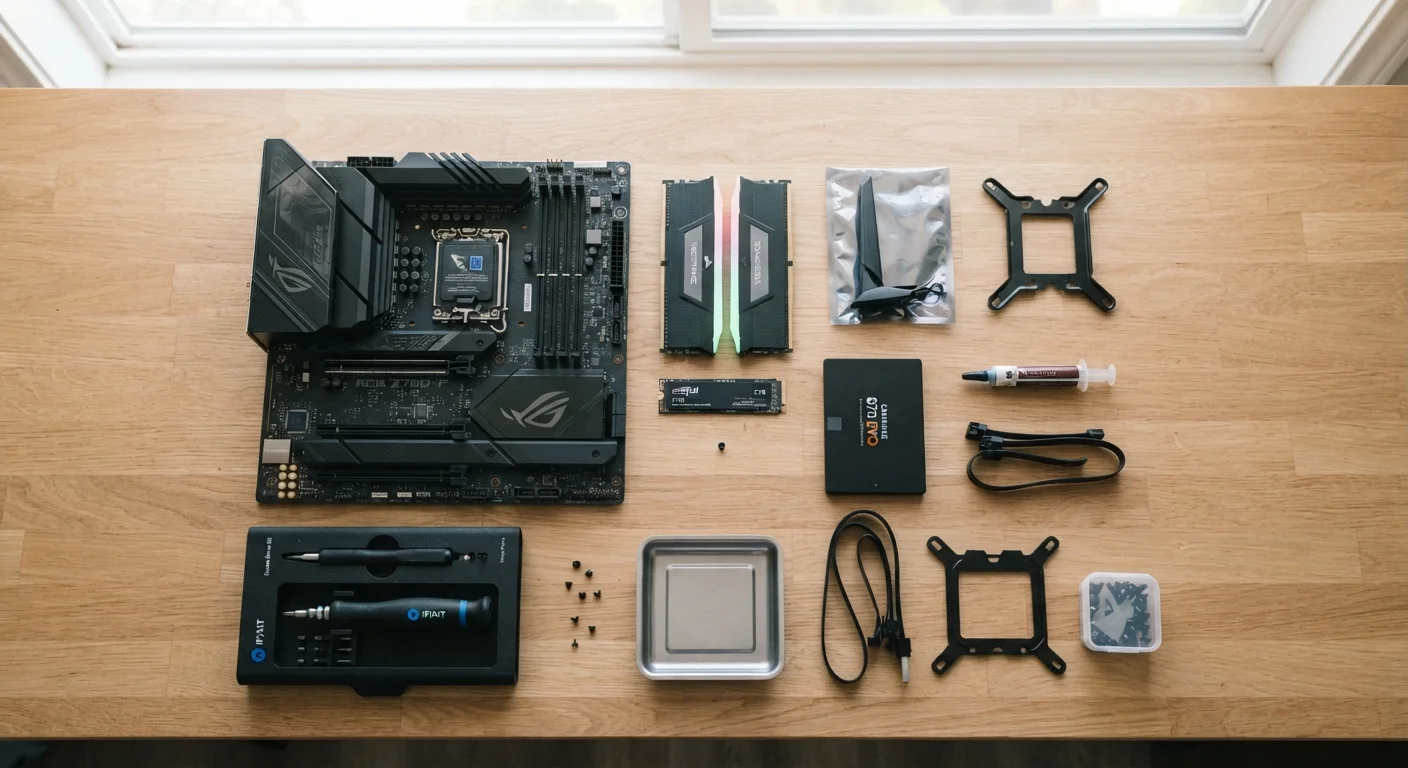
Key Takeaways
- A storage upgrade to an SSD is often the single most noticeable performance improvement for older PCs.
- Diagnosing the actual bottleneck before spending money prevents wasted effort and cost.
- Not every component is upgradeable - CPU and GPU limits depend on your motherboard.
- Static electricity is the most common cause of DIY hardware damage; grounding yourself is essential.
- Many laptops have soldered RAM and storage, making upgrades impossible without professional help.
Why Upgrading Often Makes More Sense Than Replacing
A sluggish computer doesn't automatically mean it's time to buy a new one. Many performance complaints - slow startups, laggy multitasking, stuttering during video playback - trace back to a single underpowered component that can be swapped at a fraction of replacement cost. For desktop PC owners, the upgrade path is especially accessible, since most towers are designed with component access in mind.
Upgrading also has an environmental dimension: extending a machine's life by two to four years reduces electronic waste and defers a significant purchase. The key is targeting the right component rather than upgrading speculatively.
Diagnosing What's Actually Slowing Your PC Down
Before purchasing anything, use your operating system's built-in tools to identify where the bottleneck lies. On Windows, Task Manager (Ctrl + Shift + Esc) shows real-time CPU, RAM, disk, and network usage. On macOS, Activity Monitor provides the same view. Watch these readings while performing the tasks that feel slow.
- High CPU usage (above 90% consistently): The processor is the constraint. A CPU upgrade may help, but compatibility limits apply.
- High RAM usage: Your system is using the hard drive as overflow memory - adding RAM will usually produce immediate relief.
- Disk usage at 100%: Nearly always indicates a spinning hard drive (HDD) struggling to keep up. An SSD upgrade is the fix.
- Low resource usage across the board: The slowness may be software-related - malware, bloatware, or a fragmented OS install - rather than a hardware problem.
For more structured troubleshooting guidance, see the Computer Problem Solving hub.
Run your diagnostic tools under real workload conditions - not on an idle desktop. The bottleneck only shows itself when the machine is actually doing the work you find slow.
Idle readings look healthy on almost any system; stress conditions are what reveal whether CPU, RAM, or disk is the true constraint.
Before buying RAM, use your motherboard manufacturer's compatibility list (often called a QVL - Qualified Vendor List) rather than relying solely on speed and capacity specs alone.
Not all RAM modules that meet the stated specs will be stable in every motherboard; QVL-listed modules have been tested and confirmed by the manufacturer.
The Four Most Impactful Upgrades
Most meaningful performance gains come from a short list of components:
- Storage (HDD → SSD): Replacing a mechanical hard drive with a solid-state drive (SSD) typically cuts boot times from over a minute to under 20 seconds. SSDs have no moving parts, making them faster and more durable. This is almost always the highest-ROI upgrade for a machine still running a spinning drive.
- RAM (system memory): Adding RAM is most effective when your current amount is consistently maxed out. Moving from 4 GB to 8 GB - or 8 GB to 16 GB - allows more applications to run simultaneously without slowdown. Check your motherboard's maximum supported RAM and the correct speed (e.g., DDR4-3200) before purchasing.
- GPU (graphics card): Relevant primarily for gaming or video editing workloads. A GPU upgrade can dramatically improve frame rates and rendering speed, but requires verifying that your power supply and motherboard slot are compatible.
- CPU (processor): The most restrictive upgrade. A new processor must match your motherboard's socket type and chipset support list - options are often narrow. In many cases, a CPU upgrade requires a new motherboard as well, shifting the economics significantly.
~10×
Speed difference: SSD vs. HDD sequential reads
Consumer SSDs commonly achieve sequential read speeds above 500 MB/s, compared to 50-120 MB/s for typical 7200 RPM spinning hard drives.
16 GB
RAM considered a practical baseline for modern multitasking
Industry guidance and OS memory requirements have trended upward; 8 GB is increasingly constrained under current browser and productivity workloads.
What You Can't Upgrade - and Why It Matters
Understanding upgrade limits saves time and money. The motherboard is the central constraint: it dictates which CPU generations are compatible, how much RAM the system can address, and which GPU interfaces (PCIe slots) are available. Before planning any upgrade, identify your exact motherboard model - this is visible in System Information on Windows or via a free tool like CPU-Z.
Laptops present additional restrictions. Many modern thin-and-light models have RAM and storage soldered directly to the motherboard, making user upgrades physically impossible. Check your laptop's service manual or the manufacturer's specifications page before assuming an upgrade is feasible.
Laptop Upgrades: Confirm Before You Commit
Many laptops manufactured after 2018 - particularly thin and light models - have RAM and SSDs soldered or glued in place. Opening the case on these machines can void warranties and still leave you unable to swap any components. Always download and read the service manual for your exact laptop model number before assuming an upgrade is possible.
Preparing Safely Before Opening the Case
Hardware installation is straightforward with the right precautions. Static electricity is the primary risk - a discharge you can't even feel can permanently damage a circuit board.
- Power off the computer completely and unplug it from the wall outlet.
- Use an anti-static wrist strap, or frequently touch the unpainted metal of the PC case to discharge yourself.
- Work on a hard, non-carpeted surface.
- Handle components by their edges, never touching gold contacts or circuit traces.
Before you begin, review our key considerations before upgrading a desktop component - it covers compatibility checks, data backup steps, and what to do if something doesn't work after installation.
Back Up Before You Open the Case
Always create a full backup of your data before performing any hardware upgrade - even one that shouldn't affect storage. Accidents happen, and a drive can occasionally be dislodged or damaged during installation. A backup to an external drive or cloud service takes minutes and eliminates the worst-case scenario.
Knowing When an Upgrade Won't Help
Some machines have reached a point where hardware investment no longer makes practical sense. Indicators include: a CPU that no longer receives security microcode updates, a platform too old to support modern operating systems (Windows 11 requires a TPM 2.0 chip, for example), or a system where even an SSD and RAM upgrade would leave a bottlenecked processor as the weakest link.
A useful rule of thumb: if the cost of the upgrades needed to bring a machine to a usable standard approaches or exceeds half the cost of a comparable new system, replacement is often the sounder decision. Upgrading strategically extends a computer's life - but every machine eventually reaches its ceiling.
This article is for informational purposes only. Always verify component compatibility with your specific hardware before purchasing or installing any upgrade.