

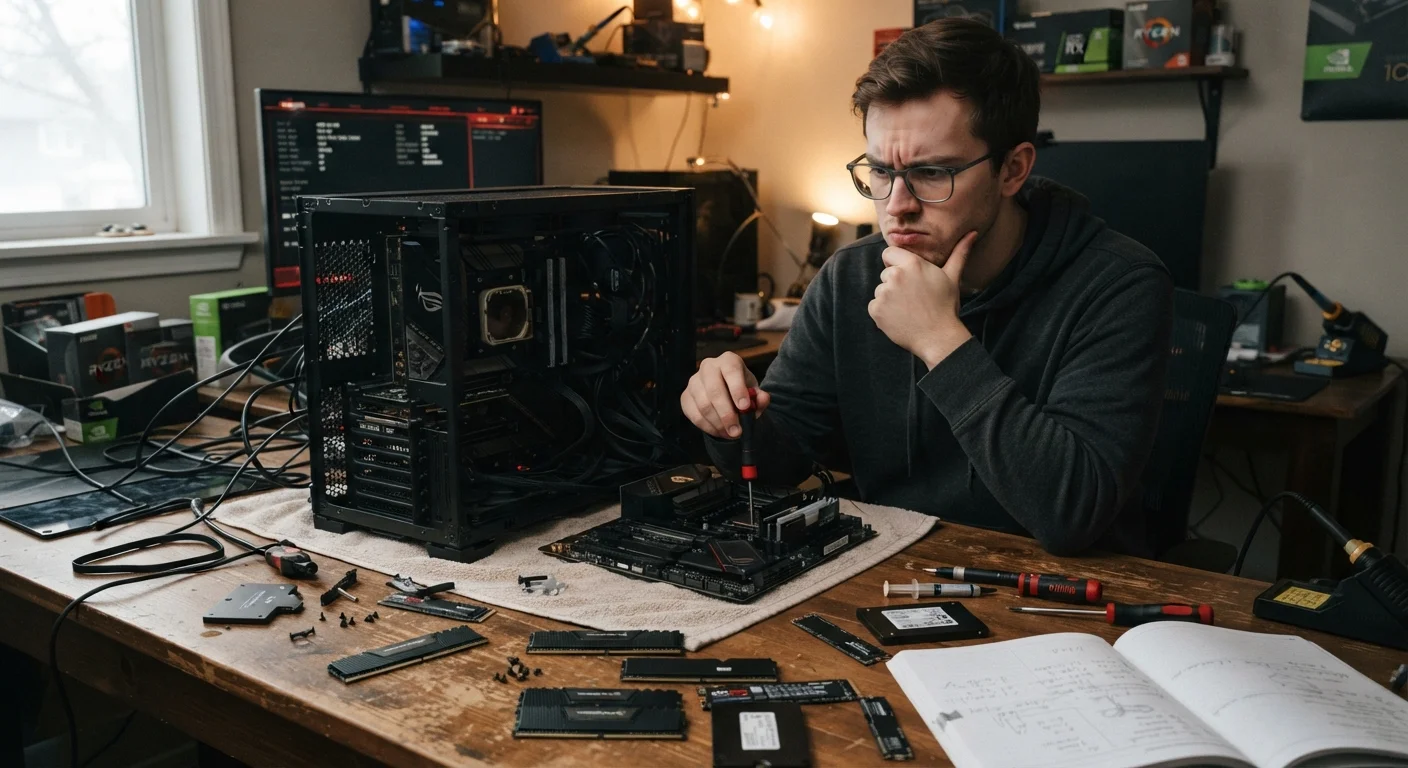
Key Takeaways
- More RAM only speeds up a computer when RAM is the actual bottleneck - it's not always the culprit.
- A slow hard drive can make even a fast CPU feel sluggish; storage type matters enormously.
- Upgrading any single component without diagnosing the real bottleneck often wastes money.
- Many laptops have limited or no upgrade paths - check before buying components.
- Software bloat and failing hardware can mimic upgrade problems; diagnose first, spend second.
Why Upgrade Myths Are So Persistent
Computer upgrade advice spreads fast - from forums, well-meaning friends, and tech videos - but much of it is oversimplified or flat-out wrong. Acting on bad information means spending money on components that deliver no noticeable improvement, or missing the actual fix entirely. Before opening your wallet, it's worth separating what's true from what just sounds plausible.
The myths below are among the most common ones that cost everyday consumers real time and money. Each one has a grain of logic that makes it believable - which is exactly why they need to be addressed directly. For a grounding in what each core component actually does, see our plain-language primer on CPU, RAM, and storage before diving into any upgrade.
Myth
Adding more RAM is the best way to speed up any slow computer.
Fact
More RAM only improves performance when RAM is the actual limiting factor - which it often isn't.
RAM (Random Access Memory) lets your computer handle more tasks simultaneously. If you regularly run many applications at once and your system is using close to its RAM ceiling, adding more can make a meaningful difference. But if your computer is slow because of a sluggish mechanical hard drive, an aging processor, or software bloat, adding RAM will do almost nothing. Always check what's actually being maxed out before purchasing. Our article on when more RAM helps and when it doesn't explores this in depth.
Myth
A faster CPU will fix most performance problems.
Fact
If storage or RAM is the bottleneck, a faster CPU delivers little to no improvement in everyday tasks.
The CPU (central processing unit) handles computation, but a fast processor waiting on a slow hard drive is like a chef waiting on a slow refrigerator - the kitchen still stalls. In many everyday use cases, switching from a mechanical hard drive (HDD) to a solid-state drive (SSD) produces a far more dramatic real-world improvement than a CPU upgrade would. CPU upgrades also carry compatibility constraints - not every processor fits every motherboard - making them riskier and more expensive than they appear.
Myth
You can upgrade any laptop the same way you upgrade a desktop.
Fact
Most modern laptops have significant upgrade restrictions, and many have components soldered directly to the motherboard.
Unlike desktop PCs - where RAM, storage, and graphics cards are generally swappable - many laptops, particularly thin and ultraportable models, have RAM and sometimes storage permanently attached to the board. Before buying any upgrade part for a laptop, verify your specific model's upgradeability using the manufacturer's documentation or a trusted hardware reference. Assuming a laptop works like a desktop is one of the most common and costly upgrade mistakes consumers make. See our comparison of what's actually possible upgrading a laptop vs. a desktop for a clear breakdown.
Myth
Upgrading hardware is always cheaper than buying a new machine.
Fact
Depending on the machine's age and what needs replacing, the total upgrade cost can approach or exceed the cost of a replacement.
When a computer is several years old, it may need multiple upgrades to feel meaningfully faster - new storage, more RAM, possibly a cooling overhaul. The cumulative cost of those parts, plus the time and risk involved, can make a new machine better value. Older hardware also limits what components are compatible, sometimes forcing you into expensive or hard-to-find parts. The decision isn't always obvious, which is why it's worth reading through the indicators that a computer is or isn't worth upgrading before committing to anything.
Myth
More GHz always means a faster computer.
Fact
Clock speed is one factor among many; architecture, core count, and workload type all play major roles.
A processor running at 3.5 GHz from a recent generation will often outperform a 4.2 GHz chip from several years ago on the same task, because chip architecture has improved dramatically. Clock speed comparisons are only meaningful within the same processor family and generation. Cross-brand, cross-generation GHz comparisons can be actively misleading. This is closely related to the desktop myths examined in our piece on what desktop PC myths are costing consumers.
How to Actually Diagnose a Slow Computer
The pattern behind most upgrade mistakes is the same: skipping diagnosis. A computer that feels slow could be bottlenecked by RAM, storage, the CPU, overheating, or software - and each problem has a different solution. Throwing money at RAM when the real issue is a failing hard drive doesn't fix anything.
~100%
Disk usage during common slow-PC complaints
Task Manager data commonly shows disk utilization hitting its ceiling on machines with mechanical hard drives running modern operating systems - a key diagnostic signal.
3-5×
Typical read-speed difference: SSD vs. HDD
Standard SATA SSDs generally deliver read speeds several times faster than mechanical hard drives, with NVMe SSDs pushing even further ahead in sequential transfer rates.
Windows Task Manager and macOS Activity Monitor both show real-time CPU, RAM, and disk usage. If your disk is consistently near 100% while your RAM sits at 40%, adding more RAM won't help - replacing a mechanical hard drive with a solid-state drive (SSD) almost certainly will. Our guide to identifying which upgrade actually fixes a slow PC walks through exactly this process.
Also worth checking before any hardware purchase: whether software is the real culprit. Startup programs, background processes, and accumulated junk files can degrade performance significantly without any hardware fault. Upgrade decisions people regret almost always trace back to skipping this step.
Diagnose Before You Buy Anything
No upgrade decision should start with a parts purchase. Use your operating system's built-in performance tools - Task Manager on Windows, Activity Monitor on macOS - to identify which resource is actually being exhausted. Buying a component that addresses the wrong problem guarantees disappointment. If overheating is involved, that's another commonly overlooked performance killer; see our article on why cooling upgrades get overlooked for context.
If you do determine an upgrade is warranted, verify compatibility before buying anything. Socket types, form factors, and speed ratings all affect whether a component will work in your specific machine. Our reference on key specs to check before buying covers the essentials for RAM, SSD, and CPU upgrades. And if you're unsure whether your machine is even worth upgrading, see signs your computer is worth upgrading first.