

Key Takeaways
- Enabling Wi-Fi wherever available is the single most effective way to conserve mobile data.
- Background app refresh and auto-play video settings are among the biggest hidden data drains.
- Data Saver mode on Android and Low Data Mode on iPhone can meaningfully reduce consumption.
- Understanding your plan's throttling thresholds helps you avoid unexpected speed slowdowns.
- Scheduling large downloads and updates for Wi-Fi prevents surprise data usage spikes.
Why Data Management Still Matters on Generous Plans
Even as unlimited mobile plans have become more common, most carry a catch: a data threshold — often between 20 GB and 100 GB — after which speeds are throttled during network congestion. On capped plans, the stakes are higher still. Either way, understanding where your data goes puts you in control rather than at the mercy of an unexpected slowdown or overage fee.
If you're weighing a move to a 5G plan, or trying to understand how 5G changes your data reality, our complete guide to switching to a 5G mobile plan covers plan structures and what to watch for before you commit.
~60%
Share of mobile data consumed by video
Ericsson's Mobility Report has consistently identified video as the dominant category of mobile data traffic globally across recent years.
2–4×
More data used streaming vs. offline playback
Streaming the same content repeatedly over a mobile connection uses significantly more data than a single offline download of equivalent quality.
The Settings That Quietly Eat Your Data
Most smartphones are configured out of the box to prioritize convenience over efficiency — which often means consuming data in the background without any obvious activity on your part. A few settings adjustments can make a significant difference:
- Background app refresh: On both iOS and Android, apps update their content even when you're not using them. Limit this to Wi-Fi only, or disable it entirely for apps that don't need real-time updates.
- Auto-play video: Social media apps default to playing video automatically as you scroll. Setting these to Wi-Fi-only or turning auto-play off entirely can cut consumption dramatically.
- Automatic app updates: Configure your device to download updates over Wi-Fi only — these files are often large and update silently.
- Cloud photo sync: Services that back up your camera roll continuously can burn through data fast. Schedule syncing for when you're on Wi-Fi.
For a deeper look at the specific toggles worth adjusting, our rundown of mobile data settings most people ignore walks through each option clearly.
Use Your Carrier's App for Real-Time Tracking
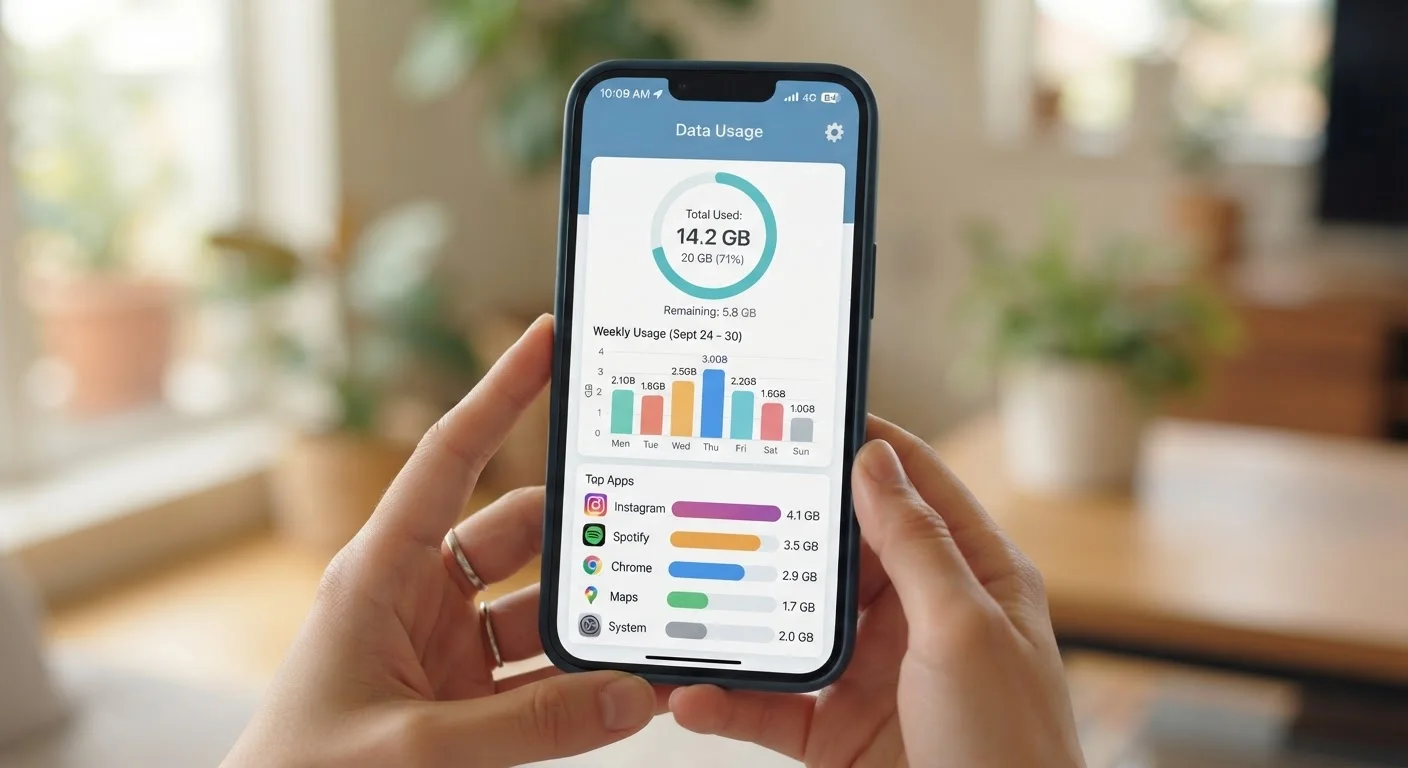
Most carriers offer a dedicated app that shows your current cycle's data usage in near-real time — more accurate than the device's own counter, which resets on a fixed calendar date rather than your billing date. Setting a usage alert at 80% of your allowance gives you time to adjust behavior before hitting your cap or throttling threshold.
Practical Habits That Add Up Over Time
Settings get you part of the way there — habits take care of the rest. A few consistent behaviors can meaningfully extend how far your monthly allowance goes:
Connect to trusted Wi-Fi networks whenever you're in range.
Wi-Fi offloading is the most impactful single behavior for reducing cellular data use. Every gigabyte you consume over Wi-Fi is one that doesn't count against your mobile plan.
Download content for offline use before leaving Wi-Fi.
Streaming the same playlist or podcast repeatedly over mobile data wastes allowance that could be preserved by a single download. Offline content also performs better in low-signal areas.
Monitor your usage weekly, not just when you're near your cap.
Checking data usage only when warned by your carrier means you're already in damage-control mode. Weekly awareness lets you course-correct before habits become problems.
Enable system-level Data Saver or Low Data Mode.
These built-in modes reduce background data activity across the entire device simultaneously, requiring no per-app configuration. They're particularly effective during the final days of a billing cycle.
Reduce streaming quality when you're on mobile data.
Video and audio streaming are among the heaviest data consumers on most phones. Lowering quality from HD to standard definition can cut video data use by half or more without a meaningful difference in experience on a small screen.
If you travel internationally, data management takes on extra urgency. Roaming on 5G networks comes with its own complexity — understanding how roaming works on 5G can help you avoid bill shock before you board a flight.
Quick Wins You Can Apply Right Now
If you want to act immediately rather than audit every app and setting, start with these high-impact steps. They take minutes and deliver noticeable results without requiring any technical knowledge.
For broader smartphone efficiency tips beyond data management, our Smartphone Tips & Tricks hub is a useful ongoing resource.