

Key Takeaways
- Working mobile data confirms your phone's hardware is functional — the fault is specific to Wi-Fi.
- Testing other devices on the same network quickly reveals whether the problem is your phone or the network.
- Most home Wi-Fi failures trace to the router, ISP outage, or device-level settings — not hardware damage.
- Forgetting and re-joining a network resolves a surprising number of Wi-Fi authentication failures.
- A router restart fixes transient issues; a full factory reset of the router addresses persistent ones.
Wi-Fi vs. Mobile Data Fault Isolation
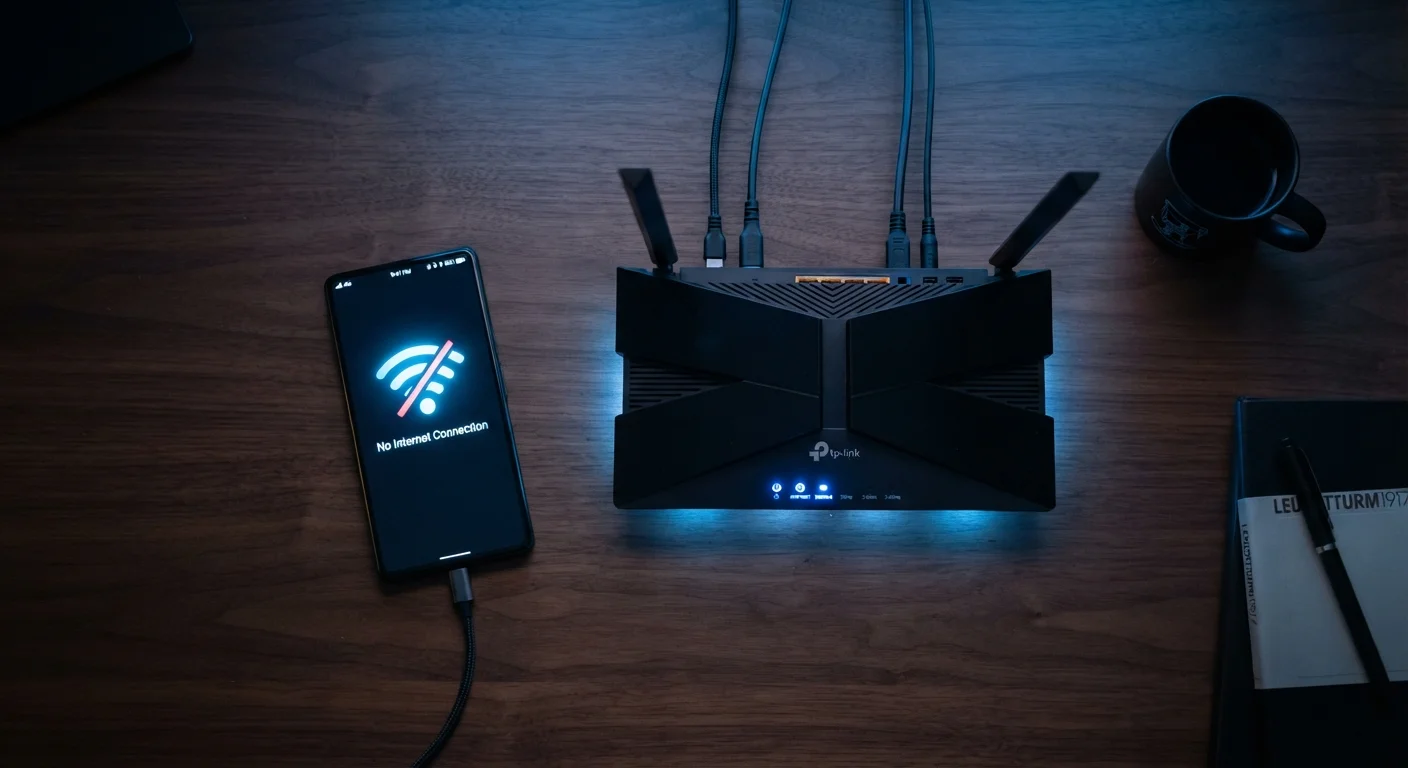
When your phone works fine on cellular data but fails on Wi-Fi, the issue is confined to one of three layers: the Wi-Fi network itself, the router or modem, or the phone's own wireless settings. Fault isolation means testing each layer systematically so you spend time fixing the real cause rather than guessing.
Mobile data and Wi-Fi use entirely separate radio hardware and protocol stacks on your device, which is why one can function normally while the other fails completely.
What Working Mobile Data Actually Tells You
If your phone streams, loads pages, or sends messages over cellular without any trouble, that single fact eliminates a large portion of possible causes. Your phone's core networking hardware is functional, your carrier account is active, and the device's operating system is processing network traffic correctly. The problem is isolated to the Wi-Fi side of the equation.
This distinction matters because it narrows your troubleshooting path immediately. You don't need to worry about a damaged antenna, a suspended account, or a software crash affecting all connectivity. You're looking for a fault that affects only the 802.11 wireless stack — the technology your phone uses to communicate with a Wi-Fi router.
For context on how these two connection types differ at a network level, the 5G and mobile data hub covers how modern cellular infrastructure works independently from home networking.
The Three-Layer Diagnostic Framework
Every Wi-Fi failure lives in one of three places. Working through them in order stops you from resetting your phone when the real issue is a rebooting router — or calling your ISP when the fix was a forgotten Wi-Fi password stored incorrectly on your device.
Layer 1: The Network (Is It Just Your Phone?)
Connect a second device — a laptop, tablet, or another phone — to the same Wi-Fi network. If that device also has no internet, the fault is upstream of your phone entirely. Skip ahead to Layer 2. If the second device connects normally, your phone is the variable, and Layer 3 is your focus.
Layer 2: The Router and ISP
Check whether any indicator lights on your router or modem are red, blinking amber, or simply off when they're usually solid. Most routers show a distinct pattern for a lost internet connection versus a power issue. Restart the router by unplugging it, waiting 30 seconds, then plugging it back in. If the problem persists after 2–3 minutes, log into your ISP's account portal or app to check for reported outages in your area. For deeper router-level investigation, the guide on whether the bottleneck is your ISP or your home network walks through the distinction clearly.
Layer 3: Your Phone's Wi-Fi Settings
If other devices work fine on the network, the fault is in how your phone is configured for that specific network or Wi-Fi in general. Proceed to the phone-side fixes below.
~70%
Wi-Fi issues resolved by router restart
Router manufacturers and ISP support documentation consistently report that a power cycle resolves the majority of home Wi-Fi connectivity complaints.
3
Layers where every Wi-Fi fault originates
Network diagnostics frameworks categorize faults as device-side, router/local network, or ISP/upstream — narrowing which layer to focus on first saves significant troubleshooting time.
Phone-Side Fixes, Ordered by Effort
Apply these in sequence. Each step resolves a distinct category of problem.
- Toggle Wi-Fi off and on. Open Settings, disable Wi-Fi, wait five seconds, re-enable it, and let the phone reconnect. This clears transient software glitches in the wireless radio driver.
- Forget the network and reconnect. Go to your Wi-Fi settings, tap the network name, and select "Forget" (iOS) or "Forget Network" (Android). Then reconnect by selecting the network again and entering the password. This discards any corrupted authentication tokens stored from a previous session.
- Disable VPN and proxy settings. An active VPN or manual proxy configured in your network settings can prevent a successful connection on certain networks. Temporarily turn off any VPN app and check Settings > Wi-Fi > network name for any proxy settings set to "Manual" — switch these to "Off" or "Auto."
- Check for an IP address conflict. On iOS, tap the network name under Wi-Fi settings and look at the IP Address field. On Android, tap the gear icon next to the network. If the IP address shows as 0.0.0.0 or 169.254.x.x, your phone isn't receiving a valid address from the router. Try switching from DHCP to a manual IP temporarily, or restart the router to reset its address pool.
- Reset network settings. This is the nuclear option for phone-side issues. On iOS: Settings > General > Transfer or Reset iPhone > Reset > Reset Network Settings. On Android: Settings > General Management > Reset > Reset Network Settings. This removes all saved passwords and pairings but does not affect personal data.
Test a Different Network First
Before adjusting any phone settings, try connecting to a completely different Wi-Fi network — a mobile hotspot from another phone is ideal. If your phone connects successfully there, you've confirmed the issue is specific to your home network or router, not your phone's Wi-Fi hardware. This single test can save considerable time.
If the problem only occurs on one specific network, the culprit is almost always the router's configuration or a saved credential mismatch on the phone — not a system-wide phone fault. For a broader look at intermittent Wi-Fi problems, the guide on why Wi-Fi keeps dropping covers signal, interference, and hardware causes in detail.
When the Fix Isn't Obvious
Some scenarios don't fit neatly into the three-layer framework. A few common edge cases:
- Your phone connects but shows no internet. This is a distinct problem from not connecting at all. The phone has joined the local network but can't reach external servers — usually a DNS failure or an ISP issue. The guide on Wi-Fi connected but nothing loads addresses this scenario specifically.
- The problem only appears at one location. If your phone works on every Wi-Fi network except one, that network's router settings — MAC address filtering, firewall rules, or an outdated security protocol — are likely blocking your device.
- Recent phone software update preceded the issue. Occasionally, OS updates introduce Wi-Fi driver regressions. Check your device manufacturer's support forums for reports from other users after the same update version, and watch for a follow-up patch.
For broader troubleshooting of slow or unstable Wi-Fi connections — not just total failures — the Wi-Fi troubleshooting guide provides a useful complementary reference.
Security Note on Testing Public Wi-Fi
Connecting to an open public Wi-Fi network as a diagnostic step carries real privacy risks. Whenever possible, use a personal mobile hotspot from a trusted device to test whether your phone can connect to a different network. If you do use public Wi-Fi temporarily, avoid logging into sensitive accounts. Our guide on public Wi-Fi security explains the risks in detail.