
Wi-Fi Connected but Nothing Loads: A Systematic Fix for Phantom Internet Issues

Key Takeaways
- A Wi-Fi connection indicator does not guarantee actual internet access — the two are separate states.
- Most phantom connection failures are caused by router glitches, DNS errors, or IP address conflicts.
- Working through checks in order — device, router, modem, ISP — saves time and avoids unnecessary steps.
- Flushing DNS and releasing your IP address resolves a large share of these issues without any hardware changes.
- If other devices on the same network also fail, the problem is upstream of your device.
What you will need
Why Wi-Fi Connected Doesn't Mean Internet Access
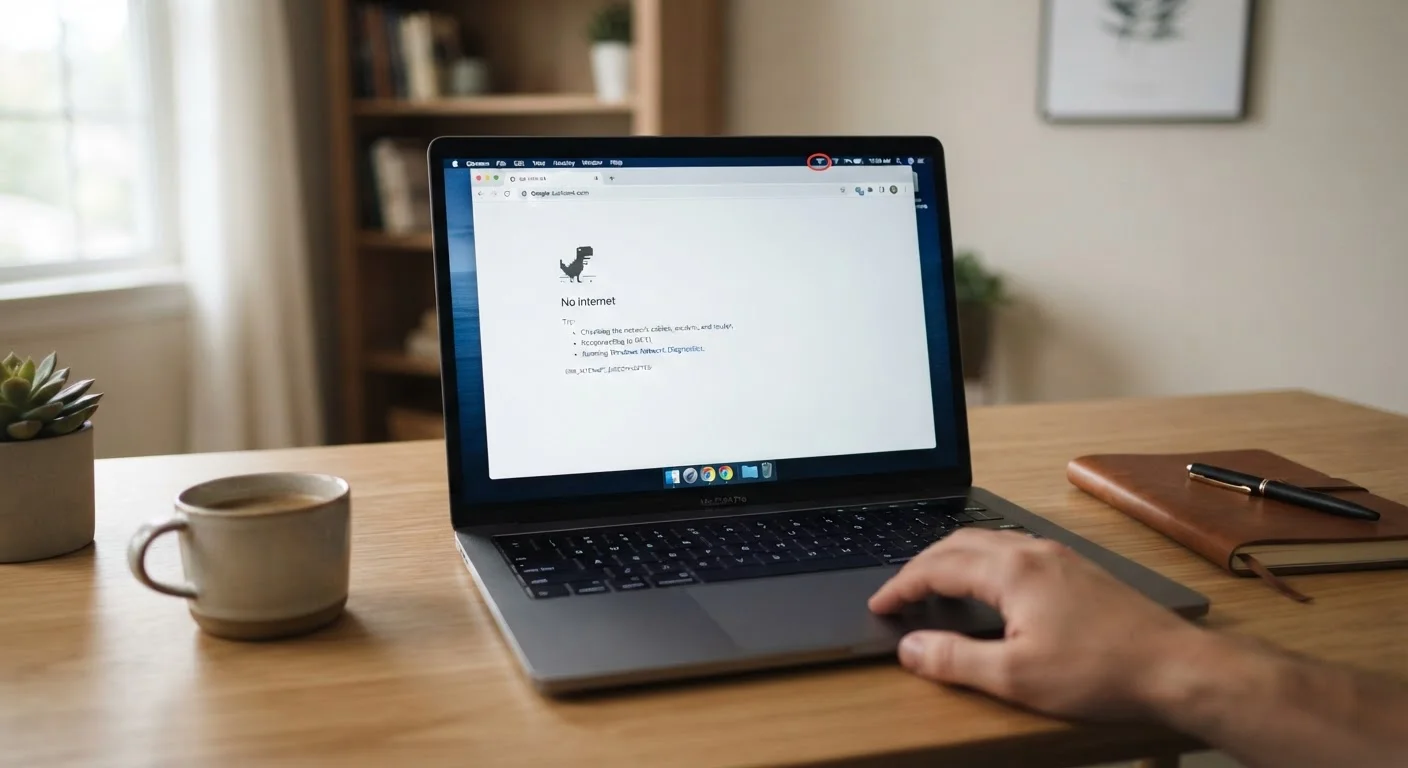
Your device showing a Wi-Fi signal icon means it has successfully joined the local network — but that's only the first link in a longer chain. For a webpage to load, data must also travel from your router to a modem, through your ISP's infrastructure, and out to a remote server. A failure anywhere along that chain produces the same frustrating result: full bars, zero pages. For a broader look at how these layers interact, see the Wi-Fi basics hub.
Common culprits include a router that has lost its connection to the modem, an IP address conflict (two devices claiming the same network address), a DNS server that has stopped responding, or an outage on your ISP's end. The fix differs depending on which layer is broken — which is why a systematic approach beats random rebooting.
Don't Skip the Multi-Device Check
Before adjusting any settings, test whether other devices (a phone, tablet, or second computer) can load a webpage on the same Wi-Fi network. If they also fail, the fault lies with the router or your ISP — not your device. Knowing this early prevents you from spending time adjusting settings that won't help.
If this problem only affects your phone, the guide to mobile data working but Wi-Fi isn't covers device-specific scenarios in more detail.
Before You Begin: What You'll Need
What you will need
Command Prompt or Terminal
Used to run DNS flush and IP release commands directly on your device.
A second internet-capable device
Used to determine whether the problem is isolated to one device or affects the whole network.
Router admin panel access
Allows you to check router status, restart it remotely, or inspect connected devices.
Step-by-Step: Isolating and Fixing the Problem
Follow these steps in order. Each one rules out a specific layer of the connection before moving deeper. Skipping ahead often leads to repeated restarts without resolution. For a more comprehensive home network walkthrough, the home network troubleshooting guide covers routers, modems, and cables in full detail.
Confirm whether the problem is device-specific or network-wide
On a second device — a phone on Wi-Fi, for example — open a browser and try loading a simple page like example.com. If that device also fails, your router or ISP is the likely cause. If only your primary device is affected, proceed to the device-level steps below.
Power cycle your router and modem
Unplug both your modem and router from power. Wait a full 30 seconds — this clears temporary memory states that can cause routing failures. Plug the modem back in first, wait for its indicator lights to stabilize (roughly 60 seconds), then plug in the router. Allow another 60 seconds before testing.
Forget and reconnect to the Wi-Fi network on your device
On your device, navigate to Wi-Fi settings, select your network, and choose Forget (or Remove on some systems). Reconnect by selecting the network again and re-entering the password. This forces your device to request a fresh IP address and clears any corrupted session data.
Flush DNS and release/renew your IP address
On Windows, open Command Prompt as Administrator and run these commands one at a time:
ipconfig /flushdns
ipconfig /release
ipconfig /renew
On macOS, open Terminal and run:
sudo dscacheutil -flushcache; sudo killall -HUP mDNSResponderOn Android or iOS, toggle Airplane Mode on for 10 seconds then off — this achieves a similar effect without command-line access.
Check for a captive portal or login requirement
Some networks — especially those in hotels, offices, or apartment buildings — require you to accept terms or log in via a browser page before granting access. Open a browser and navigate to a plain http:// address (not https://) such as http://neverssl.com. If a login page appears, complete it to unlock access.
Update or roll back your network adapter driver
An outdated or recently updated network driver can silently break internet access while keeping the Wi-Fi indicator green. On Windows, open Device Manager, expand Network Adapters, right-click your Wi-Fi adapter, and select Update driver. If the issue began after a recent system update, choose Roll Back Driver instead. On macOS, driver updates come through system software updates via System Settings.
Contact your ISP if all else fails
If multiple devices on your network still cannot load pages after the above steps, the issue is likely upstream — either at your ISP's infrastructure or with the line coming into your home. Check your ISP's service status page (accessible via mobile data) for any reported outages, then contact their support line if none are listed.
Use a Public DNS Server as a Test
Temporarily switching your DNS to a publicly available server (such as 8.8.8.8 or 1.1.1.1) can reveal whether your ISP's DNS is the bottleneck. If pages load after the switch, your ISP's DNS service may be experiencing issues. You can revert to automatic DNS at any time through your network adapter settings.
When to Dig Deeper
If none of the above steps restore access and your ISP confirms no outage, the problem may involve router firmware, a deeper network misconfiguration, or hardware reaching end of life. Before assuming your router is faulty, consider running through the Wi-Fi performance audit checklist — it systematically rules out common causes before you conclude the hardware itself is the issue.
If your connection loads pages but very slowly or drops frequently, that's a different class of problem — the guide to slow or dropping Wi-Fi addresses those symptoms with its own diagnostic sequence.
Avoid Resetting Your Router to Factory Defaults
A full factory reset erases your Wi-Fi name, password, and any custom configuration. Only use that option as a last resort after all other steps have failed. A simple power cycle (unplugging and replugging) achieves a soft restart without wiping your settings.