
Slow Internet at Home: Pinpointing Whether the Problem Is Your ISP or Your Network

Key Takeaways
- A wired speed test bypasses Wi-Fi variables and isolates whether the problem is your ISP connection.
- If speeds are fine on a wired connection but slow on Wi-Fi, the issue is inside your home network.
- ISP outages and congestion affect all devices equally and are confirmed through the provider's status tools.
- Rebooting your modem and router resolves a significant share of unexplained slowdowns.
- Documenting your test results before calling your ISP strengthens your case for a service call.
Our Verdict
Most slow-internet complaints trace back to one of two culprits: the ISP's infrastructure or your in-home network equipment. A methodical series of tests — wired speed check first, then device-by-device comparison — almost always reveals which side of that divide is responsible. Identifying the source before contacting your ISP saves time and often resolves the issue without a service call.
| Best for | Recommended |
|---|---|
| Readers experiencing slowdowns on every device simultaneously | Check ISP status first |
| Readers with slow Wi-Fi but fast wired speeds | Focus on in-home network fixes |
| Readers where only one device is slow | Troubleshoot the affected device directly |
| Readers with persistent slowdowns even on a wired connection | Contact ISP with documented speed test results |
Why Identifying the Source Matters
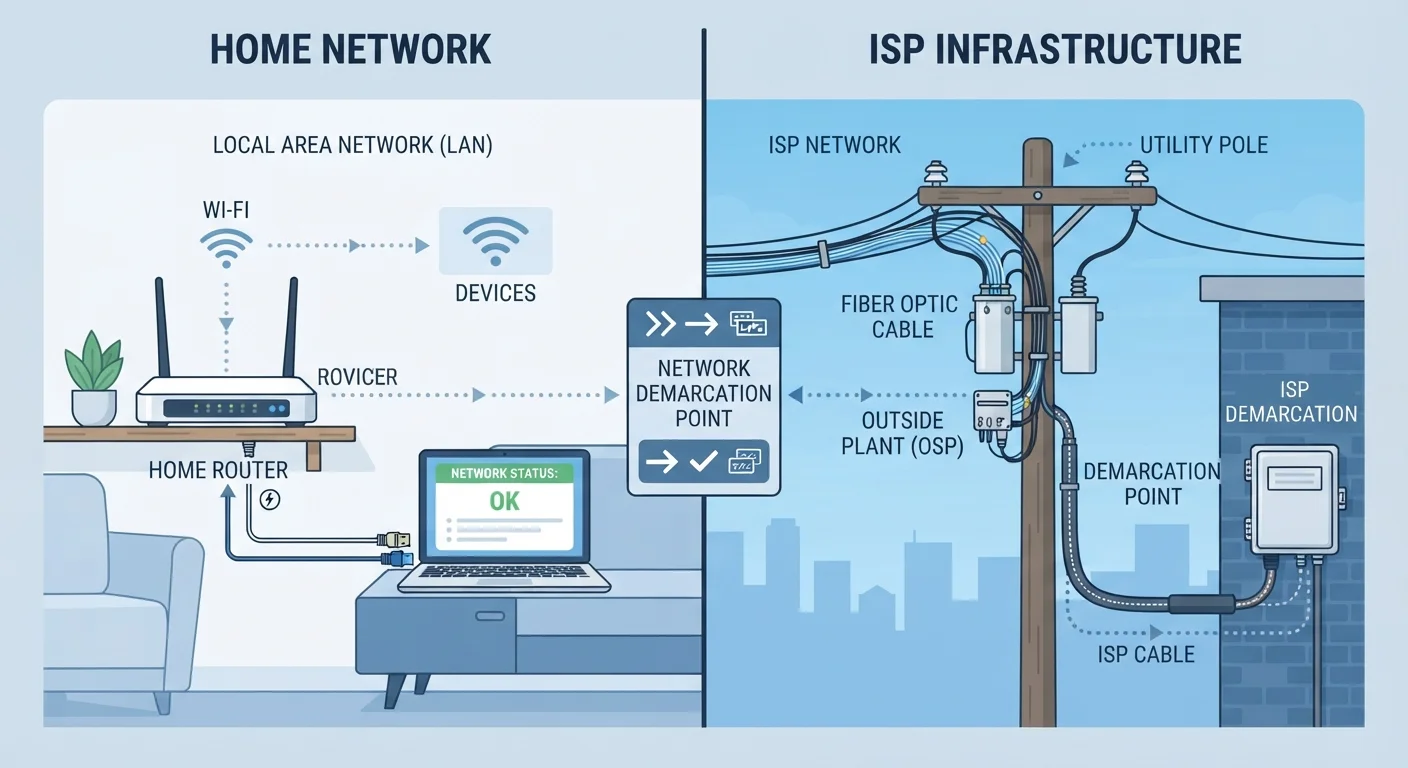
Slow internet is frustrating, but restarting your router blindly or spending an hour on hold with your ISP without data to back you up wastes time. The core question is simple: is the problem entering your home from outside, or is it spreading from equipment inside? Each scenario has a different fix, and mixing them up leads to dead ends.
Your ISP delivers a signal to a modem at the edge of your property. From there, your router distributes that signal across your home. Problems can occur on either side. Think of it like a water supply: low pressure could come from the municipal main or from a clog in your own pipes. Testing systematically tells you which pipe to inspect. For a complete view of all the equipment in the chain, see our home network troubleshooting walkthrough.
Step 1 — Run a Wired Speed Test
The most reliable first step is to connect a laptop or desktop directly to your modem or gateway device using an Ethernet cable, bypassing Wi-Fi entirely. Then run a speed test from a service such as Speedtest by Ookla or Fast.com and note the results.
- Speeds near your plan's advertised rate: Your ISP connection is healthy. The problem lives inside your home network — move to Step 3.
- Speeds far below your plan's rate: The bottleneck may be upstream of your router. Proceed to Step 2.
If you don't have an Ethernet cable or a device with a port, note that limitation — it means you'll be relying on Wi-Fi tests, which are inherently less conclusive. Some modern laptops require a USB-C Ethernet adapter.
Run Multiple Tests at Different Times
A single speed test can be skewed by temporary congestion on your ISP's network or a background download on your device. Run three to four tests spread across different times of day and average the results. This gives you a much more accurate picture of your typical connection speed.
Step 2 — Check Whether Your ISP Is the Cause
If the wired test returns slow speeds, the next step is to rule out a known outage or area-wide congestion before assuming your modem is faulty.
- Check your ISP's outage map or status page. Most major providers publish real-time service status online or through their app. Search for " outage" or visit their support site directly.
- Reboot your modem. Unplug it from power, wait 30 seconds, and plug it back in. This clears stale connection data and renegotiates the signal with your ISP's network. Allow two full minutes for it to reconnect before retesting.
- Check indicator lights. A modem's status lights indicate whether a valid connection has been established. A solid or blinking light pattern that differs from normal often signals a line problem — consult your modem's manual for the meaning of each light.
If speeds remain slow after a modem reboot and no outage is reported, contact your ISP. Share the speed test results you documented in Step 1 — timestamps and specific numbers give their support team something concrete to investigate. You can also check whether unusual network activity might be a factor by reviewing our guide on signs of a compromised home network.
| ISP-Side Problem | Home Network Problem | |
|---|---|---|
| Which devices are affected | All devices equally | Some or all devices on Wi-Fi |
| Wired speed test result | Slow (below plan rate) | Normal or near plan rate |
| Outage map shows issue | Often yes | No |
| Modem reboot helps | Sometimes | Rarely |
| Router reboot helps | No | Often yes |
| Next action | Contact ISP with test data | Adjust router or troubleshoot devices |
Step 3 — Isolate the Problem Inside Your Home Network
If the wired speed test passed but Wi-Fi is slow, the issue is in your home network. Work through these checks:
- Test multiple devices. If only one device is slow, the problem is the device — update its software or forget and rejoin the Wi-Fi network. If all devices are slow on Wi-Fi, the router or its placement is the likely cause.
- Reboot the router. Routers can accumulate memory errors over days or weeks. A simple power cycle — unplug for 30 seconds, then plug back in — resolves many unexplained slowdowns.
- Check router placement. Routers perform best in a central, elevated, open location. Walls, appliances, and neighboring Wi-Fi networks all reduce signal quality. If your router sits in a cabinet or on the floor, repositioning it is worth trying.
- Check for bandwidth-heavy devices. Streaming, large downloads, or video calls on other devices consume shared bandwidth. Temporarily pausing them during a test clarifies whether congestion is the issue.
For a deeper dive into Wi-Fi-specific problems, see our article on troubleshooting a slow or dropping Wi-Fi connection. If your phone stays slow on Wi-Fi but works fine on cellular data, the mobile data vs. Wi-Fi isolation guide offers targeted steps.
Avoid Factory-Resetting Your Router Too Early
A factory reset erases your Wi-Fi name, password, and any custom settings — and won't fix most slowdown issues anyway. Exhaust simpler steps like rebooting and repositioning the router before considering a reset. If a reset becomes necessary, have your ISP account credentials and Wi-Fi preferences written down first.
Keeping a Clear Record of Your Tests
Whether the problem turns out to be your ISP's or your own, documenting your findings pays off. Screenshot or note the following before calling support:
- Speed test results
- Include download speed, upload speed, and ping — with the time and date of each test.
- Connection type during the test
- Wired or Wi-Fi, and the device used.
- Which devices were affected
- All devices equally, or only some.
- Modem/router reboot outcome
- Whether speeds changed after rebooting.
This record removes ambiguity from the support conversation and can accelerate diagnosis on the ISP's end. Once your connection is stable, building consistent maintenance habits — like periodic reboots and firmware updates — reduces the chance of recurrence. Our article on keeping your home network reliable walks through those preventive steps.