

Key Takeaways
- More bars on your device do not reliably indicate faster or more stable internet speeds.
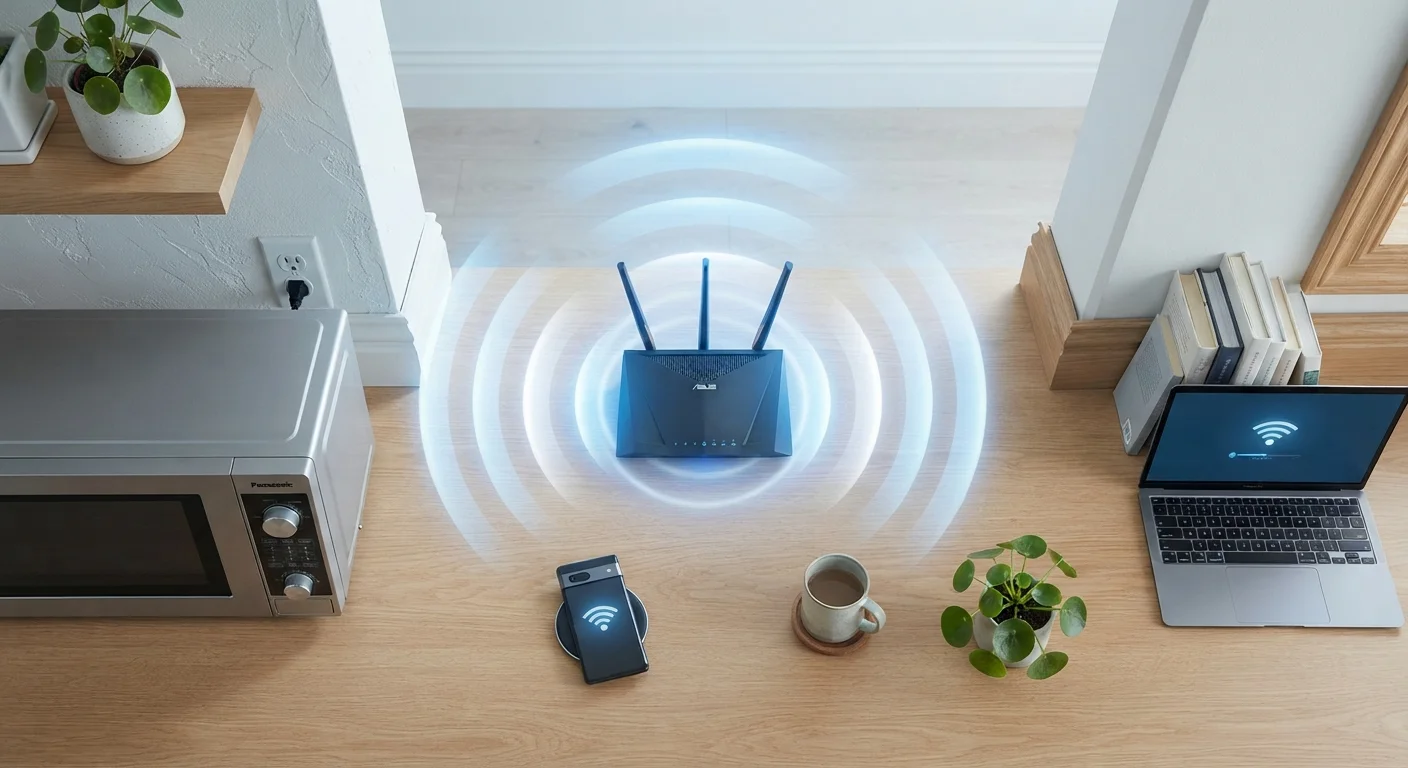
- Microwaves can interfere with 2.4 GHz Wi-Fi, but modern dual-band routers largely sidestep this problem.
- DIY signal 'boosters' made from household materials rarely produce measurable improvements.
- Router placement and channel selection have far more impact on performance than most users realize.
- Restarting your router fixes many issues, but the reason why is often misunderstood.
Why Wi-Fi Myths Slow Down Real Troubleshooting
When your Wi-Fi connection underperforms, the instinct is to act quickly — and the internet is full of confident-sounding fixes. The problem is that many of the most widely repeated pieces of Wi-Fi advice are either oversimplified or outright wrong. Acting on a myth doesn't just fail to solve the problem; it can steer you away from the real cause and cost you valuable time.
Understanding what Wi-Fi signals actually do — and what doesn't affect them the way people think — is the fastest route to a reliable connection. The myth-and-fact pairs below address the most common misconceptions that trip up home users during troubleshooting. For a deeper look at how signal physics shapes your experience, see our article on Wi-Fi channels and interference.
Myth
More signal bars mean faster internet speeds.
Fact
Signal strength and internet speed are related but not equivalent — strong bars can coexist with slow throughput.
The bars on your device measure received signal strength (RSSI), not data throughput. A strong signal to a congested or underpowered router still results in slow speeds. Network congestion, the age of your router's hardware, your ISP's current capacity, and even the Wi-Fi standard your device uses all affect real-world speed independently of signal strength. During troubleshooting, always run a wired speed test to isolate whether the bottleneck is in your broadband connection or your Wi-Fi network specifically.
Myth
Running a microwave will kill your Wi-Fi signal.
Fact
Older microwave ovens can interfere with 2.4 GHz Wi-Fi, but 5 GHz and 6 GHz bands are unaffected, and the interference is typically brief.
Microwave ovens operate near 2.45 GHz, which overlaps with the 2.4 GHz Wi-Fi band. Poorly shielded or aging appliances can cause short bursts of interference during operation. However, most modern routers broadcast on both 2.4 GHz and 5 GHz bands; devices connected to the 5 GHz band experience no microwave interference at all. If microwave use correlates with connection drops, switching your device to the 5 GHz network is a straightforward fix — not a reason to avoid using your kitchen.
Myth
Wrapping your router antenna in aluminum foil will boost your signal.
Fact
Improvised foil reflectors produce unpredictable results and rarely deliver meaningful, consistent signal improvements.
The idea stems from a basic principle: curved reflective surfaces can redirect radio waves. In highly controlled lab conditions, a precisely shaped reflector at the correct angle can marginally redirect signal in one direction — while reducing it in others. In a typical home environment, the geometry is too imprecise to be useful, and the trade-off (less coverage in some directions) can make things worse. Router manufacturers engineer antenna patterns deliberately; improvised modifications are far more likely to create uneven coverage than to solve a problem.
Myth
Restarting your router 'resets the signal' and makes it stronger.
Fact
Restarting a router clears memory, refreshes IP assignments, and resolves software glitches — it does not increase transmit power.
A router restart is genuinely useful, but not for the reason most people believe. Over time, routers accumulate stale network table entries, fragmented memory, and software states that degrade performance. A restart clears these issues. It also prompts the router to re-scan for the least congested channel if automatic channel selection is enabled. What it cannot do is physically amplify the radio signal. If weak coverage is your core problem, repositioning the router or adding a Wi-Fi extender addresses the actual cause.
Myth
Hiding your Wi-Fi network name (SSID) improves both security and performance.
Fact
Hiding the SSID provides negligible security benefit and can slightly increase network overhead.
A hidden SSID is still detectable by anyone using basic network scanning tools — the network broadcasts its presence in probe requests even without a visible name. From a performance standpoint, devices trying to reconnect to a hidden network must send more probe requests, which adds a small but unnecessary overhead. For a broader look at security misconceptions that create false confidence, see our article on network security myths. Strong, unique passwords and WPA3 encryption are far more effective protections than SSID hiding.
Myth
Your Wi-Fi signal passes equally well through all walls.
Fact
Different building materials attenuate (weaken) Wi-Fi signals by vastly different amounts.
Drywall reduces signal strength only modestly, while concrete, brick, and metal studs can cut signal power dramatically over short distances. Water is also an effective absorber of radio frequency energy — large fish tanks or water heaters positioned between your router and device can create unexpected dead zones. If certain rooms in your home consistently have poor coverage, the construction materials between the router and that space are almost certainly a factor. Our article on Wi-Fi dead zones covers how to map and address these problem areas.
What Actually Moves the Needle on Wi-Fi Performance
Once you've cleared away the myths, a short list of genuinely impactful factors emerges. Router placement tops that list — physical obstructions like thick concrete walls, metal appliances, and even large water-filled objects (aquariums, for example) absorb or reflect radio waves in ways that reduce signal strength measurably. Our guide on router placement mistakes walks through the physics in plain terms.
Channel congestion is the second major factor most users overlook. In dense housing, dozens of neighboring networks compete on the same radio channels. Switching your router to a less crowded channel — or enabling automatic channel selection if your router supports it — can produce noticeable improvements without any hardware purchase.
~20–30%
Typical real-world speed vs. advertised plan
Industry analyses consistently show home Wi-Fi users receive a fraction of their plan's peak speed due to router hardware, distance, and congestion factors.
3x
Signal attenuation: drywall vs. concrete
Radio frequency propagation studies show concrete walls can absorb three or more times as much 2.4 GHz signal energy as a standard drywall partition.
Finally, the gap between your broadband plan's advertised speed and what devices actually receive is real and persistent. Factors including router age, Wi-Fi standard (such as Wi-Fi 5 vs. Wi-Fi 6), and the number of simultaneous users all contribute. If you're consistently disappointed by speeds, why advertised speeds rarely match real-world performance explains each bottleneck clearly. For a structured diagnostic process, the step-by-step Wi-Fi troubleshooting guide is a practical next stop.
Don't Confuse Router Problems With ISP Outages
Before investing time in home network troubleshooting, verify whether your ISP is experiencing a service outage in your area. Most ISPs publish outage maps or status pages, and checking takes under a minute. Restarting equipment during an active outage accomplishes nothing and may delay your recognition of the real issue.