

Key Takeaways
- Wi-Fi channels are slices of radio spectrum; overlapping channels cause interference and slower speeds.
- The 2.4 GHz band has only three non-overlapping channels, making it prone to congestion in dense areas.
- The 5 GHz band offers more channels and less interference but shorter range.
- Neighboring networks, microwaves, and Bluetooth devices can all degrade your Wi-Fi signal.
- Switching to a less-congested channel is one of the most effective free fixes for slow Wi-Fi.
Wi-Fi Channels and Interference
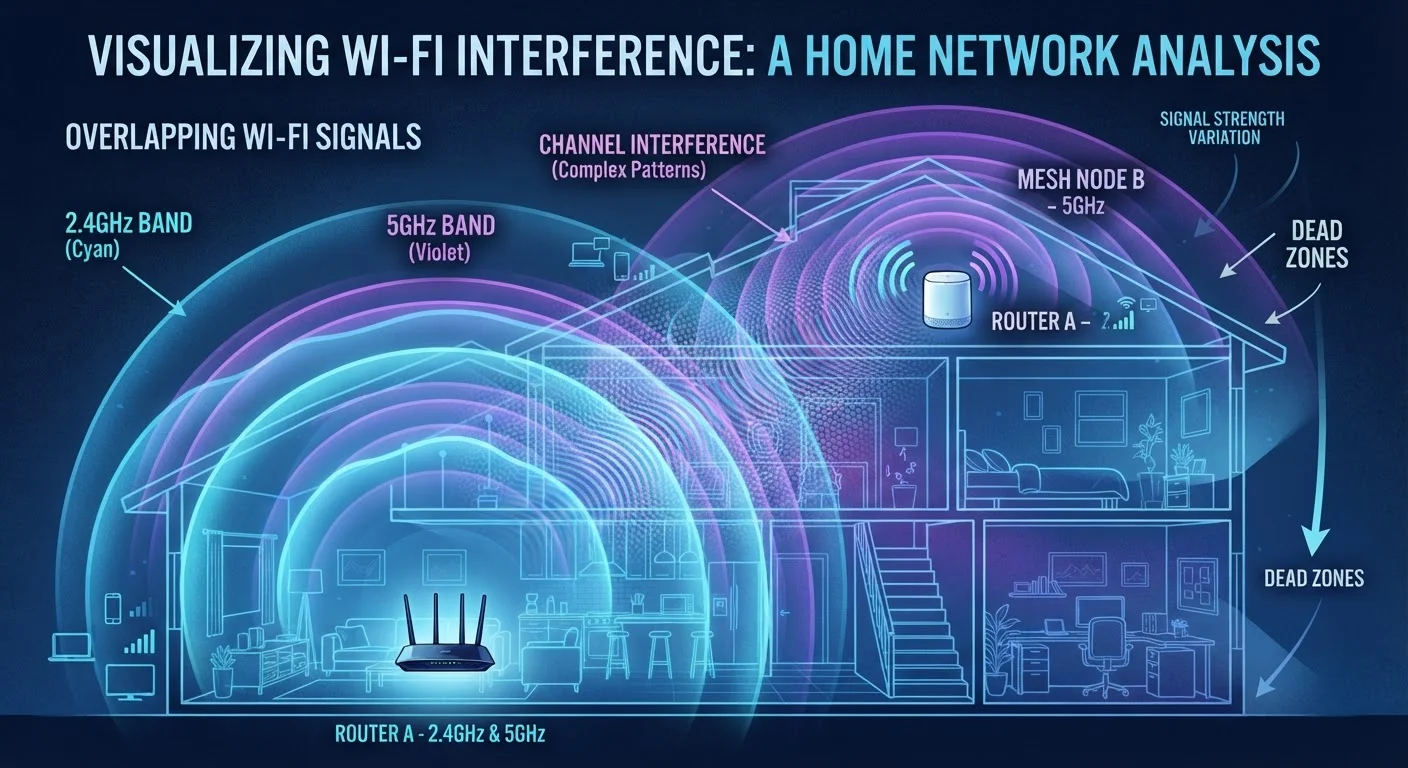
Wi-Fi channels are subdivisions of a radio frequency band that allow multiple networks to transmit data without colliding. When too many networks use the same channel — or nearby devices emit radio signals on the same frequencies — interference occurs, degrading speed and reliability. Choosing the right channel reduces congestion and improves your connection.
In the 2.4 GHz band, only channels 1, 6, and 11 are non-overlapping in the U.S.; the 5 GHz band offers far more non-overlapping channels, typically 24 or more depending on regulatory domain.
How Wi-Fi Channels Actually Work
To understand Wi-Fi interference, it helps to first understand what a channel is. When your router broadcasts a signal, it does so on a specific radio frequency band — either 2.4 GHz or 5 GHz (or both on dual-band routers). Each band is divided into smaller frequency ranges called channels. Think of them like lanes on a highway: more lanes mean less congestion, as long as everyone stays in their own lane.
In the U.S., the 2.4 GHz band is divided into 11 channels. The problem is that these channels overlap significantly — each one is 20 MHz wide, but they're spaced only 5 MHz apart. This means only channels 1, 6, and 11 are truly non-overlapping. If your router is on channel 3 and your neighbor's is on channel 4, their signals bleed into each other, causing interference.
The 5 GHz band is much better structured for avoiding this issue. It offers 24 or more non-overlapping 20 MHz channels in the U.S., giving routers far more room to operate independently. If you're unfamiliar with how your router connects to devices in the first place, our Wi-Fi basics explainer covers the fundamentals.
3
Non-overlapping 2.4 GHz channels available in the U.S.
Of the 11 channels in the U.S. 2.4 GHz band, only channels 1, 6, and 11 do not overlap, per IEEE 802.11 channel spacing specifications.
24+
Non-overlapping 5 GHz channels (U.S.)
The 5 GHz band provides significantly more non-overlapping channel options, reducing the likelihood of co-channel interference between nearby routers.
~45%
Of global Wi-Fi traffic still on 2.4 GHz
Despite the advantages of 5 GHz, a substantial share of devices continue to connect on 2.4 GHz due to range requirements and legacy hardware compatibility, per industry network usage estimates.
Sources of Interference You Might Not Expect
Channel overlap from neighboring networks is the most common source of Wi-Fi interference in homes and apartments, but it's far from the only one. A variety of everyday devices emit radio signals that can degrade your connection:
- Microwave ovens operate at approximately 2.45 GHz and can temporarily disrupt 2.4 GHz Wi-Fi signals when in use.
- Older cordless phones (particularly DECT 6.0 models) and baby monitors can occupy the same frequencies as your network.
- Bluetooth devices share the 2.4 GHz band and use a technique called frequency hopping — rapidly switching channels — which can occasionally collide with Wi-Fi traffic.
- Physical obstructions, while not interference in the radio-frequency sense, attenuate (weaken) signals significantly. Concrete walls, metal appliances, and even water-filled fish tanks absorb or reflect radio waves.
Adjacent network congestion is a particularly acute problem in apartment buildings, where dozens of routers may be stacked on top of one another. This type of co-channel and adjacent-channel interference is one of the most common reasons Wi-Fi feels sluggish in densely populated areas. For a deeper look at what happens when this becomes chronic, see our article on why your Wi-Fi keeps dropping.
Wi-Fi 6 and 6E Change the Picture
Wi-Fi 6 (802.11ax) introduces a technology called OFDMA that allows a single channel to serve multiple devices simultaneously, reducing the impact of congestion compared to older standards. Wi-Fi 6E extends this to the 6 GHz band, which is currently far less crowded. If your router and devices support these standards, you benefit from improved interference management automatically — though the channel selection principles above still apply to the 2.4 GHz and 5 GHz bands.
Auto Channel Selection Has Limits
Many routers advertise automatic channel selection as a set-and-forget solution. In practice, most routers only scan for the best channel at startup or after a reboot — they don't continuously monitor for changing conditions. This means auto selection can leave you on a crowded channel if your environment shifts throughout the day.
What You Can Do to Reduce Congestion
The good news: channel interference is one of the most fixable Wi-Fi problems, often without spending a cent. Here are the most effective steps:
Scan your environment first
Free Wi-Fi analyzer apps (available for Android and some desktop platforms) display every nearby network, the channel each one uses, and signal strength. This gives you a clear picture of which channels are crowded and which are relatively clear before you make any changes.
Switch to a non-overlapping channel manually
Most routers default to automatic channel selection, which is convenient but not always optimal. Log into your router's admin interface and set the 2.4 GHz band manually to whichever of channels 1, 6, or 11 has the least competition in your scan results.
Prioritize the 5 GHz band for close-range, high-demand devices
For devices like streaming boxes and gaming consoles that sit within reasonable range of the router, connecting to the 5 GHz band avoids the crowded 2.4 GHz space entirely. Reserve 2.4 GHz for smart home devices and anything at longer range, where its superior penetration is an advantage.
Be cautious with wide channels
Some routers offer 40 MHz or 80 MHz channel widths for higher throughput. In uncrowded rural areas, these can help. In dense urban environments, wider channels consume more spectrum and often worsen interference for everyone nearby — including yourself.
Set a Reminder to Re-scan Periodically
The channel landscape around your home changes over time as neighbors add routers, upgrade equipment, or move away. A channel that was optimal six months ago may now be congested. Running a quick Wi-Fi analyzer scan every few months takes less than two minutes and can catch problems before they become noticeable.
If interference is contributing to dead zones in your home, the Wi-Fi dead zones guide walks through diagnosis and solutions specific to coverage gaps.