

Key Takeaways
- A home network connects your devices to each other and to the internet through a modem and router.
- The modem communicates with your ISP; the router distributes that connection inside your home.
- Wi-Fi and Ethernet are the two main ways devices join your network, each with different strengths.
- Most connectivity problems can be resolved by rebooting your modem and router in the correct order.
- Understanding your network's basic structure makes security and troubleshooting much easier.
Start here
What a Home Network Actually Is
Next
The Key Hardware: Modem, Router, and Access Point
Then
How Your Devices Connect and Communicate
When you're ready
Basic Troubleshooting When Things Go Wrong
Next steps
Where to Go from Here
What a Home Network Actually Is
A home network is a system that links your devices — phones, laptops, smart TVs, tablets — to each other and to the internet. Think of it as a private road system inside your home, with one on-ramp connecting it to the wider internet highway.
Every home network has two distinct jobs: sharing an internet connection supplied by your ISP, and allowing your devices to communicate directly with each other (for example, when you print wirelessly or stream video from a local drive). Understanding this dual purpose helps clarify why different hardware exists and what each piece does.
ISP
Internet Service Provider — the company that supplies your home's internet connection, such as a cable or fiber provider.
IP Address
A numerical label assigned to each device on a network, used to identify and route data to the correct destination.
Bandwidth
The maximum amount of data that can travel through your network connection at one time — higher bandwidth generally means faster speeds.
Latency
The time it takes for data to travel from one point to another. Lower latency means a more responsive connection, which matters for video calls and gaming.
SSID
Service Set Identifier — the name of a Wi-Fi network that appears in your device's list of available connections.
Mesh Wi-Fi
A system that uses multiple coordinated devices placed around a home to create a single, seamless Wi-Fi network with broad, even coverage.
The Key Hardware: Modem, Router, and Access Point
Three devices form the backbone of most home networks:
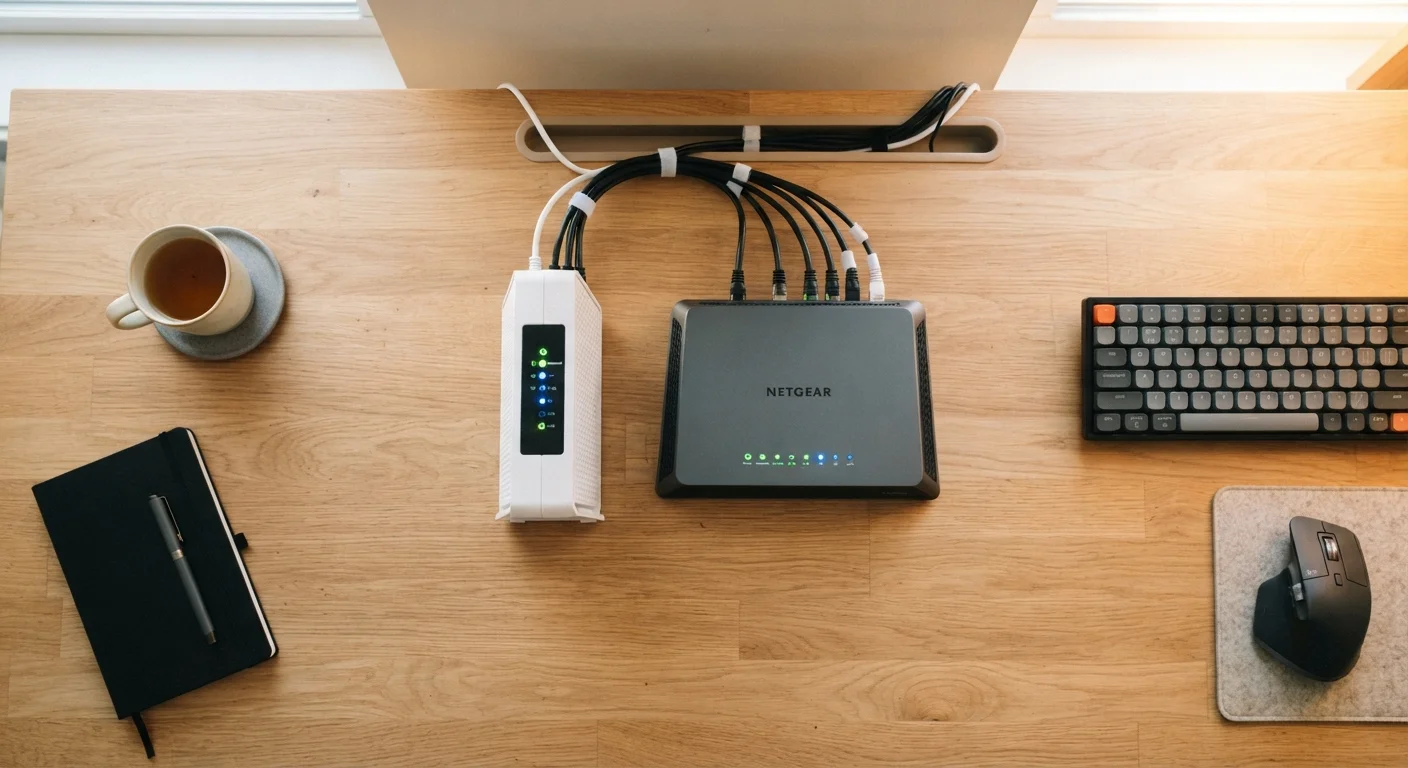
- Modem: Sits at the edge of your network and translates the signal from your ISP into data your home equipment can use. Without it, there is no internet connection at all.
- Router: Receives internet access from the modem and distributes it throughout your home. It also manages traffic between connected devices, assigning each one a unique local address using a system called DHCP.
- Wireless Access Point (AP): Extends Wi-Fi coverage into areas the router's signal doesn't reach reliably. Many homes use the router's built-in Wi-Fi and never need a separate AP. Larger or multi-story homes may benefit from one — or from a mesh Wi-Fi system, which uses multiple coordinated nodes instead of a single router.
Many ISPs supply a single gateway device that combines the modem and router functions into one box. This is convenient but can limit your flexibility if you want to upgrade or customize your setup later. For a deeper look at these components together, see our comprehensive home networking guide.
Label Your Network Gear
Use a piece of tape or a label maker to mark your modem, router, and any access points with their device name and the date you installed them. This makes troubleshooting much faster — you'll instantly know which device to reboot and how long it has been in service.
How Your Devices Connect and Communicate
Devices join your network in one of two ways:
- Ethernet (wired): A physical cable runs from the device directly to the router or a network switch. Wired connections are more stable and typically have lower latency — the delay between sending and receiving data — making them a good choice for desktop computers and streaming devices.
- Wi-Fi (wireless): Devices connect over radio frequencies. Most modern routers broadcast on two bands: 2.4 GHz, which travels farther but at lower speeds, and 5 GHz, which is faster but doesn't penetrate walls as well. Newer Wi-Fi 6 routers add efficiency improvements that help in households with many connected devices.
Each device on your network receives a IP address — a numerical label the router uses to direct traffic to the right place. Your router also receives a separate IP address from your ISP, which identifies your entire household to the outside internet. To explore wireless fundamentals further, the Wi-Fi Basics hub covers these concepts in plain language.
About Public vs. Private IP Addresses
The IP address your ISP assigns to your router is called a public IP — it's visible to websites and online services. The addresses your router assigns to your individual devices are private IPs, visible only within your home network. This separation is a built-in layer of protection and is managed automatically by your router.
Basic Troubleshooting When Things Go Wrong
Most everyday connectivity problems can be resolved with a methodical reboot sequence. Follow these steps before assuming a larger issue:
- Power off your modem and router (unplug both from power). If they are a combined gateway, unplug just that device.
- Wait 30 seconds. This allows residual charge to clear and ensures a clean restart.
- Plug in the modem first and wait until its indicator lights stabilize — usually around 60 seconds.
- Plug in the router and wait another 60 seconds for it to fully start up and establish a connection.
- Test your connection on a device. If Wi-Fi isn't working, check that the device is connected to the correct network name (SSID) and that the password is entered correctly.
If the problem persists after a reboot, check whether the issue affects all devices or just one. A problem on a single device points to that device's settings; a problem on all devices suggests a modem, router, or ISP issue. For a full diagnostic walkthrough, see our home network troubleshooting guide.
Avoid Frequent Unnecessary Reboots
While rebooting is effective for fixing problems, repeatedly power-cycling your modem can cause your ISP to flag the line for instability. Reboot when you have a specific reason to, not as a routine daily habit. If you find yourself rebooting several times a week, the underlying cause is worth investigating.
Where to Go from Here
With a solid grasp of the hardware and how devices connect, you're ready to take the next step: securing your network. Default router settings are rarely optimized for security, and an unsecured home network can expose your devices and personal data to outside threats. Our home network security guide walks you through the essential settings every household should configure.
If you're curious about expanding or upgrading your setup — whether through mesh Wi-Fi, smarter cable management, or understanding network speeds — the Home Networking hub is a good next stop. Building on what you've learned here, each topic becomes more approachable.
Wi-Fi Basics Hub
A curated collection of plain-language articles covering how Wi-Fi works, frequency bands, and improving your wireless signal at home.
Home Networking Hub
Covers routers, mesh systems, cabling, and keeping every corner of your home reliably connected — ideal for readers ready to go deeper.
Router Admin Console
Most routers include a built-in settings page accessible through your browser. Use it to change your Wi-Fi name, password, and security settings without any extra software.