

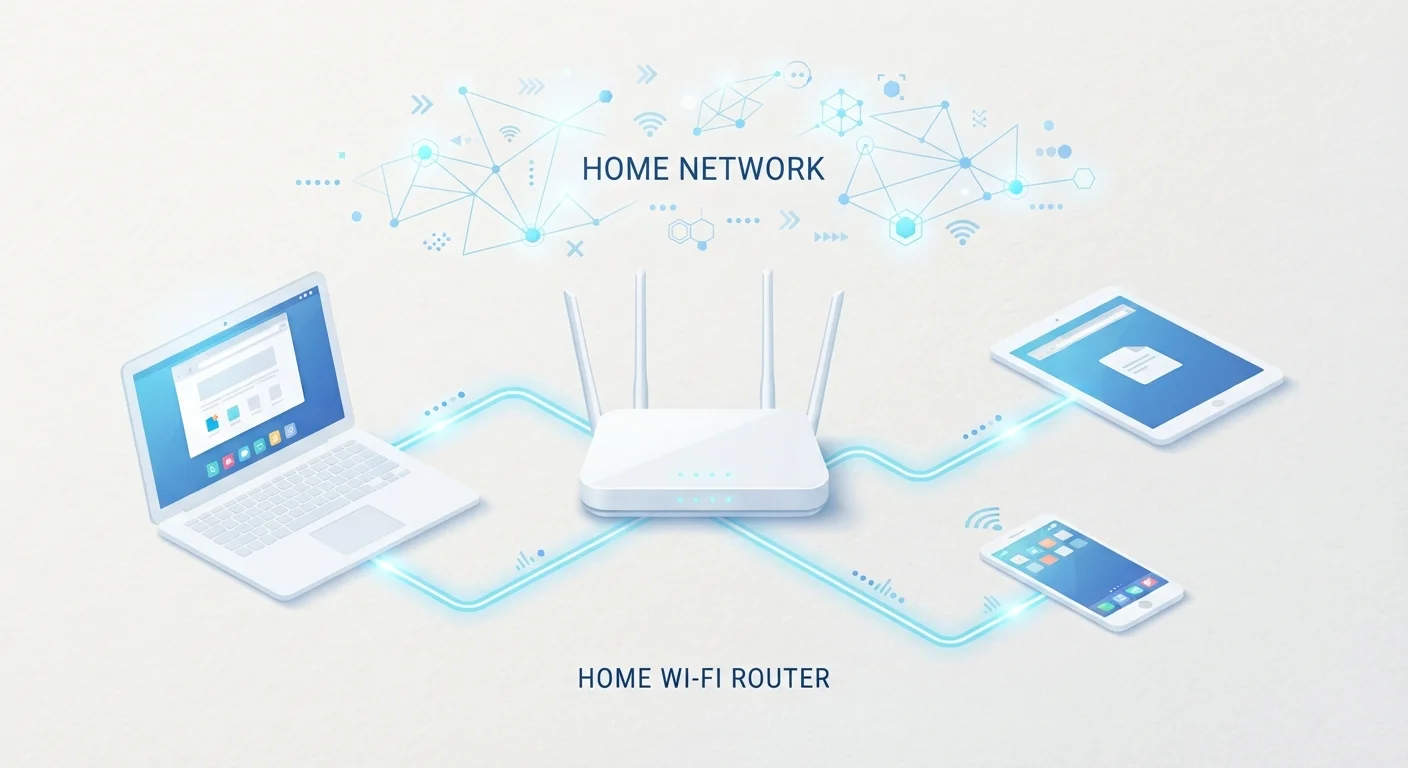
Key Takeaways
- Every device on a network needs a unique IP address to send and receive data.
- DNS converts website names into numeric addresses so browsers can find servers.
- Your gateway (usually your router) is the exit point that connects you to the internet.
- Most connection errors trace back to a failure in one of these three components.
- Restarting your router resets all three systems and resolves many common issues.
IP Address, DNS, and Gateway
An IP address is a unique number assigned to every device on a network, similar to a home mailing address. DNS (Domain Name System) translates human-friendly website names like "google.com" into the numeric IP addresses computers actually use. A gateway is the device — usually your router — that connects your local network to the wider internet.
In IPv4 networks, IP addresses are 32-bit numbers written in dotted-decimal notation (e.g., 192.168.1.1); IPv6 uses 128-bit hexadecimal addresses to support a vastly larger address space.
What Is an IP Address?
Think of an IP (Internet Protocol) address as your device's home address on a network. Just as a postal carrier needs a street address to deliver a letter, the internet needs an IP address to deliver data to the right device.
Every device connected to a network — your phone, laptop, smart TV — gets assigned one. On your home network, these are private IP addresses (typically in the range 192.168.x.x or 10.x.x.x), managed by your router. Your router itself also holds a public IP address, assigned by your internet service provider (ISP), which is what the outside world sees.
IP addresses are usually assigned automatically through a process called DHCP. When a device joins your network, it asks the router for an address — the router assigns one, and communication begins. If this handshake fails, your device shows "No IP address" or "Limited connectivity" in its network settings. For a closer look at what those error messages mean, see the Network Errors Decoded reference guide.
4.3 billion
Total IPv4 addresses available globally
IPv4's 32-bit address space supports approximately 4.3 billion unique addresses — a limit that drove the development of IPv6, according to the Internet Assigned Numbers Authority (IANA).
~70%
Home network issues traced to router or DNS
Industry support data consistently shows the majority of home connectivity complaints resolve after restarting the router or correcting DNS settings, according to ISP technical support analyses.
What Is DNS and Why Does It Break Things?
DNS is often described as the internet's phone book. When you type "wikipedia.org" into a browser, your device doesn't actually know where that server lives — it asks a DNS server to look up the corresponding IP address (such as 208.80.154.224) and returns it so your browser can connect.
DNS servers are typically provided by your ISP automatically, but you can configure your device to use alternatives. When DNS fails, you might see errors like DNS_PROBE_FINISHED_NXDOMAIN or simply "Server not found" — even though your device has a valid IP address and your router is working fine.
Common DNS problems include:
- The DNS server address being misconfigured on your device or router
- The DNS server itself being temporarily unavailable
- Stale cached records pointing to outdated server addresses
Flushing your DNS cache (using ipconfig /flushdns on Windows or sudo dscacheutil -flushcache on macOS) clears stored lookups and often resolves these issues without a full restart.
Quick DNS Fix: Try a Different Server
If DNS is the suspected problem, you can temporarily switch your device to use a well-documented public DNS server address found in your router or device network settings. This bypasses your ISP's DNS server entirely and can confirm whether the ISP's server is the root cause. Remember to revert the setting once you've identified the issue, or leave the alternative in place if it performs reliably.
What Is a Gateway?
Your default gateway is the router address that your device sends traffic to whenever the destination is outside your local network. In most home setups, this is your router's private IP address — commonly something like 192.168.1.1 or 10.0.0.1.
Here's a useful analogy: your home network is a neighborhood, and your gateway is the only road out. If that road is blocked — meaning the gateway address is wrong, the router is unresponsive, or the connection between your device and router is broken — all internet traffic stops, even if everything else is configured correctly.
You can check your gateway address in your device's network settings. If it's blank or showing an unexpected value, restart your router first. If problems persist, manually entering the correct gateway address in your network configuration can restore access.
Understanding these three building blocks also sets a strong foundation for keeping your network secure. The Home Network Security guide walks through how router configuration affects both connectivity and safety.
How These Three Work Together — and Where to Start When Things Go Wrong
IP addresses, DNS, and gateways don't operate in isolation — they work as a chain. When you visit a website, your device uses its IP address to identify itself, asks a DNS server to resolve the domain name, and then sends the request through the gateway to reach the destination server. A failure at any link breaks the whole chain.
When troubleshooting a connection problem, work through the chain in order:
- Check your IP address. If your device shows no IP or a self-assigned address (169.254.x.x on Windows), the DHCP process failed. Restart your router and device.
- Check your gateway. Open network settings and confirm a gateway address is listed. Try pinging it from a terminal to verify the router is reachable.
- Check DNS. If you have an IP and gateway but can't reach websites, DNS is likely the culprit. Try accessing a site by typing its IP address directly — if that works, DNS is the problem.
Your computer's built-in tools can help at every step. The built-in diagnostic tools guide covers the specific utilities available on Windows and macOS. For a broader look at how these terms connect to mobile performance, the mobile data terminology guide adds useful context.