

| Windows task manager shortcut | Ctrl + Shift + Esc (Microsoft Windows documentation) |
| macOS Activity Monitor location | Applications > Utilities (Apple Support documentation) |
| Apple Diagnostics startup key | Hold D while powering on (Apple Support documentation) |
| CHKDSK command (Windows) | chkdsk C: /f /r (run as administrator) (Microsoft Windows documentation) |
| macOS First Aid tool location | Disk Utility > Select Drive > First Aid (Apple Support documentation) |
Why Built-In Diagnostics Are Worth Knowing
When your computer starts acting up — sluggish performance, unexpected crashes, a program that won't open — most people either restart and hope for the best or immediately search for third-party software. What many users don't realize is that both Windows and macOS include a suite of diagnostic utilities installed by default, designed to surface exactly the information you need to understand what's wrong.
These tools won't always fix a problem outright, but they tell you where to look. That distinction matters: knowing whether a slowdown is caused by a misbehaving app, a failing storage drive, or a network hiccup saves you hours of guesswork. For a broader look at what's physically happening inside your machine, see our plain-language guide to desktop PC components.
| Windows task manager shortcut | Ctrl + Shift + Esc (Microsoft Windows documentation) |
| macOS Activity Monitor location | Applications > Utilities (Apple Support documentation) |
| Apple Diagnostics startup key | Hold D while powering on (Apple Support documentation) |
| CHKDSK command (Windows) | chkdsk C: /f /r (run as administrator) (Microsoft Windows documentation) |
| macOS First Aid tool location | Disk Utility > Select Drive > First Aid (Apple Support documentation) |
Key Diagnostic Tools on Windows
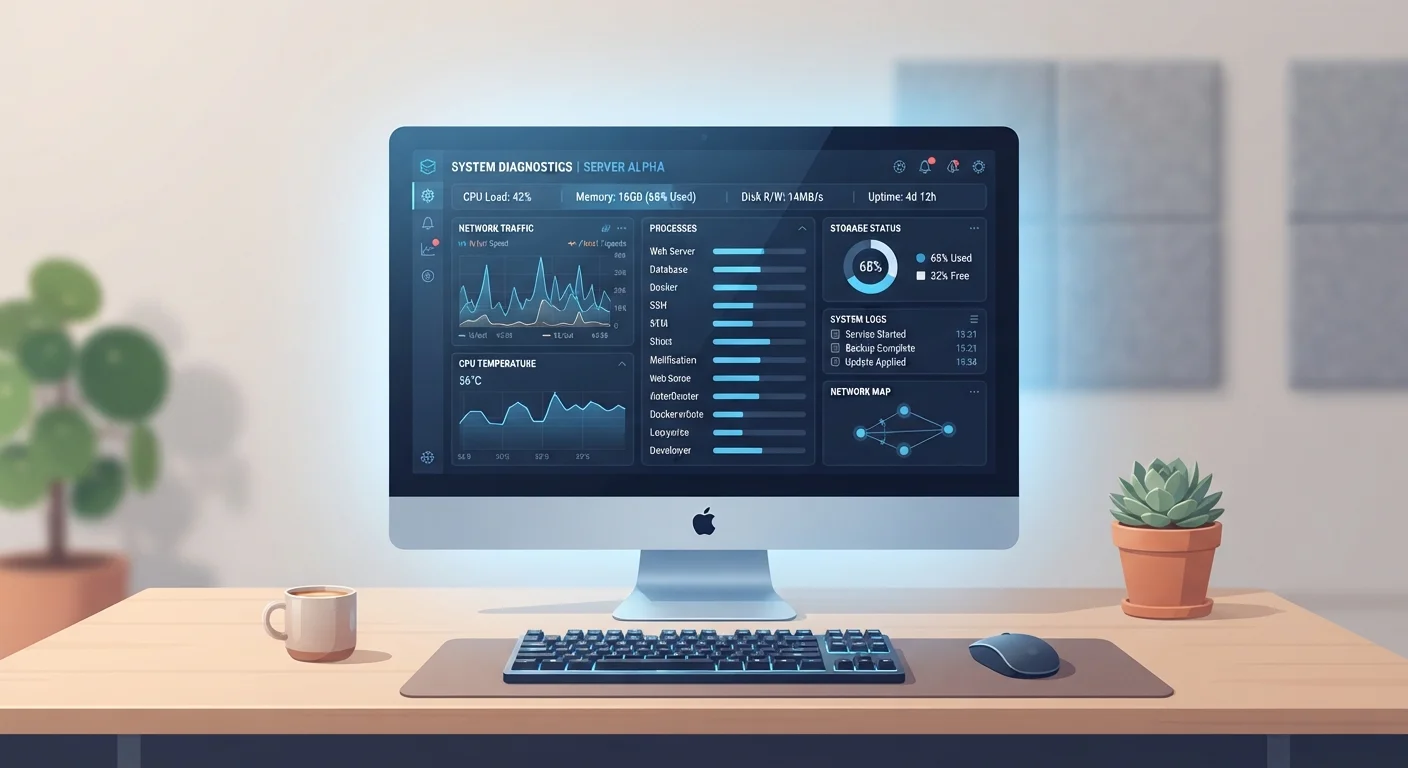
Task Manager (Ctrl + Shift + Esc) is the most accessible starting point. It shows which processes are consuming CPU, memory, disk, and network resources in real time. If your computer is slow, sort by CPU or memory usage to identify the culprit immediately.
Resource Monitor goes deeper. Open it from within Task Manager under the Performance tab. It breaks down disk read/write activity, active network connections, and per-process memory allocation — useful when Task Manager shows high usage but doesn't explain why.
Event Viewer (search for it in the Start menu) logs system events, warnings, and errors. After a crash or unexpected shutdown, navigate to Windows Logs > System and filter by Error or Critical to see what the operating system recorded at the time of the failure.
Windows Memory Diagnostic tests your RAM (random-access memory) for hardware faults. Type Windows Memory Diagnostic into the Start menu, choose to restart and check now, and the tool runs automatically before Windows reloads. If errors appear, a faulty memory module is likely the issue.
Check Disk (CHKDSK) scans your storage drive for file system errors and bad sectors. Open Command Prompt as an administrator and type chkdsk C: /f /r — the /f flag fixes errors, and /r locates bad sectors. A scan may require a restart to run before Windows fully loads.
RAM (Random-Access Memory)
The short-term working memory your computer uses to run active programs. Insufficient or faulty RAM causes slowdowns, crashes, and errors. It is distinct from long-term storage like a hard drive or SSD.
Process
A running instance of a program or system service. Every open application and many background operations appear as separate processes in Task Manager or Activity Monitor.
Bad Sector
A physically damaged area on a storage drive that can no longer reliably store data. CHKDSK and Disk Utility First Aid can detect and work around bad sectors, but widespread bad sectors indicate a failing drive.
Event Log / System Log
A record kept by the operating system of significant events, warnings, and errors. Event Viewer (Windows) and Console (macOS) provide access to these logs to help trace the cause of crashes or failures.
File System
The method an operating system uses to organize and retrieve files on a storage drive. File system errors can cause data access problems and are often repairable using built-in disk tools.
Key Diagnostic Tools on macOS
Activity Monitor (found in Applications > Utilities) is macOS's equivalent of Windows Task Manager. Its five tabs — CPU, Memory, Energy, Disk, and Network — let you isolate exactly which process is causing a resource spike. A spinning beach ball is almost always explained by something visible here.
Console (also in Utilities) works like Event Viewer, collecting system logs and crash reports. After an application quits unexpectedly, open Console, select Crash Reports from the sidebar, and look for the app's name to find the error log.
Disk Utility includes a First Aid function that checks and repairs your startup disk's file system. Open Disk Utility, select your main drive, click First Aid, and let it run. This is one of the first steps Apple's own support documentation recommends for slow performance or file-access errors.
Apple Diagnostics (formerly Apple Hardware Test) runs a hardware check on your Mac's core components. Shut down, then power on while holding D. The tool runs automatically and returns error codes if it detects a problem with memory, storage, or other hardware. For issues that touch network configuration, our article on IP addresses, DNS, and gateways can help you interpret what you find.
When to Use These Tools — and What to Do Next
Diagnostic tools are most useful at two moments: before a problem escalates, as part of routine upkeep, and immediately after an incident like a crash or error message. Running checks regularly — say, monthly — helps you spot a degrading drive before it fails completely. Our computer maintenance checklist outlines a practical schedule for doing exactly that.
If a diagnostic tool returns errors you don't recognize, note the exact error code or message before searching for solutions. Error codes are specific; a generic search rarely surfaces the right fix, but the exact code usually does. For hardware errors confirmed by Windows Memory Diagnostic or Apple Diagnostics, the next step is typically contacting a repair technician — software tools can identify hardware failure, but they can't reverse it.
Understanding the habits that lead to problems in the first place is equally valuable. See the habits that quietly degrade computer performance for a practical overview.
Diagnostic Tools Identify — They Don't Always Fix
Built-in utilities are excellent at surfacing the cause of a problem, but they have limits. Confirmed hardware failures — a bad RAM module, a failing drive — require physical repair or replacement that software cannot perform. Use diagnostic results to have an informed conversation with a repair technician rather than expecting the tool itself to resolve every issue.