

| Most common browser error | DNS_PROBE_FINISHED_NXDOMAIN (Chromium browser error documentation) |
| APIPA address range | 169.254.0.0 – 169.254.255.255 (RFC 3927, IETF) |
| First fix for most OS-level errors | Router restart + IP release/renew |
| DNS cache flush command (Windows) | ipconfig /flushdns (Microsoft Support documentation) |
| Layers involved in connection errors | Physical, IP, DNS, Application (OSI model reference) |
How to Use This Guide
Network error messages are designed to communicate failure points — but their technical shorthand often obscures more than it reveals. This reference guide translates the most common connection errors into plain language and maps each one to a logical first troubleshooting step. Scan the error name you see on screen, read what it means, and follow the indicated action.
For a fuller diagnostic walkthrough once you've identified the likely culprit, see our complete home network troubleshooting guide. If you'd prefer a pre-call checklist before contacting your ISP, the ISP connectivity checklist covers many of the same ground-level fixes.
| Most common browser error | DNS_PROBE_FINISHED_NXDOMAIN (Chromium browser error documentation) |
| APIPA address range | 169.254.0.0 – 169.254.255.255 (RFC 3927, IETF) |
| First fix for most OS-level errors | Router restart + IP release/renew |
| DNS cache flush command (Windows) | ipconfig /flushdns (Microsoft Support documentation) |
| Layers involved in connection errors | Physical, IP, DNS, Application (OSI model reference) |
Browser and DNS Errors
These errors typically appear inside a web browser and point to failures in name resolution or basic connectivity at the device level.
DNS (Domain Name System)
The internet's address book — a system that translates human-readable domain names (like example.com) into numeric IP addresses that computers use to locate servers.
DHCP (Dynamic Host Configuration Protocol)
A protocol that automatically assigns IP addresses to devices on a network. When DHCP fails, a device cannot get the address it needs to communicate.
IP Address
A unique numerical label assigned to each device on a network, allowing data to be routed to the correct destination.
APIPA (Automatic Private IP Addressing)
A fallback mechanism where a device assigns itself a 169.254.x.x address when no DHCP server responds. Devices in this state cannot reach the internet.
Network Adapter
The hardware (or virtual) component inside your device that handles wired or wireless network communication.
DNS Cache
A temporary local store of recently resolved domain names. A corrupted or stale cache can cause DNS lookup failures even when your internet connection is functional.
DNS_PROBE_FINISHED_NXDOMAIN
The domain name you entered does not exist in DNS, or your device cannot reach a DNS server to look it up. First step: Check the URL for typos. If the address is correct, try flushing your DNS cache. On Windows, open Command Prompt and run ipconfig /flushdns. On macOS, run sudo dscacheutil -flushcache; sudo killall -HUP mDNSResponder in Terminal.
DNS_PROBE_FINISHED_NO_INTERNET
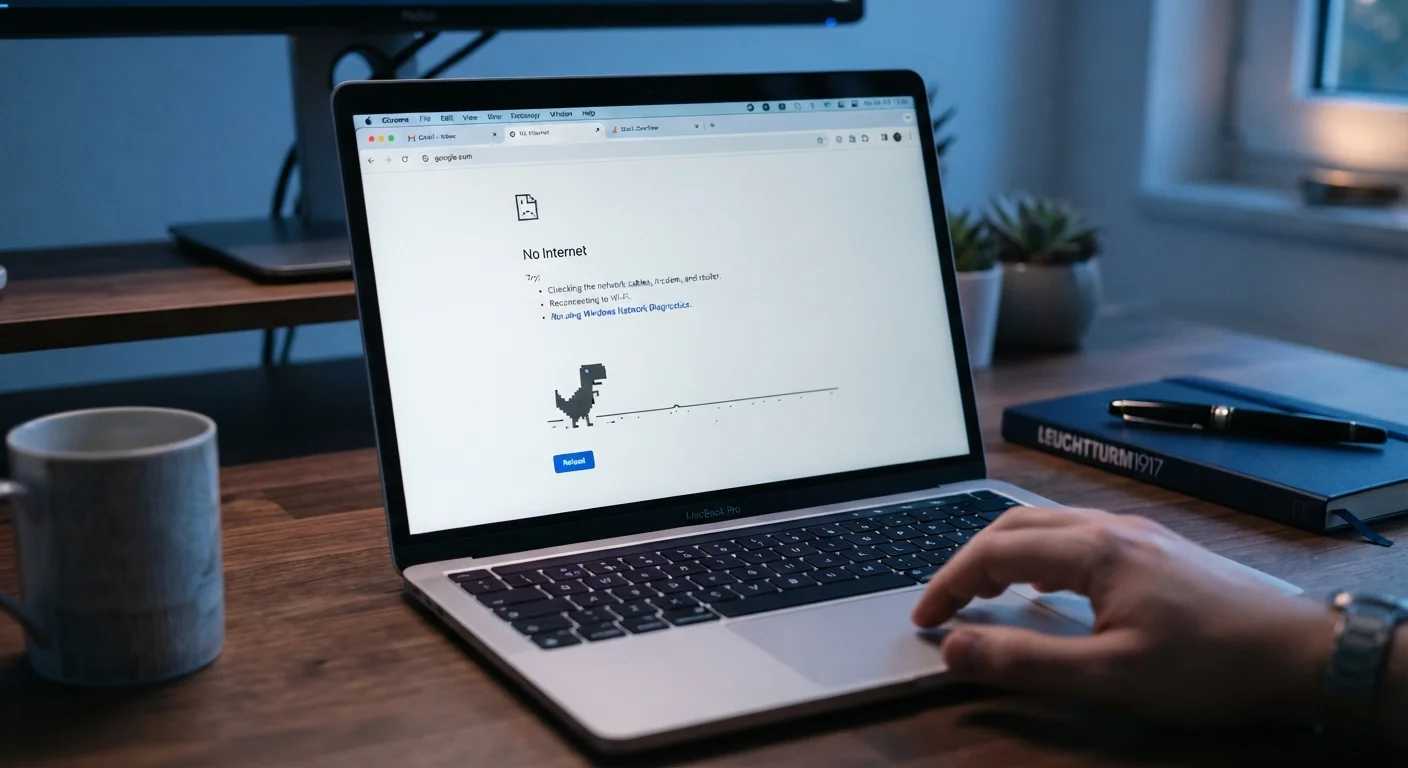
DNS lookup failed because your device has no internet connection at all — not just a name resolution issue. First step: Restart your router and modem (unplug, wait 30 seconds, reconnect). Then confirm other devices on the same network are also affected to determine whether the fault is device-specific or network-wide.
ERR_CONNECTION_TIMED_OUT
Your browser sent a request but received no response within the allowed time window. The server may be unreachable, overloaded, or your connection is too slow or intermittent. First step: Try another website to isolate whether the issue is site-specific. If all sites time out, check your Wi-Fi signal strength or run a speed test from a second device.
ERR_NAME_NOT_RESOLVED
Functionally similar to DNS_PROBE_FINISHED_NXDOMAIN — the hostname could not be translated to an IP address. First step: Confirm your DNS server settings. Switching temporarily to a public DNS (such as those offered by your operating system's network settings) can confirm whether your ISP's DNS is at fault.
OS-Level and IP Address Errors
These messages appear in your operating system's network status panel or notification area and indicate problems below the browser layer.
Limited Connectivity / No Internet Access
Your device is connected to the router but cannot reach the internet. This often means the router itself lost its upstream connection, or your device received an incomplete IP configuration. First step: Check whether the issue appears on other devices. If isolated to one device, release and renew its IP address. On Windows: ipconfig /release followed by ipconfig /renew. On Mac: go to System Settings → Network → your connection → Renew DHCP Lease. For a broader discussion of this exact symptom, see when your device says connected but nothing loads.
DHCP Timeout / Failed to Obtain IP Address
Your device attempted to request an IP address automatically from the router's DHCP server but received no response. First step: Restart the router. If the problem persists on a single device, try forgetting the Wi-Fi network and reconnecting, or temporarily assign a static IP address manually.
169.254.x.x Address (APIPA)
An address in this range — called an Automatic Private IP Addressing (APIPA) address — means your device gave up waiting for a DHCP response and assigned itself a fallback address. Devices on APIPA addresses cannot communicate with the internet. First step: Same as DHCP Timeout above. This address is a reliable indicator that the DHCP handshake never completed.
Network Adapter Not Found / Disabled
Your operating system cannot detect an active network adapter. This may be a driver issue or a hardware fault. First step: Open Device Manager (Windows) or System Information (Mac) to confirm the adapter appears and is enabled. If the adapter shows a warning icon, consult our guide to driver problems for next steps.
Understanding these error patterns puts you in a much stronger position before any call to your provider. For a broader foundation in how home networks function, the home networking overview explains the underlying infrastructure these errors relate to.
When the Same Error Appears on Every Device
If all devices on your network show connectivity errors simultaneously, the fault almost certainly lies with your router, modem, or your ISP's upstream service — not with any individual device. Skip device-level steps and go straight to restarting your networking hardware. If a restart doesn't help within five minutes, check your ISP's service status page before proceeding further.