

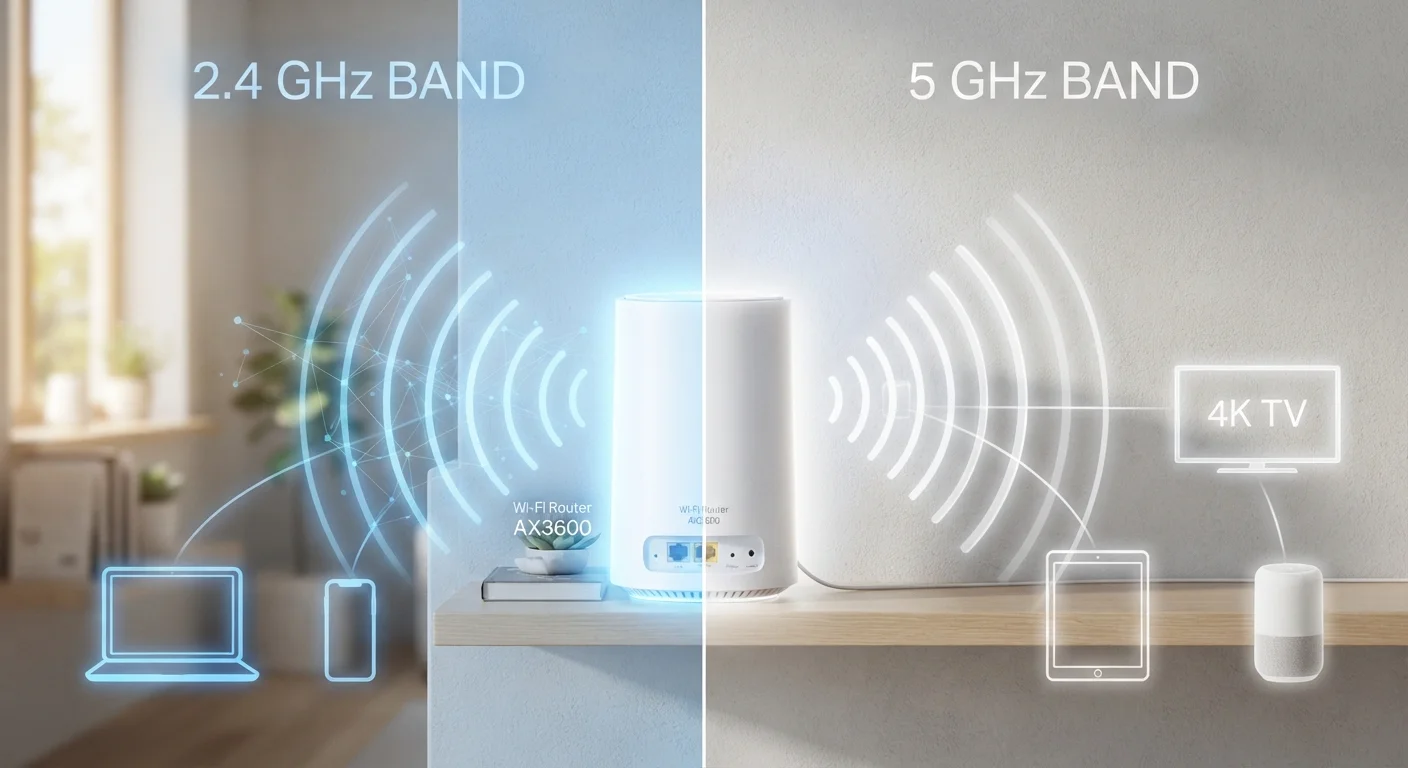
Key Takeaways
- 2.4 GHz travels farther and penetrates walls better, but offers slower speeds and more interference.
- 5 GHz delivers significantly faster throughput but struggles to reach devices across multiple walls or floors.
- Smart home sensors and IoT devices generally work best on 2.4 GHz due to its wider range.
- Streaming devices, gaming consoles, and laptops near the router benefit most from 5 GHz.
- Dual-band routers let you assign devices to the optimal band rather than relying on auto-switching.
Option A
2.4 GHz
The long-range, obstacle-friendly workhorse.
Best for: Devices far from the router or separated by walls, floors, and other obstructions.
Option B
5 GHz
The fast, low-congestion band for nearby devices.
Best for: Speed-hungry devices in the same room or within close range of the router.
If your device is in a distant room or basement
2.4 GHz
Its longer wavelength passes through building materials more effectively, maintaining a usable signal where 5 GHz would drop out entirely.
If you're streaming 4K video or gaming in the same room as your router
5 GHz
5 GHz offers much higher maximum throughput and less channel congestion, reducing buffering and latency during demanding tasks.
If you're setting up smart home or IoT sensors throughout your home
2.4 GHz
Most smart home devices are designed for 2.4 GHz, and the wider coverage ensures reliable connectivity across your entire floor plan.
If your neighborhood has many competing Wi-Fi networks
5 GHz
5 GHz has more available channels and far less interference from neighboring networks, which typically crowd the 2.4 GHz spectrum.
What the Two Bands Actually Mean
Every Wi-Fi router broadcasts radio signals at a specific frequency — either 2.4 gigahertz (GHz) or 5 GHz. Think of these as two different lanes on the same road. They carry data using the same underlying Wi-Fi protocols, but they behave very differently depending on distance, obstructions, and how many other devices are using the same lane.
The 2.4 GHz band uses a lower frequency, which gives its signal a longer wavelength. That longer wavelength is better at bending around and passing through solid objects like drywall, wooden floors, and furniture. The trade-off is that it transmits data more slowly and is shared by a wide range of household devices — microwaves, baby monitors, and neighboring Wi-Fi networks all compete in the same frequency space.
The 5 GHz band uses a higher frequency, which means it can carry substantially more data per second. However, higher-frequency signals lose energy faster over distance and absorb into dense materials more readily. Moving just one room away can noticeably reduce signal strength.
For a deeper look at how a third band — 6 GHz — compares, see our full three-band comparison.
| Criterion | 2.4 GHz | 5 GHz |
|---|---|---|
| Range | Longer — better across floors | Shorter — weakens quickly |
| Maximum throughput | Lower (up to ~600 Mbps) | Higher (up to several Gbps) |
| Wall/obstacle penetration | Strong | Weaker — absorbed by dense materials |
| Channel congestion | High — many competing devices | Low — more available channels |
| Latency | Slightly higher | Slightly lower when in range |
| IoT / smart home compatibility | Near-universal support | Limited — many devices require 2.4 GHz |
| Ideal room placement | Distant rooms, basements, garages | Same room or adjacent to router |
Matching Each Band to Each Room
The most practical approach is to stop thinking about bands in the abstract and start thinking about where your devices physically live.
3×
Speed advantage of 5 GHz over 2.4 GHz
Under comparable real-world conditions, 5 GHz Wi-Fi 5 connections routinely deliver throughput several times higher than 2.4 GHz connections on the same router.
13
Available 5 GHz channels in the US
The 5 GHz band offers up to 13 non-overlapping 20 MHz channels under US FCC rules, compared to just 3 non-overlapping channels on 2.4 GHz.
~45 ft
Typical indoor range drop for 5 GHz
Industry testing generally shows 5 GHz signal strength degrading noticeably beyond roughly 45 feet indoors, particularly through multiple walls.
Rooms close to the router
A home office, living room, or bedroom adjacent to where your router sits is the ideal environment for 5 GHz. Streaming sticks, smart TVs, gaming consoles, and laptops that sit within clear line-of-sight or one thin wall away should be on 5 GHz whenever possible. The throughput gain is real: 5 GHz Wi-Fi 5 (802.11ac) routers can reach theoretical speeds several times higher than 2.4 GHz under similar conditions.
Rooms far from the router or below/above it
A garage, basement, or bedroom on a different floor from your router is where 2.4 GHz earns its keep. Even if performance tops out at lower speeds, a stable, consistent connection beats a fast-but-dropped one. Smart thermostats, security cameras, and door locks installed throughout your home belong on 2.4 GHz for this reason.
Kitchens and utility areas
Kitchens are uniquely problematic for 2.4 GHz: microwave ovens operate at nearly the same frequency and can cause brief but real interference. If your router is in or near the kitchen, consider placing nearby tablets or phones on 5 GHz. Appliances like smart fridges or washing machines that only support 2.4 GHz will simply need to tolerate occasional interference — that's a hardware limitation, not a configuration error.
If coverage gaps persist no matter which band you use, the root issue may be router placement. Optimizing router placement often resolves weak signal problems before you resort to additional hardware.
How to Connect Devices to the Right Band
Most modern routers broadcast both bands under a single combined network name (SSID) and use band steering — an automatic process that attempts to shift devices to whichever band the router thinks is better. Band steering is convenient but imperfect. A device sitting just inside 5 GHz range may get steered there even though 2.4 GHz would give it a more stable connection through a particular wall.
For more control, log in to your router's admin interface (typically at 192.168.1.1 or 192.168.0.1 in a browser) and split the two bands into separate SSIDs — for example, HomeNetwork_2G and HomeNetwork_5G. Once separated, you can manually connect each device to its preferred band from the device's Wi-Fi settings.
Steps to manually assign a device:
- Open your router's admin panel and navigate to the wireless settings section.
- Give the 2.4 GHz and 5 GHz networks distinct names if they share one.
- On the device you want to assign, open Wi-Fi settings and select the appropriate network name.
- Save the connection — most devices will remember and reconnect to that band automatically.
If you have many devices and find individual assignment tedious, a mesh Wi-Fi system with dedicated backhaul can automate band management more reliably than a single router's steering algorithm. Comparing a single router to a mesh network can help you decide whether the upgrade makes sense for your home.