

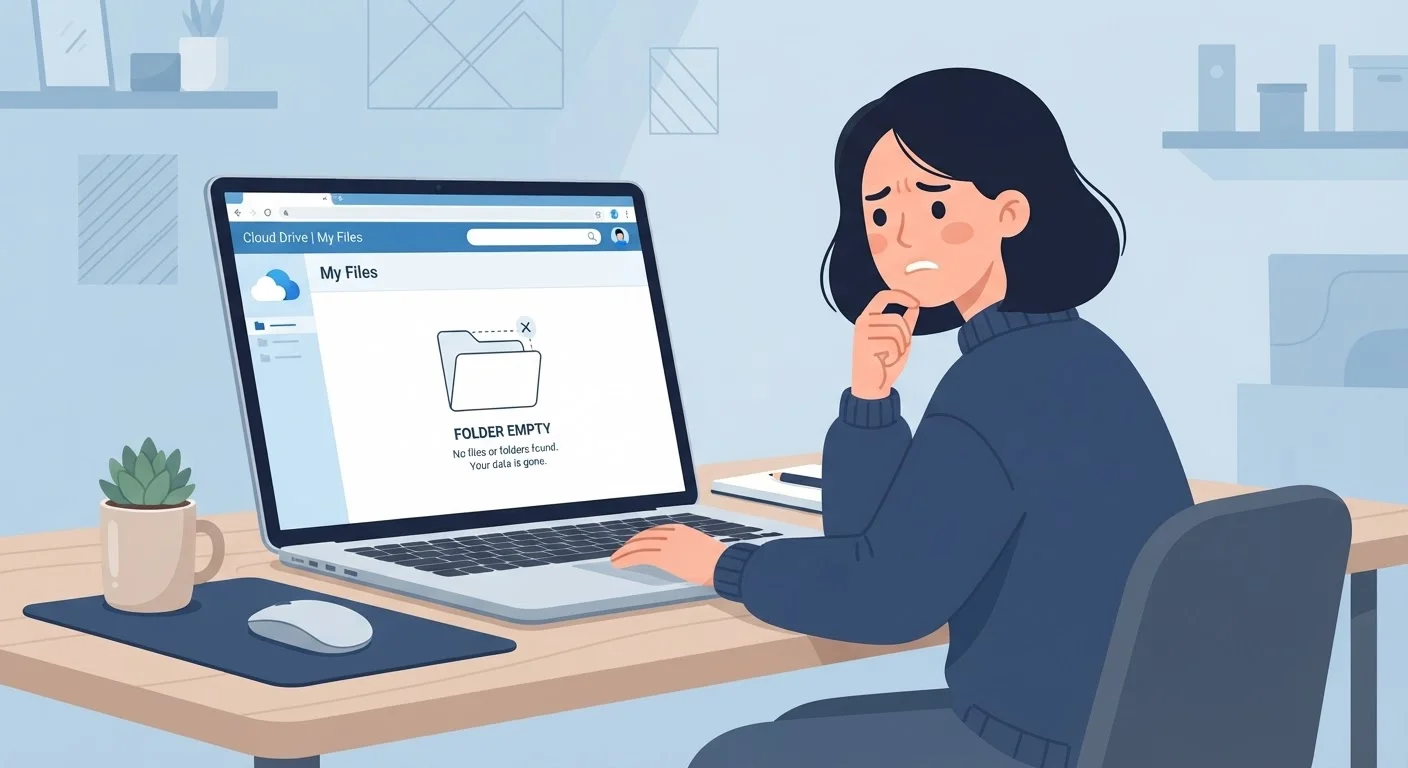
Key Takeaways
- Cloud providers typically delete your files within days to months after you cancel or downgrade a paid plan.
- Downgrading to a free tier often triggers immediate data access restrictions if you exceed the free storage limit.
- Always download and back up your files before cancelling or changing any cloud storage subscription.
- Deletion policies vary significantly between providers — read the terms before you commit to a plan.
- A local or secondary cloud backup is your safest protection against losing files to account changes.
The Disappearing Files Problem Nobody Warns You About
You cancel a cloud storage subscription — maybe the price went up, maybe you found a better deal — and a few weeks later you realize entire folders are gone. Photos, work documents, personal records: vanished. This is not a glitch. It is exactly what most cloud providers' terms of service say will happen.
Understanding why this occurs requires knowing a little about how cloud storage works under the hood. When you upload files, they are stored on the provider's servers, not your device. The subscription fee pays for that server space. Cancel the subscription, and the provider has no contractual obligation to keep holding your data — or to keep it accessible. To learn more about what physically happens to files when you upload them, see our explainer on how cloud storage actually works.
The mistakes below are common, avoidable, and often costly. Recognizing them is the first step to protecting yourself.
Cancelling a paid plan without downloading files first.
Why it happens: Most people assume files remain accessible after cancellation, at least temporarily, the same way email or a website might. In reality, many providers start a deletion countdown immediately upon cancellation.
Downgrading to a free tier without checking how much storage you currently use.
Why it happens: A free tier sounds like a safe middle ground — you keep the account, just pay nothing. But free tiers typically cap storage at a fraction of paid limits, and if your existing files exceed that cap, access is blocked or deletion is scheduled.
Relying on a single cloud account as the only copy of important files.
Why it happens: Cloud storage feels permanent and reliable, so many users stop thinking of it as one layer in a backup strategy and start treating it as the only layer. Subscription changes, account lockouts, or even provider outages can then cause irreversible loss.
Not reading the provider's data retention policy before cancelling.
Why it happens: Terms of service are long and dense, and most people skip them. Retention windows vary widely: some providers give 30 days, others 90, and some delete data almost immediately after a billing cycle ends.
Assuming a shared family or team plan protects individual files if one member's account changes.
Why it happens: On shared plans, it is easy to assume someone else is managing the account and that your files are tied to your personal login. In practice, files stored in a shared plan may belong to the account owner, not to individual members.
How to Build a Backup Habit Before You Need It
The most reliable protection against data loss from subscription changes is a consistent backup practice. This means keeping at least one copy of important files somewhere other than a single cloud account.
30–90 days
Typical data retention window after cancellation
Most major cloud storage providers publish a grace period between 30 and 90 days before permanently deleting files, though this window varies and is not universal.
68%
US adults who store personal files only in the cloud
A Backblaze consumer survey found that a majority of respondents had no local backup copy of at least some files they considered important.
Practically, this can mean periodically downloading critical files to an external hard drive, using a second cloud service as a redundant backup, or enabling your device's local sync so files also exist on your hardware. The 3-2-1 rule is a widely cited guideline in data management circles: keep three copies of your data, on two different types of media, with one copy stored off-site or in a separate cloud account.
Before making any subscription change, treat it as a trigger event: download everything you cannot afford to lose. Most cloud services offer a bulk-download or export tool — find it before you need it. Our article on cloud account security habits also covers practices that reduce accidental loss alongside unauthorized access risks.
Free Tiers Are Not a Safe Fallback
Downgrading to a free plan does not guarantee your files survive the transition. If your stored data exceeds the free storage limit, many providers will restrict access or schedule deletion without prominent notice. Always verify how much storage your files occupy before assuming a free tier will hold them.
Finally, be aware that free tiers are not a safe fallback by default. Storage limits, feature restrictions, and their own retention policies mean free plans carry their own risks — explore those trade-offs in our piece on the hidden costs of free cloud storage.