

| USB-A max speed (USB 3.2 Gen 2) | Up to 10 Gbps (USB Implementers Forum specification) |
| USB-C power delivery maximum | Up to 240 W (USB PD 3.1) (USB Implementers Forum, 2021 revision) |
| Thunderbolt 4 data speed | Up to 40 Gbps (Intel Thunderbolt 4 specification) |
| HDMI 2.1 max resolution | Up to 10K at 120Hz (HDMI Forum specification) |
| Thunderbolt 4 max display support | Two 4K displays simultaneously (Intel Thunderbolt 4 specification) |
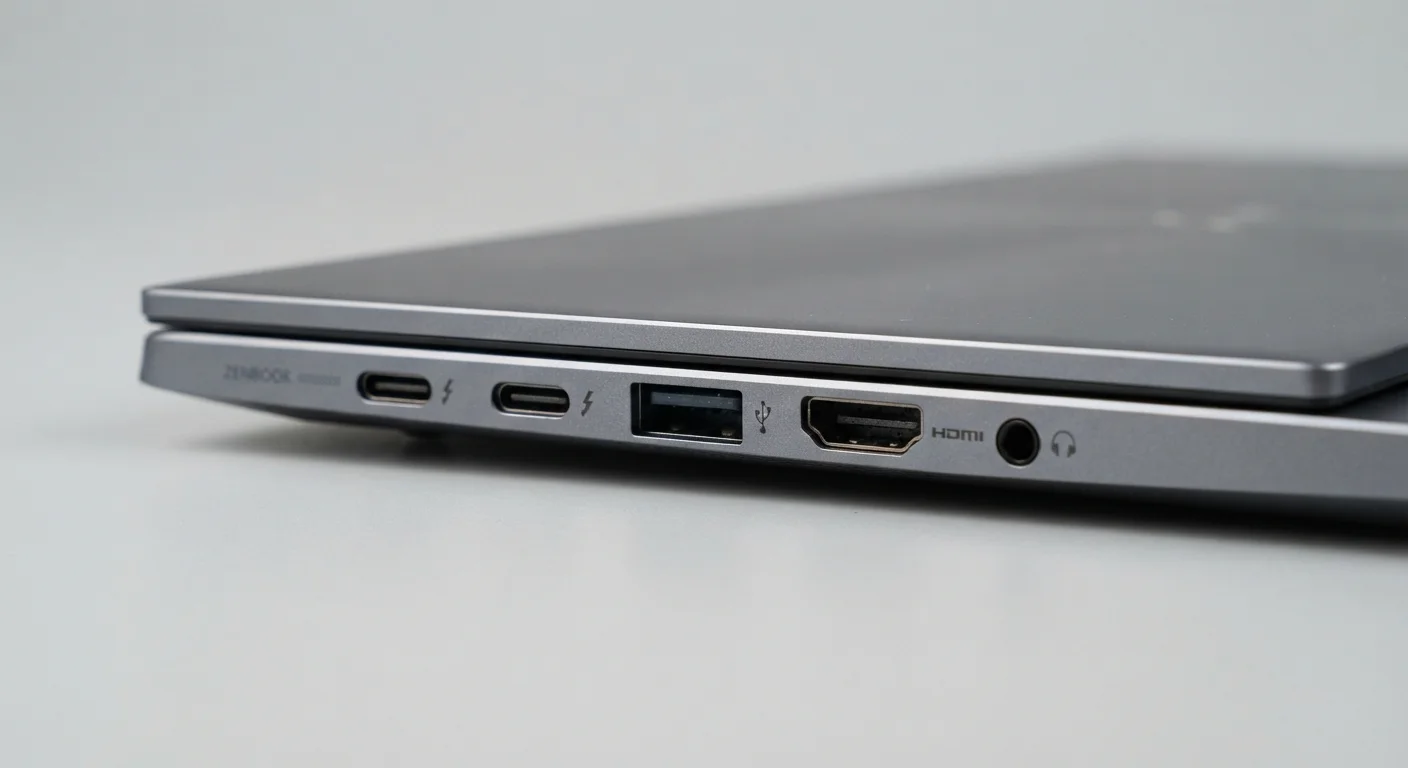
The Ports You'll Find on Most Laptops
Laptop ports are the physical connectors on the edges of your machine that let you attach monitors, drives, cameras, and other devices. Understanding what each one does - and what it cannot do - saves you from buying adapters you didn't expect to need or missing a feature you assumed was there.
USB-A
The rectangular USB connector most people recognize from flash drives and charging cables. It has been the standard for over two decades and is still common on accessories and peripherals.
USB-C
A smaller, oval-shaped USB connector that works in any orientation. Depending on the laptop, a USB-C port may support data transfer, video output, power delivery, or all three simultaneously.
Thunderbolt
A high-speed connection standard developed by Intel that uses the USB-C connector shape but delivers significantly faster data transfer and supports docking stations and external displays. Not every USB-C port is Thunderbolt.
HDMI
High-Definition Multimedia Interface - a standard port for sending audio and video to an external monitor or TV. Full-size HDMI is common on larger laptops; some thinner models use a smaller Mini HDMI variant.
DisplayPort
A video output standard often found on business or professional laptops. It supports high-refresh-rate and high-resolution displays and is common in office monitors and docking stations.
SD Card Reader
A slot that accepts SD memory cards, commonly used in digital cameras and some audio recorders. Useful for photographers who regularly transfer photos without needing a separate card reader dongle.
If you want to understand how wireless connectivity fits alongside these wired options, our plain-language connectivity reference covers Bluetooth and Wi-Fi standards in similar depth.
What Each Port Actually Does
USB-A is the port you've plugged a flash drive into hundreds of times. Most accessories - mice, keyboards, external hard drives - still ship with USB-A cables. Even as thinner laptops drop this port to save space, it remains one of the most practically useful connectors for everyday tasks.
USB-C is increasingly the dominant port on newer laptops, but its capabilities vary widely by laptop. A USB-C port might only transfer data at USB 2.0 speeds, or it might also charge your laptop, drive a 4K monitor, and connect to a docking station - all through the same connector. Check the spec sheet rather than assuming.
USB-C and Thunderbolt Look Identical
Both use the same oval connector shape, which causes significant confusion. A Thunderbolt port will have a small lightning bolt icon beside it; a standard USB-C port will not. If a port lacks that icon, do not assume it supports Thunderbolt features like high-speed docking or dual external displays. Always check the laptop's spec sheet for clarification.
HDMI is the straightforward choice for connecting a laptop to a TV or most consumer monitors. If you're presenting slides on a conference room screen or mirroring your display to a television, HDMI handles it without any driver setup. See our laptop specs decoded guide for how display outputs fit into the broader spec picture.
Thunderbolt ports justify their inclusion on professional machines by supporting external GPU enclosures, multi-display docking stations, and fast external storage - all from one cable. If you edit video, work with large files, or want a single-cable desk setup, Thunderbolt is worth specifically seeking out.
SD card readers are genuinely useful if you shoot with a dedicated camera, but often absent on ultrabooks. An external USB card reader costs very little if you need this occasionally.
| USB-A max speed (USB 3.2 Gen 2) | Up to 10 Gbps (USB Implementers Forum specification) |
| USB-C power delivery maximum | Up to 240 W (USB PD 3.1) (USB Implementers Forum, 2021 revision) |
| Thunderbolt 4 data speed | Up to 40 Gbps (Intel Thunderbolt 4 specification) |
| HDMI 2.1 max resolution | Up to 10K at 120Hz (HDMI Forum specification) |
| Thunderbolt 4 max display support | Two 4K displays simultaneously (Intel Thunderbolt 4 specification) |
Matching Ports to How You Actually Work
Most home users need at least one USB-A port (for older peripherals), HDMI (for a second screen or TV), and a headphone jack. If your laptop charges via USB-C, that same port can often double as a display output with the right cable or adapter, reducing the total number of ports you need.
Power users - video editors, developers running external drives, anyone using a multi-monitor desk setup - benefit meaningfully from Thunderbolt. A single Thunderbolt dock can replace half a dozen individual cables and give you ports your laptop doesn't have natively. For a broader look at how processing power and connectivity work together on desktop machines, see how much desktop power you actually need.
40 Gbps
Thunderbolt 4 peak transfer speed
According to Intel's Thunderbolt 4 specification, this is roughly 8x faster than standard USB 3.2 Gen 1.
100 W
Common USB-C Power Delivery ceiling
Many laptops and chargers support up to 100 W via USB Power Delivery 3.0, enough to charge most consumer laptops.
If a laptop you're considering is thin and has only USB-C ports, factor in the cost of a hub or dock. A quality USB-C hub adds USB-A ports, HDMI, and an SD slot for relatively little, and it travels well. The tradeoff is one more thing to carry and one more cable to manage. Neither choice is wrong - it depends on how and where you work. For more context on how the full spec picture comes together, the first laptop buying guide walks through all the major decisions in one place.