

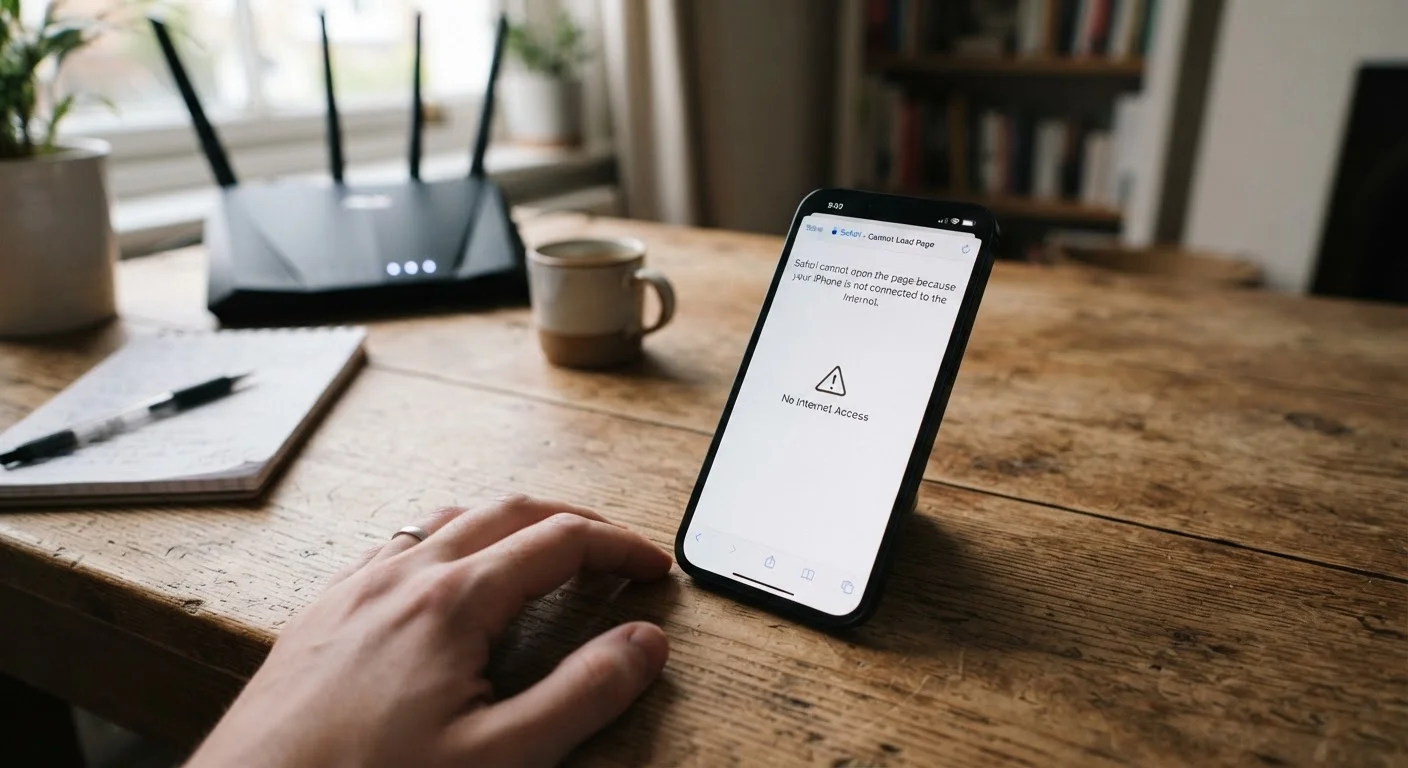
Key Takeaways
- A device showing 'connected' can still lack actual internet access due to router, DNS, or IP address issues.
- Most phantom connectivity problems resolve with a systematic restart of the device and router.
- Forgetting and rejoining the Wi-Fi network clears corrupted connection credentials on the device.
- Switching to a public DNS server like Google's 8.8.8.8 can bypass broken ISP name resolution.
- If other devices on the same network work fine, the problem is isolated to your specific device.
What you will need
Why Your Device Shows Connected but Has No Internet
Your device and your router communicate in layers. The Wi-Fi signal itself — the radio connection your device uses to reach the router — is entirely separate from the router's ability to send traffic out to the internet. When your device reports a successful connection, it has completed the first layer: it's talking to the router. But the router still needs to complete several more steps — assigning an IP address, resolving domain names through DNS, and routing packets through your ISP — before any webpage actually loads.
Any one of these layers can quietly fail while the Wi-Fi indicator remains fully green. Common culprits include a router that has run out of assignable IP addresses, an ISP-side DNS outage, a corrupted network configuration stored on the device, or a router firmware glitch that interrupts outbound traffic. Understanding this distinction helps you target the right fix rather than guessing. For a deeper look at the specific error messages you might see, see our guide to common connection error messages.
Test With Another Device First
Before touching any settings, check whether a second device — a laptop, tablet, or another phone — can load a webpage on the same network. If it can't, the fault almost certainly lies with the router or your ISP, not your device. This one check can save you significant troubleshooting time.
Step-by-Step Fix
Work through the steps below in order. Each one addresses a progressively less common cause, so most readers will resolve the issue before reaching the final step.
What you will need
Confirm the scope — is it your device or the whole network?
Try loading a webpage on a second device connected to the same Wi-Fi. If that device also fails, the problem is with the router or your internet service provider (ISP), not your phone or computer. If the second device works normally, the issue is isolated to your specific device and you can skip ahead to Step 3.
Power-cycle your router and modem
Unplug both your modem and router from the power outlet. Wait a full 60 seconds — not just a few seconds — then plug the modem back in first. Wait for its indicator lights to stabilize (roughly 30–60 seconds), then plug the router back in. Once the router's internet light turns solid, test your connection again.
Restart your device
A standard restart clears temporary network state, refreshes the device's IP address lease (the numerical address your router assigns to your device), and reloads network drivers. Power the device fully off, wait 10 seconds, then power it back on. Reconnect to Wi-Fi and test.
Forget the network and reconnect
On your device, navigate to Wi-Fi settings and select your network name. Choose Forget (iOS) or Forget Network (Android/Windows). Once forgotten, tap the network name again, re-enter your password, and reconnect. This discards any corrupted connection credentials stored on the device.
Switch to a manual DNS server
DNS (Domain Name System) is the service that translates website addresses like example.com into numerical IP addresses your device can route to. When your ISP's DNS servers malfunction, pages fail to load even though the underlying connection is active. In your device's Wi-Fi settings, manually set the DNS to 8.8.8.8 (Google's public DNS primary) and 8.8.4.4 (secondary). On iOS, tap the network name, scroll to DNS, and tap Configure DNS → Manual. On Android, this is typically found under Advanced options for the network.
Reset network settings on your device (last resort)
If all previous steps have failed and only this device is affected, a network settings reset may clear a deeper configuration conflict. On iOS: Settings → General → Transfer or Reset iPhone → Reset → Reset Network Settings. On Android: Settings → General Management → Reset → Reset Network Settings (exact path varies by manufacturer). Re-enter your Wi-Fi password afterward and test the connection.
Don't Skip Restarting the Router
Many users restart only their device and overlook the router entirely. A router that has been running for weeks can exhaust its IP address pool or accumulate firmware errors that prevent internet routing even while broadcasting a valid Wi-Fi signal. A full 60-second power cycle — not just a reboot via the admin panel — clears these states reliably.
Avoid Resetting Network Settings Prematurely
Performing a full network settings reset will erase all saved Wi-Fi passwords, VPN configurations, and Bluetooth pairings on your device. Attempt this only after earlier steps have failed. Make sure you have your Wi-Fi password available before proceeding.
If you've completed all six steps and the problem persists on a single device, contact your device manufacturer's support. If the issue affects every device on the network, contact your ISP — the fault likely lies upstream of your router. For related connectivity problems such as a slow or intermittently dropping signal, see our Wi-Fi troubleshooting guide. For a broader home network diagnostic, our complete home network walkthrough covers routers, modems, and device settings in detail.