

Key Takeaways
- Accessibility features are built into every major smartphone operating system at no extra cost.
- Tools like display zoom, text resizing, and color filters improve usability for nearly any user.
- Gesture shortcuts and voice control can meaningfully speed up everyday smartphone tasks.
- Captions and hearing-related features benefit users in noisy or quiet environments alike.
- Enabling these features does not require any technical expertise or third-party apps.
Built for Some, Useful for Everyone
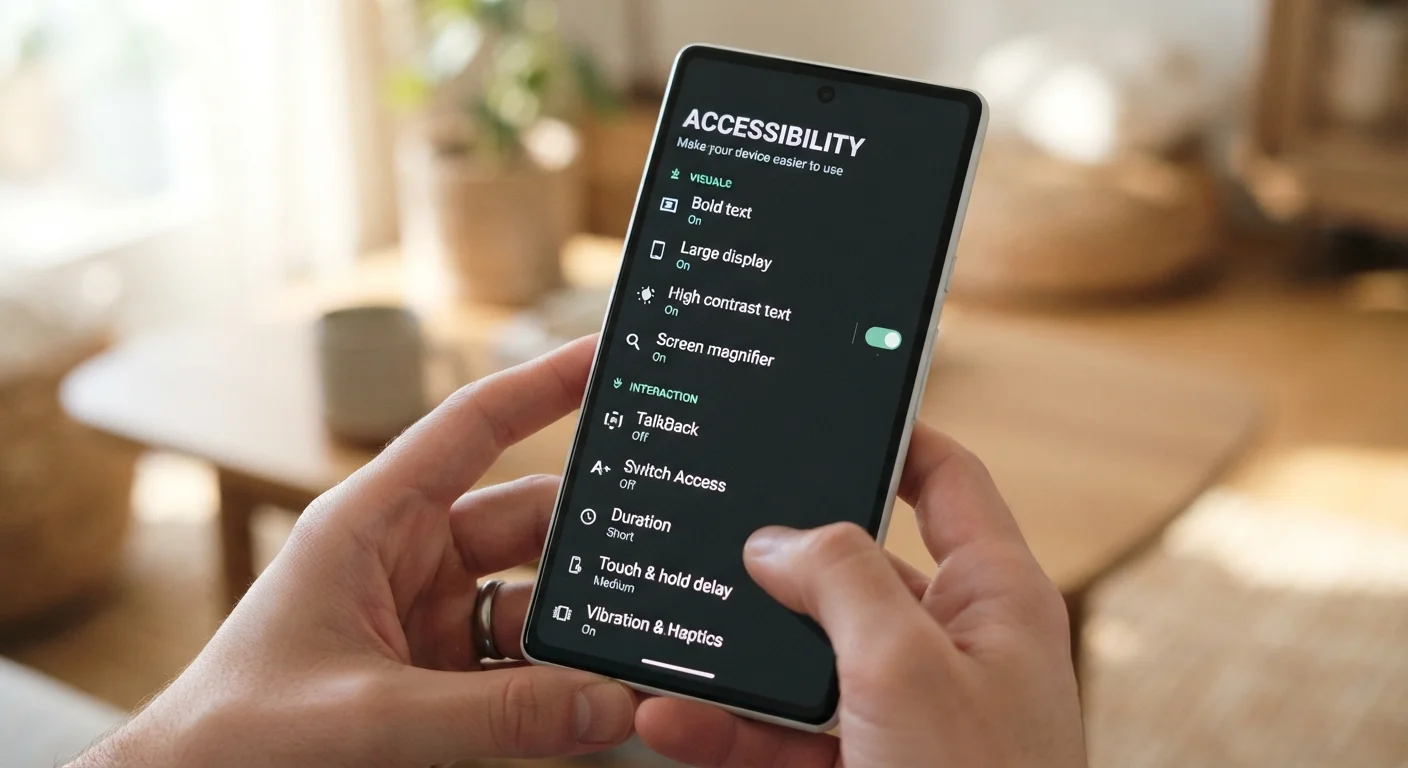
Accessibility features were designed with a specific purpose: to make smartphones usable for people with visual, hearing, motor, or cognitive differences. What's often overlooked is how well many of these tools solve problems that everyday users encounter — small text on a bright screen, hard-to-hear audio in a crowded space, or the awkwardness of navigating a large phone with one hand.
Both Android and iOS surface these settings under dedicated Accessibility menus, and they require no downloads or subscriptions. The features below are worth exploring regardless of whether you have a diagnosed need. If you've ever squinted at your phone in sunlight or struggled to type on a large-screen device, the ergonomic challenges of modern phone sizes that accessibility tools help address are likely already familiar to you.
Display Text Size and Bold Text
Both iOS and Android allow users to increase the default font size system-wide — not just in a single app. This adjustment scales text across menus, notifications, and most apps simultaneously. Bold text is a separate toggle that increases stroke weight without enlarging characters, which can improve legibility on high-resolution screens where thin fonts can appear faint. These settings live under Display or Accessibility depending on the platform, and changes take effect immediately with no restart required.
Scaling system-wide text size takes seconds and immediately reduces eye strain during extended use.
Display Zoom and Magnification
Display Zoom (iOS) and Display Size (Android) scale the entire interface — icons, buttons, and spacing — not just text. This is distinct from browser zoom or pinch-to-zoom within an app. For users with high pixel-density screens that pack enormous detail into small physical areas, a slight upscale can make the interface noticeably more comfortable. Magnification gestures — a triple-tap or pinch shortcut — let you temporarily zoom into any part of the screen without committing to a permanent size change.
Display Zoom scales the full interface, not just text, for a more comfortable experience on dense screens.
Color Filters and Increased Contrast
Color filters were introduced to support users with color vision deficiencies, but they have broader utility. Reducing color saturation or applying a grayscale filter can make a phone genuinely less engaging during designated focus times — a behaviorally significant choice for users trying to limit screen time. High-contrast mode increases the visual distinction between text and background elements, which benefits anyone using their phone in glare-heavy conditions like direct sunlight or highly reflective environments.
Grayscale mode reduces visual stimulation and can support intentional limits on phone engagement time.
Live Captions
Live Captions — available natively on Android (Pixel and many other devices) and iOS — generate real-time on-screen transcriptions of any audio playing through the phone. This includes videos, voice messages, phone calls, and streaming content. For users who are deaf or hard of hearing, this is transformative. For everyone else, it's a practical tool in noise-sensitive environments: watching a video without headphones in a waiting room, or following audio content when background noise makes listening difficult. Accuracy varies with audio quality, but performance on clear speech has improved substantially across recent OS versions.
Live Captions transcribe any phone audio in real time — practical in noisy or quiet public spaces alike.
Back Tap and Custom Gesture Shortcuts
iOS includes a feature called Back Tap, which triggers a configurable action when you double- or triple-tap the back of the device. Actions can include taking a screenshot, opening Control Center, running a Shortcut, or scrolling. Android manufacturers offer similar gesture customizations through their respective settings menus, and Google's Pixel line supports Quick Tap with comparable functionality. These shortcuts reduce the number of on-screen interactions needed for frequent tasks — a meaningful time-saver that originated as a motor accessibility accommodation but works well for any user seeking faster navigation.
Back Tap turns two taps on the phone's rear into a configurable shortcut for any frequent action.
Voice Control and Switch Access
Voice Control on iOS and Voice Access on Android allow complete hands-free navigation — not just voice search, but tapping buttons, scrolling, typing, and editing text using spoken commands. These were designed for users with limited hand mobility, but they're equally useful while cooking, driving (with the phone mounted), or any situation where hands-free operation is preferred. Unlike basic voice assistants, these systems can interact with any element on screen, labeled or not, making them significantly more capable for full-device control.
Voice Control enables complete hands-free device navigation, not just dictation or search queries.
Making These Features Work for You
The best starting point is simply opening your phone's Accessibility settings and browsing the categories — most are self-explanatory and reversible. Pairing accessibility tools with well-chosen apps can extend their usefulness further; the right app categories often complement built-in features rather than duplicate them.
Start With One Feature at a Time
Accessibility menus can look overwhelming at first glance. A practical approach is to pick one category — display, audio, or interaction — and experiment with a single setting before moving on. Most changes are instantly reversible, so there's no risk in exploring. Many users find that even one or two adjustments make a meaningful difference to their daily experience.
Once you've adjusted display and interaction settings, consider how your browser experience stacks up. Features like reading mode and dark mode in mobile browsers pair well with phone-level accessibility changes, creating a more consistent and comfortable experience across apps and the web.