

Key Takeaways
- App permissions grant access to hardware and data on your device — each one carries real privacy implications.
- Many apps request permissions they don't strictly need; you can often deny them without losing core features.
- Both Android and iOS let you review and revoke permissions at any time through device settings.
- High-risk permissions — microphone, camera, contacts, precise location — deserve the most scrutiny before granting.
- Choosing 'While Using' instead of 'Always Allow' limits unnecessary background data collection.
What you will need
Why Permission Prompts Deserve a Closer Look
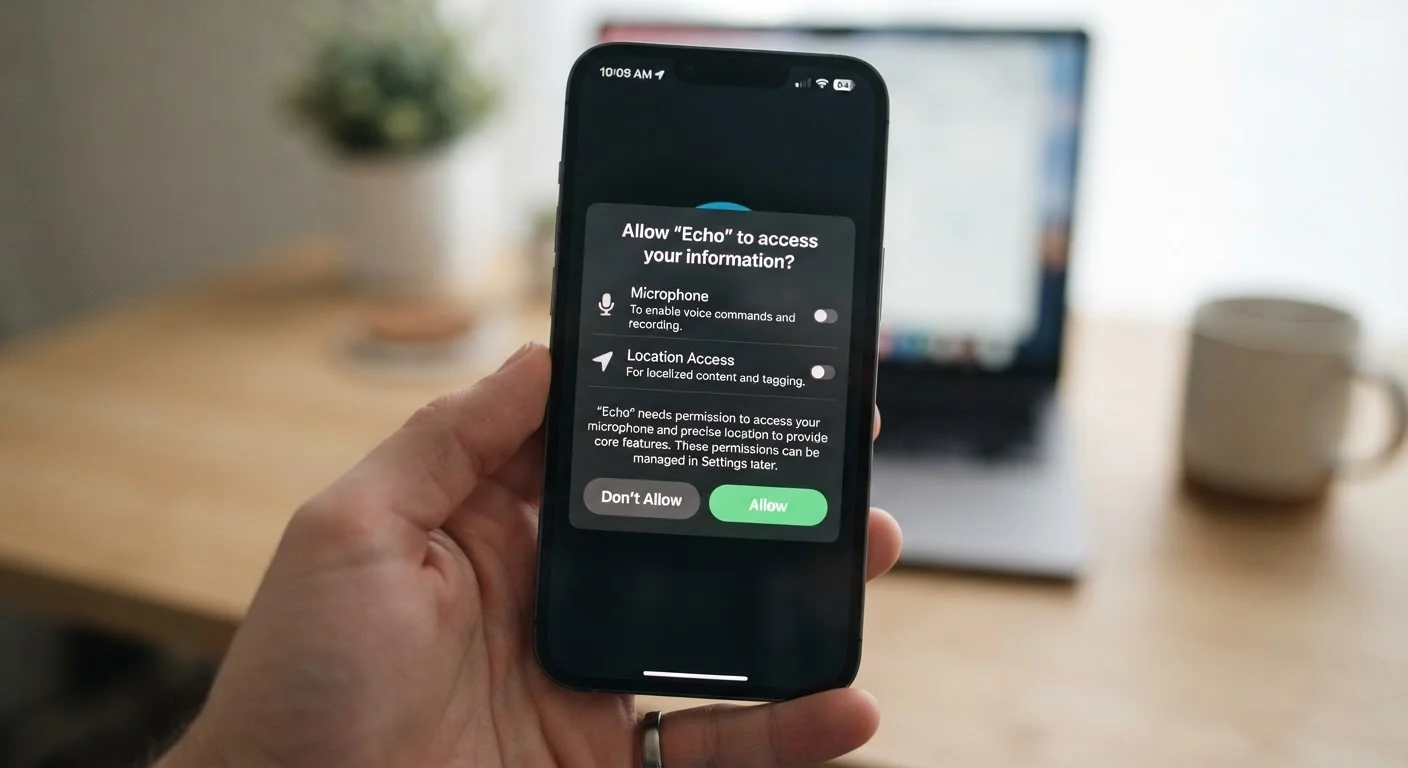
Every time an app asks to access your microphone, location, or contacts, it's requesting a specific key to a specific door on your device. Tapping Allow without reading the prompt is understandable — the dialogs appear at inconvenient moments and are easy to dismiss — but the access you grant persists long after that screen disappears.
Both Android and iOS have made meaningful strides in giving users control. Granular options, one-time permissions, and clearer language in prompts have all improved over the past several major OS versions. Even so, the responsibility for deciding what's reasonable ultimately rests with you.
Understanding the permission landscape is also relevant beyond apps. The same instinct to question what you're granting applies when browsing — see our plain-language breakdown of cookie consent for how that parallel plays out on the web.
Permission Requests Aren't Always Immediate
Some apps don't ask for permissions at install time — they wait until you try to use a specific feature. This is actually good practice, because the request arrives with context. If an app asks for microphone access the first time you try to record a voice note, the purpose is clear. Be more skeptical when requests arrive without any obvious trigger.
The steps below walk you through reading permission requests critically, making smarter in-the-moment decisions, and auditing what you've already granted.
How to Review and Manage App Permissions
What you will need
Understand what common permissions actually access
Before you can make smart decisions at a permission prompt, you need to know what each category touches:
- Location: Your physical position, either precise (GPS-level) or approximate (city/region). Precise location is significantly more sensitive.
- Microphone: Live audio input from your device. Any app with this permission can record audio while it's active.
- Camera: Your rear and front cameras. Necessary for photo/video apps, but a red flag for apps where visual capture has no obvious role.
- Contacts: Names, phone numbers, email addresses, and other data for every person in your address book — including people who haven't agreed to anything.
- Storage / Photos: Access to files, images, and documents stored on your device.
- Bluetooth & Nearby Devices: Used for pairing accessories, but also capable of inferring your location via nearby device signals.
For a deeper look at what these grants mean in practice, see our guide to what app permissions actually mean.
Evaluate whether the permission fits the app's function
Ask one straightforward question: Does this app need this access to do the thing I downloaded it for?
- A navigation app requesting location makes sense. A flashlight app requesting location does not.
- A video-calling app needing the microphone is expected. A recipe app asking for microphone access warrants scrutiny.
- A QR-code scanner needing camera access is logical. A calculator app asking for camera access is a warning sign.
If the permission doesn't map to a clear feature you intend to use, that's a signal to deny it — at least initially. Most apps will continue to work without every permission they request.
Choose the least-permissive option when prompted
Modern iOS and Android both offer granular choices rather than a binary allow/deny:
- iOS: For location, choose While Using the App rather than Always. For photos, Selected Photos restricts access to only what you explicitly pick.
- Android: Options like Only this time, While using the app, or Don't allow are available for sensitive permissions. Prefer Only this time for one-off tasks.
Selecting the most restrictive option that still lets the feature work is the privacy-preserving default.
Audit existing app permissions on your device
Permissions granted months ago are easy to forget. A periodic audit catches access you no longer need to extend.
On iPhone/iPad: Go to Settings → Privacy & Security. Tap any category (Location Services, Microphone, Camera, Contacts, etc.) to see every app that has requested it and what level of access it holds.
On Android: Go to Settings → Apps, select an app, then tap Permissions. Or go to Settings → Privacy → Permission Manager to browse by permission type across all apps.
Revoke any permission that no longer makes sense given how you actually use the app today.
[tool_cards]Make a final decision and adjust as needed
After reviewing each permission against the app's purpose, take action:
- Revoke permissions that don't align with the app's core function.
- Downgrade 'Always' location permissions to 'While Using' where you can.
- For apps you rarely open, consider removing them entirely rather than maintaining their access indefinitely.
Before installing new apps going forward, our pre-install checklist walks through the questions worth asking before granting any access at all.
Contacts Access Affects Others, Not Just You
When you grant an app access to your contacts, you're sharing the personal data of every person in your address book — people who have never agreed to anything and may not even know this app exists on your phone. This permission deserves especially careful consideration. Grant it only to apps where syncing contacts is a feature you actively intend to use.
Managing permissions isn't a one-time task. As apps update and your usage patterns change, the access you granted at install time may no longer reflect what's actually appropriate. Staying on top of your permissions is a low-effort habit with a meaningful impact on your privacy. For more context on what you're actually agreeing to when you tap Allow, see our detailed breakdown of app permission agreements.
When Something Feels Off
Occasionally, an app will request a permission that seems entirely disconnected from its stated purpose. Trust that instinct. While there are sometimes non-obvious technical reasons for unusual requests — Bluetooth for proximity features, for example — an app that can't explain why it needs a sensitive permission in plain terms within the prompt or its privacy policy is a legitimate concern.
Broad Permissions Can Outlast Your Memory
Permissions granted during initial setup don't expire on their own. An app you installed two years ago may still hold access to your contacts, location, or microphone even if you've barely opened it since. Regular audits are the only reliable way to keep your exposure in check.
If an app stops functioning after you deny a permission, that's worth noting — but it doesn't automatically mean you were wrong to deny it. Some apps enforce permission requirements that go beyond what's strictly necessary. In those cases, you'll need to weigh whether the app's value justifies the access it demands. For a broader framework on evaluating any new app before it lands on your device, the pre-install checklist is a useful starting point.